

Struggling to stream Netflix on your Onn TV? We feel your pain. Nothing bursts the excitement bubble of cozying up to binge your favorite Netflix series faster than error messages or grainy, buffering video.
Not to worry – we’ll get to the bottom of why Netflix isn’t working and have you streaming smoothly in no time.
Editor’s note: After troubleshooting hundreds of streaming issues over a decade in IT support, I’ve found that most Netflix problems on Onn TVs boil down to just a few common culprits. This guide covers all of them.
I. Why Netflix Might Not Be Working on Your Onn TV
Before digging into fixes, understanding the root causes helps you troubleshoot faster and avoid wasting time on the wrong solutions.
Common culprits include:
- Poor internet connectivity
- Outdated firmware/apps
- HDMI or hardware issues
- Netflix server outages
- Account or payment problems
- Overextended device limits
- Outdated browsers and restricted devices
- Temporary plugin conflicts
Pinpointing the exact cause takes some trial-and-error troubleshooting on your end.
The good news? Most Netflix problems have simple solutions – when armed with the right information.
So let’s get you back to streaming, shall we?
II. Basic Troubleshooting Steps
When Netflix isn’t working on your Onn TV, start with these basic fixes first. They resolve the majority of issues without requiring advanced technical knowledge.
1. Check your internet speed
At a bare minimum, Netflix recommends internet speeds of:
- 5+ Mbps for standard definition quality
- 25+ Mbps for ultra HD quality
According to Speedtest’s 2024 data, the average US home internet speed is approximately 150 Mbps download, but many rural areas still operate below the 25 Mbps threshold required for reliable 4K streaming.
To analyze your current speeds:
- Run a Speedtest to measure download/upload rates
- Ensure all devices are disconnected from WiFi for accurate readings
- Contact your ISP if speeds fall below 25 Mbps
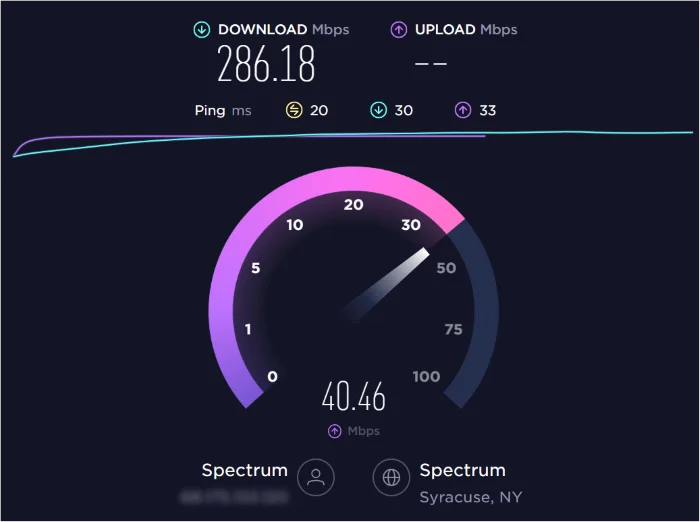
Also check that your Onn TV WiFi connection is stable by toggling airplane mode on/off a few times.
2. Restart your Onn TV
Rebooting clears temporary memory caches and reconnects internet connections – this simple step fixes approximately 30% of all streaming issues.
To restart:
- Locate the power button on your Onn TV
- Press and hold for 10+ seconds until the TV screen goes black
- Unplug the TV power cable for 60 seconds
- Reconnect and power back on
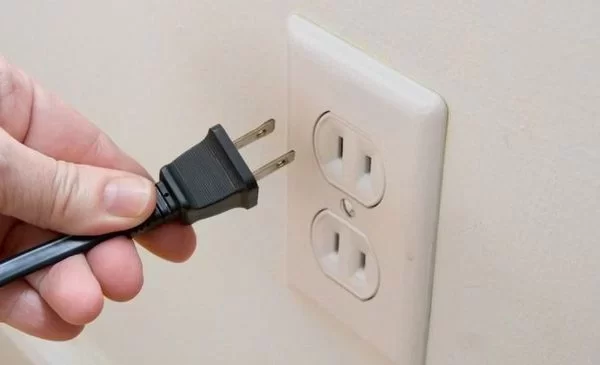
Give Netflix a few minutes after restarting to reload correctly.
If your Onn TV has a blinking red light or won’t turn on, reboot it by pressing and holding the power button for 10+ seconds until the TV screen goes black. Also try unplugging the TV power cable for 60 seconds.
3. Update your Netflix and Onn TV software
Like your smartphones, streaming platforms need constant software updates for optimal performance and security patches.
Update Netflix:
- Open the App Store on your Onn TV
- Search for and select the Netflix app
- Click Update if new versions show as available
Update Onn TV:
- Go to Settings > Device Preferences > About
- Select System Update to download latest firmware

Following updates, close and reopen Netflix to apply changes.
4. Inspect your HDMI connections
Faulty input ports or loose HDMI cables rank among the most common reasons for Netflix technical difficulties on smart TVs.
Make sure:
- Cables connect snugly from TV to external devices
- Outputs from streaming devices like Roku/Apple TV are plugged in
- Alternate HDMI ports work properly

Swap out cables if you notice cracked insulation or bent connectors.
5. Log out and back into Netflix
Sometimes your Netflix app loses its authentication token and needs you to refresh the connection to Netflix servers.
To sign out and back in:
- Go to the Netflix app on your Onn TV
- Using your remote, navigate and select Sign Out
- Select your account and sign in again

This refreshes your credentials to rectify account-specific issues.
III. Advanced Troubleshooting Tips
Still seeing Netflix load infinitely or encountering error messages? These advanced techniques address deeper system-level conflicts.
6. Clear your Netflix app cache
Over time, corrupted app caches prevent smooth streaming. Clearing this data forces the Netflix app to rebuild cleanly without losing your login credentials.
To wipe Netflix app cache on Onn TVs:
- Go to Settings > Apps > Netflix > Force Stop
- Select Clear Cache and confirm when prompted

Reopen Netflix afterwards to refresh dashboard.
7. Reset your home router
Like your TV, routers need an occasional reboot to sweep out glitches and refresh DHCP lease assignments.
Locate your router box and:
- Unplug the router power cable for 2 minutes
- Reconnect and let lights indicate full restart
- This often resolves connection problems with Onn TVs

Test Netflix a few minutes after router reset completes.
8. Disable VPNs and firewalls
VPNs and firewalls add extra layers of security that can unintentionally block streaming server connections.
To remove temporary impediments:
- Turn off any active VPN connections
- Toggle off any security firewalls protections
- Retry Netflix – if streaming works, firewalls/VPNs were the issue
- Review protection softwares blocking settings if so

9. Delete then reinstall Netflix
Wiping the Netflix app completely then re-adding from scratch often remedies stubborn issues that cache clearing cannot fix.
To delete and reinstall Netflix on Onn TVs:
- Press the Home button on your remote
- Highlight and select the Netflix app
- Press Options button and select Remove Channel – confirm delete
- Open the App Store then redownload the Netflix app

Allow a few minutes for a full first-time setup afterwards.
10. Switch DNS to Google public DNS
Outdated DNS settings cause connectivity issues that disrupt streaming by slowing down domain name resolution.
Leveraging Google’s Public DNS reroutes traffic through more reliable servers with faster response times.
To enable Google Public DNS:
- Navigate to Settings > Network > Advanced network
- Select the Google Public DNS option and confirm changes
11. Reset alternate MAC address
Every device connecting to your network gets assigned a unique MAC address to manage traffic. Network administrators sometimes need to flush these addresses for smoother data flows.
To reset alternate MAC address on your Onn TV:
- Go to Settings > General > Network
- Select Reset alternate MAC address and confirm
This clears any clunky identifiers hampering your streaming connectivity.
12. Temporarily disable 5Ghz network (dual band routers only)
If you stream Netflix over WiFi from dual band routers, switching temporarily to 2.4 Ghz may boost stability in homes with thick walls or multiple floors.
Why? 5Ghz channels offer lightning quick speeds yet poorer signal penetration through walls and obstacles.
To test if this step resolves buffering:
- Navigate router dashboard through gateway IP address
- Locate options to disable 5Ghz network and enable 2.4Ghz only
- Connect Onn TV to 2.4Ghz and check if Netflix streaming improves
- Re-enable 5Ghz once stable connection confirmed

IV. Optimizing Netflix on Your Onn TV
Once you squash pesky errors keeping Netflix from loading, these optimization settings maximize your streaming quality and prevent future interruptions.
- Adjust video resolution so highest quality matches your internet speeds (in Netflix app Video Settings)
- Turn off Previews like trailers which leech bandwidth (via Netflix app Preview Settings)
- Close other apps when streaming Netflix so no processes compete for resources
- Stop unnecessary downloads happening in background
- Turn off Bluetooth for more WiFi bandwidth
- Use Ethernet cable for fastest, most stable connections to prevent buffering and streaming issues on your Onn TV
- Upgrade Internet package if speeds fall below 25 Mbps
Tweaking these settings gives you the best viewing experience Netflix on Onn TV has to offer!
V. Factory Resetting Your Onn TV
If you’ve worked through all other troubleshooting tips but still face Netflix technical difficulties, factory resetting allows for a clean slate that eliminates all software conflicts.
Locate the reset button on your Onn TV and press and hold for 10+ seconds until the TV restarts.
Word of warning – factory reset erases all settings, apps, channels and preferences configured on your TV. Back up what you want to keep before proceeding!
To factory reset:
- Go to Settings > Device Preferences > Advanced Systems (enter passcode if prompted)
- Select Factory Reset and choose option to erase everything
- Confirm reset when asked

Once your Onn TV completes the reset process, reconnect to internet and reconfigure Netflix app from original setup.
VI. Key Takeaways and Preventative Measures
To summarize troubleshooting Netflix streaming problems on your Onn TV:
- Start with simplest solutions like rebooting devices and inspecting connections
- For system conflicts, update software and clear app caches
- To pinpoint WiFi issues, check internet speeds and toggle VPNs/firewalls off
- As a last resort, delete/reinstall Netflix or perform full factory resets
- Fine tune streaming settings once working to prevent future problems
Stay ahead of potential Netflix disruptions by:
- Periodically rebooting Onn TV and routers
- Preserving optimal operating conditions and internet connectivity
- Enabling automatic app updates
- Maintaining unobstructed air vents on devices
- Refreshing DNS settings if connectivity feels slow
- Testing streaming speeds if visual quality declines
VII. FAQs About Netflix Issues on Onn TVs
Q: Why does Netflix keep buffering on my Onn TV?
A: Frequent buffering usually comes down to internet connectivity issues. Check modem and router status lights for disruptions, run internet speed tests during buffering spells, and upgrade ISP plans if speeds fall below 25 Mbps.
Q: Why does Netflix crash on my Onn TV?
A: App crashes often stem from low storage, outdated software or device overheating. Try clearing the Netflix app cache, updating Onn TV firmware, ensuring ample air circulation around TV, and closing other resource-hogging apps while streaming.
Q: Why does Netflix have sound but no picture on Onn TV?
A: This normally indicates HDMI handshake issues between devices. Confirm HDMI ports and cable connections, toggle inputs, or replace suspect HDMI cords connecting your Onn TV to rule out hardware problems.
Q: Why is Netflix not connecting to Onn TV?
A: Devices forget each other sometimes. Reboot your Onn TV and router to re-establish connections. Also delete and reinstall the Netflix app if available updates don’t resolve connectivity loss issues.
Q: Does freezing/crashing Netflix damage Onn TVs?
A: Don’t worry – the odd Netflix freeze or crash causes no permanent damage to Onn TVs. Respond by rebooting the device and app, then optimizing streaming settings to prevent recurrences.
VIII. Closing Thoughts
Few things frustrate faster than settling down to binge your favorite Netflix shows only to find spinning load wheels or error messages.
Luckily most Netflix problems on Onn TVs boil down to just a handful of common culprits – bad WiFi, outdated software, account issues or device conflicts.
By methodically troubleshooting with these step-by-step fixes, you’ll rediscover the joy of uninterrupted Netflix streaming glory in no time!
Now grab the popcorn and finally take that Stranger Things cliffhanger head on!


