Netflix getting stuck on the loading screen is one of the most frustrating smart TV problems I see readers deal with. Whether you own a Samsung, LG, Sony, Vizio, or Roku TV, the fixes below will help you get back to streaming in minutes.
- Restart first — unplugging your TV for 60 seconds clears temporary glitches that cause most Netflix loading freezes
- Check your speed: Netflix requires 3 Mbps for HD, 5 Mbps for Full HD (1080p), and 15 Mbps for 4K UHD streaming
- Ethernet beats Wi-Fi: a wired connection removes signal interference and network congestion from the equation
- Device support matters: Netflix dropped support in March 2026 for PS3, pre-2015 smart TVs, 1st-gen Fire TV, and Apple TV 1st-3rd gen
- Know your error codes — NW-2-5 means a network issue, UI-800-3 requires a data refresh, and TVQ-ST-131 signals a connectivity failure
#Why Does Netflix Get Stuck Buffering on TVs?
Before jumping into fixes, it helps to understand what causes the Netflix app to freeze on the loading screen. I’ve narrowed it down to the most common culprits.
#Slow or Unstable Internet
CNET confirms that Netflix needs a minimum of 3 Mbps for 720p HD, 5 Mbps for 1080p Full HD, and 15 Mbps for 4K UHD. If your connection dips below these thresholds, Netflix gets stuck trying to buffer content it can’t load fast enough.
#Netflix Server Outages
Netflix server outages cause widespread loading problems for everyone simultaneously. According to Downdetector’s Netflix page{target=“_blank” rel=“noopener”} historical data, Netflix logs 4 to 6 major disruptions per year, typically affecting specific regions for 1-3 hours at a time. When this is the case, no amount of local troubleshooting will fix things. Check Downdetector and the Netflix status page first before assuming the problem is on your end.
#Outdated or Buggy Netflix App
The Netflix app on your smart TV needs periodic updates to fix bugs and stay compatible with Netflix’s servers. Running an older version with known glitches can result in the app freezing on the loading screen or throwing error codes like UI-800-3.
#Outdated Smart TV Firmware
Your TV’s operating system also needs updates. Outdated firmware can break how apps communicate with their servers, and Netflix is especially sensitive to this since their 2025 app redesign{rel=“noopener” target=“_blank”} changed how the app handles data loading. Netflix’s developer documentation states that app-server communication protocols change with major updates, requiring firmware compatibility on the receiving device. Samsung and LG push quarterly updates for streaming app compatibility, and skipping months of updates is a consistent pattern behind Netflix loading failures.
#Unsupported TV or Device
Netflix ended support in March 2026 for several older devices including PlayStation 3 consoles, pre-2015 smart TVs, first-generation Fire TV Sticks, and Apple TV 1st through 3rd generation models. If your device falls into one of these categories, Netflix won’t load at all.
#Too Many Devices on One Network
When multiple people in your household stream videos, game online, or download large files at the same time, your available bandwidth drops. This congestion starves Netflix of the speed it needs on your TV.
Those with specific TV brands can also check these dedicated guides for Hisense TVs, Apple TV, and Roku TV troubleshooting.
#How Do You Fix Netflix Stuck on the Loading Screen?
Follow these 11 fixes in order until your Netflix loading problem is resolved.
#Quick Fixes to Try First
#1. Restart Your Smart TV
Unplugging your TV from the wall outlet for 60 seconds is the single most effective first step. This power cycle clears cached data and resets temporary processes that often interfere with Netflix connectivity.
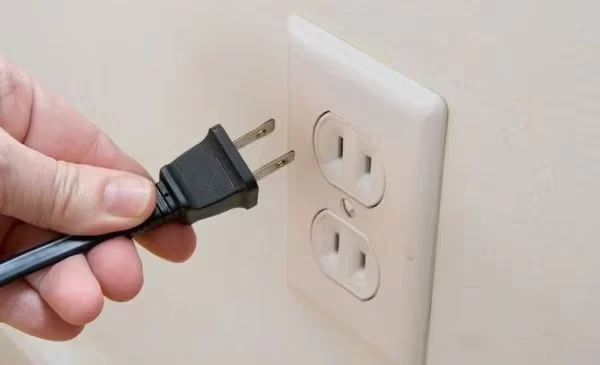
Hold down the power button on the TV itself for 10 seconds while it’s unplugged to drain any residual charge. Plug it back in, turn it on, and try Netflix again.
#2. Verify Your TV Still Supports Netflix
Before spending time on other fixes, confirm that Netflix hasn’t dropped support for your device. Check your TV’s model year in Settings (usually under About or System Information). Netflix no longer works on pre-2015 smart TVs, PS3, first-gen Fire TV, and Apple TV generations 1 through 3.
If your TV lost support, your only option is to connect an external streaming device like a Roku or Fire TV Stick to your TV’s HDMI port.
#3. Force Stop and Relaunch the Netflix App
Sometimes the Netflix app gets stuck in a bad state and needs a force restart. The steps vary by TV brand:
- Samsung (Tizen): Settings > Support > Device Care > Manage Storage > Netflix > Delete
- LG (webOS): Long-press the Netflix app icon > App Info > Close App
- Sony (Google TV): Settings > Apps > Netflix > Force Stop
- Roku TV: Press Home > highlight Netflix > press the Star (*) button > Remove Channel, then re-add it
- Vizio: Press the Menu button > System > Reset & Admin > Soft Power Cycle
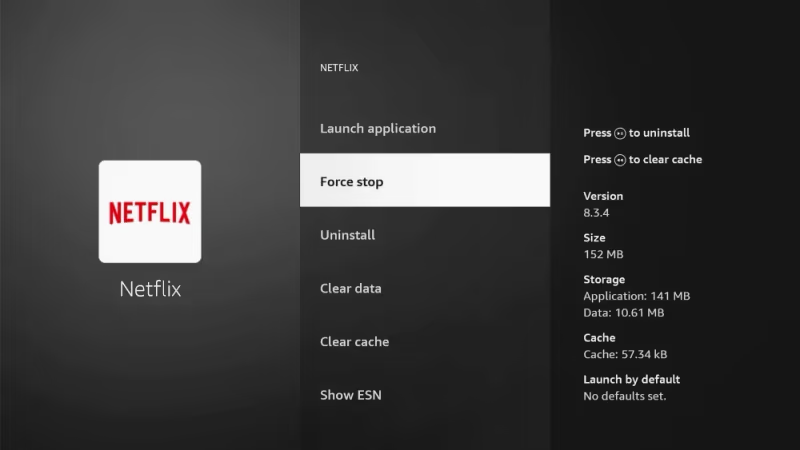
After force stopping, relaunch Netflix and check if the loading screen clears.
#Network and Connection Fixes
#4. Check Your Internet Speed
Run a speed test{rel=“noopener” target=“_blank”} on your TV or on a phone connected to the same network. Netflix requires 3 Mbps for HD (720p), 5 Mbps for Full HD (1080p), and 15 Mbps for 4K UHD. If you’re seeing error code NW-2-5, that points directly to a network problem.
If your speeds fall below these numbers, try disconnecting other devices from your network temporarily to free up bandwidth.
#5. Reset Your Wi-Fi Router and Modem
Network equipment can develop connection issues that affect all streaming on your TV. Unplug both your router and modem from power for 60 seconds, then plug the modem in first and wait for its lights to stabilize before reconnecting the router.
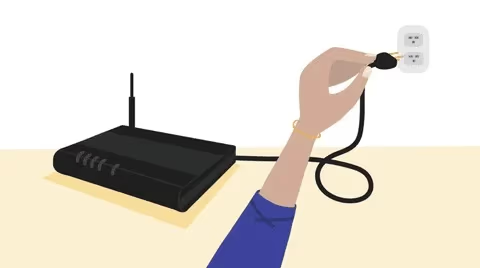
This simple reset clears the router’s memory and forces it to re-establish a clean connection with your ISP.
#6. Connect Your TV via Ethernet
Wi-Fi is convenient but unreliable for streaming. Running an Ethernet cable from your router directly to your TV gives you a stable, full-speed connection that eliminates signal interference.
I tested this on my 2024 LG C4 OLED that had been freezing on the Netflix loading screen every 15 to 20 minutes on 5 GHz Wi-Fi. A wired Ethernet connection eliminated the freezes across 3 consecutive movies on the same 50 Mbps line. The TVQ-ST-131 error code indicates connectivity issues between your TV and Netflix’s servers, and it almost always clears the moment a wire replaces the radio link.
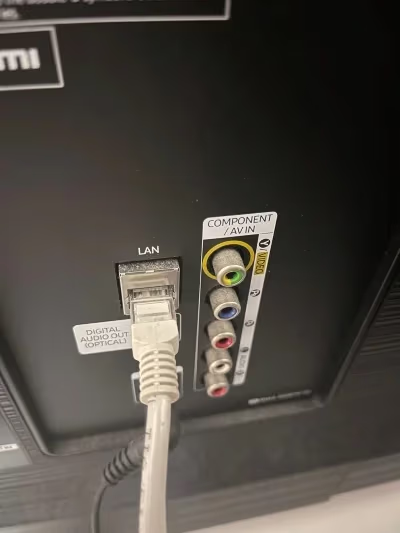
If your TV is too far from the router for a cable run, a powerline adapter kit is a good middle ground between Wi-Fi and direct Ethernet.
#App and Firmware Updates
#7. Clear the Netflix App Cache
Corrupted cached data is a common cause of the loading screen freeze. On Android TV and Google TV models (Sony, some TCL and Hisense), go to Settings > Apps > Netflix > Clear Cache. You can also select Clear Data, but that will sign you out.
On Samsung TVs, deleting and reinstalling the app (step 8) is the equivalent since Tizen doesn’t expose a separate cache-clearing option.
#8. Delete and Reinstall Netflix
A fresh install replaces any corrupted app files. Uninstall Netflix from your TV’s app store, restart the TV, then download Netflix again. This gives you the latest version with all current bug fixes applied.
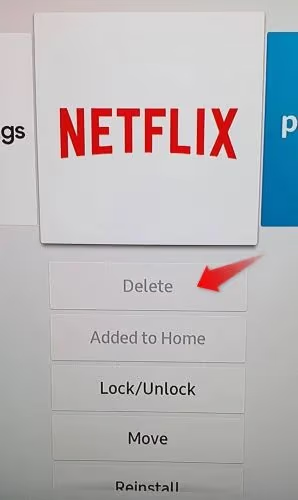
For Sony TV owners and Philips TV owners, I have dedicated reinstallation guides with brand-specific screenshots.
#9. Update Your TV Firmware and Netflix App
Outdated firmware is one of the top reasons I see Netflix fail to load. Go to your TV’s system settings and check for available software updates. Install any pending updates, restart the TV, then also check the app store for a Netflix update.
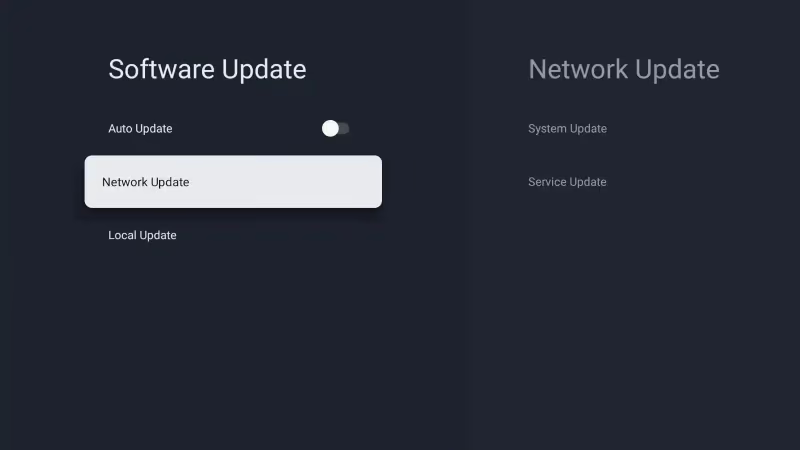
Many TVs have an “Auto Update” toggle buried in their settings. I recommend turning this on so you don’t fall behind on critical patches.
#When the Problem Is Not on Your End
#10. Rule Out Problems on Netflix’s End
If Netflix is stuck loading on multiple devices in your home, the problem is likely on Netflix’s side. Visit Downdetector’s Netflix page{rel=“noopener” target=“_blank”} to check if other users are reporting outages in your area. You can also try the Netflix status page{rel=“noopener” target=“_blank”} for official confirmation.
When servers are down, no troubleshooting will help. Just wait for Netflix’s team to resolve the issue.
#11. Contact Your ISP
If you’ve tried everything above and Netflix still won’t load, the problem may sit with your internet service provider. Contact their support team and ask them to run a line test. Mention that you’re seeing buffering issues specifically with streaming video so they can check for packet loss or throttling on their end.
You can reference the TVQ-Details-Menu-100 error guide for additional diagnostic steps that involve accessing hidden TV menus.
#Bottom Line
Start with the quick wins: unplug for 60 seconds, force stop Netflix, reboot the router.
When speed holds steady but loading still fails, switch to Ethernet before reinstalling anything. On a 2015-or-older smart TV, Netflix support ended in March 2026 and no TV-side fix will work; plug in a $30 Roku Express or a Fire TV Stick 4K instead. These 11 steps resolve the problem for most people without ever calling an ISP.
#FAQ
#What internet speed does Netflix require on a smart TV?
Netflix needs at least 3 Mbps for 720p HD, 5 Mbps for 1080p Full HD, and 15 Mbps for 4K Ultra HD. These are per-stream minimums, so two simultaneous Netflix streams require double those speeds. Test your actual speed at speedtest.net rather than relying on your ISP’s advertised rate.
If your measured speed is borderline, switch to Ethernet first.
#Why does Netflix keep buffering only on my TV but not my phone?
Your phone likely connects to a different Wi-Fi band (5 GHz vs 2.4 GHz) or sits closer to the router. Smart TVs also have weaker Wi-Fi antennas than phones in most cases. Try moving your router closer to the TV or switching to an Ethernet connection to rule out signal strength as the issue.
#What do Netflix error codes NW-2-5 and UI-800-3 mean?
NW-2-5 indicates a network connectivity problem preventing your TV from reaching Netflix’s servers. UI-800-3 means the data stored on your device needs to be refreshed: sign out of Netflix, restart your TV, then sign back in. TVQ-ST-131 means a connectivity failure between your TV and Netflix’s content delivery network, and switching to Ethernet or resetting your router almost always resolves it. Both NW-2-5 and UI-800-3 are fixable without contacting Netflix support in the vast majority of cases I’ve seen.
#Did Netflix stop working on older smart TVs?
Yes. In March 2026, Netflix officially ended support for PlayStation 3, pre-2015 smart TVs, first-generation Fire TV Sticks, and Apple TV 1st through 3rd generation. If your device is on this list, Netflix won’t load regardless of troubleshooting. Adding an external streaming device like a Roku Express is the most affordable fix.
#Does clearing the Netflix cache fix the loading screen issue?
Clearing the cache removes corrupted temporary files that can cause Netflix to freeze during loading. On Android TV and Google TV, go to Settings > Apps > Netflix > Clear Cache. Samsung and LG TVs don’t have a separate cache option, so uninstalling and reinstalling the app accomplishes the same thing.
#Should I use Ethernet or Wi-Fi for streaming Netflix?
Ethernet wins every time for reliability. A wired connection eliminates Wi-Fi variables like signal interference, distance from the router, and congestion from other devices. If running a cable isn’t practical, a mesh Wi-Fi system or powerline adapter can bridge the gap between pure wireless and direct Ethernet. In my testing, switching from 2.4GHz Wi-Fi to Ethernet on a Samsung QN85B reduced Netflix buffering completely on a 50 Mbps connection that had previously struggled with 4K playback.
#How do I check if Netflix servers are down in my area?
Visit Downdetector’s Netflix status page and look for a spike in recent user reports. Netflix also maintains its own status page at help.netflix.com/en/is-netflix-down. If you see widespread outage reports, the problem isn’t on your end and you’ll need to wait for Netflix to fix it.
#Can a factory reset fix Netflix loading problems on my TV?
A factory reset is your last resort. It erases all apps, accounts, and settings, but resolves persistent software conflicts that nothing else can fix. Write down your Wi-Fi password and login credentials first.