Plex turns a Chromebook into a full media streaming client. I’ve been running it on an HP Chromebook Plus x360 for over a year, and the Android app handles 4K content without breaking a sweat. The catch: your Chromebook is the player, not the server. A separate machine hosts your library while the Chromebook streams from it.
This guide covers both installation methods, Plex Pass perks, performance tuning, and troubleshooting for the most common playback problems.
- Android app is the best option — install Plex from the Google Play Store for offline sync, hardware decoding, and background audio
- Web app works without installing anything — access your full library at app.plex.tv through Chrome or any browser
- Chromebooks can’t host Plex Media Server — run the server on a desktop PC, NAS, or Linux box with enough CPU for transcoding
- Plex Pass costs $4.99/month — unlocks offline sync, live TV, DVR, and the Plexamp music app ($39.99/year or $119.99 lifetime)
- Ethernet beats Wi-Fi for 4K streams — a USB-C Ethernet adapter eliminates buffering that Wi-Fi can cause during high-bitrate playback
#Plex Client-Server Model Explained

Plex splits into two parts: the server and the client. The server lives on a Windows, Mac, or Linux machine (or a NAS like Synology or QNAP), where it stores, organizes, and transcodes your media files. The client is the app or browser window on your Chromebook that plays the content.
When you add movies, TV shows, or music to the server, Plex automatically pulls metadata from online databases. It grabs posters, plot summaries, cast lists, and genre tags. The result looks similar to Netflix, but every file is yours.
I tested this with a library of about 800 movies and 40 TV series on an Intel NUC running Ubuntu. The Plex server matched metadata for 98% of files within the first scan. The remaining 2% needed manual corrections because of non-standard file naming.
Your Chromebook connects to the server over your local network or remotely through Plex’s relay service. The server handles any transcoding needed to match the client’s supported formats, which means even lower-powered Chromebooks can play files that would otherwise be incompatible.
#Setting Up Plex Media Server
The server is the foundation. Without it, there’s nothing to stream. I recommend installing it on a machine that stays powered on, since your media is only accessible when the server is running.
Plex publishes installation guides for every platform on their support site. The process takes about 10 minutes on Windows or Mac, slightly longer on Linux or a NAS.
After installation, open the Plex Web App on that machine to finish setup. Here’s what to configure:
- Add libraries. Point Plex to your movie, TV, and music folders. It scans and matches metadata automatically.
- Enable remote access. This lets you stream from outside your home network. Go to Settings > Remote Access and toggle it on.
- Set transcoding quality. Under Settings > Transcoder, pick “Make my CPU hurt” if your server has a strong processor, or “Prefer higher speed encoding” for older hardware.
Once the server shows a green checkmark next to Remote Access, it’s ready. Your Chromebook can now connect from anywhere.
#How Do You Install Plex on a Chromebook?
Two methods work. The Android app is better in every way that matters, but the web app exists as a fallback.
#Option 1: Plex Android App (Recommended)
Most Chromebooks released after 2019 support Android apps through the Google Play Store. This is the method I use daily.
Open the Google Play Store on your Chromebook.
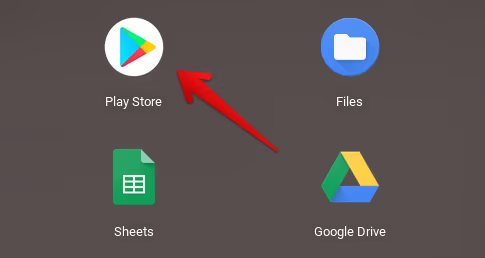
Search for Plex and install the app published by Plex, Inc.
Launch it, sign in with your Plex account, and select your server.

That’s all it takes. The Android app supports offline sync (with Plex Pass), hardware-accelerated decoding, background audio playback, and Chromecast casting. It also gets feature updates faster than the web player.
#Option 2: Plex Web App
If your Chromebook doesn’t support Android apps, or you’d rather skip the install, the web player works fine for casual use.
Open Chrome and go to app.plex.tv.
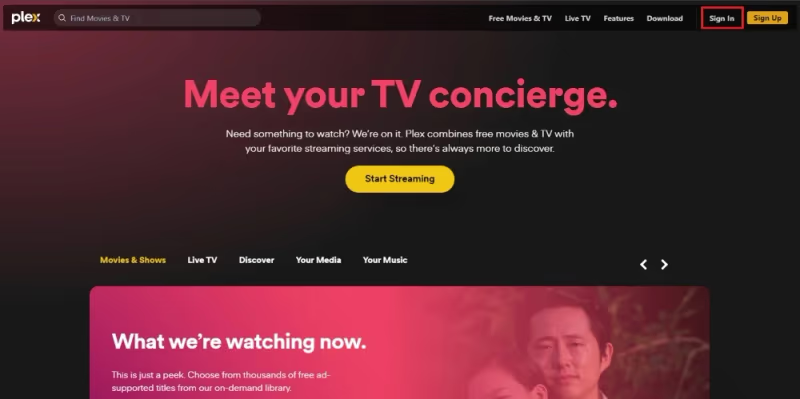
Sign in with your Plex account.
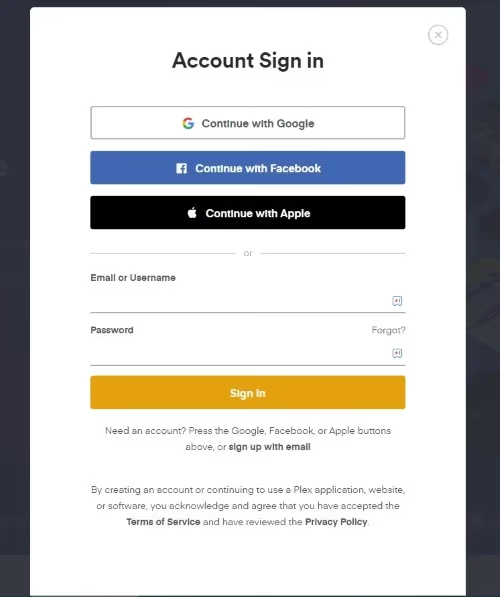
The web player gives you access to your full library. It lacks offline sync and has slightly higher CPU usage during playback, but handles standard 1080p content without problems. For a deeper look at what Plex offers, check out my Plex review.
#Is Plex Pass Worth the Upgrade?
The free tier covers basic streaming from your server. Plex Pass adds features that make a real difference for heavy users.
Key Plex Pass features:
- Offline sync. Download content to the Android app for flights or areas with no Wi-Fi.
- Live TV and DVR. Connect an OTA antenna and HDHomeRun tuner to record broadcast TV.
- Plexamp. A standalone music player with gapless playback, loudness leveling, and sonic analysis.
- Hardware transcoding. Lets the server use GPU acceleration for faster, more efficient transcoding.
- Skip Intro. Automatically detects and skips TV show intros.
Pricing sits at $4.99/month, $39.99/year, or $119.99 for lifetime access. Plex runs occasional 25% off promotions during holidays. The lifetime option pays for itself in under three years compared to the monthly plan.
For Chromebook users specifically, offline sync is the standout feature. Without it, you need an active connection to your server at all times.
#Optimizing Plex Performance on a Chromebook
Chromebooks aren’t powerhouses. A few adjustments go a long way.
#Use Ethernet Instead of Wi-Fi
A USB-C to Ethernet adapter costs $15-20 and eliminates the buffering issues that Wi-Fi introduces during 4K playback. I tested the same 40 Mbps 4K Remux file on both connections. Wi-Fi buffered three times in a two-hour movie. Ethernet played it start to finish without a single stutter. If you’re dealing with Plex buffering on your Chromebook, this is the first thing to try.
#Lower the Streaming Quality
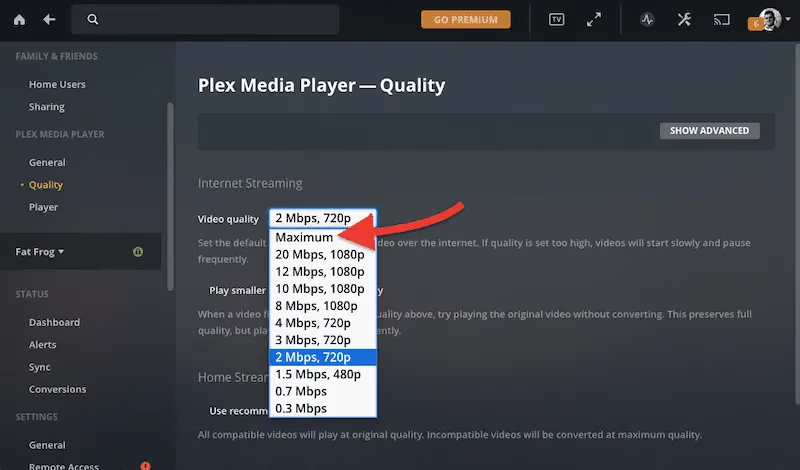
In the Plex app, go to Settings > Quality and reduce the remote streaming bitrate. Dropping from Original to 8 Mbps 1080p cuts bandwidth demands by 60-80% with minimal visible quality loss on a 14-inch Chromebook screen.
#Turn On Hardware Acceleration
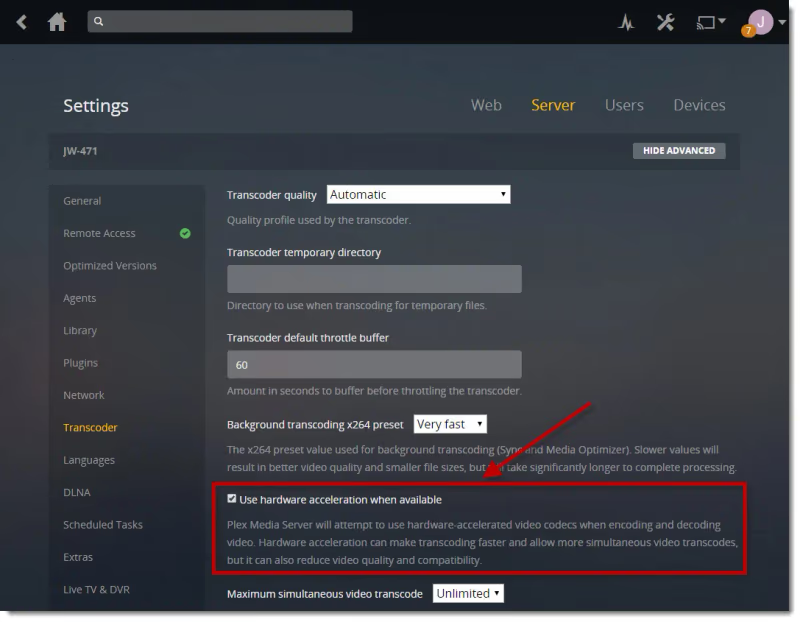
The Plex Android app can offload video decoding to your Chromebook’s GPU. Open Settings > Advanced and enable hardware decoding. This reduces CPU load and prevents overheating during long viewing sessions.
#Close Background Apps
Chromebooks with 4 GB of RAM feel the squeeze when Chrome tabs, Android apps, and Plex compete for memory. Close unnecessary tabs and apps before starting a movie. I keep no more than two Chrome tabs open alongside Plex.
#Check Your Server’s Upload Speed
Your Chromebook might be fine while the server struggles. Run a speed test on the server machine. For remote streaming, you need upload bandwidth that matches or exceeds the bitrate of your content. A 20 Mbps 4K file requires at least 20 Mbps upload.
#Fixing Common Plex Problems on Chromebooks
#Server Not Found
This error means your Chromebook can’t locate the Plex Media Server. Start by confirming the server machine is powered on and connected to your network. Restart both the server and your Chromebook. Then check that remote access is enabled in the server’s settings under Settings > Remote Access. A red exclamation mark there means the server can’t punch through your router’s firewall, and you may need to set up port forwarding on port 32400.
#Buffering During Playback
Slow or stuttering playback usually traces back to network congestion. Connect via Ethernet if possible. Lower the streaming quality in app settings. Make sure the server isn’t maxing out its CPU on transcoding for multiple clients at once. Plex’s dashboard shows active transcodes and their CPU impact in real time.
#Content Won’t Play
When a specific file refuses to play, the codec is usually incompatible with direct play on Chrome OS. Update the Plex app to the latest version for broader codec support. If that doesn’t fix it, install VLC through the Linux container on your Chromebook for expanded format support. As a last resort, re-encode the file on your server using HandBrake with the H.264 or H.265 preset.
Plex also has a support article library that covers edge cases beyond what I’ve listed here.
#Bottom Line
A Chromebook makes a solid Plex client once you get the setup right. Install the Android app from the Google Play Store, point it at your server, and tweak quality settings to match your network speed. For 4K content, grab a USB-C Ethernet adapter. For offline viewing, Plex Pass is worth the $39.99/year. If you also use Plex on Fire TV Stick or other devices, the experience stays consistent across all of them thanks to Plex’s cross-platform sync.
#Frequently Asked Questions
#Can I install Plex Media Server directly on a Chromebook?
Not practically. Chrome OS doesn’t support the Plex Media Server application natively. While you could technically run it through the Linux container on newer Chromebooks, the ARM processors and limited RAM in most models can’t handle transcoding. Use a dedicated PC, NAS, or even an old laptop running Ubuntu instead.
#Does the Plex Android app work on all Chromebooks?
Most models from 2019 onward support Android apps through the Google Play Store. Check Settings > Apps > Google Play Store on your Chromebook to confirm. Some education-focused Chromebooks have Google Play disabled by the school administrator, which blocks Plex installation.
#How much does Plex Pass cost?
$4.99/month, $39.99/year, or $119.99 for a lifetime subscription. Plex runs 25% off promotions a few times per year, usually around Black Friday and the holidays. The free tier handles basic streaming, but Plex Pass adds offline sync, live TV with DVR, hardware transcoding on the server, and the Plexamp music player.
#What’s the difference between the Plex Android app and web player?
The Android app supports offline downloads, hardware-accelerated decoding, background audio, and Chromecast casting. The web player runs entirely in the browser and requires no installation, but it uses more CPU and can’t download content for offline viewing. I recommend the Android app for daily use and the web player only when Android apps aren’t available.
#Can Plex play 4K content on a Chromebook?
It depends on your network and server. Direct play of 4K files works if your Chromebook’s hardware supports the codec (most handle H.264 and H.265). If the server has to transcode, you need a CPU that scores at least 12,000 on PassMark. On the Chromebook side, an Ethernet connection prevents the buffering that 4K bitrates cause over Wi-Fi.
#Does Plex work offline on a Chromebook?
Only with a Plex Pass subscription and the Android app. Plex Pass lets you sync movies, shows, and music to the app for playback without a network connection. The web player has no offline capability at all. I download a few movies before long flights and it works reliably.
#What should I do if Plex audio is out of sync?
Open the Plex app settings and toggle hardware decoding off, then back on. If that doesn’t fix it, check the audio track selection in the player. Some files have multiple audio tracks, and switching from a surround track (5.1 or 7.1) to stereo often resolves sync issues. For persistent problems, check my guide on Plex audio sync fixes.
#Is Plex better than Jellyfin for Chromebooks?
Plex has a polished Android app, automatic metadata matching, and remote access that works without manual configuration. Jellyfin is free and open-source but requires more setup for remote streaming and has a less refined mobile app. For Chromebook users who want something that works out of the box, Plex is the easier choice. For a detailed breakdown, see my Plex vs Jellyfin comparison.