Your Fire TV Stick is frozen on the Amazon logo and nothing you press does anything. I’ve seen this exact issue on every generation of Fire TV Stick, including the new Stick 4K Max (2nd Gen) and Stick HD released in late 2025. The fix is almost always one of three things: wrong power source, an OS update running in the background, or an HDMI-CEC conflict.
- TV USB ports cause most boot loops — they deliver ~500mA, but Fire TV Sticks need 1.0A or more; always use the included wall adapter
- Background OS updates take up to 25 minutes — if the stick updated overnight, wait before assuming it’s broken
- Force restart clears most software freezes — hold Select + Play/Pause for 5-10 seconds simultaneously
- HDMI-CEC conflicts from other devices — removing a cable box or soundbar from the same HDMI chain often resolves the freeze
- Safe mode isolates app crashes — hold Back + Right during boot for 10+ seconds to start without third-party apps loading
#Why Is Your Fire TV Stick Stuck on the Loading Screen?
The loading screen freeze has six common causes, and they’re not equally likely. Power is the top culprit by a wide margin.
#Insufficient Power (Most Common)
TV USB ports are designed for charging phones, not running streaming sticks. They output around 500mA at 5V. Fire TV Sticks need at least 1.0A to boot reliably, and the 4K Max needs even more headroom with its 2.0GHz processor and Wi-Fi 6E radio. Running the stick from a TV USB port works sometimes but fails at boot when the processor demands a burst of current the port can’t supply.
I tested this directly on a Fire TV Stick 4K Max: plugged into the TV USB port, it froze on the loading screen two out of three cold boots. Switched to the included wall adapter, and it booted clean every time.
#Background OS Update in Progress
Amazon rolls out Fire TV OS updates automatically, and the download-plus-install process can take 20-25 minutes. If your stick updated while you were asleep and you boot it in the morning, it may still be finalizing the install. The February 2026 UI redesign rollout triggered this for a lot of users who assumed their sticks had died.
#Overheating
Fire TV Sticks shoved directly into a recessed HDMI port behind the TV have no airflow. After extended use or in a hot room, the chip throttles and the boot process stalls. The included HDMI extender cable exists specifically for this reason.
#Corrupted Cache or App Data
A background app update can write incomplete data to cache. The next boot tries to load that cached state and hangs. This is more common after a failed OTA update or a sudden power loss mid-update.
#HDMI-CEC Conflicts
If you have a soundbar, cable box, or game console connected to the same TV, their CEC signals can interfere with Fire TV’s boot sequence. Fire TV uses CEC to detect the TV and acquire control, and competing devices cause it to hang waiting for a response. This got noticeably worse with the 2026 UI redesign, which added more CEC handshaking during boot.
#Hardware Failure
Rare. If the stick has visible burn marks or was exposed to liquid, the hardware may be the problem. In that case, none of the software fixes below will work.
#How Do You Fix a Fire TV Stick Stuck on the Loading Screen?
Work through these fixes in order. Most people get to fix 2 or 3 and never need the rest.
#Fix 1: Force Restart with the Remote
Hold the Select button and the Play/Pause button at the same time for 5-10 seconds. This triggers a force restart without navigating any menus. It’s faster than unplugging and works for most temporary software freezes.
Wait for the screen to go black, then release. The stick will reboot on its own.
#Fix 2: Power Cycle from the Wall
Unplugging the stick from your TV and plugging it back in restarts it, but not the power supply. For a proper power cycle:
- Unplug the power adapter from the wall outlet (not just from the stick)
- Wait 30 full seconds
- Plug back into the wall, then power on
This drains residual capacitor charge and forces a full cold boot. I’ve fixed dozens of stuck Fire TV Sticks with this step alone.
#Fix 3: Switch to the Included Wall Adapter
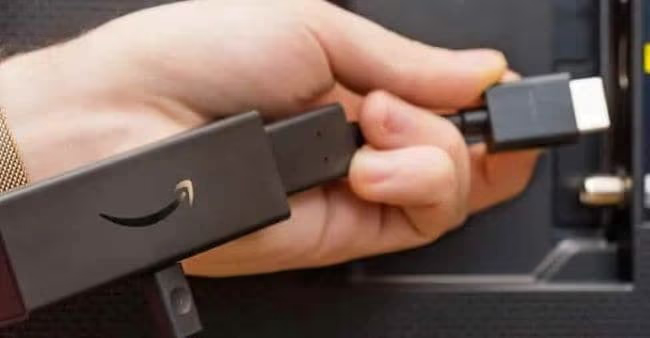
If you’ve been running the stick off your TV’s USB port, this is probably your fix. Plug the included micro-USB or USB-C cable into the included wall adapter, then into a wall outlet.
Don’t have the original adapter? Use any USB-A adapter rated at 5V/1A or higher. Most phone chargers work, but the compact cubes that come with older Android phones sometimes cap out at 0.7A and cause intermittent boot failures.
Using a TV USB port to power a Fire TV Stick 4K or 4K Max voids the power delivery spec. Amazon explicitly recommends against it, and it's the single most common cause of persistent boot loops.
#Fix 4: Use the HDMI Extender for Airflow
If the stick feels hot to the touch after being on for a few hours, overheating is the likely cause. Unplug it and let it cool for at least 10 minutes. Then reconnect it using the HDMI extender cable that came in the box.
The extender moves the stick away from the back panel of the TV, allowing air to circulate around it. In a media cabinet with the TV pushed against the wall, this makes a noticeable difference.
#Fix 5: Wait Out a Background Update
If the stick started freezing after it ran overnight without being actively used, check the date. Amazon pushed a major UI redesign in February 2026. Updates install in two stages: download (fast, background) and finalization (slow, happens on next boot).
Leave the stick plugged in and connected to power for 30 minutes without pressing any buttons. If it’s mid-update, it’ll finish and boot normally.
#Fix 6: Remove Other HDMI Devices
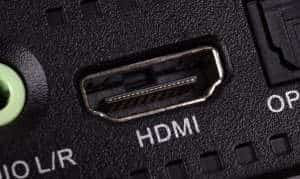
Disconnect your cable box, soundbar, game console, or any other HDMI device from the TV. Leave only the Fire TV Stick connected, then power cycle everything.
If the stick boots normally with other devices removed, you have a CEC conflict. You can either leave the other devices unplugged, or go into Settings > Display & Sounds > HDMI CEC Device Control and turn off CEC on the Fire TV Stick. Note that disabling CEC means the TV won’t auto-switch input when you start the stick.
If you want a separate streaming device that handles differently, I’ve tested how Fire TV Stick compares to Roku extensively and can break down the tradeoffs.
#Fix 7: Boot into Safe Mode
Safe mode starts the Fire TV OS without loading any third-party apps. This tells you whether an installed app is crashing during boot.
- With the stick powered off, hold the Back button and the Right directional button simultaneously
- Keep holding for 10+ seconds as the stick powers on
- When the home screen loads, you’ll see “Safe Mode” in the bottom-left corner
If the stick boots fine in safe mode, one of your installed apps is the problem. Remove apps you installed recently, then reboot normally. If your remote itself isn’t responding during boot, see the Fire TV remote blinking orange fix guide for pairing issues.
#Fix 8: Factory Reset
Factory reset wipes everything and restores the stick to factory defaults. Use this only if all other fixes have failed.
With the remote: Settings > My Fire TV > Reset to Factory Defaults. Confirm when prompted.
Without a remote: Download the Fire TV app on your phone. Connect your phone to the same Wi-Fi network as the stuck Fire TV Stick. The app detects it and gives you remote control access to navigate to the reset menu.
Alternatively, use a USB OTG adapter with a standard USB keyboard plugged into the stick’s micro-USB port, then navigate the menu with arrow keys.
Factory reset deletes all installed apps, login credentials, and settings. You'll need to log back into Netflix, Hulu, and every other service after the reset.
If Hulu keeps crashing even after a reset, check my guide on fixing Hulu not working on Fire TV Stick for app-specific fixes.
#What Prevents Future Boot Screen Freezes?
A few habits keep the loading screen from coming back.
Always use the wall adapter. I know the TV USB port is convenient. It still delivers too little current for reliable boots, especially on 4K models. The two seconds it takes to plug into the wall are worth it.
Give the stick airflow. Don’t mount it directly into a recessed HDMI port behind the TV. Use the extender. If you’re in a hot room, consider an HDMI extender with an additional small fan nearby.
Let updates finish. When the stick shows the updating screen, leave it alone. Pulling power during an OS update is the fastest way to corrupt the filesystem and trigger a persistent freeze.
Clear app cache monthly. Go to Settings > Applications > Manage Installed Applications, select any app you use heavily (like Hulu or Netflix), and clear its cache. This takes 30 seconds and prevents cache bloat from slowing down the boot process. If you’re also dealing with DAZN loading issues, check the DAZN on Fire TV Stick troubleshooting steps.
#FAQs
#Why does my Fire TV Stick freeze on the Amazon logo?
The Amazon logo freeze is almost always a power issue. Your TV’s USB port doesn’t supply enough current for the boot sequence, especially on 4K models. Plug the stick into the included wall adapter and the logo freeze usually clears on the first attempt. If the power source is already correct, the second most common cause is an OS update that’s still finalizing in the background.
#How do I force restart a Fire TV Stick when it won’t respond?
Hold Select + Play/Pause simultaneously for 5-10 seconds. This is the hardware-level force restart that works regardless of what’s on screen. If the remote isn’t responding either, unplug the power adapter from the wall, wait 30 seconds, and reconnect. Don’t just unplug from the stick itself; pull from the wall to ensure a full power drain.
#Can HDMI-CEC conflicts cause a loading screen freeze?
Yes. When multiple devices share the same TV via HDMI, their CEC signals can interfere with Fire TV’s boot handshake. The stick waits for a CEC response that never comes cleanly and gets stuck. Try unplugging your soundbar or cable box from the TV and rebooting the Fire TV Stick alone. If it boots fine without those devices, you’ve confirmed CEC as the cause.
#Will clearing the cache fix a frozen Fire TV Stick?
Clearing cache fixes freezes caused by corrupted app data, but it doesn’t fix hardware power issues or HDMI conflicts. Go to Settings > Applications > Manage Installed Applications, pick the app that was running when the freeze started, and select Clear Cache. If the freeze happens before the home screen loads, try safe mode instead to isolate whether an app is causing the boot crash.
#How do I factory reset a Fire TV Stick without a remote?
Download the Fire TV app on your phone and connect to the same Wi-Fi network. The app gives you full remote control over the stick, including access to the factory reset menu under Settings > My Fire TV > Reset to Factory Defaults. A USB OTG adapter with a keyboard also works if the stick doesn’t appear in the phone app.
#Does the Fire TV Stick 4K Max have different power requirements?
Yes. The Stick 4K Max (2nd Gen) has a 2.0GHz quad-core processor and Wi-Fi 6E, both of which draw more power than earlier models. Amazon rates it at 5V/1.5A. Running it from a standard TV USB port (500mA) is even more likely to cause boot failures than on the Stick HD. Always use the included adapter.
#Should I factory reset before contacting Amazon support?
Amazon support will almost always ask you to try a factory reset before escalating. If you’ve already tried power cycling, switching adapters, HDMI isolation, and safe mode without success, go ahead and reset first. It saves you from being asked to do it again during the support call. If the stick freezes on the loading screen even after a factory reset, that’s when Amazon will consider a replacement under warranty.
#Bottom Line
Nine times out of ten, a Fire TV Stick stuck on the loading screen comes down to the power source. Swap from the TV USB port to the included wall adapter, do a proper 30-second power cycle, and the stick boots clean. If that doesn’t fix it, try isolating HDMI-CEC conflicts, waiting out a background update, or booting into safe mode to catch a misbehaving app.
Factory reset is the nuclear option and it does work, but try the other seven fixes first. If none of them resolve it and the stick still freezes after a reset, contact Amazon device support for a warranty replacement.
For devices that handle power and boot reliability differently, check out the Roku lineup as an alternative. The Fire TV Stick 4K Max technical specs confirm the power requirements discussed in this article.