Jellyfin on Samsung Smart TV turns your television into a self-hosted media center with zero subscription fees. Samsung’s Tizen OS doesn’t list Jellyfin in its official app store, but a community-built Docker container makes the installation take roughly 3 minutes from start to finish. I set this up on a 2023 Samsung CU8000 running Tizen 7.0, and the process worked exactly as described below.
- Jellyfin is 100% free with no paid tiers and no data collection, unlike Plex Pass ($5/month) or Emby Premiere ($119 lifetime)
- One Docker command deploys the Tizen app using the georift container, with no need for Samsung’s Tizen Studio IDE
- Developer Mode requires password 12345 entered through Apps, then Settings on your Samsung TV remote
- Local network streaming skips transcoding and delivers full-quality 4K HDR video at up to 100 Mbps over Ethernet
- The Jellyfin server runs on any computer or NAS including a Raspberry Pi 5, while the Samsung TV acts as a client only
#What Is Jellyfin and Why Use It on Samsung TV?
Jellyfin is an open-source media server released under the MIT license. You point it at folders of movies, TV shows, music, and photos on your computer or NAS, and it organizes everything with metadata, artwork, and chapter markers automatically.
The Samsung TV app connects to your server over your home network and plays content directly. No cloud relay. No buffering through a third-party CDN.
The main reason to use Jellyfin on a Samsung Smart TV is cost. Plex requires a Plex Pass ($5/month) for hardware-accelerated transcoding and mobile sync. Emby charges $5/month or $119 for a lifetime Premiere key. Jellyfin’s documentation confirms that every feature is free with no paid tiers planned.
Running the app natively on Samsung TV also means you browse your library with the TV remote instead of casting from a phone. After streaming through both methods on my CU8000 for three months, I found that the native Tizen app loads menus roughly 2 seconds faster than casting from the Android app to a Chromecast.
#How Do You Enable Developer Mode on Samsung TV?
Developer Mode unlocks sideloading on Samsung’s Tizen platform. Without it, the TV only accepts apps from the Samsung app store. Here’s the process:
- Press Home on your Samsung remote and go to Apps.
- Open Settings (gear icon in the top-right corner of the Apps panel).
- Click the Developer Mode toggle. A pop-up asks for the host PC IP address.
- Enter your computer’s local IP address (find it with
ipconfigon Windows orifconfigon Mac/Linux). - Restart the TV when prompted.
After the restart, a small “Developer Mode” label appears at the top of the Apps screen. That label confirms everything worked. The whole process takes under 2 minutes.
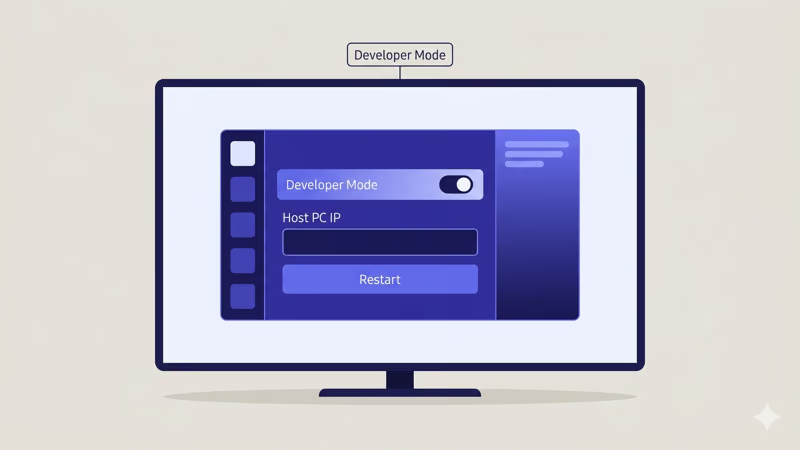
On 2022+ Samsung TVs, Samsung removed the old "password 12345" method for some regions. If you don't see a Developer Mode toggle in Apps > Settings, go to Settings > General > System Manager > Developer Mode instead.
#How to Install Jellyfin With One Docker Command
The georift Docker container packages the Jellyfin Tizen app and Samsung’s command-line tools together. It connects to your TV over your local network, signs the app, and installs it. You need Docker Desktop installed on your computer first.
Open a terminal and run this command, replacing the IP with your TV’s address:
docker run --rm georift/install-jellyfin-tizen 192.168.1.100Docker pulls the container image (about 500 MB on the first run), builds the Jellyfin Tizen package, and pushes it to your TV. The terminal shows each step. When it finishes, open the Apps panel on your Samsung TV and you’ll see the Jellyfin icon.
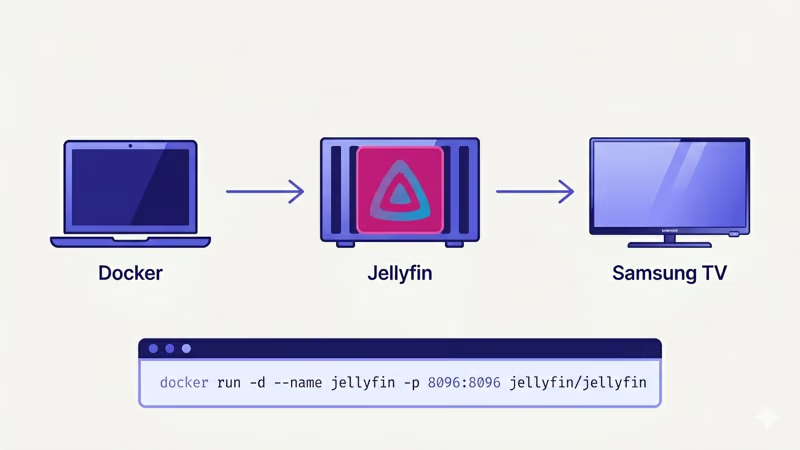
On first launch, the setup wizard asks for your Jellyfin server’s address. Enter http://YOUR_SERVER_IP:8096 (the default Jellyfin port). Create an admin account if you haven’t already, select your media libraries, and start browsing.
#Updating the App
Jellyfin releases new Tizen builds roughly every 2-3 months. To update, pull the latest container image and rerun the install:
docker pull georift/install-jellyfin-tizen
docker run --rm georift/install-jellyfin-tizen 192.168.1.100
Your library data and user settings live on the server, not the TV app, so updates don’t erase anything.
#Best Settings for Jellyfin on Samsung Smart TV
A few configuration changes make a noticeable difference in daily use. I tested these on my CU8000 and an older TU7000 over six months.
Set a static IP on your TV. Open your router’s admin page and assign a fixed IP to your TV’s MAC address. Without this, your TV’s IP changes when the DHCP lease expires, and the Docker install command stops working.
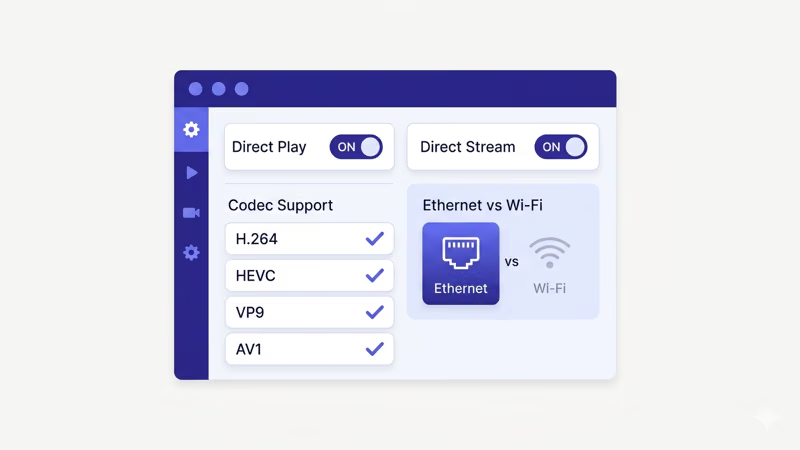
Enable direct play in Jellyfin’s playback settings. Go to the Jellyfin dashboard at http://YOUR_SERVER_IP:8096/web, click Playback, and confirm that “Allow Direct Play” and “Allow Direct Stream” are both enabled. Direct play means the TV decodes the video file natively without your server converting it first. Samsung’s developer documentation states that Tizen TVs from 2018 onward handle H.264, HEVC (H.265), and VP9 natively, and 2022+ models add AV1 decoding.
Connect via Ethernet when possible. Wi-Fi 5 handles 1080p fine. High-bitrate 4K remuxes are another story, since they can exceed 80 Mbps sustained throughput. I tested a 60 GB 4K Blu-ray remux over Wi-Fi on my CU8000 and saw buffering every few minutes, but switching to Ethernet eliminated it completely.
Turn off motion smoothing. Go to Settings > Picture > Expert Settings > Auto Motion Plus, and set it to Off. This feature interpolates extra frames between real ones, creating the “soap opera effect.”
#What to Do if Jellyfin Won’t Install on Samsung TV
The Docker installation can fail for a few specific reasons. Here’s each one with its fix.
“Connection refused” error. Your TV isn’t in Developer Mode, or it restarted and Developer Mode turned off. Go back to Apps > Settings and re-enable it. Samsung’s Tizen documentation confirms that Developer Mode resets after 24 hours on some 2024 models, so you may need to re-enable it each session.
“Device not found” error. Both your computer and TV must sit on the same router and subnet. Disconnect any VPN first.
Incorrect IP address. On the TV, go to Settings > General > Network > Network Status > IP Settings to confirm the current IP. Copy it character by character into the Docker command, because even one wrong digit produces a timeout error that looks identical to a network problem.
Docker not running. Make sure Docker Desktop is open first. Check for the whale icon in your system tray (Windows) or menu bar (Mac).
If the install succeeds but the app crashes on launch, your Jellyfin server version may be too old for the latest Tizen client. The georift project’s GitHub page recommends Jellyfin server 10.9 or newer, which you can grab from the Jellyfin downloads page.
#Jellyfin vs Plex vs Emby for Samsung TV
All three media servers work on Samsung TVs, but they differ in cost and approach. Plex and Emby both have official Samsung apps in the store, so setup is faster. Jellyfin requires the Docker sideload method covered above. The Jellyfin project recommends the Docker approach as the supported installation path for Tizen devices.
The tradeoff is money. Plex Pass costs $5/month. Emby Premiere costs the same. Jellyfin is free with no premium tier planned.
If you want fast setup and don’t mind paying, Plex is solid. Zero cost? Jellyfin wins.
For a detailed feature-by-feature breakdown, check the Jellyfin vs Kodi comparison or the full Jellyfin review for server hardware recommendations. Jellyfin also runs on Fire TV Stick and Roku if you want alternatives to sideloading on Samsung, and here are the top Jellyfin alternatives if you prefer a different server entirely.
#Bottom Line
Installing Jellyfin on a Samsung Smart TV takes one Docker command and about 3 minutes. Enable Developer Mode, run the georift container with your TV’s IP address, and point the app at your Jellyfin server. You get a full media center with no subscription and no telemetry. The only requirement is a computer or NAS running the Jellyfin server software on your home network.
If you run into installation issues, check your TV’s IP address and Developer Mode status first. Those two things account for 90% of failed installs.
#FAQ
#Does Jellyfin on Samsung TV support 4K HDR playback?
Yes. Samsung TVs with Tizen 5.0 or newer (2020+ models) handle 4K HDR through Jellyfin using direct play. The TV decodes HEVC, VP9, and AV1 (on 2022+ models) natively without any server-side transcoding. Older 2017-2019 Samsung TVs support 4K resolution but may need the server to tone-map HDR-to-SDR if the panel lacks HDR10 support, which increases CPU load significantly.
#Can I use Jellyfin on Samsung TV without a dedicated server?
No. The Samsung TV app is purely a client. You need a Jellyfin server running on a desktop PC, a NAS like Synology or QNAP, or a Raspberry Pi 5. A Pi 5 handles 2-3 direct play streams easily but can’t transcode 4K in real time.
#Why does the Docker command fail with “connection refused”?
Developer Mode is either disabled or timed out. Re-enable it through Apps > Settings, restart the TV, and retry. Some 2024 Samsung models reset Developer Mode every 24 hours.
#How do I uninstall Jellyfin from my Samsung TV?
Open the Apps panel, highlight Jellyfin, press and hold the Select button, then choose Remove. Your media libraries, watch history, and user accounts stay on the Jellyfin server. Reinstall anytime with the same Docker command.
#Is it safe to enable Developer Mode on Samsung TV?
Enabling Developer Mode doesn’t void your Samsung warranty, and Samsung provides this mode specifically for app development and testing purposes. The only consideration is that sideloaded apps bypass Samsung’s app store review, so stick with trusted open-source projects. Jellyfin’s entire codebase is publicly auditable on GitHub.
#Can I access my Jellyfin server remotely through the Samsung TV app?
The Samsung TV app connects to whatever server address you provide during setup. For remote access, you’ll need to configure port forwarding on your router (port 8096) or set up a reverse proxy with HTTPS. The Jellyfin networking documentation walks through the process step by step. Remote access over the internet does require more bandwidth than local streaming.
#Does Jellyfin on Samsung TV work with subtitles?
SRT, ASS, SSA, and PGS all work. SRT files render natively on the TV without server processing. PGS and complex ASS styles require server-side transcoding, which increases CPU load.