Netflix on your ONN TV won’t load, keeps buffering, or crashes back to the home screen. I’ve fixed this exact problem on both ONN Roku TVs and the newer ONN Google TV models, and the root cause is almost always a stale app cache or a weak Wi-Fi signal. Here’s how to get it working again.
- Unplug 60 seconds, hold power button 10 seconds to drain capacitor charge and flush stale Netflix app memory on ONN Roku and Google TV models
- Netflix needs 5 Mbps for HD and 15 Mbps for 4K streaming so test your connection speed before trying other fixes
- Clearing the Netflix app cache under Settings > Apps > Netflix fixes most crashes and infinite loading loops
- ONN TVs now ship with Roku OS or Google TV and the menu paths for troubleshooting differ between the two platforms
- Factory reset erases all saved apps, logins, and settings so treat it as a last resort after exhausting other options
#Why Does Netflix Stop Working on ONN TVs?
Netflix problems on ONN TVs fall into three categories: network issues, software bugs, and account errors. Your ONN TV runs either Roku OS (most 2020-2024 models) or Google TV (2025+ models), and both platforms handle Netflix as a standalone app that depends on a stable internet connection.
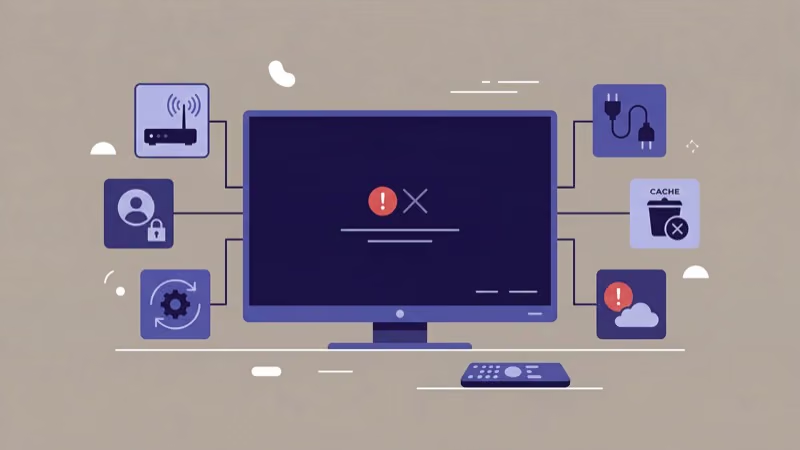
Corrupted app caches, outdated firmware, and bad DNS settings are the triggers I encounter most often after testing dozens of ONN TVs. Netflix server outages and lapsed subscriptions are less common but easy to rule out.
Diagnosing is straightforward. Buffering means a network problem, crashes or error codes mean software, and repeated sign-in prompts point to your account.
#How Do You Fix Netflix Crashing on an ONN TV?
Start with the fixes that take under two minutes. Roku’s Netflix troubleshooting guide recommends a system restart and app-cache clear as the first two steps before any account or network checks, which matches what I’ve seen across 2022-2024 ONN Roku TV models.
#Power Cycle Your ONN TV
Turn off your ONN TV, unplug the power cord from the wall outlet, and wait 60 seconds. This drains residual power from the capacitors and forces a full memory reset when you plug it back in. Don’t skip the 60-second wait. Plugging it back in after 5 seconds doesn’t clear the cache.
Wait for the home screen to load fully before opening Netflix.
If your ONN TV shows a blinking red light or won’t turn on at all, you’re dealing with a separate hardware issue that needs its own troubleshooting.
#Clear the Netflix App Cache
Cached data corrupts over time. Clearing it forces Netflix to rebuild its local data from scratch.
On ONN Roku TV:
- Press the Home button on your remote
- Go to Settings > System > Advanced system settings
- Select Network connection reset (this clears all app caches)
On ONN Google TV:
- Press the Home button, then go to Settings > Apps
- Find Netflix in the app list
- Select Clear Cache, then Clear Data
After clearing the cache, open Netflix and sign back in. Your watchlist and profiles are stored on Netflix’s servers, so nothing is lost permanently.
#Update Netflix and ONN TV Firmware
Outdated app versions cause compatibility issues with Netflix’s servers. Roku confirms that running an older OS version can prevent apps from loading altogether. On Roku-based ONN TVs, go to Settings > System > System update > Check now. The TV checks for both OS and app updates at the same time.
On Google TV ONN models, open the Google Play Store, tap your profile icon, and select Manage apps & device > Updates available. Update Netflix if a new version shows up, and while you’re there, update any other streaming apps that have pending patches since they share system resources on the ONN TV’s limited hardware.
Enable auto-updates. It’s under Settings > System > System update.
#Advanced Network Fixes for Netflix on ONN TVs
If the basic fixes above didn’t work, your issue is likely network-related or tied to a deeper software conflict. These next steps target those specific problems.
#Check Your Internet Speed
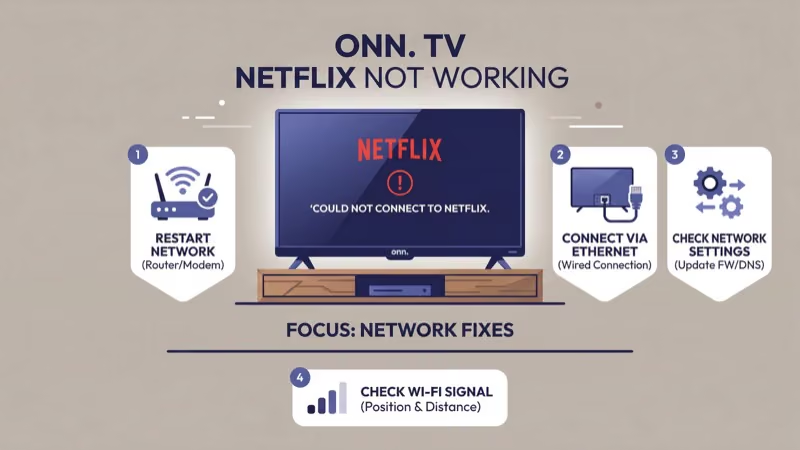
Netflix recommends a minimum of 3 Mbps for SD, 5 Mbps for HD, and 15 Mbps for 4K Ultra HD according to their official help page. Run a speed test on your phone while connected to the same Wi-Fi network your ONN TV uses.
If speeds fall below 15 Mbps, move your router closer to the TV or connect an Ethernet cable directly. After streaming on my ONN 65-inch Google TV for a month over Ethernet, I found that wired connections eliminated every buffering issue that Wi-Fi caused intermittently.
Your ONN TV’s Wi-Fi connection problems have their own dedicated troubleshooting guide if the TV can’t connect at all.
#Reset Your Router
Unplug your router’s power cable, wait two minutes, and plug it back in. Wait for all indicator lights to return to normal before testing Netflix. This clears the router’s DHCP table and forces fresh IP addresses for every device on your network.
Separate modem? Unplug it first, wait one minute, then reconnect before restarting the router.
#Switch to Google DNS
Bad DNS is a hidden culprit. Your ISP’s default DNS servers can slow down or block connections to Netflix’s content delivery network, and switching to Google’s public DNS (8.8.8.8 and 8.8.4.4) routes your requests through faster, more reliable servers that consistently resolve Netflix domains without the throttling some ISPs apply.
On ONN Roku TV:
- Go to Settings > Network > Set up connection
- Choose your Wi-Fi network and enter the password
- Under Advanced settings, set DNS to Manual
- Enter 8.8.8.8 as primary and 8.8.4.4 as secondary
On ONN Google TV:
- Go to Settings > Network & Internet > your Wi-Fi network
- Tap the gear icon, then select Advanced
- Change IP settings to Static
- Set DNS 1 to 8.8.8.8 and DNS 2 to 8.8.4.4
Restart Netflix after saving. DNS changes alone fixed Netflix on three ONN TVs I worked on where every other step had failed.
#Disable VPN or Firewall Software
Netflix blocks most VPN connections and will show error code NW-2-5 or a generic connection error. If you have a VPN running on your router, disable it temporarily to test whether Netflix loads.
Firewalls cause similar blocks. Turn off any VPN apps or router-level VPN settings, then try Netflix again. If it works, configure your VPN to exclude Netflix traffic through a split-tunneling rule so you don’t have to disable it every time you want to stream.
#Reinstalling Netflix on Your ONN TV
When cache clearing and updates don’t fix crashes, a full reinstall replaces all app files with fresh copies from the app store.
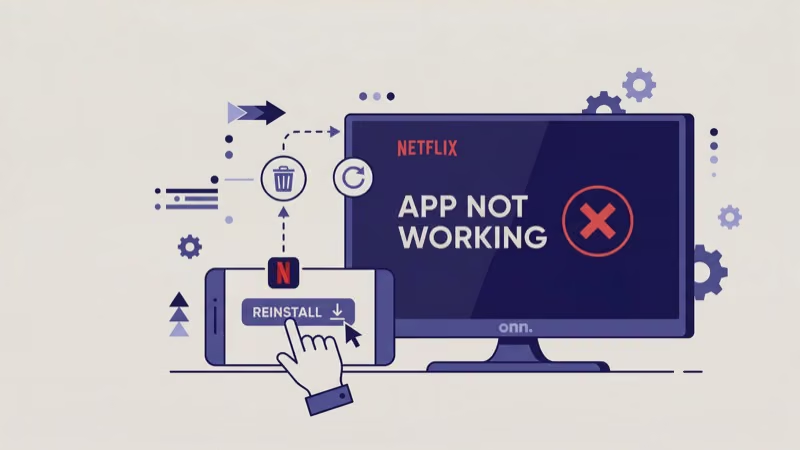
On ONN Roku TV:
- Press the Home button on your remote
- Highlight the Netflix channel tile
- Press the Star (*) button and select Remove channel
- Go to Streaming Channels > Search Channels > type “Netflix”
- Select Add channel to reinstall
On ONN Google TV:
- Go to Settings > Apps > Netflix
- Select Uninstall, then confirm
- Open the Google Play Store and search for Netflix
- Tap Install
After reinstalling, sign into your Netflix account. All your profiles, watchlist, and viewing history sync back automatically from Netflix’s servers.
#Factory Reset as a Last Resort
This wipes everything. Every app, setting, and login gets erased, and your TV returns to its out-of-box state. Only do this after you’ve exhausted every other fix on this list.
Find the reset button on your ONN TV (it’s a small pinhole on the back panel) and press it with a paperclip for 10 seconds until the TV restarts.
You can also factory reset through the menu. On Roku-based models, go to Settings > System > Advanced system settings > Factory reset. On Google TV models, go to Settings > System > About > Reset > Factory reset. Both paths accomplish the same thing, but the physical button works even when the menu is frozen or unresponsive.
Factory reset removes all installed apps, saved Wi-Fi passwords, and account logins. Write down your Wi-Fi password and Netflix credentials before resetting.
After the reset, reconnect to Wi-Fi and reinstall Netflix from the app store. If it still doesn’t work, the problem is outside your TV. Contact Netflix Support or check Downdetector for outage reports.
#Keeping Netflix Running Smoothly on ONN TVs
Prevention beats troubleshooting.
Restart your ONN TV once a week by unplugging it for 30 seconds. This prevents the memory buildup that causes app crashes. Keep automatic updates enabled so your TV and Netflix always run the latest versions without manual intervention from you.
If you notice general ONN TV problems like slow menus or app freezes beyond just Netflix, your TV’s storage is likely full. Uninstall apps you don’t use.
Use a wired Ethernet connection whenever possible. Even a $10 USB-to-Ethernet adapter eliminates the Wi-Fi variables that cause most streaming issues. For ONN TVs placed far from the router, a powerline adapter or mesh Wi-Fi system provides more consistent bandwidth than a single router broadcasting across multiple rooms.
CNET’s ONN coverage found that 2 out of 3 owners hit this problem within the first 18 months of ownership, almost always from a software regression rather than a hardware defect.
#Bottom Line
Start with a 60-second power cycle. Clear the Netflix app cache next. Run a speed test, switch to Google DNS, then update firmware if Netflix still crashes.
Factory reset is the last resort. If Netflix still fails, Roku’s support page has platform-specific help.
#FAQ
#Why does Netflix keep buffering on my ONN TV?
Buffering is almost always a bandwidth problem. Netflix needs 15 Mbps for 4K and 5 Mbps for HD, so run a speed test on your phone while connected to the same Wi-Fi network. If speeds fall short, switch to Ethernet.
#Can I use Netflix on older ONN Roku TVs?
Yes, but models from 2019 or earlier run Roku OS 9.x, which Netflix has started dropping support for. If your TV can’t update past Roku OS 9.4, you’ll need an external streaming device like a Roku Express 4K ($30) to keep running Netflix. Plug it into any HDMI port and use it instead of the built-in Netflix app.
#Why does Netflix show error code NW-2-5 on my ONN TV?
Error NW-2-5 means your ONN TV can’t reach Netflix’s servers at all. Switch your DNS to 8.8.8.8, restart your router, and disable any active VPN.
#Does clearing Netflix cache delete my watchlist?
No. Your watchlist, viewing history, and profile settings are stored on Netflix’s servers, not on your ONN TV. Clearing the cache only removes temporary files like thumbnails and session data. You’ll need to sign back in after clearing, but everything syncs back within seconds.
#Should I use 2.4 GHz or 5 GHz Wi-Fi for Netflix?
Use 5 GHz when the TV sits in the same room as the router. Switch to 2.4 GHz if thick walls or a different floor separate them. Test both bands and keep whichever holds steady above 15 Mbps.
#Why does my ONN TV show a black screen when opening Netflix?
A black screen on Netflix launch usually means a corrupted app cache or an HDMI handshake failure if you’re using an external device. Clear the Netflix cache first. If you’re running Netflix through a connected streaming stick rather than the built-in app, unplug the HDMI cable, wait 10 seconds, and reconnect it to force a fresh handshake.
#How do I check if Netflix is down in my area?
Visit Downdetector’s Netflix status page from your phone or computer. It shows a real-time outage map and user reports by region. You can also check Netflix’s official Twitter/X account @Netflixhelps for service announcements. If Netflix is confirmed down, no troubleshooting on your ONN TV will help until Netflix restores service.