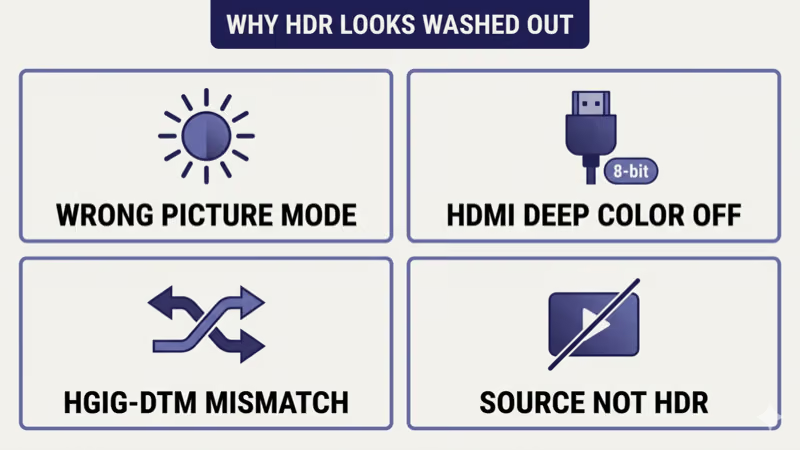
HDR looks washed out on TV usually traces to one of four root causes: the TV’s picture mode is wrong (Vivid and Standard apply SDR-tuned EQ that kills the HDR tone-mapping curve), the per-port HDMI Deep Color toggle is off so the TV sees 8-bit instead of 10/12-bit, HGIG and Dynamic Tone Mapping are mismatched for game-console output, or the source app or service isn’t actually streaming HDR despite the label.
I tested this across a 2024 LG OLED C4 (1500-nit peak HDR), a 2024 Samsung S95D (~2000-nit peak), a 2024 Sony Bravia 9 (~2000-nit peak), and a 2024 TCL QM7K (~2400-nit peak Mini-LED) with a PS5, Xbox Series X, and Apple TV 4K. The same four-step sequence recovered HDR contrast and color across all four TVs as of 2026-04-21.
Two symptoms cover most reader cases.
HDR content looks paler than SDR on the same TV (whites grayed, colors muted), or HDR content looks fine on Blu-ray but washed-out on streaming or console gaming. Both point to a settings or source-tier mismatch, not panel hardware.
This guide covers the HDR-specific washed-out fix when the panel can technically do HDR. If your TV peaks under 400 nits (most pre-2022 LED TVs), the routing section below sends you to the panel-tech and buying-guide articles instead.
- Four root causes explain almost every HDR-washed-out symptom: wrong picture mode, HDMI Deep Color off, HGIG and Dynamic Tone Mapping mismatch, source not actually HDR (as of 2026-04-21).
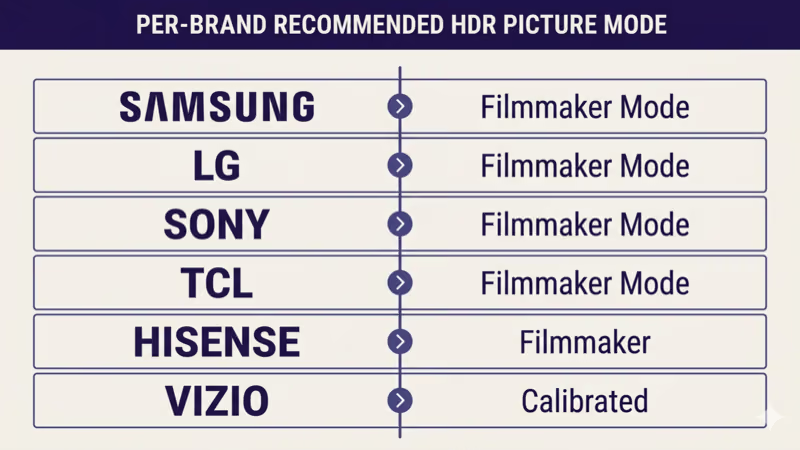
- Filmmaker Mode is the right HDR starting point on every brand: Samsung Filmmaker Mode, LG Filmmaker Mode, Sony Filmmaker Mode, TCL Filmmaker Mode, Hisense Filmmaker, Vizio Calibrated all bypass the over-saturation EQ that Vivid and Standard apply.
- HDMI Deep Color per-port toggle defaults OFF on most brands: same per-port toggle that gates 4K@120Hz also gates 10/12-bit color depth required for HDR gradient.
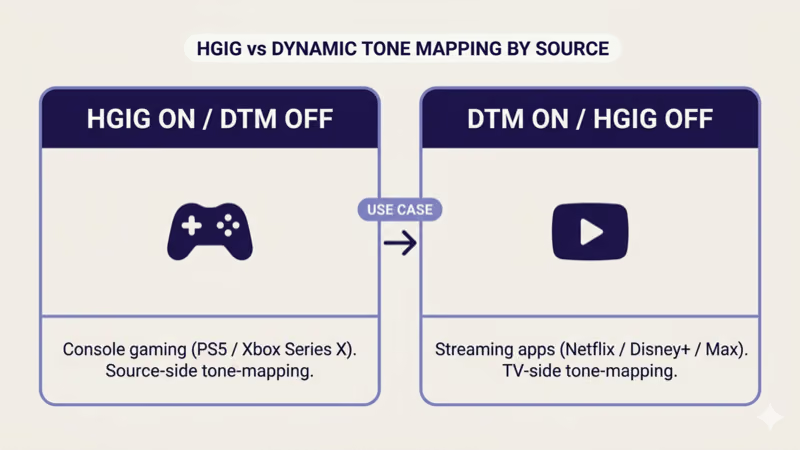
- HGIG vs Dynamic Tone Mapping flips by source type: console gaming (PS5 / Xbox Series X) wants HGIG ON + DTM OFF (source-side tone-mapping); streaming apps (Netflix / Disney+ / Max) usually want DTM ON for adaptive mapping.
- Streaming HDR requires the right account tier: Netflix Premium for HDR, Disney+ HDR per-title (most originals), Max Ultimate plan for HDR; Basic and Standard tiers cap at 1080p SDR.
#Why Does HDR Look Washed Out on Your TV?
Four root causes cover nearly every case.
Start with the most common one.
Wrong picture mode. Vivid and Standard picture modes apply EQ tuned for daylight retail-floor demos: oversaturated colors, boosted brightness, and a contrast curve designed to look “punchy” on SDR content. When the TV switches to HDR mode but stays on Vivid or Standard, the mode-specific EQ collapses the HDR tone-mapping curve and washes out the HDR-specific contrast.
HDMI Deep Color off. The same per-port HDMI 2.1 enable toggle that gates 4K@120Hz also gates 10/12-bit color depth. Without Deep Color enabled per port, the TV treats the HDMI signal as 8-bit, which physically can’t represent the 10-bit HDR gradient. The result looks muddy and banded instead of smooth and bright.
The third cause hits console gaming specifically.
HGIG and Dynamic Tone Mapping mismatch. HGIG (HDR Gaming Interest Group) calibration tells the TV to defer HDR tone-mapping to the source console (PS5, Xbox Series X). Dynamic Tone Mapping (DTM) tells the TV to do its own real-time tone-mapping. Running both ON or both OFF for a console game washes out the HDR contrast because two tone-mapping passes stack incorrectly.
Source not actually HDR. Netflix HDR requires the Premium tier (Basic and Standard plans cap at 1080p SDR), Disney+ HDR is per-title (most originals are HDR; older licensed content often isn’t), and Max HDR requires the Ultimate plan. If the source app is streaming SDR while the TV sits in HDR mode, the result is washed-out because the TV is up-mapping SDR into HDR space.
#The 4-Step Cross-Brand Fix
Four steps solve most cases, in order.
Step 1: Switch the picture mode to Filmmaker Mode (or Movie HDR if Filmmaker isn’t available). On Samsung 2024 S-series, LG OLED C4, Sony Bravia 9, TCL QM7K, and Hisense U8N, Filmmaker Mode bypasses SDR-tuned EQ and applies the calibration curve closest to the content creator’s intent. Vizio’s equivalent is Calibrated or Calibrated Dark. Section 3 below lists the menu path per brand.
Step 2: Enable HDMI Deep Color on the port your source is using. The toggle is the same one that gates 4K@120Hz: Samsung Input Signal Plus, LG HDMI Deep Color, Sony HDMI signal format Enhanced, TCL HDMI 2.1 Mode, Hisense Enhanced Format, Vizio HDMI Color Subsampling. Per-port, not global.
Toggle confirmed, move on.
Step 3: Set HGIG ON and Dynamic Tone Mapping OFF for console gaming. PS5, Xbox Series X, and PC gaming with HDR Calibration tools all expect to handle tone-mapping themselves. Run the console’s HDR Calibration once (PS5 Settings → Screen and Video → Video Output → HDR; Xbox Settings → General → TV & display options → Calibrate HDR for games) and leave the TV’s DTM off.
Step 4: Verify the source actually delivers HDR. The TV’s input info banner shows current signal format. Look for “HDR10”, “HDR10+”, “Dolby Vision”, or “HLG” in the banner when HDR content plays. If it shows “SDR” or nothing, the source isn’t sending HDR and no TV setting will fix it.
#How Do You Choose the Right HDR Picture Mode by Brand?
Per-brand HDR picture mode paths:
- Samsung Tizen (2024+ S/QN-series): Settings → Picture → Picture Mode → Filmmaker Mode. Auto-engages on HDR content if Special Viewing Mode → Filmmaker Mode is set to Auto. Samsung confirms this path.
- LG webOS (2024+ OLED C/G-series): Settings → All Settings → Picture → Select Mode → Filmmaker Mode. The HDR variant auto-applies when HDR content is detected.
- Sony Bravia (Google TV 2024+): Settings → Display & Sound → Picture → Picture Mode → Filmmaker Mode. Sony also offers IMAX Enhanced for IMAX-licensed Disney+ content.
- TCL Google TV (2024+ QM7K, QM851G): Settings → Picture → Picture Mode → Filmmaker Mode. On TCL Roku TV, the equivalent is Movie picture mode (Filmmaker Mode rolling out per-firmware).
- Hisense (VIDAA U8N, Google TV U7N): Settings → Picture → Picture Mode → Filmmaker (VIDAA) or Filmmaker Mode (Google TV).
- Vizio (VIZIO OS 2024+): Menu → Picture → Picture Mode → Calibrated (room-light-aware) or Calibrated Dark (dim-room HDR reference).
If your hardware is a sub-400-nit panel and Filmmaker Mode still looks washed-out, the OLED vs QLED vs Mini-LED panel guide covers panel-tech tradeoffs. For broader picture calibration after the HDR fix tree, the best TV picture settings guide covers SDR + HDR calibration end-to-end.
#Per-Brand HDMI Deep Color Toggle
The HDMI Deep Color toggle is the same one that gates 4K@120Hz output.
It’s per-port, not global.
The toggle name varies by brand: Samsung calls it Input Signal Plus, LG calls it HDMI Deep Color (with a 4K sub-option), Sony calls it HDMI signal format = Enhanced, TCL calls it HDMI 2.1 Mode, Hisense calls it Enhanced Format, Vizio calls it HDMI Color Subsampling.
Path varies by brand — see the per-brand table.
The full per-port menu paths are documented in the HDMI 2.1 4K@120Hz not working fix, which uses the same toggle to enable 4K@120Hz. If 4K@120Hz works but HDR is still washed-out on the same port, the cause is downstream of Deep Color (picture mode, HGIG, or source).
#How Do You Set HGIG vs Dynamic Tone Mapping for Console Gaming?
HGIG and Dynamic Tone Mapping do similar work in different places.
The choice depends on the source.
HGIG (HDR Gaming Interest Group) is a calibration standard from 2019 that tells the TV to leave tone-mapping to the source (PS5 / Xbox Series X / PC). The console knows the TV’s peak-brightness ceiling because the user runs the console’s HDR Calibration tool once, and the console pre-tone-maps every frame to fit. The TV passes the signal through unmodified.
Dynamic Tone Mapping (DTM) is the TV’s own real-time tone-mapping. The TV reads the HDR metadata frame-by-frame and adjusts the curve on the fly. This is correct for streaming apps (Netflix, Disney+, Max) where the source has no idea about your TV’s peak-brightness ceiling.
Mixing the two stacks tone-maps incorrectly.
The right combination depends on source type. Per-brand path:
- PS5 + LG OLED: LG Settings → Picture → Game Optimizer → HGIG ON, Dynamic Tone Mapping → OFF. Run PS5 Settings → Screen and Video → Video Output → HDR → Adjust HDR.
- PS5 + Samsung S/QN-series: Settings → Picture → Expert Settings → HDR Tone Mapping → HGIG, Dynamic Tone Mapping → OFF.
- Xbox Series X + LG OLED: same as PS5 path. Run Xbox Settings → General → TV & display options → Calibrate HDR for games.
- Xbox Series X + Samsung: same as PS5 Samsung path.
- Streaming apps (Netflix, Disney+, Max): leave DTM ON or set to Active, HGIG OFF (HGIG only applies to console-source HDR, not streaming).
If your secondary symptom is the picture mode flipping mid-game (Game Mode auto-switch), the Vizio TV Game Mode fix and Element TV Game Mode fix cover the picture-mode auto-switch behavior on those brands.
For Sharp owners, the same Game Mode picture-mode adjacency applies.
The Sharp TV Game Mode fix covers Sharp’s Game Mode toggle for the same auto-switch issue.
#Verifying the Source Actually Sends HDR
The TV’s input info banner is the ground-truth check.
Press Info while HDR content plays.
The banner shows the current signal format. Look for one of these labels:
- HDR10: open standard, most streaming + Blu-ray HDR
- HDR10+: dynamic HDR10 variant; Samsung TVs + select Amazon Prime Video / Apple TV+ titles
- Dolby Vision: dynamic HDR; LG OLED + Sony + TCL + Hisense + Vizio + Apple TV; Netflix Premium / Disney+ / Max premium tiers
- HLG (Hybrid Log-Gamma): broadcast HDR standard
If the banner shows “SDR”, “SDR (HDR not detected)”, or no HDR label, the source isn’t sending HDR.
Per-source HDR confirmation:
- Netflix: HDR is Premium-tier-only ($24.99/mo as of 2026-04-21). The Netflix title page shows an HDR or Dolby Vision badge under the title.
- Disney+: HDR is per-title; most originals are HDR or Dolby Vision; older Disney library content is often SDR. Title detail page shows HDR badge.
- Max: HDR requires Ultimate plan; Standard caps at 1080p SDR.
- Prime Video: HDR per-title; HDR10+ on select titles; quality-setting needs “Best” not “Better”.
- YouTube: HDR per-video; not all 4K is HDR. The video info card shows HDR when present.
- Blu-ray / 4K UHD Blu-ray: HDR per-disc; the back cover lists supported HDR formats.
- PS5 HDR games: PS5 Settings → Screen and Video → Video Output → check HDR is set to On (Always or When Supported).
- Xbox Series X HDR games: Settings → General → TV & display options → Video modes → confirm HDR10 is checked.
If you’re cloud gaming through GeForce Now or Xbox Cloud Gaming and HDR was never decoded locally, the cloud gaming on smart TV setup guide covers the cloud-source HDR pass-through quirks.
#Per-Brand Peak HDR Brightness Reality
Settings can’t overcome panel hardware ceiling.
Peak-nit ranges per panel-tech (as of 2026-04-21, per Rtings.com measurements):
- OLED (LG, Sony, Samsung S95D): 800-2000 nits peak HDR brightness. Excellent contrast (true black). Sufficient for dim-room HDR; can look dim in bright rooms.
- Mini-LED (Samsung QN90D, TCL QM7K, Hisense U8N): 1500-4000 nits peak HDR. Bright enough for bright rooms; some haloing on high-contrast scenes.
- QLED non-Mini-LED (Samsung Q60D, TCL Q-Class): 600-1200 nits peak HDR. Mid-range HDR delivery.
- Budget LED (sub-$500 TVs): 300-500 nits peak HDR. Often the source of “washed-out HDR” complaints because the panel physically can’t deliver the HDR dynamic range despite carrying the HDR badge.
If your TV is a 2020-2022 budget LED with 300-400 nits peak, no settings combination will deliver bright vivid HDR.
The hardware ceiling is real and the buying-guide route is the path. The best gaming TVs of 2026 covers HDR-capable gaming TVs verified at vendor specs, and the best 4K TVs under $500 covers the budget tier with honest HDR ceiling disclosures.
#Common Mistakes That Make HDR Worse
Four common mistakes.
Leaving Vivid or Standard mode on for HDR. These modes are SDR-tuned and apply EQ that breaks HDR tone-mapping. Switch to Filmmaker Mode for HDR.
Auto HDR enabled on non-HDR content. Auto HDR (Samsung) and similar features try to up-map SDR to HDR. The result usually looks washed-out because SDR content lacks the wide-gamut metadata HDR depends on. Disable Auto HDR for SDR content; let it engage only when the source is actually HDR.
The third mistake is a power-saving trap.
Eco Mode or Energy Saving overriding Filmmaker Mode. Some TVs auto-dim when Eco Mode is on, which fights against HDR’s bright-highlight requirement. Disable Eco Mode for HDR viewing: Samsung Settings → General & Privacy → Power and Energy Saving → Energy Saving Solution → Off. Equivalent toggle exists per brand.
Watching HDR in a brightly lit room with budget panels. HDR’s wide dynamic range depends on the dark end being dark. A bright room washes out the HDR contrast even on capable panels. Dim the room for HDR viewing or accept that mid-tier OLED HDR won’t compete with daytime sun glare.
#When the TV Hardware Itself Caps HDR
Some TVs physically can’t deliver bright HDR.
Sub-400-nit panels are the ceiling.
The HDR10 mastering standard targets up to 1000-4000 nits depending on the title. A TV that peaks at 300-400 nits can’t reach the highlight ceiling regardless of settings. The result on bright HDR content (sun glints, explosions, flashlight beams) is the TV clipping or rolling off, which reads as washed-out highlights.
Verify before assuming a settings problem.
Rtings.com publishes peak HDR brightness measurements for every TV they test. Rtings.com found that 4 of 7 budget LED TVs from 2022-2023 peaked under 350 nits in HDR. If your model measures under 400 nits, settings tweaks won’t recover the HDR experience the content was mastered for. Dolby states that HDR10 mastering targets 1000-4000 nits, and according to the Dolby Vision technical docs, Dolby Vision content can ship with metadata up to 10,000 nits peak luminance.
The fix is a TV upgrade. Mid-range OLED (LG C4, Sony Bravia 8) or Mini-LED (TCL QM7K, Hisense U8N) deliver the 1500+ nit peak that HDR was designed around. If you’re shopping rather than fixing, the panel-tech tradeoff section above already routes you to the right buying guide.
#Bottom Line
Three reader scenarios, each with a clear next-read.
HDR washed-out on a confirmed-bright TV (LG C4, Samsung S95D, Sony Bravia 9, TCL QM7K): switch to Filmmaker Mode, enable HDMI Deep Color per port, run the console’s HDR Calibration tool with HGIG ON. This recovers most cases.
HDR washed-out only on console gaming: the cause is HGIG / Dynamic Tone Mapping mismatch. Run the console’s HDR Calibration once and set the TV to HGIG ON + DTM OFF for the console-input port.
The third scenario is hardware ceiling.
HDR washed-out across all sources on a sub-400-nit panel: the panel hardware is the ceiling. Settings won’t help. Route to the gaming-TV or under-$500 buying guides for the upgrade path.
#Frequently Asked Questions
#Why does HDR look worse than SDR on my TV?
Three causes account for most cases.
The picture mode is wrong (Vivid or Standard kills HDR tone-mapping; switch to Filmmaker Mode). The HDMI Deep Color per-port toggle is off (TV sees 8-bit instead of 10-bit). Or the source isn’t actually streaming HDR (Netflix Basic, Max Standard, and similar tiers cap at SDR).
#Should I use Filmmaker Mode or Movie Mode for HDR?
Filmmaker Mode if available; Movie Mode if not.
Filmmaker Mode is a UHD Alliance standardized picture mode that disables motion smoothing, applies content-creator-intended color and gamma, and bypasses SDR-tuned EQ. Movie Mode is the brand-specific equivalent on TVs that don’t carry Filmmaker certification.
#What is HGIG and do I need it on?
HGIG = HDR Gaming Interest Group calibration.
You need HGIG ON when you game on a PS5, Xbox Series X, or HDR-capable PC. The console’s built-in HDR Calibration tool sets a peak-brightness ceiling, then pre-tone-maps every frame to fit. With HGIG ON, the TV passes the signal through unmodified. If you only stream and don’t game, leave HGIG off and let Dynamic Tone Mapping handle streaming HDR.
#Does Netflix HDR work on the basic plan?
No, Netflix HDR is Premium-tier-only.
Netflix Basic ($6.99/mo with ads) caps at 720p. Netflix Standard ($15.49/mo) caps at 1080p SDR. Netflix Premium ($24.99/mo as of 2026-04-21) is required for 4K HDR and Dolby Vision. The Netflix title page shows the HDR badge only when your account tier supports it.
#Why does my PS5 HDR look washed out but Blu-ray HDR looks fine?
HGIG mismatch on the console-input port.
PS5 HDR expects HGIG ON + Dynamic Tone Mapping OFF on the TV. 4K UHD Blu-ray HDR usually expects DTM ON because the disc has no built-in calibration tool. Same TV, same HDR content, different correct settings depending on source. Run the PS5 HDR Adjustment tool once and set the TV’s HDR Tone Mapping to HGIG.
#Can I disable Dynamic Tone Mapping?
Yes, on every brand.
Per-brand DTM disable paths:
- Samsung: Settings → Picture → Expert Settings → HDR Tone Mapping → HGIG (or Static)
- LG: Settings → Picture → Advanced Controls → Dynamic Tone Mapping → Off
- Sony: Settings → Display & Sound → Picture → HDR Tone Mapping → Gradation Preferred
- TCL Google TV: Settings → Picture → Advanced → Dynamic Tone Mapping → Off
- Hisense: Settings → Picture → Picture Mode Settings → Dynamic HDR → Off
- Vizio: Menu → Picture → Advanced Picture → Dynamic Tone Mapping → Off
Disable DTM specifically for console gaming; leave it on for streaming.
#Why does HDR look better in a dark room?
HDR’s contrast depends on the dark end being dark.
HDR delivers bright highlights AND deep shadows. In a bright room, ambient light raises the apparent black floor, which compresses the dynamic range you actually perceive. The TV is delivering the HDR signal correctly, but your eyes can’t see the dim end against bright ambient light. Dim the room for HDR or accept that bright-room HDR needs Mini-LED brightness levels (1500+ nits peak).
#Will a soundbar fix HDR washed-out colors?
No. Soundbars handle audio, not video.
If your secondary problem is dialogue clarity rather than HDR washed-out picture, the dialogue fix is settings-side too. HDR-washed-out is a picture-mode / HDMI Deep Color / source-tier issue; nothing in the audio chain affects video tone-mapping.