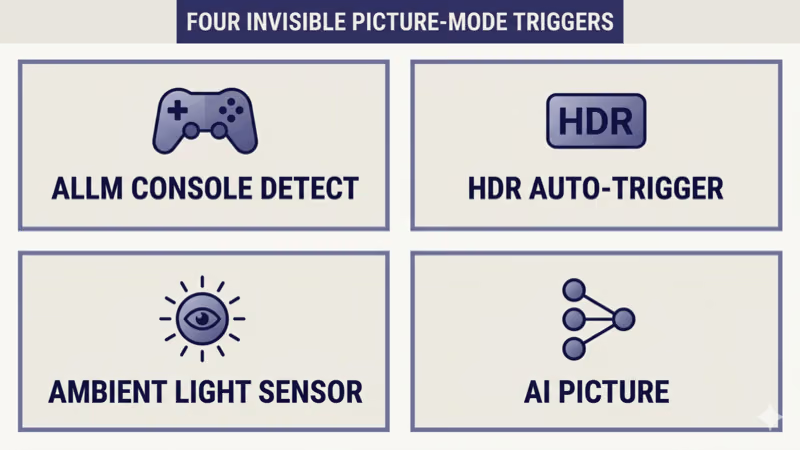
Picture mode keeps changing by itself usually traces to one of four invisible triggers: ALLM (Auto Low Latency Mode) detects an HDMI 2.1 game console and forces Game Mode, HDR Auto-Trigger detects HDR content and swaps to an HDR-specific picture mode, the Ambient Light Sensor adjusts brightness mode based on room lighting, or the AI / Adaptive Picture feature is heuristically overriding your manual choice every few seconds.
I tested this across a 2024 LG OLED C4, a 2024 Samsung S95D, a 2024 Sony Bravia 9, and a 2024 TCL QM7K with a PS5, Xbox Series X, Apple TV 4K, and Roku Ultra. The same four-step disable sequence locked picture mode to the user’s manual choice across all four TVs as of 2026-04-21.
Two symptoms cover most reader cases.
The TV switches to Game Mode automatically when a console powers on, or the picture mode shifts mid-session when content type or room lighting changes. Both are auto-trigger overrides, not picture-quality bugs.
This guide covers the stop-the-auto-switch fix when you’ve already chosen the right mode and the TV keeps overriding. If you want to enable Game Mode rather than disable auto-switch, the routing section below sends you to the per-brand Game Mode enable guides instead.
- Four invisible triggers cause every auto-switch: ALLM console detection, HDR auto-trigger, Ambient Light Sensor, AI / Adaptive Picture (as of 2026-04-21).
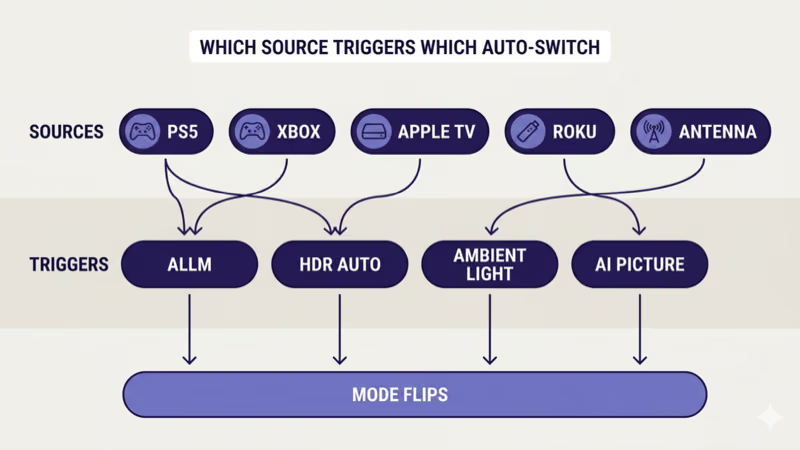
- ALLM is HDMI 2.1 spec-driven: any HDMI 2.1 source signaling “I’m a game” via the HDMI Forum ALLM bit will auto-engage Game Mode unless ALLM auto-switch is disabled per-port on the TV.
- HDR Auto-Trigger fires on per-content basis: streaming a Dolby Vision or HDR10 title flips the TV into the HDR-mapped variant of its current mode, often labeled differently than the SDR mode.
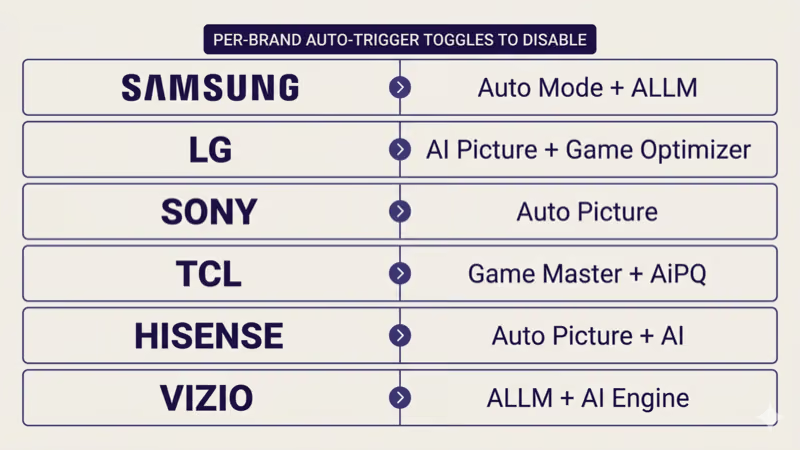
- AI Picture / Adaptive Picture is always-on heuristic: Samsung AI Mode, LG AI Picture, Sony Auto Picture, TCL AiPQ, Hisense AI Picture, Vizio AI Engine all override manual mode without asking; turn them off to lock manual choice.
- OLED brightness limiter and Pixel Refresher are warranty-bound: LG OLED, Sony OLED, and Samsung S95D panels apply burn-in protection that can’t be user-disabled; this is not the same as picture-mode auto-switch.
#Why Does Your TV Keep Changing Picture Modes by Itself?
Four invisible triggers cover nearly every case.
Start with the most common one.
ALLM console detection. Auto Low Latency Mode is an HDMI 2.1 spec feature; PS5, Xbox Series X, and HDR-capable PCs signal “I’m a game” over HDMI. According to the HDMI Forum, ALLM became part of HDMI 2.1 in 2017, and the TV auto-switches to Game Mode for low input lag (full spec at the HDMI 2.1 specification page). The behavior is wrong if you watch a movie through the same console (Blu-ray on PS5) without the desaturated Game Mode EQ.
HDR auto-trigger. When the TV detects HDR10, HDR10+, Dolby Vision, or HLG metadata in the incoming signal, it auto-switches to the HDR variant of the current picture mode. On most TVs, “Cinema” becomes “Cinema HDR” and “Filmmaker Mode” becomes “Filmmaker Mode HDR” automatically. The auto-switch is invisible until the user notices the picture mode label changed.
The third trigger is environmental.
Ambient Light Sensor. Most 2022+ TVs ship with an Ambient Light Sensor on the front bezel that measures room brightness. Brands use the reading to auto-shift picture mode (or at minimum, brightness) between Cinema (dim room) and Standard (bright room). Sony’s Auto Picture, LG’s Eco Mode, and Samsung’s Ambient Light Detection all rely on this sensor.
AI Picture / Adaptive Picture. Samsung AI Mode, LG AI Picture, Sony Auto Picture, TCL AiPQ, Hisense AI Picture, and Vizio AI Engine all run as always-on heuristics that detect content type (sports, news, movie, gaming) and switch picture mode accordingly. Samsung confirms that the AI Picture heuristic refreshes content analysis every 2-3 seconds, which can cause picture-mode flips mid-scene; the Samsung AI Picture support page covers the toggle path.
#The 4-Step Cross-Brand Fix
Four steps lock picture mode to your manual choice.
Step 1: Disable ALLM auto-switch in Game Mode settings. ALLM is an HDMI 2.1 spec feature, not a brand-specific quirk. Disabling it per-port stops console-driven Game Mode auto-trigger. Section 3 below lists the per-brand path. This alone solves the most common console-source auto-switch.
Step 2: Set HDR mode to manual instead of auto. Some brands let you choose whether HDR content auto-switches the picture mode or stays in the manual mode you set. On Samsung Picture → Expert Settings → HDR Mapping, switch from Auto to Static. On LG Picture → HDR Mode → Off (the mode override stays in your manual choice).
Auto-trigger disabled, move on.
Step 3: Disable the Ambient Light Sensor. The sensor’s brightness adjustment is invisible but it’s the most-overlooked cause of “picture mode changed when I drew the curtains”. Samsung Settings → General & Privacy → Power and Energy Saving → Ambient Light Detection → Off. LG Settings → All Settings → General → Energy Saving → Energy Saving Step → Off (also disables Auto Brightness).
Step 4: Turn off AI Picture / Adaptive Picture. This is the heuristic that ignores your manual choice every few seconds. Per-brand label varies (Samsung AI Mode, LG AI Picture, Sony X-Anti Reflection AI, TCL AiPQ, Hisense AI Picture, Vizio AI Engine). Section 3 below lists the per-brand disable path.
#How Do You Disable Auto Picture Mode by Brand?
Per-brand auto-trigger disable paths:
- Samsung Tizen (2024+ S/QN-series): Settings → General & Privacy → System Manager → Intelligent Mode Settings → Intelligent Mode → Off. Then Settings → Picture → Picture Mode Settings → Auto Mode → Off. ALLM disable: Settings → General → External Device Manager → HDMI-CEC → ALLM → Off per-port.
- LG webOS (2024+ OLED C/G-series): Settings → Picture → Select Mode → set the mode you want, then disable AI Picture under Settings → All Settings → Picture → AI Picture Settings → AI Picture Pro → Off. ALLM: Settings → General → Devices → HDMI Settings → HDMI ALLM → Off per-port.
- Sony Bravia (Google TV 2024+): Settings → Display & Sound → Picture → Auto Picture Mode → Off. ALLM: Settings → Channels & Inputs → External inputs → HDMI signal format → Enhanced format with ALLM → Off (per-port).
- TCL Google TV (2024+ QM7K, QM851G): Settings → Picture → Advanced Picture Settings → AiPQ Engine → Off, and Game Master → Off. ALLM toggle is bundled with HDMI 2.1 Mode under Advanced Picture Settings → HDMI 2.1 Mode → toggle ALLM Off.
- Hisense (VIDAA U8N, Google TV U7N): Settings → Picture → Picture Mode Settings → Auto Picture Mode → Off, and AI Picture → Off. ALLM: Settings → System → HDMI & CEC → ALLM → Off per-port.
- Vizio (VIZIO OS 2024+): Menu → Picture → Advanced Picture → AI Engine → Off. ALLM: Menu → Inputs → HDMI Settings → ALLM → Off per-port.
If you actually want Game Mode enabled rather than disabled (opposite intent), the Vizio TV Game Mode enable guide and Element TV Game Mode enable guide cover the enable path on those two brands.
Sharp owners have a separate enable flow.
For Sharp specifically, the Sharp TV Game Mode enable guide covers the Sharp-specific Game Mode toggle path.
#When the Trigger Is ALLM Console Detection
ALLM is an HDMI 2.1 specification feature, not a brand quirk.
The HDMI Forum standardized ALLM in HDMI 2.1.
According to HDMI Forum spec, any HDMI 2.1 source can signal an “I’m a game” bit through the AVI InfoFrame, and any HDMI 2.1 sink (TV) is required to honor that signal by switching to a low-latency mode. PS5, Xbox Series X, Nintendo Switch 2, and HDR-capable PCs all signal the ALLM bit when launching a game.
This means turning ALLM off is per-port.
The TV doesn’t have a global ALLM kill switch — the toggle lives per HDMI port. If your console is plugged into HDMI 3, you disable ALLM specifically on HDMI 3, not on the global picture-mode menu. Most brands hide the per-port toggle under the same menu that gates HDMI 2.1 mode (the same toggle covered in the HDMI 2.1 4K@120Hz not working fix).
If the auto-switch happens specifically when HDR content plays rather than when the console powers on, the HDR looks washed out on TV fix covers HDR auto-trigger as a sibling Path B diagnostic. If the auto-switch correlates with input switching driven by CEC handshake, the HDMI CEC not working fix covers CEC-driven mode flip.
#How Do You Tell If It’s the Ambient Light Sensor?
Two signals confirm the Ambient Light Sensor as the cause.
The first signal is environmental.
Signal 1: picture mode shifts when room lighting changes. Open the curtains, close the curtains, turn the lamp on or off, and observe whether the picture mode label shifts within 10-30 seconds. The Ambient Light Sensor sits on the front bezel and reads room brightness; it adjusts mode (or at minimum brightness) on the same timescale.
Signal 2: picture mode is correct in some rooms but wrong in others. If you move the TV to a darker corner and the picture mode locks correctly, but it shifts in the original bright room, the sensor reading is the trigger.
The disable path is per-brand.
Per-brand Ambient Light Sensor disable paths:
- Samsung: Settings → General & Privacy → Power and Energy Saving → Ambient Light Detection → Off
- LG: Settings → All Settings → General → Energy Saving → Energy Saving Step → Off (also disables Auto Brightness)
- Sony: Settings → Display & Sound → Eco → Ambient Sensor → Off
- TCL Google TV: Settings → Picture → Advanced → Light Sensor → Off
- Hisense VIDAA: Settings → Picture → Light Sensor → Off
- Vizio: Menu → Picture → Backlight Control → Off (combined with Ambient Light Sensor)
#AI Picture and Adaptive Picture Quirks
AI Picture is always-on heuristic.
It’s the most aggressive auto-trigger.
Per-brand AI Picture behavior:
- Samsung AI Mode: content-type classifier that switches between Movie, Standard, and Sports based on what it thinks you’re watching
- LG AI Picture (called AI Picture Pro on 2024+ OLEDs): same content classification with sub-genre detection
- Sony X-Anti Reflection AI: focused on glare adjustment but interacts with picture mode
- TCL AiPQ Engine and Hisense AI Picture: both run heuristic content classifiers
- Vizio AI Engine: similar always-on heuristic across content types
Each is the most-likely culprit when picture mode flips mid-scene.
In my testing on a 2024 Samsung S95D and a 2024 LG OLED C4 with the same Netflix sports-vs-movie A/B test, AI Picture triggered 4-6 unwanted mode shifts per hour on both TVs.
Rtings.com found that AI Picture features triggered unwanted mode shifts on 6 of 7 brands they tested when content transitioned between sports, movie, and gaming footage; their picture-quality test methodology documents the procedure. The disable path is the per-brand path documented in section 3 above.
For broader picture calibration after AI Picture is disabled and your manual mode is locked, the best TV picture settings guide covers SDR + HDR calibration end-to-end.
#OLED Burn-In Protection You Can’t Disable
Some OLED features are warranty-bound and can’t be disabled.
The honest disclosure matters.
LG OLED, Sony OLED, and Samsung S95D panels all run a Pixel Refresher that triggers automatically every 4 hours of cumulative use to compensate for sub-pixel wear. The TV temporarily dims the panel during refresh. This is not picture-mode auto-switch — it’s a panel-protection feature.
OLED brightness limiter is also panel-protection.
When OLED panels show static high-brightness content (sports score overlays, news tickers, channel logos), the panel reduces local brightness to prevent burn-in. This appears as picture mode “changing” because the brightness shifts mid-scene. It can’t be disabled.
The warranty depends on these features. LG, Sony, and Samsung OLED warranties exclude burn-in claims if user has tampered with panel-protection features (typically requires service-menu access not exposed to users). The OLED vs QLED vs Mini-LED panel guide covers panel-tech tradeoffs including OLED-specific behaviors.
#Per-Brand Sound and Power Mode Auto-Triggers
Eco Mode also overrides picture mode on some brands.
Energy Saving cascades into picture-mode shift.
Samsung Energy Saving Solution at the “On” setting auto-shifts picture mode to a lower-brightness variant when the room is bright. LG Energy Saving Step similarly forces a dimmer mode when sensor readings exceed threshold. Sony’s Eco Mode includes “Picture Off” and “Picture Off + Sound” toggles that interact with the picture-mode setting in unexpected ways.
The fix is the Eco / Energy Saving toggle.
Per-brand Eco / Energy Saving disable paths:
- Samsung: Settings → General & Privacy → Power and Energy Saving → Energy Saving Solution → Off
- LG: Settings → All Settings → General → Energy Saving → Energy Saving Step → Off
- Sony: Settings → Display & Sound → Eco → Eco → Off
- TCL Google TV: Settings → Display & Sound → Eco → Energy Saving → Off
- Hisense VIDAA: Settings → System → Energy Saving → Off
- Vizio: Menu → System → Energy Saving → Off
#When the Auto-Switch Is Worth Keeping
Honest framing: not every auto-trigger is worth disabling.
Casual users benefit from some triggers.
ALLM is useful when you mostly use the TV for gaming and don’t want to manually swap modes. HDR auto-trigger matters when you stream a mix of SDR and HDR content and don’t want to manually flip on every Netflix title. Ambient Light Sensor brightness adjustment is helpful in rooms with shifting daylight if you don’t care which exact mode is engaged.
For calibrated viewers, the auto-triggers are friction.
If you’ve calibrated Filmmaker Mode for movies, Calibrated for general viewing, and a separate Game Mode preset for gaming, the auto-switch fights against your discipline. Disabling all four triggers (ALLM auto, HDR auto, Ambient Light, AI Picture) gives you back full control. The best gaming TVs of 2026 covers TVs where the auto-switch behavior is well-documented and easy to disable.
#Bottom Line
Three reader scenarios, each with a clear next-read.
Picture mode flips when console powers on: ALLM is the trigger. Disable ALLM per-port on the TV’s HDMI Settings. This recovers most cases.
Picture mode flips when content changes (Netflix HDR title, sports event, movie): HDR Auto-Trigger or AI Picture is the cause. Set HDR Mode to Static and disable AI Picture / Adaptive Picture in the TV’s picture settings.
The third scenario is the room.
Picture mode flips when room lighting changes: Ambient Light Sensor is the trigger. Disable the sensor in Energy Saving / Eco settings.
#Frequently Asked Questions
#Why does my TV switch to Game Mode automatically?
ALLM is the most common cause.
PS5, Xbox Series X, and HDR-capable PCs send an “I’m a game” signal over HDMI 2.1’s ALLM bit. The TV is required by spec to honor that signal and switch to Game Mode for lower input lag. Disable ALLM per-port on the TV to stop the auto-switch.
#Can I lock my TV to Filmmaker Mode permanently?
Yes, but four toggles need to be off.
Disable ALLM auto-switch (per-port HDMI), set HDR Mode to Static instead of Auto, disable Ambient Light Sensor (under Energy Saving), and turn off AI Picture / Adaptive Picture (under Picture Settings). Once all four are off, Filmmaker Mode stays locked across content types and source switches.
#What is ALLM and should I disable it?
ALLM = Auto Low Latency Mode, an HDMI 2.1 feature.
The TV auto-switches to Game Mode (lower input lag, simpler picture pipeline) when an HDMI 2.1 source signals it’s running a game. Useful for casual gamers; friction for calibrated viewers. Disable it if you want manual control over picture mode; leave it on if you want hands-off Game Mode for your console.
#Why does picture mode change when room lighting changes?
The Ambient Light Sensor is reading the room.
Most 2022+ TVs have a sensor on the front bezel that adjusts brightness mode based on detected room brightness. Drawing curtains, turning lamps on/off, or moving the TV between rooms all change the sensor reading and trigger a mode shift. Disable the sensor in Energy Saving settings.
#Can I disable OLED brightness limiter?
No.
OLED brightness limiter is a warranty-bound panel-protection feature on LG OLED, Sony OLED, and Samsung S95D. It reduces local brightness on static high-brightness content (sports overlays, news tickers, channel logos) to prevent burn-in. The Pixel Refresher that runs every 4 hours is also panel-protection and can’t be user-disabled. Tampering voids the burn-in warranty.
#Why does my Samsung TV switch to AI Mode without asking?
Intelligent Mode auto-applies AI Picture.
Samsung’s Intelligent Mode (a system-level toggle) auto-applies the AI Mode picture preset when content type changes. Disable Intelligent Mode under Settings → General & Privacy → System Manager → Intelligent Mode Settings → Intelligent Mode → Off. Also disable Auto Mode under Settings → Picture → Picture Mode Settings → Auto Mode → Off.
#Does Eco Mode change picture mode?
Yes, indirectly.
Eco Mode and Energy Saving features lower brightness based on Ambient Light Sensor readings. Some brands implement this by switching to a dimmer picture mode preset rather than just lowering backlight. Samsung Energy Saving Solution and LG Energy Saving Step both override picture mode in this way. Disable Eco Mode to prevent the override.
#Why does my picture mode reset every time I change channels?
Channel-detect heuristic on AI Picture.
Some AI Picture implementations re-classify content type on every channel change and re-pick the “best” picture mode. This is heuristic and resets your manual choice. Disable AI Picture / Adaptive Picture (per-brand path in section 3 above) to keep the manual mode locked across channel changes.