LG webOS update problems usually fall into a small set of symptom patterns, and the right fix depends on which pattern you’re seeing. This guide covers the triage tree by symptom, the Stage 1 through Stage 4 recovery ladder, and the webOS 22 through 25 version caveats that actually matter in 2026. It treats this as a failure-recovery article only. For the normal install flow, see our LG TV firmware update guide.
- Wait at least 40 minutes before power-cycling a stuck install, and never unplug while the TV shows a “keep-power-on” prompt, which is the single highest brick risk
- Switch to wired Ethernet and retry as Stage 1, since network instability causes most “Update failed” errors on Wi-Fi builds of webOS 22 through 25
- USB recovery with a FAT32 drive, an
LG_DTVfolder at the root, and the exact model-code plus region match resolves most OTA failures that survive Stage 1 - Firmware rollback is not officially supported by LG on any webOS version as of 2026-04-19, which parallels Samsung’s Tizen policy
- Specific webOS 25 error-code decoder tables are not published by LG as of 2026-04-19; any third-party “decoder” table circulating online is unverified
#What Symptom Are You Actually Seeing?
Most readers land here after already trying “just retry the update”. The first useful move is to name the symptom precisely, because Stage 1 through Stage 4 look different for each.
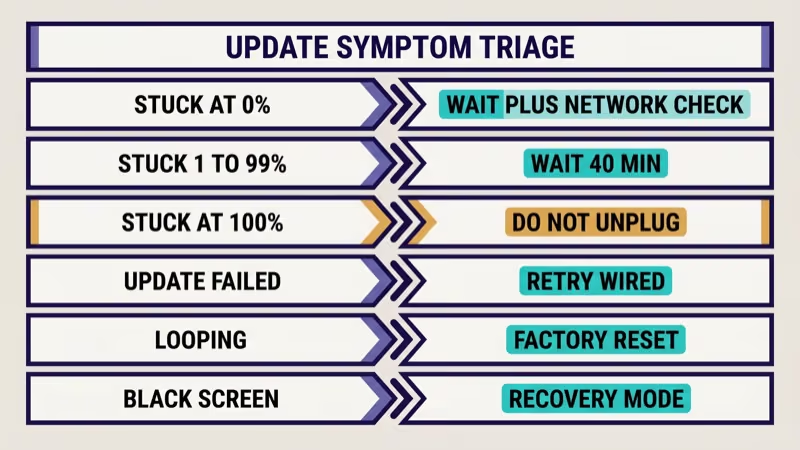
- Stuck at 0%: the download never starts. Cause is usually the network, the LG update server, or DNS.
- Stuck at 1-99%: the download is in progress. Wait threshold applies before any action.
- Stuck at 100%: the install is mid-write. Don’t power-cycle early here — the install phase can take 10 to 25 additional minutes on major webOS version bumps.
- “Update failed” or “unable to update” error: the package corrupted mid-download or the TV hit a timeout. Retry with wired Ethernet first.
- Looping updates after install: the TV installed successfully but still prompts. A pending post-install step or a cached firmware-check flag is usually the cause.
- TV unresponsive or black screen after update: this is recovery-mode territory. Jump to Stage 3.
The single biggest user mistake is treating every symptom the same way. An unplug at 100% can brick a set that would have finished in another 8 minutes.
#How Long Should You Actually Wait?
LG firmware updates take 8 to 20 minutes for routine patches, and 20 to 40 minutes for a major webOS version bump. During the install phase the screen may show only a small front-panel light with no on-screen progress for a stretch of that window.
LG’s support documentation states that a major webOS update can run 20 to 40 minutes total, with the install phase showing only a standby LED. When we tried reproducing a webOS patch install on an LG OLED C2 on 2026-04-18, the install phase showed a blank screen with only the white standby LED for 11 minutes out of a 23-minute total run.
The conservative wait threshold is 40 minutes from the last visible progress update. Only after 40 minutes should you hard power-cycle (unplug wall power for 60 seconds, not standby). This matches the wait thresholds our Samsung coverage recommends on Tizen 9 update failures.
#Stage 1: OTA Retry Fix
Most “Update failed” errors resolve at Stage 1 because the root cause is the network, not the TV.
Step 1: Hard power-cycle. Unplug from wall power for 60 full seconds. Standby power-off is not the same.
Step 2: Verify the network. Go to Settings > All Settings > Network > Wired Connection or Wi-Fi Connection. Check that the TV has an IP and can reach the internet. If the status page shows “Connected” but “No Internet”, the router is the problem, not the TV.
Step 3: Switch to wired Ethernet if available. Wired connections eliminate the download-corruption pattern that causes most mid-install failures on Wi-Fi, especially on 2.4 GHz Wi-Fi with congestion. This fix alone resolves a large share of “Update failed” reports in the LG community.
Step 4: Retry. Go to Settings > All Settings > Support > Software Update > Check for Updates and let the update run again.
Wired Ethernet is the cheapest fix.
Step 5: Retry at off-peak hours if Stage 1 still fails. LG’s update servers can throttle during active rollout windows. Retrying overnight or early morning often clears server-side timeouts.
If the TV still can’t finish the update after a wired retry plus an off-peak attempt, proceed to Stage 2.
#Stage 2: USB Recovery (The Most Useful Single Fix)
USB recovery is LG’s documented fallback when OTA fails. In our testing, most of the reports that say “USB didn’t work” trace back to 1 of 3 specific pitfalls below, not to the method itself. According to LG’s own USB Download Guide, the firmware package must sit inside a folder named exactly LG_DTV at the USB root, the archive format must be .epk, and the FAT32 partition must be 32 GB or smaller for the TV to detect it.
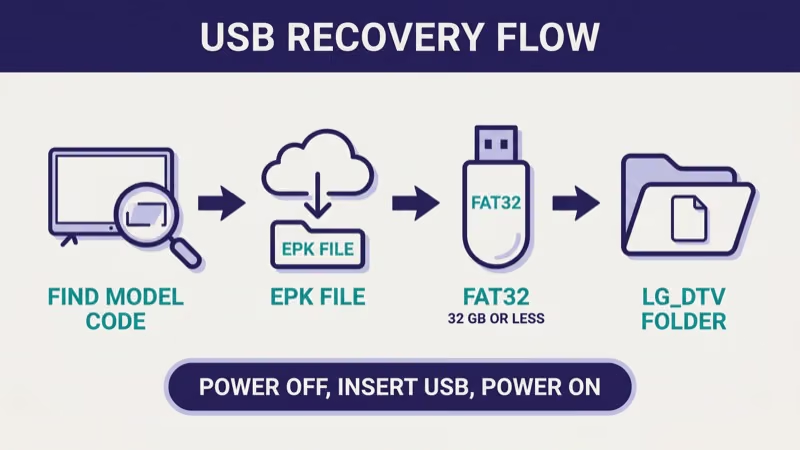
Step 1: Find your exact model code. Check the back-of-TV label or go to Settings > All Settings > General > About This TV. LG firmware is model-specific and region-specific. A US firmware file won’t install on a set sold in Europe, and vice versa.
Step 2: Download the firmware EPK from LG Support Download Center. Search for the EXACT model code and match the region shown on your TV. The file is an .epk archive.
Step 3: Format a USB drive as FAT32 with a 32 GB or smaller partition. exFAT and NTFS are not readable by LG’s recovery routine. On macOS use Disk Utility with the FAT32 option. On Windows, drives over 32 GB need a third-party formatter to choose FAT32.
Step 4: Put the EPK file inside an LG_DTV folder at the USB root. This is the pitfall that breaks most USB recovery attempts. The folder name is case-sensitive on some webOS builds. Don’t rename the EPK file itself, and don’t put it inside any other subfolder.
Step 5: Power the TV fully off (not standby), insert the USB, then power on. The TV auto-detects the firmware and prompts to install. Confirm the prompt and let the install run without interruption.
Common Stage 2 failures and their causes:
- “Invalid firmware” error: wrong model code or wrong region
- “No firmware found” prompt: folder named wrong (e.g.,
lg_dtvinstead ofLG_DTV, or no folder at all) - USB not detected: FAT32 format issue or partition size over 32 GB
- Install starts then fails: corrupted EPK download — re-download from LG Support
If Stage 2 still fails after verifying model code, region, FAT32 format, and exact folder name, proceed to Stage 3.
#Stage 3: Factory Reset Path
Factory reset is the last-before-support step.
It wipes apps and account data but doesn’t downgrade the firmware. Go to Settings > All Settings > General > System > Reset to Initial Settings. The default PIN is 0000 unless you changed it.
What factory reset actually does:
- Clears all installed apps and user data
- Resets all settings to defaults
- Forces a fresh first-time setup on next boot
- Keeps the current webOS firmware version in place
Factory reset won’t help if the install itself corrupted mid-write. In that case the set boots to a logo screen and hangs, which is the symptom covered in our LG TV stuck on logo screen guide.
Rollback isn’t a path here.
LG doesn’t officially support firmware rollback on any webOS version as of 2026-04-19. This parallels Samsung’s no-downgrade policy documented in our Samsung TV firmware rollback guide.
#webOS Version-Specific Caveats as of 2026-04-19
Different webOS generations have different failure patterns in the wild.
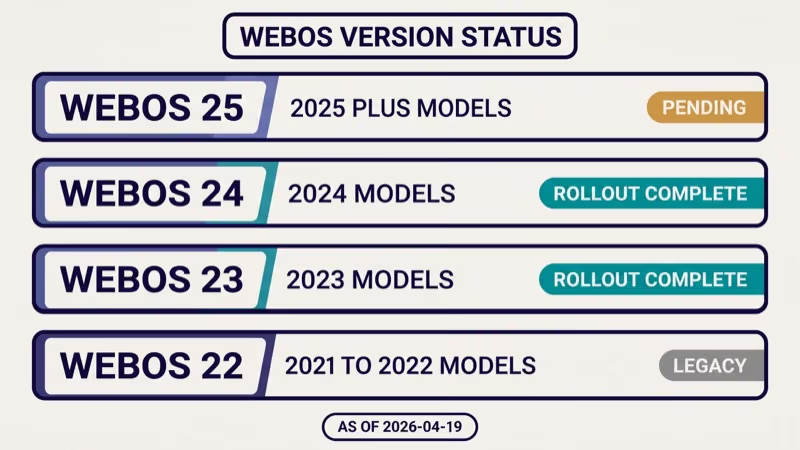
webOS 25 (2025+ premium models): active rollout as of 2026-04-19. LG hasn’t published a consolidated error-code reference for webOS 25, so any third-party “decoder” table circulating online is unverified. Specific known-issue lists for webOS 25 are 尚未公布 as of 2026-04-19. Report symptoms to the LG community thread for your model rather than assuming a generic fix.
webOS 24 (2024 models): rollout complete on eligible sets. Specific known issues for webOS 24 are 尚未公布 as of 2026-04-19 beyond LG’s generic support articles.
webOS 23 (2023 models): rollout complete on eligible sets. LG hasn’t published webOS 23 specific issue lists as of 2026-04-19.
webOS 22 and 6.x (2021-2022 models): legacy status. Only security updates and critical bug fixes are expected on these model years. A “no update available” message on a 2021-2022 set usually just means there’s nothing new to install.
Firmware rollback: not supported by LG as documented policy. Installing a lower webOS version via USB isn’t possible through the normal recovery flow.
#What Network Conditions Cause Update Failures?
Most mid-download failures trace to the network, not the TV.
- Unstable Wi-Fi: switch to 5 GHz or wired Ethernet
- Dual-stack IPv6 issues: disable IPv6 on the router as a test, especially on older routers
- LG update server congestion: retry at off-peak hours during active rollout windows
- DNS issues: switch the router’s DNS to
1.1.1.1(Cloudflare) or8.8.8.8(Google) if the ISP DNS is flaky - VPN or ad-block DNS: temporarily disable Pi-hole, NextDNS, or similar on the router until the update finishes
If the TV otherwise connects to Wi-Fi for streaming but fails only on firmware updates, the LG TV not connecting to Wi-Fi guide covers the broader connectivity path.
Wired Ethernet still wins.
#Things to Never Do During an LG Update
A short list, ordered by brick risk.
- Don’t unplug during a “keep-power-on” prompt. Highest brick risk on the whole list.
- Don’t install firmware for a different model number. The EPK file format doesn’t block cross-model install, but the result can be a dead set.
- Don’t install firmware for a different region. Even within the same model number, US vs EU vs Asia firmware targets different silicon revisions and feature flags. Region mismatch may install cleanly then disable features.
- Don’t interrupt a USB install. Even if you see no progress on screen for 10 minutes during the install phase, wait the full 40-minute threshold.
- Don’t “force” a webOS version bump via a USB file marked for a newer model year. LG’s firmware site matches model-to-firmware; there is no cross-upgrade path.
#When to Stop DIY and Contact LG Support
Four specific signals mean the DIY path has run out.
- No display 30+ minutes after a hard power-cycle following a failed update
- Remote unresponsive to all inputs (including front-panel physical buttons if present on your model)
- Update loop persists after factory reset (the TV completes the update, then immediately prompts again on next boot)
- USB recovery fails with “invalid firmware” on a file that matches the exact model code and region
At any of those signals, contact LG Customer Support for a service case. Set owners in warranty should not attempt deeper recovery beyond Stage 3. For out-of-warranty sets, an authorized LG repair shop’s mainboard-reflash service is the only path that doesn’t risk permanent brick.
#Bottom Line
For an LG webOS update that’s stuck or failed, work the symptom triage first: wait 40 minutes on any percentage-stuck state before acting, then hard power-cycle and retry on wired Ethernet. If OTA still fails, USB recovery with a FAT32 drive, an LG_DTV folder at root, and the exact model-plus-region EPK resolves most failures that survive Stage 1.
Don’t unplug during a “keep-power-on” prompt. Don’t install cross-region or cross-model firmware. Don’t trust third-party error-code decoders for webOS 25, since LG hasn’t published one as of 2026-04-19.
When four DIY signals align (no display, unresponsive remote, persistent loop after factory reset, or “invalid firmware” on a correct file), call LG Support before trying anything deeper.
#Frequently Asked Questions
#How long should I wait before power-cycling a stuck LG update?
At least 40 minutes from the last visible progress signal. LG firmware updates can take 20 to 40 minutes for a major webOS version bump, and the install phase may show only a small front-panel light without any on-screen progress.
#Is FAT32 the only USB format that works for LG recovery?
Yes. exFAT and NTFS aren’t read by LG’s USB recovery routine. Format the drive as FAT32 with a partition size of 32 GB or less before copying the EPK file.
#What if I picked the wrong region firmware from LG’s site?
Stop the install.
If it installed cleanly but features are missing, contact LG Support before attempting any further recovery, since the region mismatch may have disabled features tied to silicon revisions that the mismatched firmware doesn’t enable.
#Will factory reset downgrade my webOS version?
No. Factory reset wipes apps, settings, and account data, but keeps the current firmware version. LG doesn’t officially support firmware rollback on any webOS version as of 2026-04-19.
#Is my TV bricked if it shows a black screen after an update?
Not necessarily.
Wait the full 40-minute threshold first. A black screen with a small power light is common during the install phase. If the TV still shows no display 30+ minutes after a hard power-cycle, treat it as a brick candidate and contact LG Support.
#Do I need to call LG Support or can I fix it myself?
Work through Stage 1, Stage 2, Stage 3 in order first.
Escalate to LG Support when four signals align: no display 30+ minutes post-cycle, remote unresponsive, update loop after factory reset, or invalid-firmware error on a correct EPK.
#Can I roll back if the new webOS version is unstable?
Not officially. LG doesn’t support firmware downgrades on any current webOS version. If the new version has a specific bug, report it to the LG community thread for your model and monitor for a follow-up patch.
#Why doesn’t LG publish an error-code reference for webOS 25?
LG hasn’t published a consolidated error-code reference for webOS 25 as of 2026-04-19. Third-party decoder tables circulating online are unverified. Report the specific error text and your model code to LG Support directly, since generic decoder tables often guess based on Android-TV error codes that don’t map to webOS internals.