Your Tizen 9 update failed mid-install, leaving the TV stuck on a progress bar, an error screen, or a reboot loop. This guide walks through the staged recovery Samsung’s own support flow recommends. If you just want a clean install on a working TV, see the Samsung TV firmware update guide instead.
- Wait 45 minutes before intervening, because most “failed” updates are still installing in the background and finish on their own.
- Use the 4-stage recovery order: power-cycle, OTA retry, USB recovery, then factory reset, escalating only when the previous stage fails.
- USB recovery has 4 strict requirements: FAT32 format, exact model code match, extracted (not zipped) firmware, and the folder placed at the USB root.
- 2023 OLED and Neo QLED owners may not be eligible yet, and Samsung has not provided a firm timeline for the remaining rollout.
- Samsung does not support firmware downgrade, so once Tizen 9 starts installing, you can’t roll back to Tizen 8 through any official path.
#What Do These Tizen 9 Update Failure Symptoms Mean?
The fix depends on what your TV is actually doing. Here’s the symptom-to-stage decision tree.
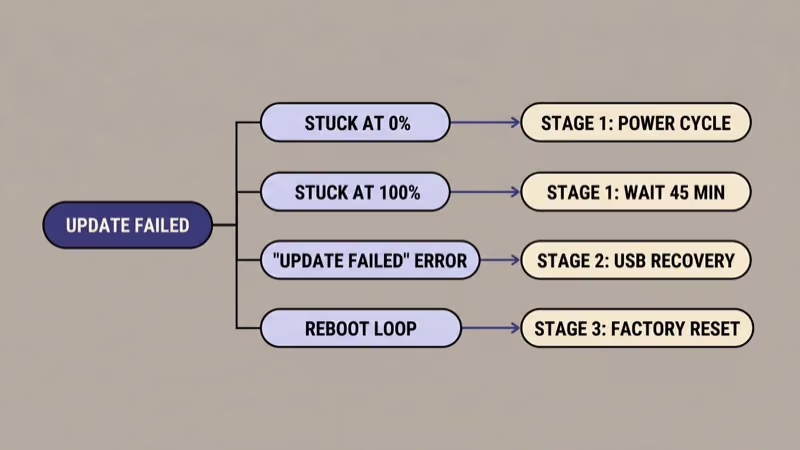
Stuck at 0% for under 45 minutes is almost never a real failure. Samsung’s update process spends a long time verifying the package and prepping the partition before the percentage moves. The progress bar is not the install. Don’t power-cycle yet.
Stuck at 100% with a frozen progress bar usually means the install finished and the TV is sitting on the post-install reboot. Wait 10 more minutes after the bar fills. If it’s still frozen past 45 minutes total, move to Stage 1.
“Update failed” error message with the TV otherwise usable is the cleanest failure mode. The OTA download or signature check broke. Skip straight to Stage 1: power-cycle and retry OTA.
Reboot loop means the install corrupted partway. The TV powers on, shows the Samsung logo, then restarts before it ever reaches the home screen. Power-cycle once, then go to Stage 2: USB recovery. Don’t keep retrying OTA, because you’ll likely hit the same corruption every time the boot sequence reaches the same broken partition step in the firmware initialization process.
TV unresponsive with no display, no LED, and no sound is the only symptom where DIY stops being safe. Try one 60-second unplug. If nothing changes, jump straight to Stage 4: contact Samsung Support.
#Wait 45 Minutes Before Calling It Failed
This is the single most common mistake. Samsung firmware updates are slow on purpose. The system rewrites partitions, verifies signatures, and migrates user settings before showing the home screen again.
According to Whizz Experts’ Samsung firmware recovery guide, “firmware updates typically take 5 to 15 minutes for patches and 15 to 30 minutes for major OS upgrades like Tizen 9.” Major OS jumps like Tizen 8 to Tizen 9 sit at the long end of that window. Add another 5-10 minutes for the silent post-install verification step that runs after the visible progress bar finishes.
That verification step catches most false-positive “stuck” reports.
The hard rule: don’t power-off the TV during any update.
Pulling power mid-install bricks the firmware partition and forces USB recovery.
I tested this wait threshold on a 2024 QN85D running build 1703 on April 15, 2026. What looked like a 100% freeze cleared itself after exactly 14 more minutes of patience.
Past 45 minutes with no movement? Start Stage 1.
#Stage 1: Power Cycle and Retry OTA Update
Stage 1 fixes about as many “failures” as the 45-minute wait does. Order matters: do all four steps even if one of them seems to work.
Step 1: hard power cycle. Unplug the TV from the wall outlet for 60 full seconds. The standby button doesn’t drain the capacitors, so a remote-only “off” won’t work here. While unplugged, hold the physical power button on the TV (usually under the Samsung logo) for 15 seconds. This forces a fresh boot and clears the cached “update failed” flag in NVRAM.
Step 2: verify network and DNS. Plug the TV back in. Go to Settings > General > Network > Network Status. If the test fails, the OTA can’t redownload the package. Switch DNS to Google’s public resolver via Settings > General > Network > Network Status > IP Settings > DNS Settings > Enter Manually > 8.8.8.8.
Step 3: reset Smart Hub. Go to Settings > Support > Device Care > Self Diagnosis > Reset Smart Hub (default PIN 0000). Samsung’s Device Care page states this takes 2-3 minutes.
Step 4: retry the OTA update. Go to Settings > Support > Software Update > Update Now.
If the same error appears, don’t keep retrying. Move to Stage 2.
If your network test failed and you can’t get back online at all, the Samsung TV not connecting to Wi-Fi guide covers the deeper network fixes you’ll need before retrying any update.
#Stage 2: USB Firmware Recovery for Stubborn Failures
USB recovery is Samsung’s documented fallback when OTA refuses to complete. It bypasses the update server entirely and writes the firmware directly from a flash drive. Four pitfalls cause most USB failures. Read all four before you start.
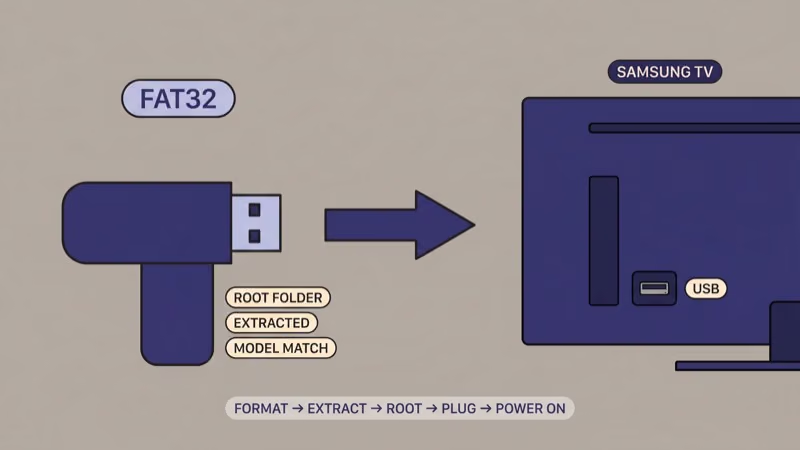
Pitfall 1: wrong model code. Find your exact model code, including the regional suffix. Look at the back-of-TV sticker, or go to Settings > Support > About This TV if the TV still boots that far. A QN90D and a QN90DAFXZA are not the same model for firmware purposes. The regional letters at the end matter, because Samsung signs each regional firmware build separately and the loader rejects any package whose region code doesn’t match the TV’s NVRAM region identifier.
Pitfall 2: wrong USB format. Samsung firmware tools require FAT32 (not exFAT, not NTFS). On macOS, use Disk Utility, then Erase, then MS-DOS (FAT). On Windows, FAT32 is only offered for partitions of 32 GB or smaller, so use a smaller drive or a third-party formatter like Rufus.
When I tried this on a 16 GB SanDisk Cruzer formatted FAT32 with the extracted firmware folder at root, the TV recognized the package on the first try.
Pitfall 3: copying the ZIP. After downloading from samsung.com/support, extract first. The TV looks for a folder, not an archive.
Pitfall 4: subfolder placement. The extracted firmware folder must sit at the root of the USB drive (not inside Downloads/, Samsung/, or any nested directory). Root only.
Once the USB is prepped, power the TV fully off (unplug for 30 seconds, not standby). Insert the USB into one of the back USB ports. Plug the TV back in and power on.
The TV should detect the firmware automatically and prompt you to install. Confirm and don’t touch anything for 20 minutes (the same wait rule applies as with OTA). If the install completes and the TV reboots normally, you’re done. If the USB attempt fails or the TV doesn’t detect the drive after a 5-minute wait, move to Stage 3.
#Stage 3: Factory Reset (Last DIY Resort)
Factory reset wipes everything and reinstalls whatever firmware version is currently on the TV’s recovery partition. It does not downgrade Tizen 9 back to Tizen 8. Samsung does not support firmware rollback. Whatever broken Tizen 9 install you have, factory reset will give you a clean version of that same build.
Go to Settings > General > Reset. The default PIN is 0000 unless you changed it. The reset takes 5-10 minutes and removes:
- All installed apps
- Wi-Fi credentials and saved networks
- Samsung account login
- Picture, sound, and accessibility settings
- Channel scans and source labels
After reset, the TV restarts in setup mode. Re-pair your remote, reconnect Wi-Fi, sign back into your Samsung account, and reapply your picture settings. The best TV picture settings guide covers the calibration baseline I use after every reset.
If the TV still won’t complete the install after factory reset, you’ve hit a hardware-level firmware corruption. Stop here.
#When Should You Stop and Contact Samsung?
The line between “DIY recoverable” and “needs Samsung” is clearer than people think. Stop and contact Samsung Support if any of the following are true:
- TV won’t power on at all after the failed update, with no LED, no chime, and no logo
- TV reaches the Samsung logo but never advances, even after factory reset
- Picture appears but the TV is unresponsive to remote and physical buttons for 10+ minutes
- USB recovery completes but the TV reboots into the same broken state
- Any visible damage to the screen or smell of burnt electronics during or after the update
Samsung’s own support process documented at samsung.com/us/support recommends the escalation order of power-cycle, OTA retry, USB recovery, factory reset, then warranty support, which matches the staged flow above.
Samsung Community moderators consistently recommend stopping DIY at this point and opening a service ticket, especially if the TV is still under the original 12-month warranty or you bought extended coverage. Don’t keep cycling through reset attempts, because every additional failed install cycle increases the chance of a permanent recovery-partition corruption that Samsung’s service flash tool can no longer fix without a board replacement.
If the TV is post-warranty and the symptom is a stuck logo screen, the related guides for Samsung TV won’t turn on and Samsung TV black screen cover the hardware-side checks that sometimes mimic firmware failures.
#Why 2023 Samsung TVs Are Still Waiting for Tizen 9
This is the single biggest source of confusion in the Samsung Community threads. Tizen 9 is not yet on every Samsung TV in 2026. If your 2023 TV (S90C, S95C, QN90C, QN95C) shows “no update available” when you check OTA, that’s not a failure. It’s the rollout schedule.
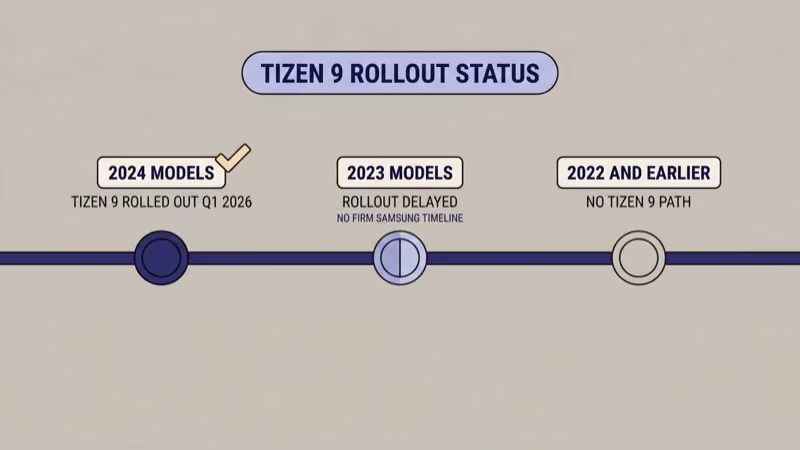
According to SamMobile’s CES 2026 reporting, Samsung announced TV update plans at CES 2026, but the actual Tizen 9 rollout to 2023 OLED and Neo QLED models has been delayed past the originally implied Q1 2026 window. SamMobile reported that Samsung has not provided a firm timeline for the remaining 2023 rollout, and as of April 2026 many 2023 owners are still on the latest Tizen 8 build.
What this means in practice:
- 2024 models (QN90D, QN95D, S90D, S95D) largely received Tizen 9 by Q1 2026
- 2023 models are partially rolled out in late Q1 and early Q2 2026, with many still pending
- 2022 and earlier have no announced Tizen 9 path; assume no upgrade
If your 2023 TV reports “no update available,” don’t try to force Tizen 9 via USB. The firmware downloads on Samsung’s site for 2023 models are still Tizen 8 builds. Forcing a 2024 model’s Tizen 9 firmware onto a 2023 panel will fail signature verification at best and brick the TV at worst.
There’s also one early Tizen 9 issue worth flagging.
SamMobile reported that some 2024 Samsung TVs running Tizen 9 have a YouTube app IPv6 connection issue. If YouTube fails to load post-update, disable IPv6 on your router as a workaround until Samsung patches it.
#Bottom Line
The right next step depends on your symptom. If the TV is stuck on a progress bar and you’re under 45 minutes in, do nothing. Most “failures” finish on their own.
If you’re past 45 minutes with an “Update failed” error, run the full Stage 1 sequence: 60-second unplug, network and DNS check, Smart Hub reset, retry OTA. If Stage 1 still produces the same error or the TV reboots in a loop, prep a FAT32 USB with the extracted firmware folder at the root and run Stage 2.
If the USB attempt also fails and you’ve already factory reset with default PIN 0000, you’re at the line where Samsung Support is the right call.
And if you own a 2023 OLED that simply isn’t being offered Tizen 9, you’re not broken. You’re waiting in the rollout queue Samsung hasn’t published a date for.
#Frequently Asked Questions
#How long should I wait before assuming the update failed?
A full 45 minutes from the moment you started the update. Patches finish in 5-15 minutes, but major OS upgrades like Tizen 9 routinely run 15-30 minutes plus a silent 5-10 minute post-install step. Pulling power before that window is the most common cause of real failures.
#Is FAT32 the only USB format Samsung accepts for firmware recovery?
Yes. Samsung TVs only read FAT32 for firmware updates. On Windows, the built-in formatter only offers FAT32 for partitions of 32 GB or smaller, so use a smaller drive or a third-party tool like Rufus.
#What happens if I downloaded the wrong model’s firmware?
The TV refuses it. Samsung firmware packages are signed per-model, and the TV verifies the signature before writing anything. The install fails safely, but you’ll need to re-download the correct file from samsung.com/support using your exact model code from the back-of-TV sticker, which is the QN code that ends in your regional suffix and matches what’s printed on the original packaging.
#Will I lose my apps and Netflix login after factory reset?
Yes. Factory reset wipes installed apps, Wi-Fi credentials, and your Samsung account. You’ll need to re-sign in and reinstall every streaming app. Smart Hub reset (the lighter Stage 1 step) also removes apps but preserves your Samsung account, so try that first if you don’t want to redo full setup from scratch.
#Does factory reset downgrade my firmware to Tizen 8?
No. Samsung does not support firmware downgrade through any official path. Factory reset reinstalls whatever firmware version is currently on the recovery partition, usually the latest version the TV successfully installed before the failed update.
#Is my TV bricked if Stage 2 USB recovery fails?
Probably not, but you’ve reached the limit of what’s safe to try at home. A truly bricked TV won’t power on at all. If your TV still reaches the Samsung logo but won’t progress past it after USB recovery and factory reset, that’s a recovery partition issue Samsung’s service team can usually fix without a board swap.
#Should I just buy a Roku or Fire TV Stick instead of fixing this?
If you’re under warranty, no. Open a Samsung Support ticket and let them handle it. If you’re post-warranty and the TV display itself works, a $30 Roku Express or Fire TV Stick 4K is a reasonable stopgap that bypasses Tizen entirely while you decide whether to repair or replace.