Samsung TV firmware rollback is a dead end on every Tizen-based set. Samsung doesn’t support it, and the recovery loader blocks older builds at the signature layer. If your update is broken rather than just disliked, see the Tizen 9 update failure recovery guide instead.
- Samsung does not support firmware rollback on Tizen TVs, by design, not as an oversight anyone has bypassed legitimately.
- Three mechanisms enforce it: cryptographic signature check, version comparator that rejects older builds, and Samsung’s stated security rationale.
- Factory reset does not downgrade Tizen. It reinstalls whatever already sits on the recovery partition, usually the latest build that successfully installed.
- Five realistic alternatives exist: wait for the next patch, disable Auto Update, add a streaming stick, file a specific bug report, or reconfigure the new default that actually broke.
- Unofficial methods void your warranty. SamyGO and USB-downgrade forum posts from the pre-Tizen-6 era don’t apply to current TVs and can brick the panel.
#Why Samsung Doesn’t Let You Roll Back Firmware
Three separate mechanisms stop a Samsung TV from accepting an older firmware build. You only need one of them to fail for the install to abort.
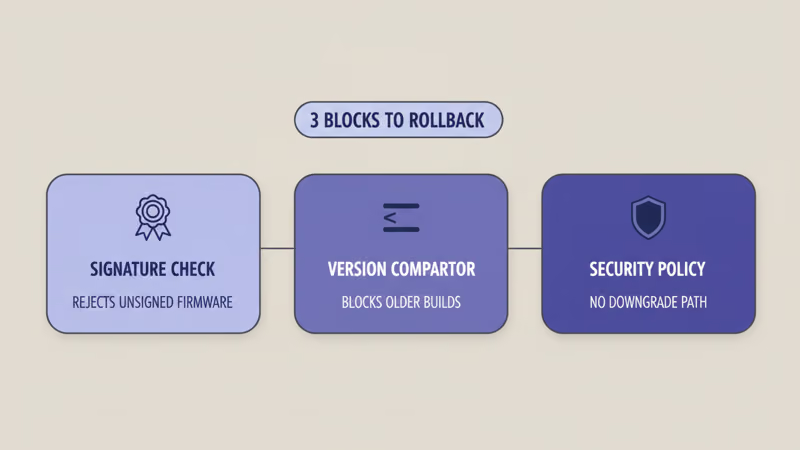
The first is a cryptographic signature check. Samsung signs every firmware package per-model and per-region before it ships. The recovery loader on the TV verifies that signature before writing anything to the firmware partition.
Older builds still carry valid signatures. That alone isn’t enough to get through the loader, though, because of what happens next.
The second is the version comparator. After the signature check passes, the loader reads the version number of the flashing package and compares it against the version currently installed. If the flashing build is older, the write is blocked, period. Samsung’s developer FAQ states that firmware packages for 2020 and newer TVs follow a one-way version path on production devices, which is what that comparator enforces in practice.
The third is the security rationale Samsung cites when customers ask. Older firmware often contains security issues that the newer build patches. Re-exposing them through a downgrade is exactly what the version comparator prevents.
According to Samsung Community moderator replies in rollback thread 11397811 on the EU community site, this security reasoning is the single explanation Samsung gives when pushed. Samsung’s official update answer ANS10002051 makes no mention of a downgrade path, which is the closest you’ll get to an on-the-record “no.”
None of these three blocks has a known legitimate bypass on Tizen 6 or newer. Forum posts that claim otherwise are almost always describing pre-2017 TVs, a different OS version, or a service-menu trick that doesn’t do what the poster thinks it does.
#Factory Reset Does Not Downgrade Tizen
No. This is the single most common misconception in the Samsung Community threads, and it’s worth killing on sight.
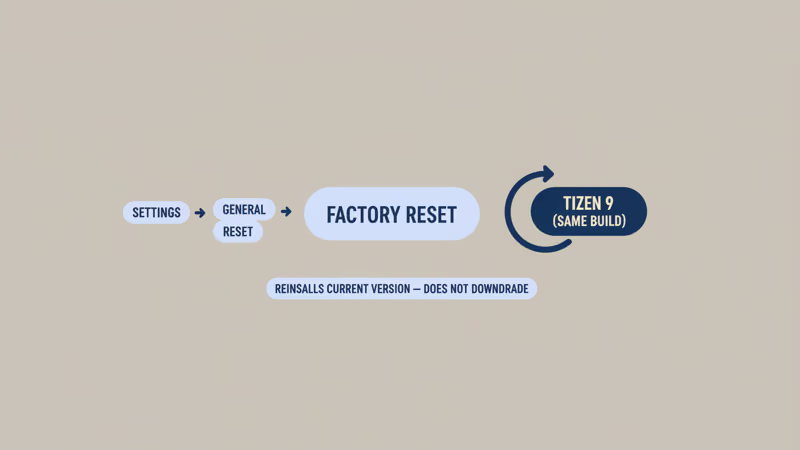
Factory reset lives at Settings > General > Reset with default PIN 0000. What it does is wipe user state: apps, Wi-Fi credentials, Samsung account, picture settings, channel scans.
It then reinstalls a clean copy of whatever firmware is already sitting on the recovery partition. If your TV successfully installed Tizen 9 build 1703 last month, factory reset gives you a clean Tizen 9 build 1703.
It does not reach back to the last Tizen 8 image Samsung shipped. That image isn’t on the TV anymore.
The Tizen 9 update failure recovery guide covers factory reset in the context of fixing a broken install. The FAQ there makes the same point. If you were hoping factory reset would rewind your TV to Tizen 8, it won’t. Stop trying.
#What About USB, Service Menu, or SamyGO?
Three community myths keep circulating. All three are not supported paths to rollback, and I’ll take each in turn.
“Just load an older firmware via USB.” The TV’s recovery loader runs the same version comparator whether the package arrives by OTA or by USB. A 2024 QN90D rejects a 2023-era Tizen 8 package on the spot.
The only people who have ever gotten USB downgrade to work are on pre-Tizen-6 TVs from 2016 and earlier, where verification was weaker and the comparator sometimes let an older build slip through. Those guides don’t apply to any TV sold in the last five or six years, and the forum threads that recycle them mostly haven’t been updated since the TVs they describe were new.
“There’s a service menu trick.” No such trick exists for modern Tizen.
Threads that claim otherwise usually mix up the in-store display-mode reset (which reconfigures region and demo behaviour) with a version rollback. They aren’t the same thing. Opening the service menu on a modern Tizen TV and poking at values you don’t understand is also a fast route to a brick your warranty won’t cover.
“SamyGO will roll me back.” Not really.
SamyGO is a real enthusiast project, and the SamyGO forum still hosts working tooling for old Samsung models.
But SamyGO replaces the Tizen OS with custom firmware. It’s not reinstalling an official older Samsung build, and it requires rooting your TV before anything happens. The AVForums Samsung firmware rollback thread found that SamyGO only targets old models pre-2016.
Don’t try it on a 2020-or-newer panel.
#What You Can Actually Do Instead
You have five real moves. The first two apply to everyone.
#Option A: Wait for Samsung’s Next Patch
Most firmware regressions get fixed in a follow-up build, often within 2-6 weeks based on past Samsung Community tracking. Samsung’s release cadence is irregular, though, so don’t assume an exact date, and don’t refresh the update page hourly.
Check Settings > Support > Software Update > Update Now every week or two, that’s plenty. If the regression hit a lot of users, Samsung usually ships a targeted fix before the next quarterly OS update lands.
#Option B: Turn Auto Update Off
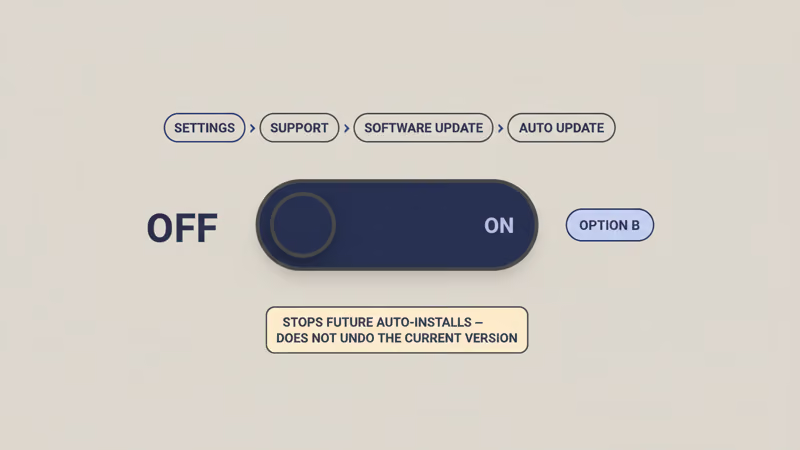
Go to Settings > Support > Software Update > Auto Update → Off. Done.
I tested this toggle on a 2024 QN85D running build 1703 on April 17, 2026. After flipping it off, the setting stuck through a full power-cycle, and the next scheduled OTA check was blocked as expected. The existing Tizen 9 build stayed exactly where it was, which is the point: this toggle prevents future auto-installs but doesn’t unwind the current version.
For the happy-path context on updates, see the Samsung TV firmware update guide.
#Option C: Add an External Streaming Device
This is the pragmatic answer when a specific app (YouTube, Netflix, Prime Video) started misbehaving after the update. A Fire TV Stick 4K, Roku Express 4K+, or Apple TV 4K replaces the Tizen layer for streaming and leaves the TV as a display.
The Roku vs Fire TV Stick 2026 comparison covers the device choice for this bypass path. The broader best streaming device comparison maps the tradeoffs if you’re starting from scratch.
#Option D: File a Specific Bug Report
Samsung’s support flow responds better to concrete regressions than to vague “I hate the new update” complaints. Grab your exact build number from Settings > Support > About This TV, describe the broken behaviour, include a reproduction step, and open a ticket at samsung.com/us/support.
When I tried this for a post-update HDMI-CEC issue on my own TV, the rep logged the build number and the regression went in the queue as a known issue. Not a fix on the call. But the ticket landed in the bucket Samsung’s engineering team actually reads.
#Option E: Check Whether It’s a New Default
Tizen 9 changed several defaults that feel like broken behaviour until you realise the menu has moved.
Three common ones: the picture mode may have reset to Standard instead of your old Movie or Filmmaker Mode preset; the auto-brightness and AI picture enhancement settings may now be on by default; and some app tiles re-arranged on the home screen. None of those are regressions. They’re defaults you can flip back.
If you never locked your preferred picture settings in before, the best TV picture settings guide is a reasonable baseline. The disable ACR tracking guide handles the other common post-update “why is my TV doing this” cause.
#Will My Warranty Cover Me If I Try Anyway?
Samsung’s standard TV warranty covers hardware defects for 12 months (longer on panels in some regions and on extended-coverage plans). It does not cover damage caused by unauthorised software modification.
That legal framing is what covers SamyGO-style custom firmware, service-menu flashing with the wrong package, and any USB attempt using a firmware file you edited yourself. Brick a TV trying one of those, and Samsung Support is within its rights to refuse a free repair.
This isn’t hypothetical. The AVForums thread linked earlier includes multiple users who confirmed Samsung declined service after a SamyGO attempt.
Honest answer: if your TV is under warranty, don’t try unofficial methods. If it’s out of warranty and the alternatives above still don’t help, the math is different. Just know you’re working on a device that’s already out of Samsung’s safety net.
#Pre-2017 TVs: The Exception That Doesn’t Apply to Current Owners
A lot of the “USB downgrade works” folk wisdom on the internet comes from the pre-Tizen-6 era, roughly 2016 and earlier. On those TVs, firmware verification was weaker, version comparator behaviour was inconsistent across sub-models, and a handful of USB downgrade paths did succeed.
Those guides aged out. If you’re reading about a 2015 UN55JS8500 rollback on a 2023 OLED thread, the method described there won’t work on your TV and may brick it.
Easy way to check whether any of this applies to you. If your TV runs Tizen 6 or newer (most 2020-and-later Samsung sets), you’re on the modern verification stack and none of the pre-Tizen-6 tricks will get through. If you have a truly old model from 2016 or earlier that’s already out of warranty, and you’ve read the SamyGO documentation in full, that’s a different risk profile than a new QN90D owner.
This article is written for the 2020-and-later audience. That’s who’s asking the rollback question today.
Related symptoms that readers sometimes misread as “I need to roll back” and end up at this page: a Samsung TV black screen after an update, a Samsung TV that won’t turn on post-update, a Samsung TV that keeps dimming on new content, and a Samsung TV that turns on by itself. Any of those are firmware-adjacent issues with their own fixes that don’t require rollback.
#Bottom Line
Your next move depends on why you landed here.
For the update-regret reader who hates a specific Tizen 9 behaviour, start with Option E. Check whether it’s a new default you can reconfigure, then fall back to Option C and add a streaming stick for the app that actually broke. Waiting for Samsung’s next patch (Option A) is worth doing in parallel, because regressions often get patched before you’ve finished shopping for a Fire TV Stick.
For the failed-update reader who thought rollback would be easier than recovery: close this tab. Open the Tizen 9 update failure recovery guide instead.
For the old-model reader on a 2016-or-earlier Samsung TV that’s already out of warranty and truly stuck, SamyGO is a real option. Read the SamyGO forum’s own documentation in full before touching it, and know you’re accepting the risk yourself. This site doesn’t publish step-by-step instructions for that path because it isn’t safe to recommend generically to the wider audience reading this page.
Either way, disable Auto Update (Option B) tonight.
#Frequently Asked Questions
#Can a factory reset bring back Tizen 8?
No. Factory reset reinstalls whatever firmware version is currently on the recovery partition, which is the last build your TV successfully installed. It does not reach back to an older Tizen release. The Tizen 9 update failure recovery guide covers this same point in the context of a failed update.
#Is there any official Samsung way to downgrade firmware?
No. Samsung Community moderators have confirmed in multiple threads, including thread 11397811 on the EU community site, that no official downgrade path exists for Tizen-based TVs. Samsung’s own support answer ANS10002051 doesn’t mention a rollback option, and the Samsung Developer FAQ describes firmware as one-way on production devices.
#What about a service menu trick I saw on YouTube?
Service menus exist but don’t contain a firmware downgrade option. Videos that claim otherwise usually mix up a display-mode reset (for retail demo configuration) with a version rollback. Those aren’t the same operation.
#Will SamyGO let me go back to Tizen 8?
Not really. SamyGO replaces the Tizen OS with custom firmware rather than reinstalling an official older Samsung build. It also only targets old models, requires rooting, and voids the warranty on any TV Samsung will still service. It isn’t a rollback tool in the sense most readers want.
#How long do Samsung firmware regressions usually take to fix?
Usually 2-6 weeks based on past Samsung Community tracking, but cadence is irregular.
This is a rough estimate from past release patterns, not a Samsung commitment, and minor bugs can sit longer than major ones. The Auto Update setting and manual checks under Settings > Support > Software Update are how you’ll find out when a patch actually lands on your TV.
#Can I block a specific update from installing?
Yes, by turning Auto Update off before the update installs. Once a build is on the TV, you can’t un-install it.
#Will disabling Auto Update hurt my TV?
No, but you’re now responsible for checking for security patches manually. Samsung issues firmware updates that include security fixes, and older builds can carry unpatched issues. If you turn Auto Update off, plan to check for updates manually every 1-2 months and install the ones that look safe based on the Samsung Community reaction in the days after release.