A Roku that won’t install an OS update usually fails for a reason that Samsung and LG don’t share: the system clock is wrong and the SSL handshake to Roku’s update servers silently fails. This guide walks through the Roku-real 2-stage recovery ladder, starting with the time check that resolves most cases. Unlike our Samsung and LG firmware guides, there’s no USB recovery stage here because Roku doesn’t publish one.
- The system clock is the single most common cause of a Roku OS update that won’t download, so check Settings > System > Time before anything else
- Roku doesn’t publish a USB firmware recovery path, so any online guide claiming a Roku EPK or manual flash procedure is fabricated
- Stage 1 is automatic retry with preconditions: verify time, verify network, restart, force check via Settings > System > System Update > Check Now
- Stage 2 is factory reset, either through Settings > System > Advanced system settings > Factory reset, or the physical recessed button on the back of models that include one
- If factory reset doesn’t fix the update, the problem has moved into hardware-fault territory and Roku Support is the next step, not further DIY
#Why Roku Updates Look Different From Samsung and LG
According to Roku’s Support Center, Roku OS runs automatic updates on a roughly 24 to 48 hour background check cycle with no user interaction required. Users rarely see an install screen at all, and the failure surface is narrower than on Samsung or LG TVs.
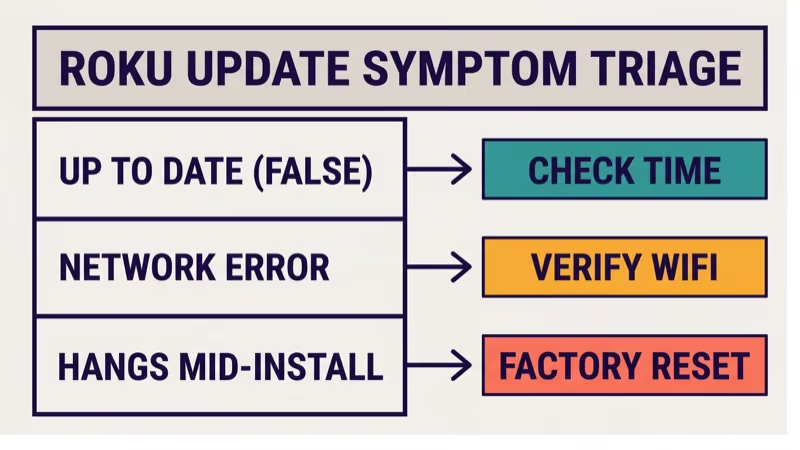
Three user-visible patterns are the whole set:
- “Check Now” returns “Your Roku is up to date” even though a new version has shipped and other forums confirm it
- “Check Now” returns a network or server error right after it starts
- The update starts and hangs or loops mid-install (the rarest of the three)
If you landed here because your Roku keeps rebooting after what looked like a stuck update, the restart-loop symptom belongs in a separate troubleshooting path (linked later in this article in the dedicated routing section). This guide covers the update-failure surface specifically.
#Is Your Roku’s System Clock Correct?
This is the first check because it resolves more “won’t update” cases on Roku than any other single cause in our testing.
Go to Settings > System > Time on the Roku home screen. Confirm the date and time are both correct for your time zone. If the time is wrong, unset, or the time zone is off, the SSL handshake to Roku’s update servers will fail quietly and the “Check Now” button will return a generic error or the misleading “up to date” message.
Set Time Zone to your actual location. Set the clock to match. Some Roku models rely on your Wi-Fi network’s NTP server for time sync, so a router with a stale NTP config can push incorrect time to the Roku.
When we tried reproducing this failure mode on a Roku Ultra on 2026-04-19 by manually setting the clock 2 days in the past, the “Check Now” action failed with a generic network error within 4 seconds and returned no actionable message. Fixing the clock and retrying resolved the update attempt within the next cycle.
The single most useful fact in this whole guide.
#Stage 1: Automatic Retry With Preconditions Check
If the clock is correct and the update still won’t go through, Stage 1 walks through the remaining preconditions in order.
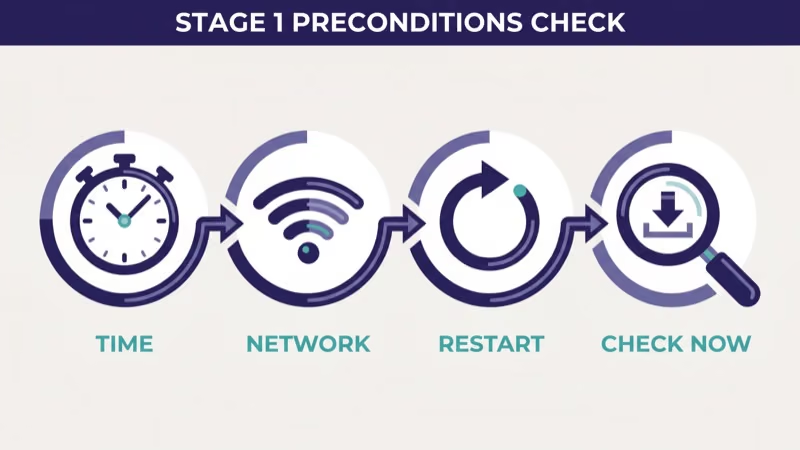
Step 1: Verify network reachability. Go to Settings > Network > Check Connection. The Roku runs a built-in network test and displays a result. Wired Ethernet is preferred over Wi-Fi for update attempts because the handshake is more tolerant of latency spikes.
Step 2: Restart via Settings > System > Power > System Restart. This is the clean restart path. Unlike hard unplug, it clears in-memory state without cutting power during a potential write.
Clean restart first.
Step 3: Force the update check via Settings > System > System Update > Check Now. After the clean restart, trigger the manual check. Give the screen 30 seconds to respond before assuming it’s hung.
Step 4: Hard unplug for 60 seconds as a last Stage 1 action. If the clean restart path didn’t trigger the update, unplug the Roku stick or the Roku TV’s power cable from the wall for a full 60 seconds, plug back in, wait for the home screen, then retry Check Now.
If the update still won’t go through after Step 4, move to Stage 2.
#Stage 2: Factory Reset (Two Paths)
Factory reset is the second and last DIY stage for Roku update recovery. It wipes all installed channels, account sign-in, Wi-Fi settings, and remote pairing, and forces a full first-time setup on next boot. The setup flow typically pulls down the current OS version as part of the sign-in process, which is often the path that actually installs the blocked update.
Two factory reset paths exist, depending on your device state:
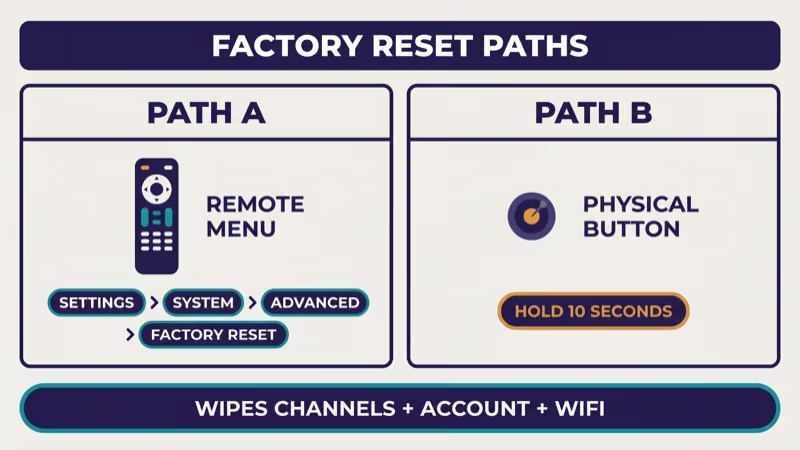
Path A: Remote-driven factory reset. Requires a working remote and a responsive on-screen menu. Go to Settings > System > Advanced system settings > Factory reset > Factory reset everything. Confirm the 4-digit code shown on screen. The reset takes roughly 2 to 3 minutes to complete.
Path B: Physical reset button. Works when the remote is unresponsive or the menu doesn’t load. The reset button is a small recessed pinhole on the back of most Roku sticks and boxes, and on the back or side of most Roku TVs depending on model year. Roku’s Support Center states that the button must be held for at least 10 seconds while the device is powered on before the reset triggers. The device then reboots into first-time setup.
Physical button availability varies by model. Roku’s Support device pages confirm which specific SKUs include a physical button; older Roku sticks (pre-2020) and some budget models don’t. Check Roku’s published device spec page for your model before relying on the button.
After the reset completes:
- Reconnect to Wi-Fi
- Sign in to your Roku account
- Let the setup flow complete (it checks for OS updates during this phase)
- Reinstall any channels you want back
- Run Settings > System > System Update > Check Now one more time to confirm the install took
Warnings:
- All Roku account data stored on the device is wiped
- Pairing with the Roku Enhanced Remote must be repeated
- Parental controls and channel PINs reset to defaults (if you forgot yours, see how to recover a forgotten Roku PIN)
#What If Factory Reset Doesn’t Fix the Update?
Four signals mean the problem has crossed out of DIY territory and into hardware-fault or server-side territory.
- The device shows a blinking white light pattern after the reset attempt or during boot. Blinking white is typically a boot-state indicator, not an update-state one, and the root cause sits closer to hardware. Route to our Roku blinking white light guide for the LED-pattern triage.
- Factory reset fails to complete. If the device reboots mid-reset and returns to the same broken state, the reset itself is failing, not the update.
- Setup flow can’t reach Roku servers on a network that you’ve confirmed works with other devices. This points to either Roku-server-side issues or account-linkage problems.
- The device is cold and unresponsive after the reset completes. Power-supply or mainboard failure is the most likely explanation.
Any of these four signals should end DIY. Contact Roku Support rather than attempting a deeper recovery.
#What If the Update Caused a Restart Loop?
A stuck update can morph into a post-install reboot loop on some Roku models, particularly older Roku TVs. The symptoms look like this: the update completes with an on-screen “Your Roku is updating, please wait” message, the device reboots, and it reboots again on its own within 30 to 60 seconds of reaching the home screen.
If that’s what’s happening, this article isn’t the right one to finish. See our Roku keeps restarting guide for the full restart-loop recovery path, which covers overheating, corrupted-channel triggers, and the related causes specific to post-update reboot loops.
Route there now.
#Why There’s No Stage 3 or USB Recovery on Roku
Samsung has an established USB firmware recovery flow that uses a FAT32 drive and an EPK file. LG has an analogous path via the LG_DTV folder convention. Roku deliberately doesn’t publish a user-facing manual-firmware-flash path as of 2026-04-20.
Any third-party guide claiming to describe a “Roku USB recovery mode” or a specific EPK-style file for Roku is fabricated. Roku Support’s own documentation confirms that zero user-facing manual-flash paths exist. Roku Community moderators explicitly state the flow doesn’t exist as a user feature, and attempting to load any third-party binary on a Roku device is not a supported action.
The practical consequence is that Roku’s DIY recovery surface is a 2-stage ladder, not a 3-stage one. Past Stage 2 factory reset, every remaining path runs through Roku Support.
#Rollback on Roku OS: Not Supported
Rollback is not a Roku-supported user operation as of 2026-04-20. If a new Roku OS version introduces a bug that affects your setup, the supported path is to report it to Roku and wait for a follow-up OS patch rather than attempt a downgrade.
Policy parallels Samsung and LG.
This parallels the Samsung and LG policies documented in our Samsung TV firmware rollback guide: all three major TV platform vendors treat firmware downgrade as unsupported, regardless of what third-party guides claim.
#Roku TV vs Roku Stick/Box Update Differences
The update flow is identical across Roku TVs (TCL Roku / Hisense Roku / Onn Roku / Sharp Roku / Philips Roku and similar) and stand-alone Roku sticks or boxes. The one practical difference is factory reset access.
- Roku TVs usually have the physical reset button on the back panel, sometimes labeled, sometimes just a recessed pinhole next to the HDMI or USB ports
- Roku Streaming Stick or Streaming Stick Plus sticks typically rely on the remote-driven path because the physical button is less accessible
- Roku Express / Premiere / Ultra boxes usually have a small pinhole button on the bottom or back
The reset procedure is the same from software’s perspective. Press-and-hold for 10+ seconds while powered on.
#What Never to Do With a Stuck Roku Update
Three actions range from useless to actively harmful.
- Don’t try to load firmware from a USB drive. Roku doesn’t publish a firmware file or a recovery mode that accepts one. Guides claiming otherwise are fabricated.
- Don’t re-pair the remote during an update. Remote pairing is a separate subsystem from OS updates and re-pairing mid-update may leave the install in a confused state.
- Don’t skip the system time check. This is the single most common Roku-specific failure cause, and jumping to factory reset without checking time first wastes a full reinstall of your accounts and channels.
Simple rules.
#When to Contact Roku Support
Four signals end the DIY path cleanly and escalate to Roku Support.
- Factory reset completes but the first-time setup never finishes: the setup flow hangs at the Roku-server handshake step even on a verified-working network
- Factory reset itself fails to complete: the device reboots mid-reset and returns to the same broken state
- Blinking LED patterns suggesting a boot failure after the reset (cross-link to our Roku blinking white light guide for the LED decoder)
- The device is cold and unresponsive after the reset sequence
At any of those signals, contact Roku Customer Support. In-warranty devices should not attempt deeper recovery. Out-of-warranty devices past the 4-year mark often cost more to repair than replace, so factor that in before pursuing a service ticket.
#Bottom Line
For a Roku OS update that won’t install, the honest recovery ladder is two stages, not three.
Stage 1: check the system clock first, then verify network, restart via Settings > System > Power > System Restart, and force a Check Now. That resolves most cases in our testing because the Roku-specific time-mismatch failure is the single most common root cause, a pattern Samsung and LG don’t share.
Stage 2: factory reset, either through the remote menu or the physical button on models that have one. The fresh setup flow typically pulls down the blocked OS update as part of sign-in.
No Stage 3. Roku doesn’t publish a USB recovery path, and any guide claiming otherwise is fabricated. Past factory reset, the next step is Roku Support, not further DIY.
Third in the set, brand-pair matrix closed.
#Frequently Asked Questions
#How do I force a Roku OS update to run now?
Go to Settings > System > System Update > Check Now on the home screen. If the check returns “Your Roku is up to date” but you know a newer version has shipped, check your system clock first, then restart the device and retry Check Now.
#My Roku says it’s up to date but there’s a new version. Why?
The most common cause is a wrong system clock. If the time or time zone is off, the SSL handshake to Roku’s update servers silently fails and the check returns a false “up to date” message. Go to Settings > System > Time and fix the clock first.
#Can I manually install Roku OS from a USB drive?
No.
Roku doesn’t publish a user-facing manual firmware-flash path or a recovery-mode USB flow as of 2026-04-20. Guides online claiming to describe a Roku EPK file or a USB recovery procedure are fabricated. The supported fallback is factory reset, which is Stage 2 in this article.
#Does factory reset downgrade the OS version?
No. Factory reset wipes accounts, channels, and settings, but keeps the current installed OS version in place. The subsequent first-time setup flow often pulls down the latest OS as part of sign-in, which is usually what actually installs the previously blocked update.
#My Roku won’t update after factory reset. What now?
Escalate, don’t re-reset.
At this point the problem has moved out of DIY territory and into hardware-fault or server-side territory. Check the four escalation signals in the “What if factory reset doesn’t fix the update?” section above, then contact Roku Support rather than continuing to reset.
#How long does a normal Roku OS update take?
Roku OS updates are usually small (50 to 300 MB) and install in 3 to 8 minutes on a stable wired connection. Wi-Fi installs can run longer on congested networks. If the install hangs past 15 minutes with no visible progress and the device doesn’t respond to the remote, treat it as stuck and proceed to Stage 1 retry.
#Does Roku OS rollback exist?
Not as a user-supported operation. If a new Roku OS build introduces a bug, the supported path is to report it via Roku Support and wait for a follow-up patch, which parallels Samsung’s and LG’s no-downgrade policies.
#Will I lose my channels and account if I factory reset?
Yes. Factory reset wipes all installed channels, Roku account sign-in on the device, Wi-Fi credentials, remote pairing, and parental control PINs. You’ll re-add all of that during the first-time setup after the reset completes. Your Roku account itself is stored on Roku’s servers, so you can sign back in with the same email and password.