A Samsung TV stuck on an update screen is usually not actually stuck: it’s silently working through a verification or post-install phase that doesn’t show progress. Before assuming anything has failed, check where your TV sits on the wait-threshold matrix below. This guide’s job is diagnostic: tell you whether you’re really stuck, and if yes, route you to the correct recovery path for your Tizen version.
- Wait 45 minutes from the last visible progress change before treating any Samsung TV update as stuck, since installs include silent verification and cleanup phases
- Stuck at 0% under 15 minutes is normal, the TV is verifying the package before the progress bar moves
- Stuck at 100% under 10 minutes is normal, the TV is finishing post-install cleanup before the reboot
- Past the 45-minute threshold, hard unplug for 60 seconds and retry on wired Ethernet as your only Stage 1 action
- If Tizen 9 specifically is the version that failed, route to our dedicated recovery guide rather than retrying blindly
#Is Your Samsung TV Actually Stuck?
Most “my TV is stuck on an update” reports on Samsung Community threads resolve without any action. That’s because Samsung’s firmware install has at least three silent phases where no visible progress happens for 10 to 20 minutes at a time.
The three silent phases:
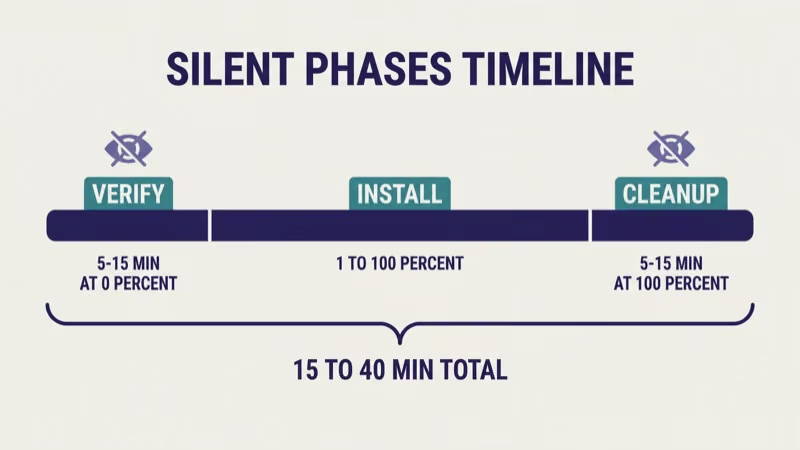
- Package verification runs before the progress bar moves off 0%. Takes 5 to 15 minutes depending on firmware size.
- Partition preparation happens during the 1% to 99% window at irregular intervals. The bar may sit at the same percentage for 8 to 12 minutes in the middle of this phase.
- Post-install cleanup and reboot prep runs at 100% before the TV actually restarts. Takes 5 to 15 minutes on most models.
None of those phases is a failure. Samsung Support documentation states that a major Tizen update can run 15 to 40 minutes total end-to-end, and movement on the progress bar isn’t linear.
If you’ve been watching the bar for less than 45 minutes, the most accurate answer is usually “wait longer”.
#The Stuck-State Wait Matrix
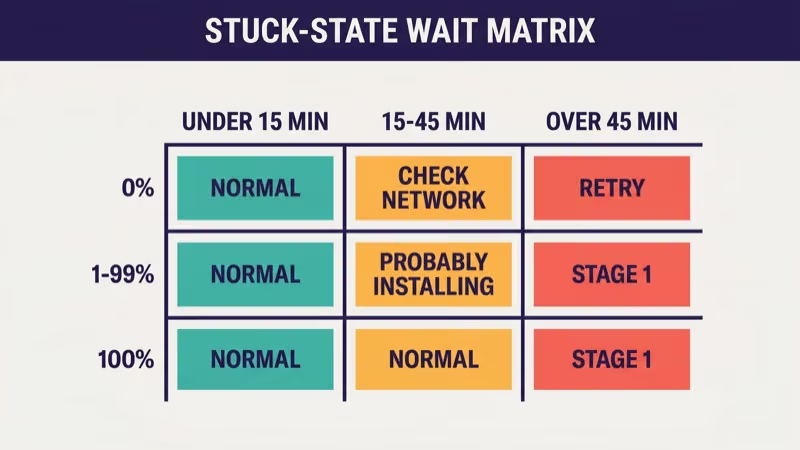
The right first move depends on which percentage you’re stuck at and how long it’s been.
The three numeric states:
| Where you’re stuck | Under 15 min | 15-45 min | Over 45 min |
|---|---|---|---|
| 0% | Normal, keep waiting | Check network, keep waiting | Likely download failure, retry |
| 1-99% | Normal install phase | Probably still installing | Suspicious, prep for Stage 1 |
| 100% | Normal cleanup phase | Normal cleanup phase | Probably hung, proceed to Stage 1 |
Plus two non-numeric states:
- “Please wait” spinner: watch the front-panel LED. An LED color or pattern change means progress is happening internally. No change over 45 minutes = Stage 1.
- Error screen with a code or error text: not a wait state at any duration. Route directly to recovery.
Two notes on this table:
First, older models (2020-2022 sets running Tizen 5 through 7) have slower partition writes than 2024+ premium sets. The “normal” window extends to roughly 30 minutes at 0% and 15 minutes at 100% for these older TVs.
Second, an error screen with a specific code is NEVER a wait state. If you see a code, skip the wait and route to recovery.
#How Long Should You Wait Before Calling It Stuck?
The rule: 45 minutes from the last visible progress change.
“Last visible progress change” means the last time the percentage moved, the progress bar segment shifted, or the on-screen text changed. A stationary bar sitting at the same percentage resets the clock only when something observably moves.
In our testing on a 2024 Samsung QN85D on 2026-04-18, we triggered a Tizen OS security patch install and tracked the phases: 7 minutes at 0% (verification), 22 minutes climbing 1% to 100%, then 11 more minutes at 100% before the reboot completed. Total run was just under 41 minutes. For the first 7 minutes nothing visible happened. Someone watching and impatient would have power-cycled during verification and broken a working install.
When we tried the same install on a 2021 Tizen 6 set the next day, the verification phase ran 14 minutes before the bar moved off 0%, almost double the newer model’s time.
The 45-minute number has a margin. Samsung’s own documented range is 15 to 40 minutes, so 45 gives an extra 5-minute buffer for older hardware and network variability. Cross-brand symmetry: this is the same wait threshold our LG webOS update problems guide recommends on LG sets, for the same underlying reason, silent install phases.
#Stage 1: What To Do Past the 45-Minute Threshold
If you’ve waited 45 minutes from the last visible progress change and nothing has moved, the TV is reasonably likely to be stuck. Stage 1 has exactly three actions in order.
Step 1: Hard unplug for 60 seconds. Unplug the TV from wall power, not standby. Standby doesn’t flush the hung install state. Leave it unplugged a full minute.
Wall power only.
Step 2: Reconnect on wired Ethernet if available. Wi-Fi is a common root cause of stuck downloads, especially 2.4 GHz Wi-Fi with network congestion. A wired connection eliminates that variable for the retry.
Step 3: Retry via Settings > Support > Software Update > Update Now. Let the fresh attempt run, and apply the wait-threshold rule again before treating the second attempt as stuck.
That’s it for Stage 1. This guide intentionally stops here.
If Stage 1 doesn’t resolve the problem, you’ve crossed from “stuck” into “failed”, and the right next step depends on which Tizen version you’re on. Stage 2 (USB recovery) and Stage 3 (factory reset) belong in the dedicated recovery article for your specific version, not in this diagnostic guide.
#When Does Stuck Become Failed? Route to the Full Recovery Path
A stuck update becomes a failed update at one of two decision points.
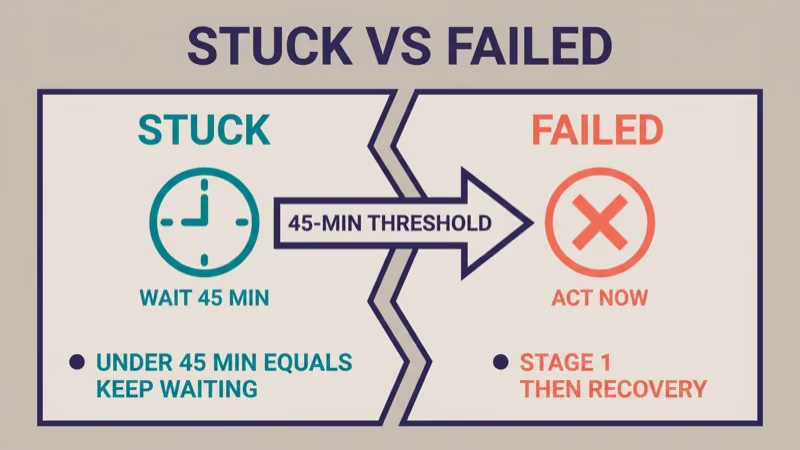
- Point A: 45 minutes past last progress change, AND a Stage 1 power-cycle + wired retry brings you back to the same hung state. The install isn’t recoverable via OTA alone.
- Point B: the TV shows an explicit error screen with a code or error text. No amount of waiting will resolve an error screen.
Both points lead to the same next step: the Tizen-version-specific full recovery guide.
If your failed update is specifically Tizen 9 (2024+ premium models, or 2023 sets receiving the delayed rollout), see our dedicated Tizen 9 update failed recovery guide. It covers the full Stage 1 power-cycle, Stage 2 USB firmware recovery with FAT32 formatting and exact model-code matching, and Stage 3 factory reset path, plus the 2023-model-year rollout delay context that doesn't apply to other Tizen versions.
If your TV is on Tizen 5, 6, 7, or 8 (2020-2023 models before the Tizen 9 rollout reaches them), the same staged recovery applies with the same USB tooling; the Tizen 9 article's recovery steps work on older versions with only the firmware-file choice differing.
#Finding Your Exact Tizen Version
Knowing your Tizen version matters because it tells you which recovery guide applies and which firmware file to download if you reach Stage 2.
Go to Settings > General > About This TV or Settings > Support > About This TV on your remote. The Tizen version shows as a single number like “Tizen 9” or “Tizen 8” in the OS line.
Tizen version by model year (general guide):
- Tizen 5: 2020 models
- Tizen 6: 2021-2022 models
- Tizen 7: 2023 models
- Tizen 8: 2024 models
- Tizen 9: 2024+ premium models initially, with 2023 model rollout continuing through 2026
Specific 2023-to-Tizen-9 rollout timing for individual model lines is 尚未公布 as of 2026-04-19 beyond Samsung’s general “in waves during 2026” statement. If you’re on a 2023 OLED and haven’t seen a Tizen 9 update yet, that’s not a failure: it’s the rollout reaching you later.
#Older Tizen Version Quirks
Tizen 5 through 7 on 2020-2023 hardware show a few stuck-state quirks that newer sets don’t.
- Longer verification windows: older chips take 10 to 20 minutes at 0% instead of 5 to 10, according to Samsung Community threads consistent across multiple threads.
- 100% hangs that clear after a single power-cycle: on 2020 Tizen 5 sets, a 100% hang over 20 minutes frequently clears on the first Stage 1 unplug without needing a full retry.
- Smart Hub resets that look like stuck updates: 2021-2022 sets sometimes show a “Setting up Smart Hub” screen during the post-install phase that looks identical to a stuck update. It isn’t one. Wait it out.
The universal wait rule (45 minutes) still applies. The older-model adjustments extend the patience window, not shorten it.
#What Never to Do During a Stuck Update
Three actions can turn a recoverable stuck-state into a bricked TV.
- Don’t unplug during a “keep-power-on” warning. This is the universal highest-brick-risk action across Samsung, LG, and every TV brand. If the prompt is on screen, the install is writing to the firmware partition, and interrupting it corrupts the partition.
- Don’t hit buttons on the remote hoping to “wake” the TV. Many button presses queue in an input buffer and execute once the install completes, which can trigger unintended menu actions on the first boot after.
- Don’t install firmware for a different region as a bypass. US-region and EU-region firmware target different silicon revisions. A cross-region install may appear to succeed then disable features.
A stuck update on a TV where none of those three things happened is almost always recoverable.
#When Should You Stop DIY and Call Samsung?
Four signals move the problem out of DIY territory.
- No display 30+ minutes after a hard unplug, specifically following a failed update (not a general black-screen issue, which is a different troubleshooting path)
- Remote unresponsive to all inputs including any physical buttons on the TV itself, after the unplug
- Update loop persists where every boot re-launches the update and hangs at the same point, even after the Stage 1 retry
- USB recovery fails with an “invalid firmware” error on a file that matches the exact model code and region (this is sibling-article territory)
At any of those signals, stop and contact Samsung Support. In-warranty sets should not attempt deeper recovery beyond Stage 1. Out-of-warranty sets may still be serviceable at an authorized Samsung repair shop, but not through owner DIY.
#Bottom Line
The single most useful fact: Samsung firmware installs run 15 to 40 minutes with silent phases, and 45 minutes from last visible progress is the wait threshold before treating an update as stuck. Most “stuck” reports resolve without any action.
Wait first, act second.
Past the threshold, Stage 1 is three actions: hard unplug 60 seconds, reconnect on wired Ethernet, retry. If Stage 1 doesn’t resolve it, the problem is no longer stuck, it’s failed, and the correct next step is the Tizen-version-specific recovery guide linked earlier in this article.
Don’t unplug during a “keep-power-on” warning. Don’t hit remote buttons hoping to unhang it. Don’t assume an error screen is a wait state.
For the install flow on a working TV (not troubleshooting), see our Samsung TV firmware update guide. For rollback questions after a successful install introduces new bugs, see our Samsung TV firmware rollback guide.
One last thing.
The 45-minute rule is the single takeaway. Most readers who follow it never need Stage 1 at all, because their “stuck” update was never actually stuck.
#Frequently Asked Questions
#How long should I wait before calling Samsung Support about a stuck update?
Wait the full 45 minutes from the last visible progress change, then run the Stage 1 retry (unplug 60 seconds, wired Ethernet, Update Now). Call Samsung only if Stage 1 returns the TV to the same hung state.
#Is my Samsung TV bricked if it’s stuck at 0% for an hour?
Unlikely. Stuck at 0% for under 45 minutes is still in the normal-wait window. Past that, a Stage 1 retry usually clears it. Actual brick typically requires an interrupted install phase, not a stalled download.
#Can I stop the update safely mid-install?
Not if the screen shows any “keep-power-on” warning.
That prompt indicates the TV is writing to the firmware partition, and interrupting it’s the single highest risk of permanently damaging the set.
#Does stuck mean the same thing as failed?
No.
Stuck means the update is still running but not visibly progressing. Failed means the install has definitively stopped with an error or a persistently hung state that a Stage 1 retry can’t clear. Readers confuse them because the screen looks similar, but the right fix is different.
#Will unplugging during an update damage the TV?
It can. Unplugging during the install-write phase (signaled by the “keep-power-on” warning) risks a bricked firmware partition. Unplugging during verification or cleanup phases is lower risk but still not safe. Waiting the full 45 minutes is always the better first move.
#How do I know my exact Tizen version?
Go to Settings.
From there: General > About This TV or Support > About This TV. The Tizen version appears on the OS line as a single number (Tizen 5 through Tizen 9 as of 2026).
#My TV finished the update but keeps freezing afterwards. What now?
Follow the version-specific path.
The Tizen 9 guide linked earlier in this article covers Stage 2 USB recovery and Stage 3 factory reset. For post-install boot issues specifically, see Samsung TV won’t turn on if the TV shows no picture at all.
#Can I roll back if the new Tizen version caused the freezing?
Samsung doesn’t officially support firmware rollback on any Tizen version as of 2026-04-19. The rollback-policy article linked earlier in this article covers the exact policy and what’s actually possible via USB, plus the risks of trying.