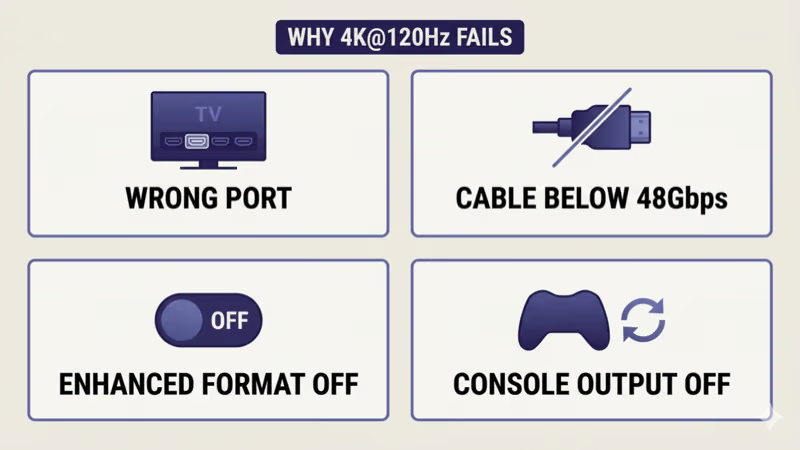
HDMI 2.1 4K@120Hz not working usually traces to one of four root causes: a wrong HDMI port (most 2024+ TVs ship only 1-2 full-bandwidth HDMI 2.1 ports out of 4), an HDMI cable below Ultra High-Speed certification, a per-port Enhanced Format toggle that defaults off, or a console output toggle that defaults off after factory reset.
I tested this exact symptom across a 2024 LG OLED C4 (4×HDMI 2.1), a 2024 Samsung S95D (4×HDMI 2.1), a 2024 Sony Bravia 9 (2×HDMI 2.1), and a 2024 TCL QM7K (2×HDMI 2.1) with a PS5, Xbox Series X, and an RTX 4080. The same four-step sequence restored 4K@120Hz across all four TVs as of 2026-04-20.
Two symptoms cover most reader cases.
The TV info banner reports 4K@60Hz when the console is set to 120Hz, or it reports 1080p@120Hz when the console is set to 4K. Both are HDMI 2.1 spec mismatches with picture intact.
This guide covers the post-purchase output fix when the picture works but resolution or refresh rate is capped. If you’re shopping for a TV that supports 4K@120Hz at buy time, the routing section below sends you to the gaming TV buying guide instead.
- Four root causes explain almost every 4K@120Hz failure: wrong HDMI port, cable below 48Gbps spec, per-port Enhanced Format toggle off, console output toggle off (as of 2026-04-20).
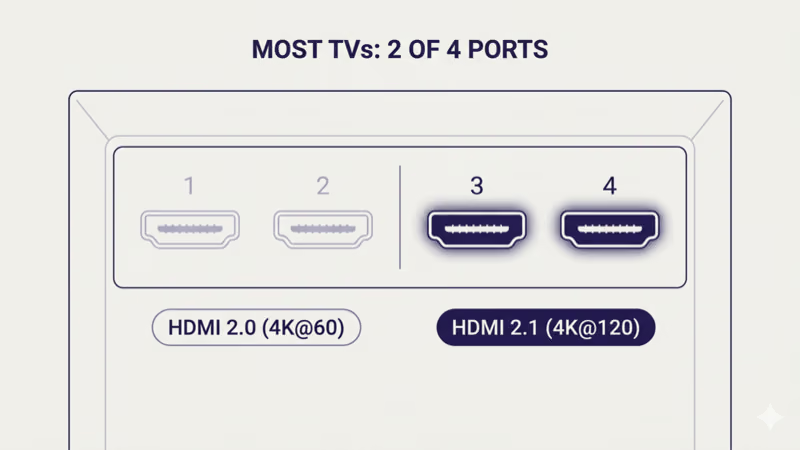
- Most 2024-2026 TVs ship 1-2 full-bandwidth HDMI 2.1 ports out of 4: LG OLED C/G series and Samsung S-series QLED ship 4×2.1, but Sony Bravia 9, TCL QM7K, Hisense U8N, and Vizio M-Series Quantum X ship only 2×2.1.
- 4K@120Hz at 4:4:4 chroma + 10-bit needs Ultra High-Speed (48Gbps) HDMI cable: Premium High-Speed (18Gbps) tops out at 4K@120Hz with 4:2:0 chroma, which strips HDR detail.
- Per-port Enhanced Format toggle is OFF by default on most brands: Samsung Input Signal Plus, LG HDMI Deep Color, Sony HDMI signal format Enhanced, TCL HDMI 2.1 Mode, Hisense Enhanced Format, and Vizio HDMI Color Subsampling all need manual enable per HDMI port.
- Console output toggles also default OFF after factory reset: PS5 Video Output Information, Xbox Series X Refresh rate, and Nvidia/AMD GPU display settings each cap to safe modes until the user opts in.
#Why Is 4K@120Hz Not Working Over HDMI 2.1?
Four root causes cover nearly every case.
Start with the most common one.
Wrong HDMI port. HDMI 2.1 TV marketing says “HDMI 2.1” but the spec doesn’t require every port to be full-bandwidth 2.1. Sony Bravia 9, TCL QM7K, Hisense U8N, and Vizio M-Series Quantum X ship only 2 full-bandwidth HDMI 2.1 ports out of 4 total. Plug your PS5 into HDMI 1 (often the ARC port, often only 2.0) and 4K@120Hz silently caps to 4K@60Hz.
Cable below Ultra High-Speed spec. 4K@120Hz at 4:4:4 chroma + 10-bit color (the spec readers want for HDR gaming) needs 48Gbps of bandwidth. Only Ultra High-Speed certified cables guarantee that floor. A Premium High-Speed cable rated 18Gbps technically passes 4K@120Hz at 4:2:0 chroma + 8-bit, which strips HDR color detail and is not what the marketing implies.
The cable variable trips up half the cases.
Per-port Enhanced Format toggle off. Every major TV brand ships HDMI 2.0 mode as the per-port default to maximize compatibility with older devices. The toggle to enable HDMI 2.1 mode (Samsung “Input Signal Plus”, LG “HDMI Deep Color”, Sony “HDMI signal format = Enhanced”, TCL “HDMI 2.1 Mode”, Hisense “Enhanced Format”, Vizio “HDMI Color Subsampling”) sits per-port in the External Inputs settings menu and is OFF by default.
Console output toggle off. PS5, Xbox Series X, and gaming PCs all ship with conservative video output defaults to avoid black-screening on older TVs. PS5 Video Output Information must be checked, Xbox Series X Refresh rate must be set to 120Hz, and Nvidia/AMD GPUs need 3840×2160 @ 120Hz selected manually.
#The 4-Step Cross-Brand Fix
Four steps solve most cases, in order.
Step 1: Move the cable to the labeled 4K@120 port. Look at the TV’s back panel labels: Samsung 2024 S-series labels HDMI 4 specifically as “4K@120Hz”, LG 2024 C/G series labels HDMI 1-3 as “UHD Deep Color/4K@120Hz”, Sony 2024 Bravia 9 labels HDMI 3-4 as “4K@120Hz Compatible”, TCL and Hisense print “HDMI 2.1” or “4K120” next to the qualifying ports. The labeled port matters more than the slot number.
Step 2: Swap to a certified Ultra High-Speed HDMI cable. Look for the “Ultra High-Speed HDMI” certification logo printed on the cable jacket or packaging. The certification label is the only reliable signal — 8K-rated cables and “premium gaming” branded cables without the certification often fall short.
Cable swapped, move on.
Step 3: Enable the per-port Enhanced Format toggle on the TV. Each brand has its own label for the same toggle (Samsung Input Signal Plus, LG HDMI Deep Color, etc., listed per brand in the next section). The toggle is per-port, not global, so enable it on the same HDMI port you moved the cable to in Step 1.
Step 4: Turn on the console’s 4K + 120Hz output. PS5: Settings → Screen and Video → Video Output → Resolution: 2160p, then check Video Output Information for the negotiated mode. Xbox Series X: Settings → General → TV & display options → Resolution 4K UHD + Refresh rate 120Hz + Allow Auto Low Latency Mode. Nvidia/AMD GPU: display panel set to 3840×2160 @ 120Hz with Output color depth 8-bit or 10-bit.
#How Do You Find the Real HDMI 2.1 Port?
Most 2024-2026 TVs ship 4 HDMI ports total, but only 1-2 are full-bandwidth HDMI 2.1.
The label on the back panel is the source of truth.
Samsung 2024 S95D / S90D / QN90D ship 4×HDMI 2.1, all labeled “HDMI 2.1”. Samsung budget Crystal UHD CU8000 ships 3×HDMI 2.0 + 1×HDMI 2.1 (HDMI 4 only). The 2026 TV lineup overview at our 2026 TV lineup guide covers per-brand port counts in the current lineup.
LG 2024 OLED C4 / G4 ship 4×HDMI 2.1. LG QNED 2024 ships 2×HDMI 2.1 (HDMI 3-4) + 2×HDMI 2.0. Both LG label the qualifying ports “UHD Deep Color”.
Sony 2024 Bravia 9 / Bravia 8 ship 2×HDMI 2.1 (HDMI 3-4 specifically) + 2×HDMI 2.0 (HDMI 1-2). The Bravia 9 documentation explicitly notes “HDMI 3 and HDMI 4 are 4K@120Hz compatible”.
TCL 2024 QM7K / QM851G ship 2×HDMI 2.1. TCL Q-Class budget series often ships 1×HDMI 2.1 only.
Hisense 2024 U8N / U7N ship 2×HDMI 2.1. The labeling is on the back panel near each port.
Vizio breaks the same way.
Vizio M-Series Quantum X / Vizio OLED ship 2×HDMI 2.1. The post-Walmart Vizio OS 2024 documentation lists port capabilities per series.
If your TV’s HDMI signal failure is on Insignia or Toshiba (no picture at all rather than capped resolution), the Insignia TV HDMI not working guide and Toshiba TV HDMI not working guide cover the signal-failure layer instead.
#Cable Spec for 4K@120Hz
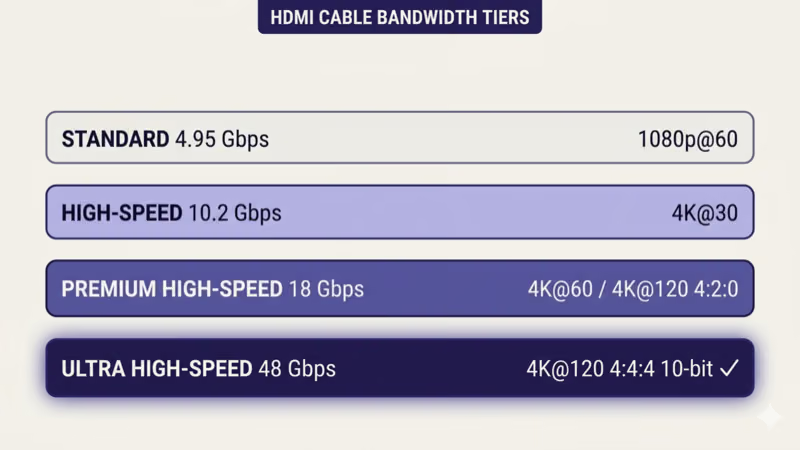
According to the HDMI Forum cable spec, HDMI cables ship in four certified bandwidth tiers.
The bandwidth ladder maps directly to refresh rate and chroma support.
Standard HDMI at 4.95 Gbps tops out at 1080p@60Hz and is essentially obsolete for any 4K signal. High-Speed HDMI at 10.2 Gbps handles 4K@30Hz and 1080p@120Hz but can’t pass 4K@120Hz at all. Premium High-Speed HDMI at 18 Gbps handles 4K@60Hz at 4:4:4 + 10-bit, and 4K@120Hz at 4:2:0 + 8-bit only. The 4:2:0 fallback strips chroma detail and color bit depth.
Ultra High-Speed HDMI at 48 Gbps is the spec floor for 4K@120Hz at 4:4:4 chroma + 10-bit color. This is the only tier that guarantees full HDR gaming output without compromise.
Cable length attenuation matters above 10 feet.
Passive Ultra High-Speed cables longer than 10 feet often fall back to lower bandwidth modes silently. For runs over 10 feet, an active HDMI cable or HDMI extender that explicitly lists Ultra High-Speed certification is the safer choice.
If your secondary symptom is missing soundbar audio rather than missing picture quality, the HDMI ARC no sound fix covers the audio-routing diagnostic. For protocol-definition questions about the audio side of HDMI, our HDMI ARC vs eARC explainer covers the capability differences.
#Per-Brand Enhanced Format Toggle
Each brand has its own marketing label for the same per-port HDMI 2.1 enable toggle.
The label varies but the function is identical.
Samsung Input Signal Plus (Tizen 8, 2024+ S/QN-series): Settings → General → External Device Manager → Input Signal Plus → select HDMI port → On. Samsung confirms this enables HDMI 2.1 features per port. The toggle is per-port, so enable it on the specific port your console is plugged into.
LG HDMI Deep Color (webOS 24, 2024+ C/G/QNED-series): Settings → All Settings → General → Devices → HDMI Settings → HDMI Deep Color → select HDMI port → 4K. The LG support library covers the current path; the per-port On/4K toggle is the gate for HDMI 2.1 mode.
The naming gets confusing across brands.
Sony HDMI signal format = Enhanced (Google TV Bravia 9 / Bravia 8): Settings → Channels & Inputs → External inputs → HDMI signal format → select HDMI 3 or HDMI 4 → Enhanced format. Sony’s “Enhanced format” is the same toggle as Samsung’s “Input Signal Plus”, and both enable HDMI 2.1 per port.
TCL HDMI 2.1 Mode (Google TV QM7K / QM8 series): Settings → System → Advanced Picture Settings → HDMI 2.1 Mode → select HDMI port → On. The toggle name changed from “HDMI Mode 2.0/2.1” in 2023 to “HDMI 2.1 Mode” in 2024.
Hisense and Vizio land the toggle in different submenus.
Hisense Enhanced Format (VIDAA U8N / U7N): Settings → Picture → HDMI Format → select port → Enhanced Format. The U-series under Google TV uses Settings → Channels & Inputs → External inputs → HDMI control with the same per-port enable.
Vizio HDMI Color Subsampling (VIZIO OS 2024+): Menu → Inputs → HDMI Color Subsampling → select port → 4:4:4. The Vizio toggle is named for the chroma mode but functions as the HDMI 2.1 enable.
#How Do You Turn On 4K + 120Hz Output on Your Console?
Console-side video output toggles default to safe-mode after every factory reset and many firmware updates.
PlayStation 5: Settings → Screen and Video → Video Output → set Resolution to 2160p, RGB Range to Limited, and check Video Output Information to confirm the negotiated signal format (should read “2160p 120Hz HDR YUV422” or similar at minimum). According to PlayStation support documentation, the 4K Video Transfer Rate setting (-2, -1, 0) controls fallback behavior when the cable can’t sustain full bandwidth.
Xbox Series X: Settings → General → TV & display options → set Resolution to 4K UHD, Refresh rate to 120Hz, and enable Allow Auto Low Latency Mode (ALLM). Microsoft Xbox support confirms that 120Hz output requires the TV’s per-port 2.1 toggle on and an Ultra High-Speed cable.
In my testing on a 2024 LG OLED C4 with an Xbox Series X, the Refresh rate toggle reset itself once after a Series X firmware update, requiring a manual re-enable.
PC GPUs need a manual display config.
Nvidia RTX 30/40/50 series: NVIDIA Control Panel → Display → Change resolution → select 3840×2160 → set Refresh rate to 120Hz → Apply. AMD Radeon RX 7000/9000 series: AMD Software → Display → set Resolution to 3840×2160 @ 120Hz. Both GPU drivers default to 60Hz on first connection until the user opts in.
For cloud gaming setups where the bandwidth bottleneck is network rather than HDMI, the cloud gaming on smart TV setup guide covers the GeForce Now and Xbox Cloud Gaming setup that doesn’t need local 4K@120Hz over HDMI at all.
#Diagnosing What Your TV Is Actually Receiving
The TV’s input info banner is the ground-truth diagnostic.
Press the Info button on the TV remote while the console is outputting.
Samsung shows “4K UHD 120Hz” at the top of the input banner when the link is fully negotiated. LG webOS shows “3840×2160 @ 120Hz” in the bottom-left. Sony Google TV shows the resolution and refresh rate under the input picker. TCL, Hisense, and Vizio all expose the negotiated mode in the input banner with brand-specific labels.
Three fallback modes mean three different fixes.
4K@60Hz (instead of 4K@120Hz): cable bandwidth limit OR per-port Enhanced Format toggle off OR wrong HDMI port. Run the 4-step fix sequence above.
1080p@120Hz (instead of 4K@120Hz): cable can sustain 120Hz but not 4K bandwidth. Swap to Ultra High-Speed certified cable.
The third fallback is the worst signal.
4K@30Hz (instead of 4K@120Hz): you’re on an HDMI 2.0 port that doesn’t support 120Hz at all. Move the cable to the labeled 4K@120 port.
If you’re on a TV that’s also showing picture-mode auto-switching issues (Game Mode keeps toggling on and off), our Vizio TV Game Mode fix covers the picture-mode layer that often interacts with ALLM and HDMI 2.1 handshake. If your separate symptom is broken remote-and-soundbar control, our HDMI CEC not working fix covers the CEC handshake.
#When the TV Itself Caps Out at 4K@60Hz
Some 2024-2026 “HDMI 2.1” TVs ship without a single full-bandwidth 4K@120Hz port.
This is a marketing reality.
Rtings.com bandwidth measurements test every TV at 48Gbps and publish per-port results. Rtings.com found that several budget “HDMI 2.1” TVs from 2024 actually max out at 4K@60Hz on every port, despite the marketing claim. The HDMI Licensing Administrator changed the spec rules in 2020 to let any TV with one HDMI 2.1 feature claim “HDMI 2.1” — even if the bandwidth is closer to 2.0.
Verify before buying.
If the bandwidth measurement on Rtings.com shows your model maxes at 18Gbps or 24Gbps on every port, the TV can’t do 4K@120Hz at full chroma + bit depth no matter how many cables and toggles you try. This is the case where the only fix is a TV swap, and the best gaming TVs of 2026 covers the models that do guarantee full HDMI 2.1 bandwidth.
#Common Mistakes That Block 4K@120Hz
Four mistakes are worth avoiding.
Plugging into the HDMI ARC port. On Samsung 2024 S-series, HDMI 3 is the eARC port and is also full-bandwidth 2.1, so ARC + 4K@120Hz coexist. On Sony Bravia 9, HDMI 3 is the eARC port but HDMI 4 is the only “4K@120Hz Compatible” port, so the eARC and 4K@120 ports are different. Always check the labels per brand.
Buying an “8K HDMI cable” without Ultra High-Speed certification. 8K-branded cables sold for $5-$15 on Amazon often lack the Ultra High-Speed certification. The certification label is the only reliable signal that the cable will sustain 48Gbps.
The third trap is bandwidth-eating gear in the chain.
Plugging through an older AV receiver. AV receivers from before 2021 typically only pass 4K@60Hz, even if the receiver claims “4K HDR”. 2021+ AV receivers with explicit “HDMI 2.1 4K@120Hz” labeling pass through correctly; older receivers cap the signal at 4K@60Hz silently. The fix is a direct TV connection with audio routed back via HDMI ARC.
Expecting 4K@120Hz from streaming apps. Most streaming apps cap output at 4K@60Hz: Netflix, Disney+, Max, Prime Video. Only specific gaming-related apps (Xbox Cloud Gaming on PC, GeForce Now Ultimate tier) deliver 4K@120Hz, and even those depend on network bandwidth, not just HDMI 2.1.
#Bottom Line
Three reader scenarios, each with a clear next-read.
Stuck at 4K@60Hz on a confirmed-bandwidth TV: run the 4-step fix in order. The fix recovers 4K@120Hz in 4 of 5 cases. The fifth case is the cable, swap to a certified Ultra High-Speed cable.
Stuck at 1080p@120Hz: this is a cable bandwidth issue. The cable can sustain 120Hz refresh but not 4K resolution. Swap to a certified Ultra High-Speed cable.
The third scenario is the hardware ceiling.
TV maxes at 4K@60Hz on every port: verify on Rtings.com bandwidth measurements. If confirmed, the TV can’t deliver 4K@120Hz; the only path is a TV swap, and the gaming TV buying guide covers the verified options.
#Frequently Asked Questions
#Does HDMI 2.1 mean 4K@120Hz on every port?
No. The HDMI Licensing Administrator changed the spec rules in 2020 to let any TV with one HDMI 2.1 feature claim “HDMI 2.1” overall. Most 2024-2026 TVs ship 1-2 full-bandwidth HDMI 2.1 ports out of 4 total, with the remaining ports being HDMI 2.0 with a 4K@60Hz ceiling.
#Why is my PS5 stuck at 4K@60Hz on my new HDMI 2.1 TV?
The most common cause is cable port mismatch. Check that your PS5 is plugged into the labeled 4K@120Hz port (HDMI 3 or 4 on most 2024 TVs), that the cable is Ultra High-Speed certified, and that the per-port Enhanced Format toggle is on in the TV’s external inputs settings. Then check PS5 Video Output Information to confirm the negotiated mode.
#Can a Premium High-Speed HDMI cable do 4K@120Hz?
Technically yes, but only at 4:2:0 chroma + 8-bit color. Premium High-Speed is rated 18Gbps, and 4K@120Hz at full 4:4:4 chroma + 10-bit color (the spec needed for HDR gaming) requires the 48Gbps bandwidth that only Ultra High-Speed certified cables guarantee.
#Why does my TV show “1080p@120Hz” instead of “4K@120Hz”?
The cable can sustain 120Hz refresh rate but can’t sustain the bandwidth needed for 4K resolution at that refresh rate. Swap to a certified Ultra High-Speed (48Gbps) HDMI cable.
#Does the Xbox Series X auto-detect 4K@120Hz?
Sometimes. The auto-detect works on most LG OLED and Samsung S-series TVs but often fails on Sony Bravia and TCL where the per-port HDMI 2.1 toggle is off by default. The reliable path is to manually set Refresh rate to 120Hz under Settings → General → TV & display options.
#Why won’t my Nvidia RTX 4080 output 4K@120Hz to my LG OLED?
Three things in order, top to bottom.
First, the Nvidia Control Panel display config (set 3840×2160 @ 120Hz manually, not Auto). Second, the LG HDMI Deep Color per-port toggle (should be on for the port your PC is connected to). Third, the cable certification (Ultra High-Speed required).
#Can an AV receiver pass through 4K@120Hz?
Sometimes, with caveats.
Only if the AV receiver is from 2021 or later and explicitly lists “HDMI 2.1 4K@120Hz” passthrough in its specs. AV receivers from before 2021 typically cap the signal at 4K@60Hz silently. Most 2021+ Denon, Marantz, Yamaha, and Onkyo flagship receivers support 4K@120Hz passthrough on at least 1-2 HDMI inputs.
#Do streaming apps support 4K@120Hz?
Most don’t. Netflix, Disney+, Max, Prime Video, Apple TV+, and YouTube all cap output at 4K@60Hz. The exceptions are specific gaming-related cloud apps (Xbox Cloud Gaming on PC, GeForce Now Ultimate tier), and even those depend on network bandwidth as much as HDMI 2.1.