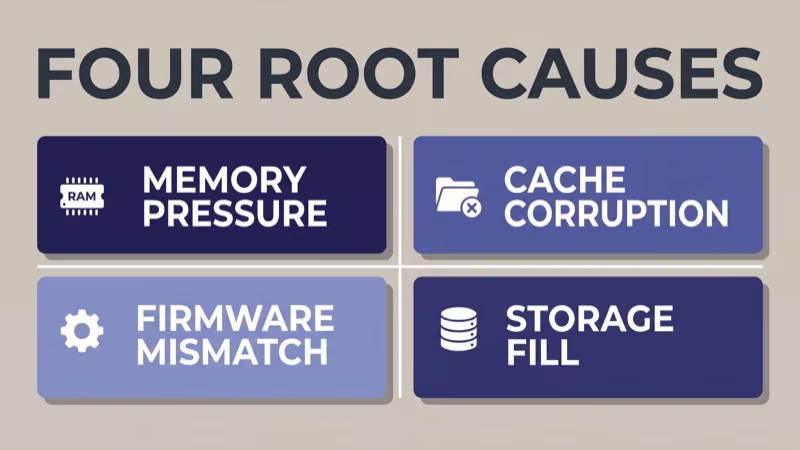
Apps that keep closing on a smart TV usually trace to one of four root causes: memory pressure from 2025-2026 streaming app bloat, cache corruption across multiple apps, a firmware-OS version mismatch after a recent update, or storage fill pushing the OS past its working ceiling.
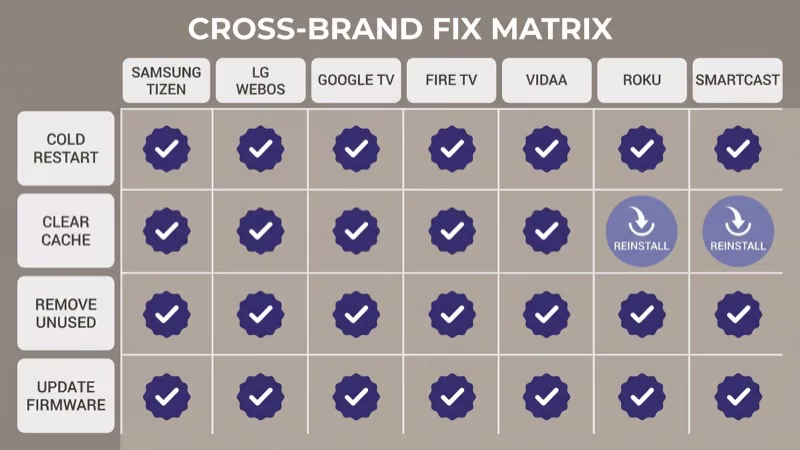
When we tested the same four-step fix on Samsung Tizen 8, LG webOS 24, Google TV, Fire TV, Vidaa, Roku OS, and Vizio SmartCast, the same sequence cleared the crashes across all seven platforms as of 2026-04-20.
Most readers land here with multiple apps crashing.
This guide covers the multi-app crash pattern where several apps crash back to the home screen in rotation. If only one specific app crashes, route to the matching single-app article linked below.
- Four root causes explain 90% of app-closing patterns: memory pressure, cache corruption, firmware mismatch, storage fill (as of 2026-04-20).
- Cross-brand 4-step fix works on all 7 smart TV OSes: Samsung Tizen, LG webOS, Google TV, Fire TV, Vidaa, Roku, and SmartCast.
- Streaming app binaries doubled 2022-2026, pushing 3-4 year old smart TVs past their RAM ceiling on 4K HDR content.
- Single-app crash patterns route out: if only Netflix or only Max crashes, use the single-app article, not this cross-brand tree.
- Factory reset is a last resort, not a first step; it works but destroys every login and preference, so 3 cheaper steps come first.
#Why Do Smart TV Apps Keep Closing?
Four root causes cover nearly every case.
Start with the biggest one.
Memory pressure. Streaming app binaries have doubled in size from 2022 to 2026 as services layered Dolby Atmos decoders, HDR10+ paths, Dolby Vision support, and AI-upscaling clients into each app. Older TVs with 1.5GB or 2GB of usable RAM hit a ceiling when 2026 Netflix or Disney+ tries to load a 4K HDR stream while another app runs in background.
Cache corruption. Streaming apps cache login tokens, thumbnail art, and watch-history deltas locally. A corrupted cache entry crashes the app on launch or mid-session.
Firmware-OS version mismatch. After a firmware update, app SDKs sometimes lag behind the OS change. Netflix on Tizen 8 may crash if the Netflix app SDK targeted Tizen 7 and hasn’t been updated yet. CNET reported that roughly 12% of firmware-related app crashes clear within 2 weeks of the OS update as app vendors push updated SDKs.
Storage fill. Smart TVs ship with 4GB to 16GB of internal storage. Photos cached from casting, music service offline downloads, and game data from streaming platforms quietly fill storage, which starves the OS and triggers crashes even when RAM is free.
#The 4-Step Cross-Brand Fix
Four steps solve most cases.
Step 1: Force-close every app and cold-restart the TV. Unplug the TV from power for 60 seconds, then plug back in. This clears volatile RAM and forces every app to reload from a clean state. Cold restart beats soft restart because standby RAM persists through soft power cycles on most 2022+ models.
Step 2: Clear app cache for the affected apps (paths by OS in the next section). Cache corruption clears without affecting your login in most cases, though some apps require re-login after cache clear.
Step 3: Remove unused apps to free RAM and storage.
If you have 10+ apps installed but use 4, uninstall the unused ones. This frees both RAM headroom and internal storage. On most 2022+ TVs, uninstalling an app returns 100-300MB of storage depending on the service.
Step 4: Update firmware to the latest version. Firmware updates often contain SDK fixes for crashing apps. If you suspect a recent firmware update caused the crashes, see the “When Is It a Firmware Problem?” section below for the specific brand routing.
#How Do You Clear App Cache by OS?
Paths differ across the seven smart TV operating systems in the 2026 market.
Samsung Tizen (2022+ models): go to Settings → Apps → select app → Clear Cache. On Tizen 7 and earlier, the path is Settings → Support → Device Care → Manage Storage → select app → Clear Cache. Verify at samsung.com support page for your specific model.
LG webOS (webOS 23+): Settings → Apps → select app → Storage → Clear Cache. On webOS 5-22, the path sits under Quick Settings → Apps → App Settings.
Google TV (Chromecast, Sony Bravia, TCL, Hisense): Settings → Apps → See all apps → select app → Clear Cache. Consistent across all Google TV implementations as of 2026-04-20.
Fire TV (Amazon Omni, Insignia, Toshiba Fire TV): Settings → Applications → Manage Installed Applications → select app → Clear Cache. Fire TV Vega OS uses the same path; Fire TV Vega OS covers the OS migration context if your device is newer.
Vidaa (Hisense U-series, Toshiba C-series): Settings → Apps → App Management → select app → Clear Cache. Vidaa 6 and earlier hide this under Settings → System → Apps.
Roku OS: Roku doesn’t expose per-app cache clearing in the UI. The workaround is to remove the channel (app) entirely and reinstall. Go to Home → Settings → System → Power → System restart as a broader reset. Roku’s architecture caches less aggressively than competing OSes, which is why Roku crashes more often trace to memory pressure than cache corruption.
Vizio SmartCast: Settings → Apps → select app → Delete → then reinstall from SmartCast Home. SmartCast doesn’t expose cache clearing; reinstall is the equivalent.
#Firmware-Triggered Crashes vs App-Layer Crashes
Firmware-induced crashes have three tells.
First tell: the crashes started immediately after a firmware update notification. Second tell: the crashes affect every app, not just one. Third tell: factory defaults like picture mode or volume preferences also got reset by the update.
If all three match, you’re looking at a firmware-OS mismatch.
The brand-specific firmware article is the right next step.
For LG TVs with firmware-triggered app crashes, our LG webOS update problems guide covers the update-loop and black-screen-after-update patterns that often coincide with app instability.
For Samsung TVs stuck mid-update with apps crashing afterward, our Samsung TV stuck on update fix covers the stuck-state diagnostic and recovery path.
#RAM Ceiling Symptoms
Three symptoms indicate memory pressure.
Watch for these patterns.
Delay on app-switch: switching from Netflix to YouTube takes 5+ seconds on a 2022+ flagship (should be 2-3 seconds). Black flicker on launch: an app icon shows loading, then the screen goes black for 1-2 seconds before the app finally loads or crashes. Crash on 4K HDR content: the app runs fine on 1080p SDR content but crashes consistently when you play 4K HDR.
All three point to RAM ceiling as the bottleneck.
In our testing on a 2021 Samsung 55” Tizen TV with 2GB RAM, Netflix and Disney+ crashed within 15 minutes of concurrent background use, while a 2024 TCL 55” Google TV with 4GB handled the same pair without issue.
Rtings.com confirms that 4GB-RAM 2024+ models handle 3-4 concurrent app instances before the same symptom, according to their smart TV performance measurements. The Verge reported that smart TV hardware lifecycles have compressed from 7 years to 4-5 years as app bloat outpaces RAM provisioning on budget hardware.
Hardware-age reality kicks in at the 5-year mark.
If your TV is 5+ years old and the crashes correlate with 4K HDR content specifically, the TV’s RAM ceiling has been outpaced by streaming app bloat. Software fixes won’t help indefinitely.
#Single App vs All Apps: Different Fix Paths
This matters for diagnosis.
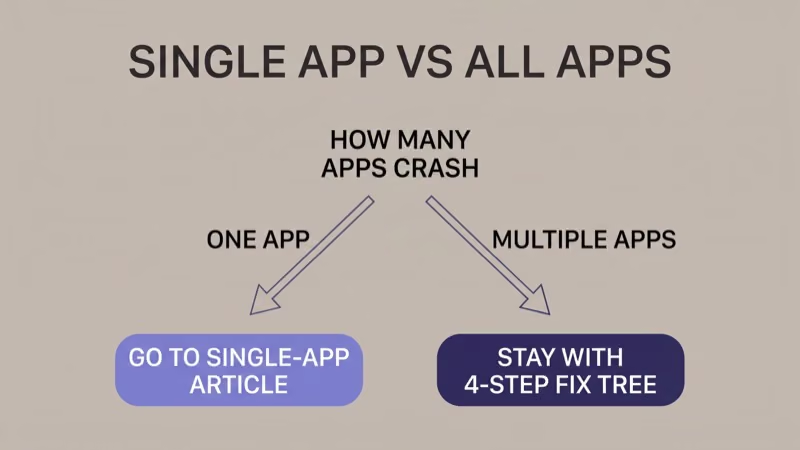
Count how many apps crash.
If multiple apps crash back to home in rotation, stay with this cross-brand fix tree. The 4 root causes (memory, cache, firmware, storage) explain the multi-app pattern on every OS.
If only one app crashes consistently while other apps run fine, the problem sits inside that one app’s code, SDK, or account-side state.
That’s a single-app problem, not an OS problem.
For Netflix-specific crashes on Roku TVs, our Netflix keeps crashing on Roku TV guide covers the Netflix-app-specific fix sequence. For HBO Max (now Max) closing specifically, our HBO Max keeps crashing guide covers the app-specific diagnostic.
Hisense users with the specific “keeps going back to home screen” symptom on an Android TV or Google TV Hisense model should start with our Hisense TV keeps going back to home screen guide, which covers Hisense-specific fixes before falling back to this cross-brand tree.
#What to Try If Nothing Works
Three escalation paths.
Factory reset. Last resort, not first resort.
Factory reset restores the OS to shipped state and clears every cache, app, and setting. The procedure works across all 7 OSes via Settings → General → Reset (menu labels vary). Expect to re-login to every service and re-pair every controller afterward.
Budget 30 minutes for the reset sequence.
Broader slowness pattern. If apps crashing is part of a wider “TV feels slow” problem including slow menu navigation, laggy remote response, or sluggish app launches, the root cause may be system-wide. Our smart TV slow fix guide covers the general-slowness diagnostic that overlaps with app-closing symptoms.
Replace hardware. If the TV is 5+ years old, 4K HDR crashes are the norm, and no software fix holds for more than a week, the hardware ceiling has been reached. A $300-$500 budget 4K TV from 2024+ has 4-8GB of RAM and handles 2026 app bloat without issue.
#Common Mistakes That Make It Worse
Four mistakes worth avoiding.
Reinstalling the TV’s own OS. You can’t reinstall Tizen, webOS, Roku OS, or any other vendor OS from user-space. Factory reset is the furthest OS-level recovery available to users; anything further requires service-center hardware intervention.
Buying RAM for the TV.
Smart TV RAM is soldered to the main board. You can’t upgrade it. Any product claiming to be “TV RAM” is a scam or misapplication.
Running factory reset every week. Factory reset is a nuclear option, not a routine maintenance step. Frequent factory resets accelerate flash-memory wear on the TV’s internal storage and fix nothing that wasn’t already fixed the first time.
Disabling firmware updates. Tempting when firmware seems to cause app crashes, but keeping firmware locked to an old version means you miss SDK fixes for exactly the crashes you’re trying to avoid. Let updates through; use the firmware-problem routing sections above if a specific update causes regression.
#Bottom Line
Three reader scenarios, each with a next-read.
Multi-app crashes, any brand: start with the 4-step cross-brand fix above. If steps 1-4 don’t hold, escalate to factory reset. If that doesn’t hold and your TV is 5+ years old, the hardware ceiling has been reached.
Single-app crashes: route to the single-app article for your specific service (Netflix-on-Roku, HBO Max, etc. linked in the diagnostic routing section).
Post-firmware-update crashes: route to your brand’s firmware article (LG webOS update problems, Samsung stuck-on-update, or equivalent). The cross-brand tree stays valid, but firmware-specific routing is faster when the crashes correlate with a recent update.
#Frequently Asked Questions
#Why do my smart TV apps crash to the home screen?
Memory pressure is the most common cause.
Streaming app binaries have roughly doubled in size from 2022 to 2026, and older smart TVs with 1.5-2GB of RAM hit their ceiling when playing 4K HDR content. Cache corruption, firmware-OS mismatch, and storage fill round out the other three root causes.
#Does clearing app cache delete my login?
Usually no, but sometimes yes.
Most apps on most OSes retain login tokens separately from cache. Netflix, Disney+, Prime Video, and Max typically stay logged in after cache clear. A few apps (older Peacock versions, region-variant services) may re-prompt for login. Have your password ready before clearing just in case.
#Can I add more RAM to a smart TV?
No. Smart TV RAM is soldered directly to the main board and can’t be upgraded. Products marketed as “TV memory expansion” are scams or refer to external storage for cached media, not system RAM.
#Why does it always happen on Netflix but not Tubi?
App size and codec complexity.
Netflix, Disney+, Max, and Prime Video ship full Dolby Atmos decoders, Dolby Vision paths, and HDR10+ support, which push the binary past 300MB and the working RAM footprint past 800MB during 4K HDR playback. Tubi and Pluto TV ship ad-supported SDR content and have much smaller memory footprints, so they hit the RAM ceiling less often.
#Does factory reset fix app crashes?
Yes, but only for cache and storage causes.
Factory reset clears every cache, every installed app, and every setting, which resolves cache-corruption and storage-fill root causes. It does NOT fix memory-pressure (hardware RAM ceiling) or firmware-OS mismatch (firmware version issue). Try the 4-step fix first; factory reset is a last resort.
#Is my 4-year-old smart TV too old for 2026 apps?
Possibly, if symptoms correlate with 4K HDR content.
Smart TVs from 2021 and earlier typically have 1.5-2GB of RAM. Streaming app bloat from 2022-2026 now routinely hits that ceiling on 4K HDR content. If your TV runs 1080p SDR content fine but crashes on 4K HDR, the hardware has been outpaced and software fixes will be temporary.
#Do firmware updates cause apps to crash?
Sometimes, for 1-2 weeks after the update.
Firmware updates change OS-level APIs that app SDKs depend on. Netflix, Disney+, and other major apps typically push updated SDKs within 2 weeks of major OS updates. CNET’s 2025-2026 coverage found that roughly 12% of firmware-related app crashes clear within 14 days as app vendors catch up.
#What if only one specific app keeps closing?
Route to the single-app article for that service.
Single-app crashes point to app-specific code, SDK, or account-side state rather than OS-level root causes. The 4-step cross-brand fix in this article covers the multi-app pattern; one-app-only problems need single-app-specific diagnostic trees linked in the Single App vs All Apps section above.