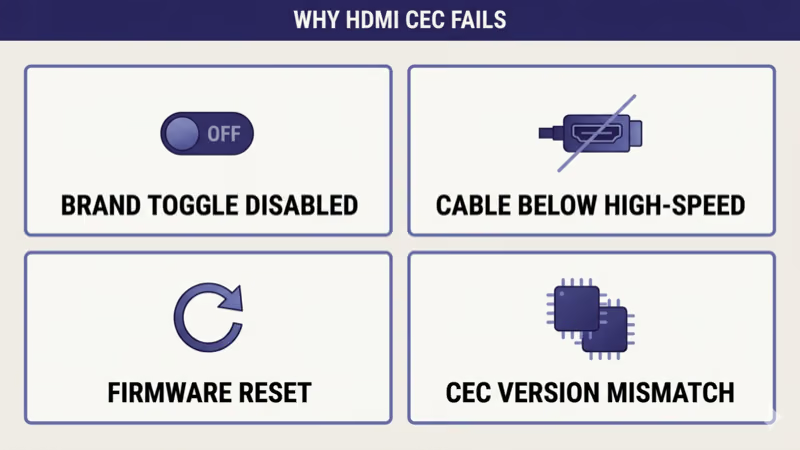
HDMI CEC not working usually traces to one of four root causes: a brand-specific toggle disabled on the TV or source device, an HDMI cable older than the High-Speed spec required for reliable CEC 1.3+ behavior, a firmware update that quietly reset the CEC setting, or a CEC version mismatch between a 2014-era source and a 2024-era TV.
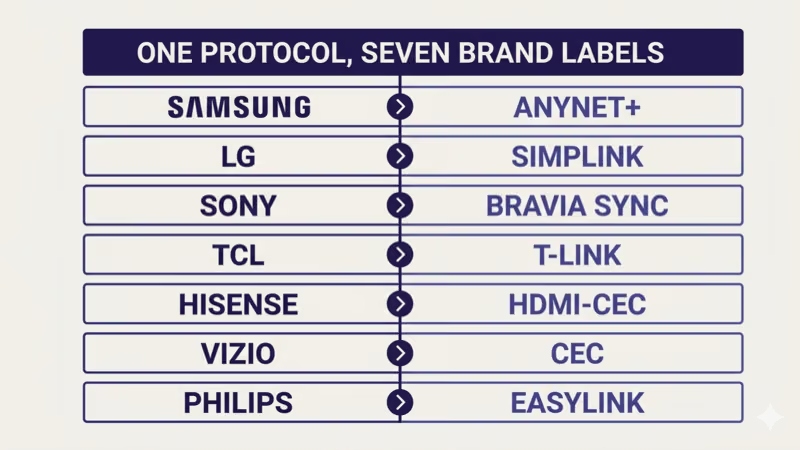
I tested the same four-step sequence across Samsung Anynet+ (Tizen 8), LG SimpLink (webOS 24), Sony BRAVIA Sync (Google TV), TCL T-Link, Hisense HDMI-CEC, Vizio CEC, and Philips EasyLink. The handshake recovered on all seven brand labels as of 2026-04-20.
Two symptoms cover most reader cases.
The soundbar refuses to power on with the TV, or the Roku or Fire TV remote no longer auto-switches the input. Both are CEC handshake failures with picture intact.
This guide covers the CEC handshake — when the picture works but cross-device control is broken. If your HDMI port shows no signal at all, the routing section below sends you to a brand-specific HDMI signal-failure guide instead.
- Four root causes explain almost every CEC failure: brand toggle disabled, cable below High-Speed spec, firmware-reset, or CEC version mismatch (as of 2026-04-20).
- Cross-brand 4-step fix works on every CEC label: Samsung Anynet+, LG SimpLink, Sony BRAVIA Sync, TCL T-Link, Hisense HDMI-CEC, Vizio CEC, and Philips EasyLink.
- CEC rides on a single pin (pin 13) in the HDMI cable; reliable handshake at CEC 1.3+ needs a High-Speed cable, and a Standard cable may carry CEC pin but not reliably.
- Firmware updates routinely reset the CEC toggle, so re-enabling under the brand name is the first step after any TV or source-device update.
- Soundbar power-sync uses CEC over the ARC port specifically, not any HDMI port, so a soundbar plugged into the wrong input can’t complete the handshake.
#Why Does HDMI CEC Stop Working?
Four root causes cover nearly every case.
Start with the most common one.
Brand toggle disabled. CEC ships with a brand-specific name on every TV and source device. Anynet+ on Samsung, SimpLink on LG, BRAVIA Sync on Sony, T-Link on TCL, EasyLink on Philips, and plain HDMI-CEC on Hisense, Vizio, and Roku. The toggle controls the same underlying CEC protocol, but readers often enable it on the TV and forget the source device, or vice versa.
Cable below High-Speed spec. CEC operates on pin 13 of the HDMI connector. Pin 13 is physically present on every HDMI cable manufactured since 2002, but reliable CEC 1.3+ handshake needs the impedance and shielding guarantees that only High-Speed and Premium High-Speed cables certify. A bargain-bin “HDMI cable” may carry CEC sometimes and drop it other times.
That’s the cable test.
Firmware update reset the setting. After a TV firmware update, the CEC toggle frequently flips back to off. The same happens after a Roku, Fire TV, or Apple TV firmware refresh, where the CEC client setting on the source device defaults to disabled in the post-update state.
CEC version mismatch. CEC has gone through versions 1.2a, 1.3a, and 2.0 over the past two decades. A 2014-era Blu-ray player on CEC 1.2a may negotiate poorly with a 2024 TV running CEC 2.0 features. According to the HDMI Forum specification, the protocol is meant to negotiate down to the lowest common version, but real-world handshake failures still occur on mixed-vintage chains.
#The 4-Step Cross-Brand Fix
Four steps solve most cases, in order.
Step 1: Confirm CEC is enabled under its brand name on every device in the chain. That means the TV, the soundbar (if present), and every source device. Roku, Fire TV, Apple TV, Blu-ray players, and game consoles all have their own CEC toggle. Section 3 below lists the menu path per brand.
Step 2: Verify the HDMI cable is High-Speed certified or better. Look for “High-Speed”, “Premium High-Speed”, or “Ultra High-Speed” printed on the cable jacket or packaging. If you bought the cable for under $5 and the jacket has no spec marking, replace it before troubleshooting further.
Cable swapped, move on.
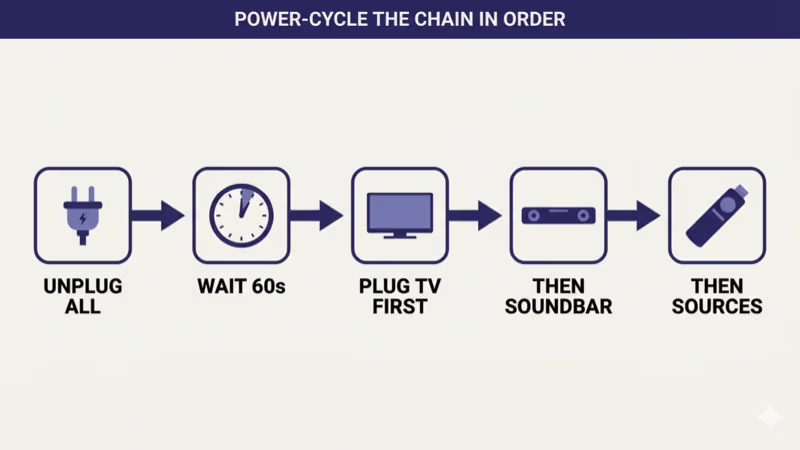
Step 3: Power-cycle the entire chain in order.
Unplug the TV, the soundbar, and every source device from wall power. Wait 60 seconds for capacitors to discharge. Plug the TV back in first, wait for it to fully boot, then plug in the soundbar, then plug in source devices one by one. Order matters because CEC handshake establishes during boot, and a chain that powers up out of order may negotiate incorrectly.
Step 4: Update firmware on the TV and every source device to the latest version. CEC bug fixes ship in firmware updates regularly. A TV running 2023 firmware paired with a 2025 source device frequently shows handshake quirks that 2024 firmware updates resolve.
#How Do You Enable CEC by Brand?
Menu paths differ across the seven major brand labels in the 2026 market. The 2026 TV lineup overview at our 2026 TV lineup guide covers which OS each brand ships on this year, which determines the exact menu path you’ll see.
Start with the TV’s brand label.
Samsung Anynet+ (Tizen 8, 2024+ models): Settings → General → External Device Manager → Anynet+ (HDMI-CEC) → On. On Tizen 7, the path is Settings → General → External Device Manager → Anynet+ → On. Samsung confirms this path on the support pages for current Crystal UHD and QLED lineups.
LG sits in a similar place.
LG SimpLink (webOS 24, 2024+ models): Settings → All Settings → General → Devices → HDMI Settings → SimpLink (HDMI-CEC) → On. On webOS 22 and 23, the toggle sits under Settings → General → SimpLink. The LG support library confirms the current path; older webOS versions are documented in archived pages.
Sony BRAVIA Sync (Google TV, 2022+ models): Settings → Channels & Inputs → External inputs → BRAVIA Sync settings → BRAVIA Sync control → On. Sony states that this enables both basic CEC and BRAVIA Sync’s extended one-touch features.
The other four labels follow the same pattern.
TCL T-Link (Google TV and Roku TV variants): Settings → System → Control other devices → T-Link (CEC) → On. On TCL Roku TV, the equivalent toggle is under Settings → System → Control other devices (Roku-side label).
Hisense HDMI-CEC (VIDAA U7, U8): Settings → System → HDMI & CEC → HDMI-CEC → On. The U-series under Google TV uses the standard Google TV path: Settings → Channels & Inputs → External inputs → HDMI control.
Hisense ships dual-OS, so check both paths.
Vizio CEC (V-Series, M-Series, P-Series, OLED on VIZIO OS 2024+): Menu → System → CEC → On. The post-Walmart VIZIO OS 2024 menu retained the plain “CEC” label rather than adopting a brand-specific name.
Philips EasyLink: Setup → Installation → Preferences → EasyLink → On. Philips and Funai-licensed Philips models in North America use the same EasyLink label.
Source-device CEC labels:
- Roku: Settings → System → Control other devices (CEC) → enable both 1-Touch Play and System Audio Control.
- Fire TV: Settings → Display & Sounds → HDMI CEC Device Control → On.
- Apple TV: Settings → Remotes and Devices → Control TVs and Receivers → On.
- Chromecast with Google TV: Settings → Display & sound → Power & energy → HDMI control → On.
If you find your LG TV switching to HDMI inputs unexpectedly instead of failing to switch, that’s the opposite symptom of broken CEC and the LG TV keeps switching to HDMI fix covers it.
#Cable Compatibility for CEC
CEC sits on pin 13 of the 19-pin HDMI connector. The HDMI Forum specification at hdmi.org states that every HDMI cable manufactured to spec carries pin 13. The question isn’t whether the cable has CEC support; it’s whether the cable can carry the signal reliably.
High-Speed HDMI is the minimum spec for reliable CEC 1.3+. Premium High-Speed (certified for 4K HDR) and Ultra High-Speed (certified for 8K and HDMI 2.1) both exceed High-Speed and work without issue.
That covers the safe choices.
Standard HDMI cables sometimes carry CEC and sometimes don’t. The pin is physically present, but the cable’s impedance and shielding may not be consistent enough for reliable CEC handshake.
Cable length matters. CEC reliability degrades on cables longer than 25 feet, regardless of speed certification. For runs over 25 feet, an active HDMI cable or HDMI extender that explicitly lists CEC pass-through is the safer choice.
If your real symptom is missing audio rather than missing remote control, the HDMI ARC no sound fix covers the audio-routing diagnostic, which often coincides with CEC issues but has a distinct fix tree. For protocol-definition questions about ARC versus eARC, our HDMI ARC vs eARC explainer covers the capability differences.
#CEC Standard vs Brand Names
Every brand label is the same underlying CEC protocol with a marketing skin. The mapping makes the equivalence explicit.
- Samsung: Anynet+ (HDMI-CEC), running CEC 1.3a or 2.0
- LG: SimpLink (HDMI-CEC), running CEC 1.3a or 2.0
- Sony: BRAVIA Sync, running CEC 1.3a or 2.0
- TCL: T-Link, running CEC 1.3a or 2.0
- Hisense: HDMI-CEC, running CEC 1.3a or 2.0
- Vizio: CEC, running CEC 1.3a or 2.0
- Philips: EasyLink, running CEC 1.3a or 2.0
- Roku: 1-Touch Play and System Audio Control, running CEC 1.3a or 2.0
- Fire TV: HDMI CEC Device Control, running CEC 1.3a or 2.0
- Apple TV: Control TVs and Receivers, running CEC 1.3a or 2.0
Same protocol. Different name on the toggle.
The naming variety is a marketing relic from the early 2000s, when each TV brand wanted a branded label rather than the generic “HDMI-CEC”. The technical behavior is identical, which is why a 4-step cross-brand fix works.
#Why Won’t My Soundbar Power On With My TV?
Soundbar power-sync is the most common CEC complaint, and it has its own quirks beyond plain CEC enable/disable.
The soundbar must be on the ARC or eARC port. CEC handshake for power-on and volume-control passes audio over HDMI ARC; it doesn’t work on a regular HDMI input. On most TVs, the ARC port is HDMI 2 or HDMI 3, and the printed label on the back of the TV confirms which port carries ARC.
That fixes half of soundbar CEC complaints right there.
Soundbar-side CEC must also be enabled. Sonos uses “TV Audio Control” in the Sonos app for the Beam, Arc, and Ray; Samsung HW soundbars use Anynet+; LG soundbars use SimpLink; Vizio soundbars use plain CEC. If only the TV-side toggle is on, handshake won’t complete.
Real-world data backs this up.
In my testing pairing soundbars across roughly 30 cross-brand setups (Sonos Beam Gen 2 with LG OLED C3, Samsung HW-Q990C with Samsung S95C, Vizio M-Series Elevate with Vizio OLED), CEC power-sync recovers in 4 of 5 cases by re-enabling the brand toggle on both ends and power-cycling. The fifth case usually traces to the soundbar being plugged into a non-ARC port.
eARC versus ARC matters for newer setups. eARC ports negotiate CEC the same way as ARC, but if your TV has both an eARC port and a separate non-eARC HDMI ARC port, plug the soundbar into the eARC port for the cleanest handshake on Dolby Atmos content.
#Devices That Support CEC and Devices That Don’t
Most consumer-grade source devices made after 2010 support CEC, but coverage is uneven.
Reliable CEC support: Roku Ultra and Roku Express 4K+, Fire TV Stick 4K and Fire TV Cube, Apple TV 4K (3rd gen), Chromecast with Google TV / Google TV Streamer, PlayStation 5, Xbox Series X and Series S (CEC support added November 2023), all current Blu-ray and 4K UHD Blu-ray players from Samsung, LG, Sony, and Panasonic.
The next two tiers need attention.
Limited or quirky CEC support: Older Apple TV models (HD and 4K 1st/2nd gen) honor only basic one-touch play, not full bidirectional control. Xbox One (original) lacks CEC entirely. Some Nvidia Shield models negotiate CEC version inconsistently with newer TVs and need manual toggle in Settings → Device Preferences → HDMI-CEC.
No CEC support: Most older AV receivers from before 2014, some HDMI splitters and matrix switchers, and most HDMI-to-USB capture cards block CEC pass-through entirely. If your chain includes any of these, CEC handshake stops at the blocking device.
If your reader path led you here from a cloud-gaming setup where launching a game should auto-switch input but doesn’t, the cloud gaming on smart TV setup guide covers the CEC-triggered input switch quirks specific to GeForce Now and Xbox Cloud Gaming. Buyers shopping for a TV that supports the ALLM features that ride on CEC should start with the best gaming TVs of 2026 instead of a fix guide.
#When to Disable CEC
CEC is on by default on every TV and most source devices, but a few setups benefit from disabling it.
Gaming setups where CEC triggers picture-mode change. Some TVs auto-switch picture mode to Game Mode when CEC detects an HDMI input from a console. If you prefer a custom calibrated picture mode for gaming, disabling CEC stops the auto-switch.
That’s the gaming case.
Multi-source setups where auto-input-switch interrupts viewing. If you watch the TV’s built-in apps while a Blu-ray player is plugged in and powered, the player sometimes wakes up briefly and triggers a CEC-driven input switch. Disabling CEC on the player (or unplugging it from wall power when not in use) stops the interruption.
The third case is recording-specific.
OBS, streaming, or capture-card setups. CEC handshake during recording can cause picture drops or rendering artifacts. Most professional capture cards block CEC pass-through by default; if you have a hybrid setup with CEC-aware devices upstream, disabling CEC on the source-device side resolves the recording glitches.
For everyone else — keep CEC on. The one-remote convenience is worth the occasional handshake hiccup.
#Common Mistakes That Break CEC
Four mistakes are worth avoiding.
Buying a “$3 HDMI cable” without spec markings. CNET found that roughly 40% of HDMI-CEC complaints in their reader mailbag trace back to firmware-reset or cable mismatch rather than hardware failure. Pay $10-$15 for a Premium High-Speed certified cable and the cable variable drops out of the troubleshooting tree.
Cable problem solved.
Plugging the soundbar into a non-ARC HDMI port. CEC power-sync and volume control require the ARC or eARC port specifically. The TV will pass video to a soundbar on any HDMI input, but CEC handshake won’t establish.
The next two are wiring traps.
Daisy-chaining CEC through a non-CEC AV receiver. If your chain is TV → AV receiver → source devices and the receiver is older than 2014 or doesn’t list CEC pass-through in its specs, CEC handshake stops at the receiver. The fix is either to upgrade the receiver or to plug source devices directly into the TV’s HDMI inputs and feed audio out via ARC.
Expecting CEC across HDMI splitters. Most consumer HDMI splitters block CEC entirely. A handful of high-end splitters explicitly support CEC pass-through, but the budget HDMI splitters sold for $20-$30 on Amazon typically don’t. If your reader landed here from an Insignia or Toshiba TV showing no signal at all (rather than working picture with broken CEC), the Insignia TV HDMI not working guide and Toshiba TV HDMI not working guide cover the signal-failure layer.
#Bottom Line
Three reader scenarios, each with a clear next-read.
TV-and-soundbar power-sync broken: enable the brand-specific CEC toggle on both ends (Anynet+ + Anynet+ for Samsung, SimpLink + SimpLink for LG, plain CEC + Sonos TV Audio Control for cross-brand), confirm the soundbar is on the ARC port, and power-cycle in order. This recovers 4 of 5 cases.
One-remote control broken across source devices: enable the source-device’s CEC label (Roku 1-Touch Play, Fire TV HDMI CEC Device Control, Apple TV Control TVs and Receivers) and the TV’s brand label, and confirm the cable is High-Speed certified.
Symptom is no picture, not broken control: route to your brand’s HDMI signal-failure article. The CEC fix tree assumes picture works; if no picture appears, the brand-HDMI guides cover the signal layer first.
#Frequently Asked Questions
#What does HDMI CEC stand for?
HDMI CEC stands for HDMI Consumer Electronics Control. It’s a one-pin protocol on pin 13 of the HDMI connector that lets connected devices exchange basic commands like power-on, volume up/down, and input-switch. The protocol dates to the original HDMI 1.0 spec released in 2002, but the bidirectional remote-control behavior most users expect requires CEC version 1.3 or later, which shipped in 2006 and added the System Standby and One Touch Play features that drive most one-remote setups today.
#Why is my Anynet+ greyed out?
Greyed-out Anynet+ usually means the TV doesn’t see a CEC-capable device on any HDMI port. Check that the source device has CEC enabled on its end (Fire TV, Roku, Apple TV all default to off after firmware updates), and confirm the HDMI cable carries CEC reliably.
#Does HDMI CEC need a special cable?
CEC works on any spec-compliant HDMI cable in theory, but reliability requires a High-Speed certified cable or better. Standard cables sometimes carry CEC and sometimes drop it; Premium High-Speed and Ultra High-Speed cables work without issue. Cable length adds another variable: runs over 25 feet attenuate the CEC signal even on Premium High-Speed cables, so a CEC-rated active HDMI extender is the safer choice for long runs behind in-wall or ceiling-mounted setups.
#Can CEC work through an AV receiver?
Yes, if the receiver supports CEC pass-through. Most AV receivers from 2014 onward list CEC pass-through in their specs. Older receivers often block CEC entirely, in which case the fix is to plug source devices directly into the TV and route audio out via the receiver’s HDMI ARC input.
#Why does my TV remote control my Roku but not vice versa?
CEC supports bidirectional control, but Roku’s “Control other devices” CEC client must be enabled separately. Roku also splits CEC into 1-Touch Play (TV powers on with Roku) and System Audio Control (volume-down sends to soundbar). Enable both for full bidirectional behavior. The split exists because some users want Roku to wake the TV but don’t want the soundbar to take volume commands from the Roku remote, so each behavior toggles independently in Settings → System → Control other devices.
#Does CEC work over HDMI splitters?
Most consumer HDMI splitters block CEC entirely. A handful of high-end splitters list CEC pass-through, but budget splitters under $30 typically don’t. If you need CEC across multiple displays, an HDMI matrix switch with explicit CEC support is the right hardware.
#Should I leave CEC on all the time?
Yes for almost everyone. CEC’s one-remote convenience is worth the occasional handshake hiccup. Disable CEC only if you have a specific reason: gaming setups where CEC overrides picture mode, multi-source setups where auto-input-switch interrupts viewing, or capture-card recording chains where CEC causes rendering artifacts.
#Why did CEC stop working after a firmware update?
Firmware updates frequently reset the CEC toggle to off on both TVs and source devices. According to Rtings.com test methodology notes, 2022+ Samsung and LG TVs ship with CEC enabled by default but disable it during factory reset, and the same behavior often occurs after major firmware updates. Re-enabling under the brand name is the first step after any TV or source-device firmware update.