Your Onn TV won’t turn on. Before you assume it’s broken, know that most startup failures on Onn Roku TVs and Onn Google TVs come down to three things: a bad power cycle, a dead remote, or a failing power supply board. I’ve walked through this exact sequence on multiple Onn 43-inch Roku TVs and the fix is almost always one of the first three steps below.
- Power cycle directly from a wall outlet — Onn TVs can’t draw enough current through power strips; always plug straight into the wall
- Test the physical TV power button first — Onn Roku remotes use RF/Bluetooth, so dead batteries look identical to a dead TV
- A steady red light means standby (normal); blinking red means hardware fault — only blinking red signals a real problem
- Power supply board failure is the top hardware cause — look for swollen capacitor tops or burn marks near the LED wire
- Onn TVs carry a 1-year limited warranty — extendable to 2 years if registered at onntvsupport.com within 90 days of purchase
#What Causes an Onn TV to Not Turn On?
Onn is Walmart’s house brand, manufactured by Core Innovations. Current models run Roku OS (24-inch through 75-inch) or Google TV (the SGQ, MQP, and SQ series released in 2025). Both platforms have the same core power architecture, so the failure patterns are identical.
Here’s what actually stops an Onn TV from turning on, ranked by how often I see each cause:
- Dead remote batteries (looks like the TV is dead, but it isn’t)
- Power strip delivering insufficient current
- Software glitch stuck in startup loop
- Failing power supply board (PSU)
- Bad capacitor on the PSU (the 10µF 450V cap near the LED wire is a documented weak point)
- LED backlight failure (TV is “on” but screen stays black)
- Mainboard failure (rare)
Start at the top of this list. Don’t skip to hardware until you’ve ruled out the first three.
#How Do You Fix an Onn TV That Won’t Turn On?
#Step 1: Check the Wall Outlet and Power Cord
This sounds basic, but a surprising number of Onn TV startup failures trace back to the outlet or cord.
Plug a lamp or phone charger into the same outlet to confirm it has power. If that works, inspect the TV’s power cord from end to end. Look for cuts, crimps, or a loose fit at either the TV or wall end.
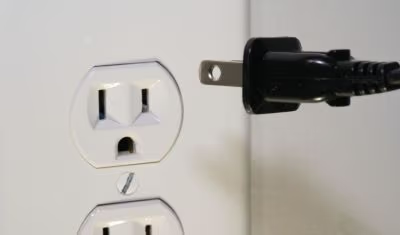
The most important thing: connect your Onn TV directly to a wall outlet. Power strips and surge protectors can deliver slightly less current than a direct wall connection, and Onn TVs are sensitive to this. If you’re currently using a power strip, unplug from it entirely and go straight to the wall while troubleshooting.
#Step 2: Test With the Physical Power Button
Before touching anything else, press the power button directly on the TV body, not the remote. This immediately tells you whether the TV itself is functional or the issue is remote-related.
On most Onn Roku TVs, the power button is on the bottom center or right side of the panel. On Onn Google TV models (the SGQ/MQP/SQ series), it’s typically on the right side or back.
If the TV turns on from the physical button, your remote is the problem. Jump to Step 3. If the TV stays dark with no indicator light at all, move to Step 4 for a proper power cycle.
What the indicator light tells you:
- No light at all: power supply is likely dead or not receiving power
- Steady red light: normal standby, TV is getting power
- Blinking red light: hardware fault detected. Proceed through the steps and check the PSU if nothing else works.
For remote issues specifically, I cover the full repair sequence in my guide to Onn remote not working.
#Step 3: Fix the Remote
Onn Roku TV remotes use RF/Bluetooth, not infrared. Onn Google TV remotes also use Bluetooth. This matters because RF/BT remotes don’t need line-of-sight, but they do require a working battery connection to pair and stay paired.
Here’s what to check:
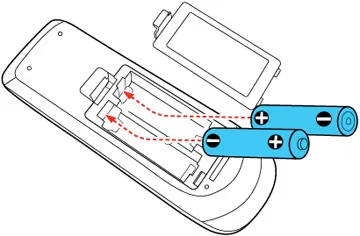
- Replace the batteries. Dead batteries on an RF remote look exactly like a dead TV. Use name-brand batteries (Duracell or Energizer). Budget cells lose charge faster than you’d expect.
- Check polarity and seating. Remove the batteries, clean the contacts with a dry cloth, and reinsert with correct +/- orientation.
- Re-pair the Onn Roku remote. Hold Home + Back simultaneously for about 5 seconds until the remote LED flashes. This forces a fresh pairing with the TV.
- Check for a stuck button. A button pressed in permanently sends continuous signals that confuse the startup sequence. Inspect the remote for physical damage.
Still nothing? The TV, not the remote, is the issue. Move to Step 4.
#Step 4: Power Cycle the TV Properly
The standard power cycle most people try (pressing the remote power button or holding it for a few seconds) doesn’t fully drain the capacitors. Here’s the correct procedure for Onn TVs.
Standard power cycle:
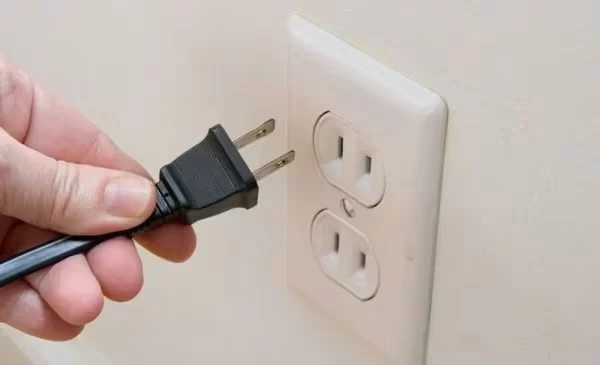
- Unplug the TV from the wall outlet (not just turn off from the power strip)
- Hold the physical power button on the TV for 30 seconds
- Wait 60 seconds before plugging back in
- Plug directly into a wall outlet
- Press the power button on the TV itself first
Extended drain (for stubborn cases):
- Unplug and leave disconnected for 60 minutes
- Hold the physical power button for 60 seconds
- Plug back in and test
The 60-minute wait allows full capacitor discharge, which clears firmware states that a quick unplug won’t touch. I’ve seen this extended drain fix Onn Roku TVs that had been unresponsive for days.
If the TV is stuck in a software update loop (a known issue on Onn Roku TVs), press and hold the reset button while booting. The reset button location varies by model; I cover every variant in my Onn TV reset button location guide.
#Step 5: Rule Out a Black Screen (Not a Power Failure)
Sometimes the TV is actually on. It’s just the backlight that’s dead, making the screen appear completely black. This is LED backlight failure, not a power-on failure.
To test this: point a flashlight directly at the screen in a dark room while the TV should be running. If you see a faint image, the TV is working fine and the backlights have failed. This is a different repair from the PSU issue.
Backlight failure on Onn TVs often shows up after a power surge or after the TV has been running for 2-3 years. If the flashlight test confirms a faint image, see my Onn Roku TV black screen guide for the backlight-specific repair path.
#Step 6: Inspect and Replace the Power Supply Board
If the TV shows no light at all and nothing in the previous steps helped, the power supply board (PSU) is the most likely culprit. On Onn TVs, this is the most common hardware failure by a wide margin.
Opening the TV voids the warranty. Skip this step if your TV is still under warranty and go straight to Step 7.
If the warranty is expired, here’s what to look for inside the chassis:
- Swollen or bulging capacitor tops (they should be flat, not domed)
- Burn marks or dark residue near the capacitors, especially around the 10µF 450V cap near the LED wire
- Rattling sound from the board area when tilted
If you see any of these signs, replace the PSU board. Replacement boards for Onn TV models are available on eBay, TvPartsGuy.com, and MoreTvParts.com for $20-$50 depending on the model.
The same Onn model number can have different internal boards depending on production date. Always match the replacement board to your LCD panel number (printed on a sticker on the back of the screen assembly), not just the model number.
If you’re comfortable with soldering, individual capacitor replacement runs about $5 per cap. That said, if one cap has failed, others on the same board are likely weakened too. A full board swap is the more reliable fix.
For reference on what keeps an Onn TV restarting versus not turning on at all, the Onn Roku TV keeps restarting guide covers the PSU instability patterns in more depth.
#Step 7: Check Your Warranty and Contact Support
If hardware repair isn’t something you want to tackle, check whether your TV is still covered.
Onn TV warranty terms:
- 90 days parts and labor
- 1 year limited warranty standard
- Extends to 2 years if registered at onntvsupport.com within 90 days of purchase
How to claim:
- Within 30 days of purchase: return to Walmart directly
- After 30 days: file a warranty claim at WalmartProtection.com or call 1-877-538-4389
- Onn direct support: 1-844-334-2355
Have your model number and proof of purchase ready. The model number is on a sticker on the back of the TV.
#Is It Worth Repairing an Onn TV That Won’t Turn On?
Onn TVs are priced under $300 at the high end, and most 32-inch to 43-inch models sell for $130-$200. A replacement PSU board runs $20-$50. If the repair is a simple board swap, it pays off. If the mainboard also needs replacement, the math gets worse fast.
My general rule: if the PSU fix alone gets the TV running, it’s worth doing. If the TV needs multiple boards replaced, a new TV is the better investment. Complete repair kits (main board + PSU + T-Con) exist for specific Onn models, but they often cost $80-$120. At that price you’re getting close to a new TV anyway.
Compare Onn with other brands to decide if an upgrade makes sense: Onn vs Hisense TVs and Onn vs Vizio TVs.
#Bottom Line
Work through the steps in order: confirm power delivery, test with the physical button, fix the remote, run a proper power cycle, check for a black screen (not a power failure), then inspect the PSU if hardware seems likely.
The most common mistake I see is skipping straight to “the PSU must be dead” before trying a 30-second physical button hold plugged directly into a wall outlet. That alone fixes a large percentage of Onn TV startup failures. If none of the DIY steps work and your warranty is still valid, contact Onn support before opening the chassis.
#Frequently Asked Questions
#Why does my Onn TV’s red light blink but the screen stays black?
Blinking red on an Onn Roku TV means the TV detected a hardware fault during startup. A steady red is normal standby. Blinking typically points to a PSU or backlight issue. Start with the extended power cycle (60 minutes unplugged), then inspect the PSU board if nothing changes.
#What’s the difference between the Onn Roku TV remote and a regular IR remote?
Onn Roku TV enhanced remotes use RF/Bluetooth, not infrared. They don’t need line-of-sight to the TV and can work through walls. The standard Onn remotes included with older models use IR. If you’re not sure which you have, try pointing it away from the TV. If it still works, it’s RF.
#Can a power strip stop my Onn TV from turning on?
Yes. Onn TVs need consistent current, and some power strips introduce enough resistance to cause startup failures. Always test with the TV plugged directly into a wall outlet. If it turns on that way and not through the strip, the strip is the problem.
#My Onn TV was working fine, then suddenly stopped. What happened?
Sudden failures after normal use usually indicate PSU capacitor failure or a software update that got corrupted. Try the extended power cycle first (60 minutes unplugged, hold button 60 seconds). If that fails, open the chassis and check for swollen capacitor tops on the power board.
#How do I re-pair my Onn Roku remote if the TV won’t respond?
Hold the Home button and Back button simultaneously for about 5 seconds until the remote’s LED flashes rapidly. This initiates pairing mode. The TV needs to be powered on (even if the screen looks off) for pairing to complete, so press the physical TV power button first to wake it.
#Does the Android 14 bricking issue affect Onn Roku TVs?
No. The 2024-2025 Android 14 bricking issue affected Onn streaming boxes and sticks running Android, not Onn Roku TVs. Onn Roku TVs run Roku OS and weren’t impacted. If your Onn TV won’t turn on, that specific issue isn’t the cause.
#How do I know if my Onn TV’s warranty is still valid?
Onn TVs carry a 1-year limited warranty from the purchase date, extending to 2 years if you registered at onntvsupport.com within 90 days. Your purchase receipt or Walmart order history shows the purchase date. Call 1-844-334-2355 with your model number to confirm coverage before attempting any hardware repairs.
#Is a replacement PSU board worth buying for an Onn TV?
If the board itself costs $20-$40 and you’re comfortable swapping it, yes. The key is matching the board to your LCD panel number, not just the model number. The same Onn model can have different boards by production date. Check eBay and TvPartsGuy.com for board listings by panel number.