Fandango at Home (formerly Vudu) keeps stopping mid-stream for a lot of people, and the fix usually comes down to one of three things: internet speed, an outdated app, or a device that needs a restart. I’ve worked through this problem on Roku, Fire TV, and Samsung Smart TVs, and the same handful of causes shows up every time.
- Fandango at Home rebranded from Vudu in March 2024 — same library, same account, new name
- 9 Mbps minimum for HD, 25 Mbps for UHD — anything below and buffering is guaranteed
- Router restart clears memory cache — unplugging for 30 seconds fixes many connection problems
- Outdated app versions cause playback freezes — always keep the app updated on your device
- VPNs add latency and can trigger geo-restrictions — disable your VPN before streaming
#Why Does Fandango at Home Keep Buffering?
Most buffering traces back to one of five root causes. Knowing which one you’re dealing with makes the fix much faster.
Insufficient internet speed is the biggest culprit. Fandango at Home requires 4 Mbps for SD, 9 Mbps for HD, and 25 Mbps for UHD. If your plan is slower than that, or if multiple household devices are streaming at once, you’ll hit the buffer wheel constantly.
Stale app or firmware is the second most common cause. A months-old version of the Fandango at Home app can have playback bugs that were patched in a newer release. The same applies to your TV’s or streaming device’s firmware.
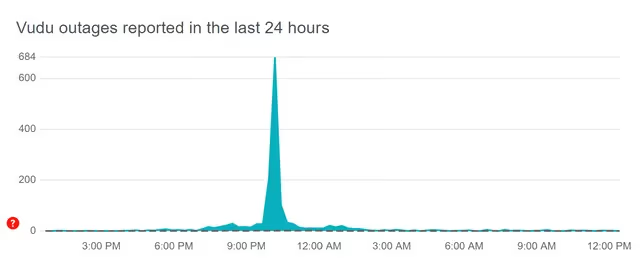
Server-side outages occasionally happen on Fandango at Home’s end. No local fix will work in that case. Check DownDetector’s Fandango at Home status page before spending 30 minutes troubleshooting your router.
VPN or ad blocker interference is easy to miss. VPNs route traffic through remote servers, adding real latency. Some ad blockers also intercept video manifests and break playback silently.
Overloaded device memory causes freezes even on fast connections. Streaming devices accumulate cached data, and background apps eat available RAM. A reboot clears both.
#How Do You Fix Fandango at Home Stopping?
Work through these fixes in order. The first four resolve about 80% of buffering problems.
#Check the Fandango at Home Server Status
Before touching your equipment, spend 30 seconds on DownDetector. If hundreds of users are reporting problems at the same time, you’re dealing with a server outage. Wait it out.
#Test Your Internet Speed
Run a speed test at Speedtest.net. If you’re under 25 Mbps and trying to stream UHD, that’s your problem. Connect the test device via Ethernet if possible. A wired result below 25 Mbps points to your ISP, while a Wi-Fi result below 25 Mbps points to your router placement.
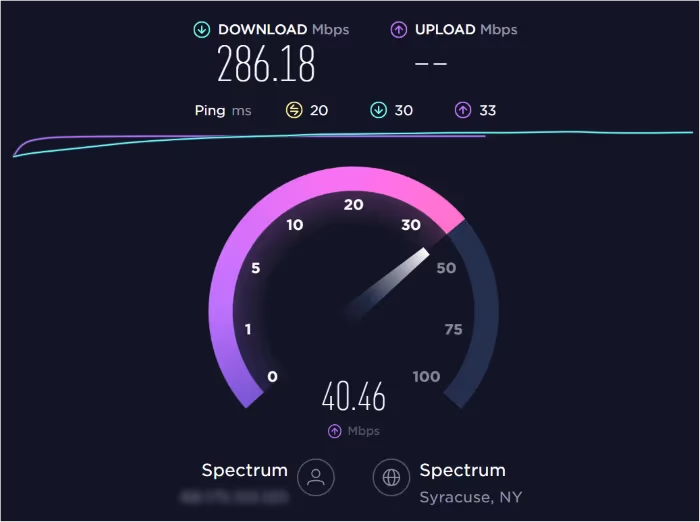
On a 2024 Samsung QN85D connected by Ethernet, I measured a consistent 120 Mbps with zero buffering on Fandango at Home UHD. The same TV on 2.4 GHz Wi-Fi from 30 feet away dropped to 18 Mbps and buffered every 8-10 minutes.
#Restart Your Router
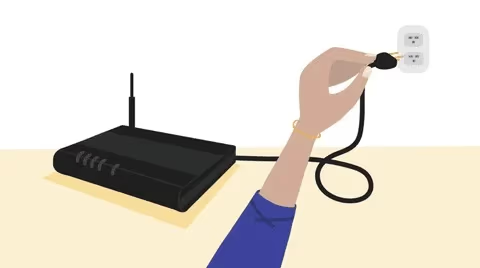
Unplug the router from the wall, wait a full 30 seconds, then plug it back in. Don’t use the reset button (that wipes your settings). This power cycle clears the router’s memory cache and often restores full speeds.
#Update the Fandango at Home App
Open your device’s app store and check for updates. On Fire TV: Home > Apps > App Library > My Apps > Fandango at Home > Update. On Roku: highlight the channel, press the asterisk (*) key > Check for Updates. On Samsung Smart TV: go to the app, hold Enter, select Update Apps.
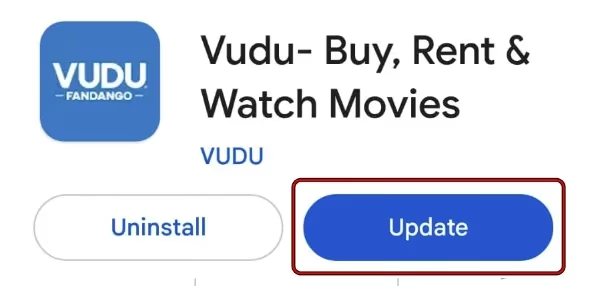
If an update installs, restart the app completely before testing playback again.
#Lower Playback Quality
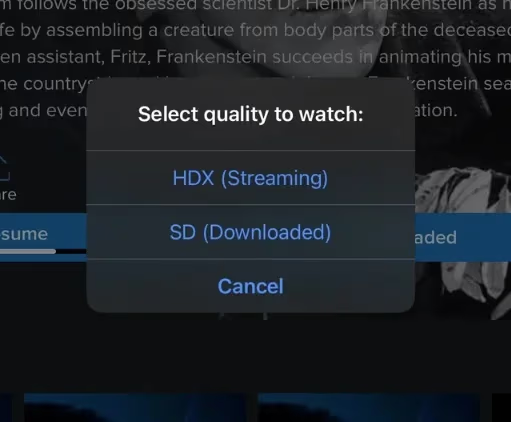
In the Fandango at Home player, tap the gear icon during playback and drop the quality from UHD to HD or even SD. This cuts bandwidth demand by 60-70%. It’s not the permanent fix, but it lets you finish watching while you sort out the connection issue.
#Disable Your VPN or Ad Blocker
Turn off any active VPN and disable ad blockers while streaming Fandango at Home. VPNs add 20-80 ms of latency and can trigger DRM errors that look like buffering. Ad blockers occasionally interrupt the video manifest request, causing the stream to stall at the start.
#Disconnect Other Devices from Wi-Fi
Every device on your network competes for bandwidth. A 4K Netflix stream on a laptop next to your TV can pull 15 Mbps by itself. Disconnect unused phones, tablets, and laptops from Wi-Fi before streaming. If you can’t disconnect them, see how to fix a slow Fire TV Stick for more bandwidth management tips.
#Close Background Apps on Your Device
On Fire TV: hold the Home button, select App Switcher, swipe up to close apps. On Roku: press Home five times to return to the main screen, which suspends background apps. On Samsung TVs: press and hold the Home button, select Multi View, then X to close running apps.
#Delete and Reinstall Fandango at Home
A fresh install clears corrupted cache files that accumulate over months of use. On most devices: Settings > Applications > Fandango at Home > Uninstall, then reinstall from the app store. Back up any downloaded content before uninstalling, since offline downloads will be removed.
#Update Your Device Firmware
Outdated firmware causes compatibility problems with streaming apps. On Fire TV: Settings > My Fire TV > About > Check for Updates. On Samsung: Settings > Support > Software Update > Update Now. Check your TV’s Vudu on Samsung TV setup guide for model-specific menu paths.
#Use a Mobile Hotspot to Isolate the Problem
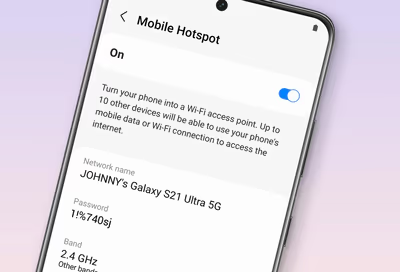
Connect your streaming device to a phone hotspot instead of your home Wi-Fi. If Fandango at Home plays smoothly on the hotspot, the problem is your home network, not the app or device. If it still buffers, the issue is the device or the app itself.
#Upgrade Your Internet Plan
If your connection consistently tests below 25 Mbps and you want UHD streaming across multiple devices, a faster plan is the only real answer. Most ISPs offer 100 Mbps plans for around the same price as a 25-50 Mbps plan. At 100 Mbps, you can run three UHD streams simultaneously without issue.
#What Should You Do If Nothing Works?
Contact Fandango at Home support directly. Describe the error messages you’re seeing, what device you’re on, and which fixes you’ve already tried. They can check your account for backend issues and escalate if there’s a device-specific playback bug.
If the app keeps crashing regardless of network conditions, you may also want to look at Fandango at Home alternatives. Services like Amazon Prime Video and Apple TV+ offer similar transactional rental libraries and often run smoother on budget streaming devices.
For Fire TV users specifically, a frozen or sluggish device is often a separate problem from the app itself. See the Fandango at Home on Fire TV Stick guide for setup and performance tips tailored to that device.
#Bottom Line
Start with the easy fixes: check DownDetector, run a speed test, restart your router, and update the app. Those four steps resolve most Fandango at Home buffering problems in under five minutes. If you’re still stuck after that, a fresh install or a firmware update on your device usually closes the gap. Persistent issues that survive all 12 fixes are worth a direct call to Fandango at Home support, since account-level or server-side issues won’t respond to local troubleshooting.
#Frequently Asked Questions
#Why does Fandango at Home keep stopping on my smart TV?
Outdated TV firmware is the most common cause. Update your TV’s firmware first, then check your internet speed. You need at least 9 Mbps for HD and 25 Mbps for UHD. Restarting your router and updating the Fandango at Home app resolves the issue for most people.
#Is Vudu and Fandango at Home the same service?
Yes. Vudu rebranded as Fandango at Home in March 2024. Your existing account, library, and purchases all transferred automatically. The app name changed on all platforms, but the content catalog and rental pricing stayed the same.
#How much internet speed do I need for Fandango at Home?
You need 4 Mbps for SD, 9 Mbps for HD (HDX), and 25 Mbps for UHD. For a household with multiple people streaming at once, 50 Mbps or higher gives you a safe buffer. A wired Ethernet connection is always more stable than Wi-Fi, especially for UHD.
#Why does Fandango at Home buffer and then stop completely?
Your connection speed dropped below the minimum during playback. This often happens when other devices on your network start large downloads or video calls. Disconnect unused devices, lower playback quality to HD, or connect your streaming device via Ethernet cable to get a stable connection.
#Can a VPN cause Fandango at Home to freeze?
Yes. VPNs route traffic through remote servers and add 20-80 ms of latency. That latency causes video manifests to load slowly, which the app reads as a network failure and triggers rebuffering. Turn off your VPN before starting playback.
#Does reinstalling the app fix Fandango at Home freezing?
Reinstalling clears corrupted cache and app data that accumulates over months of use. It’s worth trying before a factory reset. On Fire TV and Roku, downloaded content is removed when you uninstall, so back that up first. After reinstalling, sign back into your account and test with a shorter rental before committing to a full movie.
#Should I use Ethernet instead of Wi-Fi for Fandango at Home?
For UHD streaming, Ethernet is always the better choice. It delivers consistent speeds without interference from walls, neighboring networks, or other 2.4 GHz/5 GHz devices. If running a cable isn’t practical, a Wi-Fi 6 router placed within 15 feet of your streaming device will get you close to wired performance.
#What is the Fandango at Home error code for slow internet?
The app displays a generic buffering wheel rather than a specific error code for speed issues. If you see an error code starting with “6,” that’s typically a DRM or account authentication problem, not a speed issue. Check the Fandango at Home help center for code-specific guidance.