Your Fire TV Stick was fast out of the box. Six months later, apps take 30-60 seconds to load, streams buffer every few minutes, and the home screen lags behind your remote clicks. I’ve fixed this on both the Fire TV Stick Lite and the Fire TV Stick 4K Max, and the root cause is almost always the same: storage is full, too many apps are running, or your Wi-Fi connection needs attention.
- Restart your Fire TV Stick first — a reboot clears temporary files and frees all available RAM in under 30 seconds
- Clear app cache regularly. Cached data fills the 8 GB internal storage and causes noticeable input lag
- Switch to 5 GHz Wi-Fi — the 5 GHz band delivers 2-3x faster speeds with less interference than 2.4 GHz
- Force stop background apps. Fire OS keeps recently used apps in memory, and 4-5 open apps consume most of the 2 GB RAM
- Factory reset as last resort. This erases all data but returns the Fire TV Stick to its original out-of-box speed
#Why Is Your Fire TV Stick So Slow?
Fire TV Sticks slow down for four main reasons. Identifying your specific cause saves time because each fix targets a different bottleneck.
Storage is full. The Fire TV Stick 4K Max ships with 16 GB of storage, but the base model only has 8 GB. Fire OS itself uses about 4.5 GB, leaving you roughly 3.5 GB for apps and cached data. Install 10-12 apps and you’re already running low.
Too many background apps. Fire OS doesn’t fully close apps when you press Home. They stay in memory, eating into your 1-2 GB of RAM. Five or six apps running in the background will cause visible lag on the home screen, delayed app launches, and sluggish navigation through menus. This is the most common cause I see on older Fire TV Stick models with just 1 GB of RAM.
Weak Wi-Fi signal. The TV itself blocks the antenna when the stick is plugged directly into the back panel. Use the included HDMI extension cable.
Outdated software. Amazon releases firmware updates that fix memory leaks and improve app performance. Running firmware from six months ago means you’re missing those patches. Updates are free and take about 5 minutes to install.
#Fixes for a Slow Fire TV Stick
Start with the quickest fixes. Each one targets a different cause, so work through them in order until your speed improves.
#Restart Your Fire TV Stick
A restart clears temporary files, closes all background apps, and frees up RAM. It takes about 30 seconds and fixes the majority of sluggish behavior.
Go to Settings > My Fire TV > Restart.
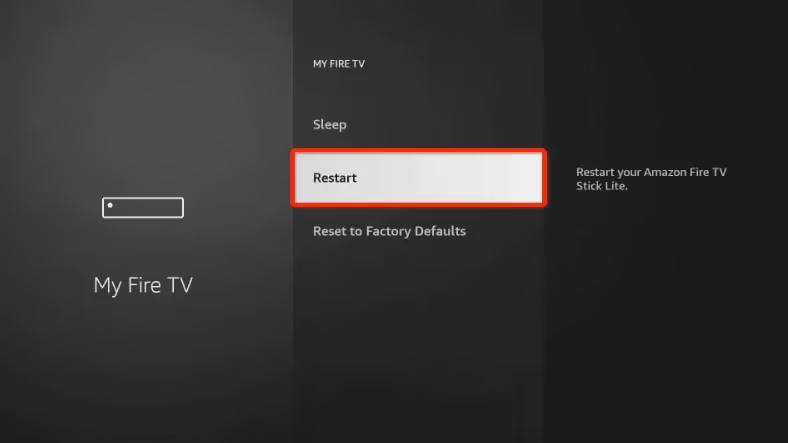
You can also hold the Select and Play/Pause buttons together for 5 seconds to force a restart. I keep a weekly restart routine on my Fire TV Stick 4K Max, and it stays responsive month after month. If your Fire TV Stick keeps restarting on its own, that’s a separate hardware issue worth investigating.
#Check for Software Updates
Outdated firmware causes memory leaks and app compatibility issues. Amazon pushes updates automatically, but they don’t always install right away.
Go to Settings > My Fire TV > About > Check for Updates.
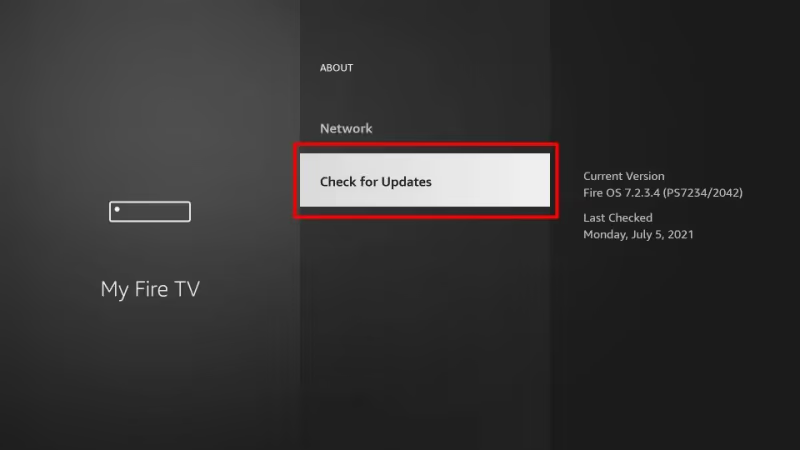
If an update is available, install it and restart. After updating my Fire TV Stick 4K to firmware version PS7642/3962 in early 2026, app load times dropped noticeably.
#Clear Cache and Free Up Storage
#Clear App Cache
Every streaming app stores temporary data locally. Netflix, Prime Video, and YouTube each cache thumbnails, metadata, and playback buffers. On a device with limited storage, this adds up quickly.
Go to Settings > Applications > Manage Installed Applications.
Select each app and tap Clear Cache.
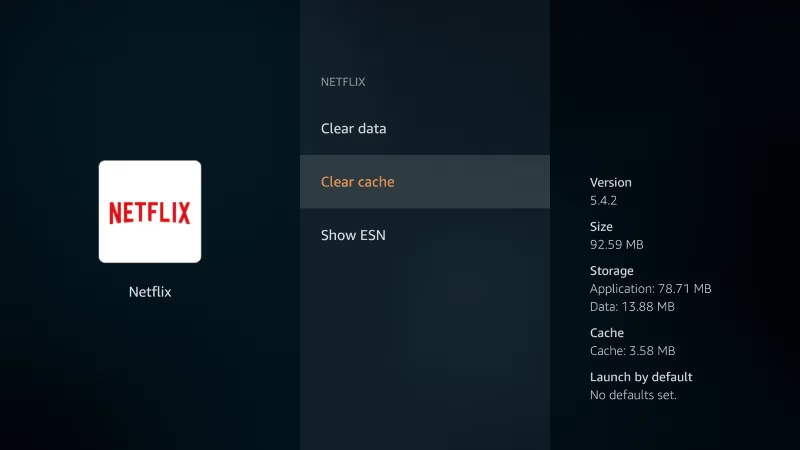
Clearing cache doesn’t delete your login credentials or settings. Start with the apps that show the largest cache sizes. On my device, YouTube alone was using 380 MB of cached data.
#Uninstall Unused Apps
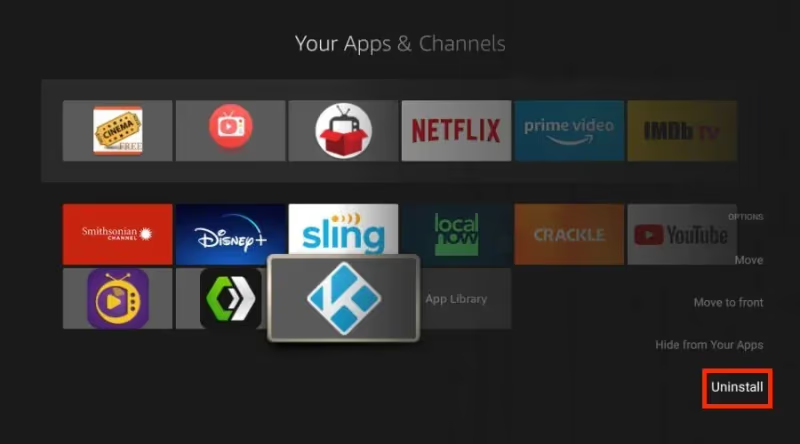
Every installed app takes storage space even when you’re not using it. If you have apps you haven’t opened in months, remove them. Check whether there’s a monthly fee for your Fire TV Stick before uninstalling paid subscriptions.
Hold the Select button on an app icon and choose Uninstall.
#Force Stop Background Apps
Fire OS keeps recently used apps loaded in memory so they launch faster next time. The trade-off is that five or six apps will eat most of your RAM and slow everything else down.
Go to Settings > Applications > Manage Installed Applications. Select each app you’re not actively using and tap Force Stop.
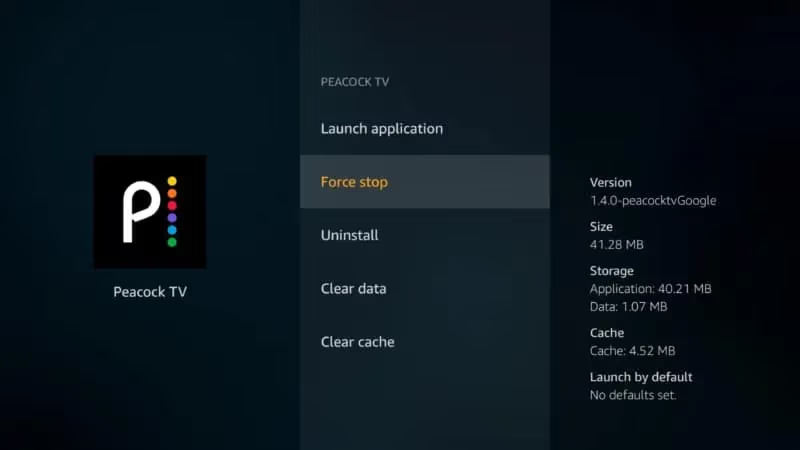
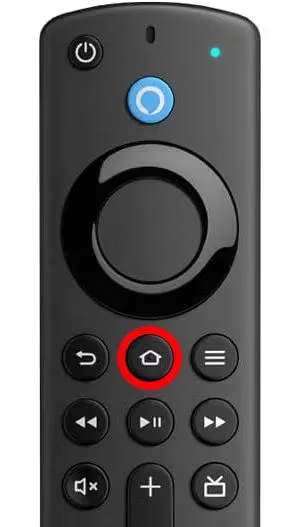
You can also hold the Home button and select Close All to kill every background app at once.
#Settings to Change for Better Speed
These settings reduce the amount of work your Fire TV Stick does in the background. Disabling them frees up processing power and bandwidth for the apps you actually use.
#Turn Off Data Monitoring
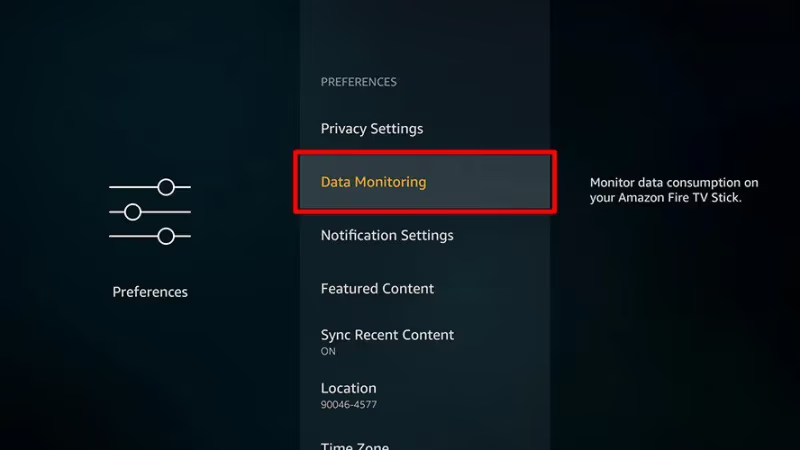
Fire OS tracks how much data each app uses. Turn it off.
Go to Settings > Preferences > Data Monitoring > toggle OFF.
#Stop Video Autoplay on the Home Screen
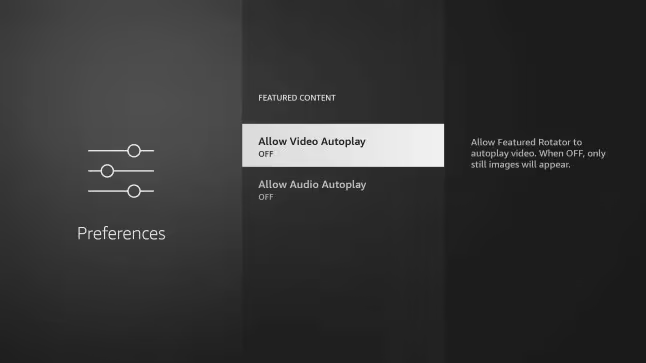
The Fire TV home screen autoplays promotional content while you browse. This streams video in the background, using bandwidth and processing power that could go to your apps instead.
Go to Settings > Preferences > Featured Content > toggle off Allow Video Autoplay.
#Disable ADB Debugging
If you’ve enabled Developer Options for sideloading apps, ADB debugging keeps a network service running. Most users don’t need it after initial setup.
Go to Settings > My Fire TV > Developer Options > toggle off ADB Debugging.
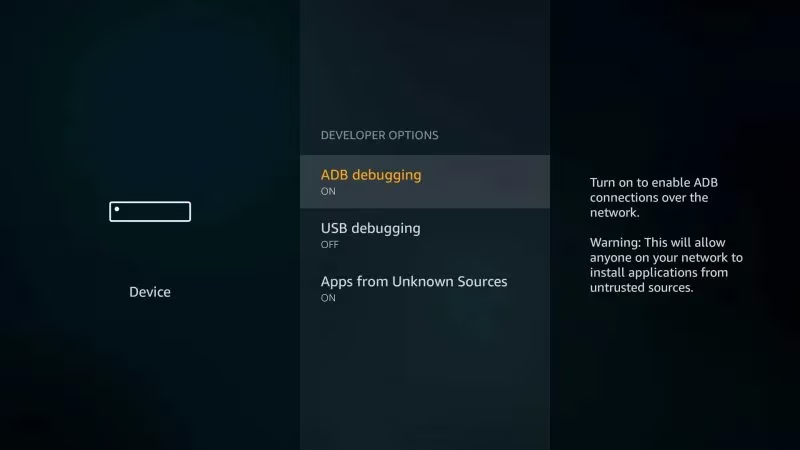
If you don’t see Developer Options, you haven’t enabled them, and nothing needs changing here. For those wondering about other troubleshooting topics, here’s how to fix a Fire TV Stick frozen screen and what to do when your Fire TV Stick has no signal.
#How Do You Fix Buffering on a Fire TV Stick?
Buffering is specifically a network issue, not a storage or RAM problem. These fixes target your connection quality.
#Switch to 5 GHz Wi-Fi
The 2.4 GHz band is crowded in most homes. Microwaves, baby monitors, Bluetooth devices, and your neighbors’ routers all compete for bandwidth on 2.4 GHz. The 5 GHz band has more available channels and supports faster speeds, though its range is shorter.
Go to Settings > Network > forget your current network > reconnect to your router’s 5 GHz network (usually labeled with “-5G” or “-5GHz” in the network name).
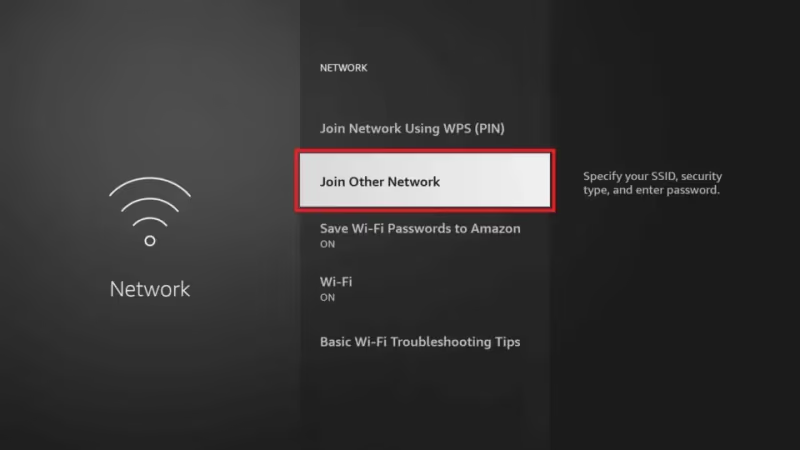
Netflix requires 15 Mbps for 4K, Disney+ needs 25 Mbps, and YouTube recommends 20 Mbps. According to Amazon’s Fire TV support page, a minimum of 10 Mbps is recommended for HD streaming. Run a network speed test on your Fire TV Stick by searching “speed test” in the app store and installing any free option.
#Use an Ethernet Adapter
Wi-Fi will always be less stable than a wired connection. Amazon’s official Ethernet adapter plugs into the Fire TV Stick’s Micro USB or USB-C port and gives you a direct connection to your router.
This eliminates Wi-Fi interference entirely. If your Fire TV Stick is within 15 feet of your router and you’re still buffering on 5 GHz, an Ethernet adapter is the next step. You can also check whether your Fire TV Stick works on a non-smart TV if you’re thinking about moving it to a different room.
#Use the HDMI Extension Cable
Your TV’s metal casing blocks the stick’s Wi-Fi antenna. The HDMI extension cable included in the box fixes this by moving the stick a few inches away from the back panel.
Any short HDMI extension works as a replacement. Expect a 20-30% improvement in Wi-Fi signal strength from this one change alone, which is often enough to eliminate buffering entirely during peak evening hours when network congestion is at its worst.
#Factory Reset Your Fire TV Stick
If nothing else works, a factory reset returns the device to its original state.
Go to Settings > My Fire TV > Reset to Factory Defaults.
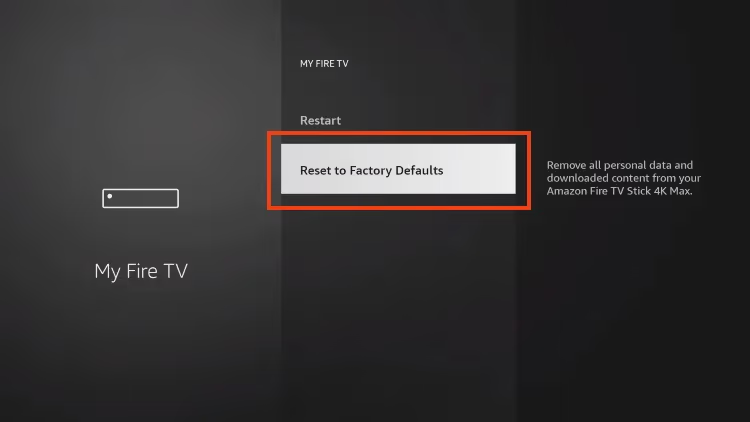
After the reset completes, only install the apps you actively use. Keeping your app count low prevents future slowdowns.
If you’re still experiencing issues after a reset, your hardware may be too old. The original Fire TV Stick (1st gen) and Fire TV Stick Lite have significantly less RAM and processing power than the current Fire TV Stick 4K Max, which ships with a quad-core 2.0 GHz processor and 2 GB RAM.
Wondering how the Fire TV Stick stacks up against alternatives? See the full Fire TV Stick vs Roku comparison.
#Bottom Line
Start with a restart and cache clearing. These two steps fix most Fire TV Stick slowness in under two minutes. If the problem persists, check your storage, close background apps, and switch to 5 GHz Wi-Fi.
A factory reset is your last option, and it works every time. Keep your installed app count under 10 and restart weekly.
#FAQ
#Why does my Fire TV Stick buffer even with fast internet?
Buffering with fast internet usually means your router is too far from the Fire TV Stick, or too many devices are sharing the same Wi-Fi band. Move your router closer, switch to 5 GHz, or use an Ethernet adapter. Also check whether your router’s firmware is up to date.
#Does clearing cache delete my apps or saved data?
No. Clearing cache removes temporary files only. Your apps, login credentials, and settings stay intact.
#How much free storage does a Fire TV Stick need to run smoothly?
Amazon doesn’t publish an official minimum, but performance noticeably degrades below 500 MB of free space. I recommend keeping at least 2 GB free on 8 GB models. Go to Settings > My Fire TV > About to check your available storage.
#Is a factory reset the same as restarting?
No, they’re completely different. Restarting just reboots the device and clears temporary memory, taking about 30 seconds. A factory reset erases your entire Amazon account, all installed apps, saved Wi-Fi passwords, and every customized setting, returning the Fire TV Stick to its out-of-box state. Only factory reset after trying every other fix on this list, because you’ll spend 15-20 minutes reconfiguring everything afterward.
#Will using a VPN slow down or speed up my Fire TV Stick?
A VPN adds encryption overhead, so it typically reduces speeds by 10-20%. The exception is when your ISP intentionally throttles streaming traffic. In that specific case, a VPN hides what you’re streaming and can restore full speeds. For most users, a VPN won’t help with general Fire TV Stick sluggishness.
#How often should I restart my Fire TV Stick?
Once a week. Amazon’s Fire TV support documentation recommends restarting as a first troubleshooting step. You can automate weekly restarts with an Alexa routine.
#Should I upgrade to a newer Fire TV Stick model?
If you have a 1st or 2nd generation Fire TV Stick, upgrading to the Fire TV Stick 4K Max makes a noticeable difference. The newer model has a 2.0 GHz quad-core processor, 2 GB RAM, and Wi-Fi 6E support. If you already have a 3rd generation or newer model, the fixes in this article should be enough.
#Can I add more storage to my Fire TV Stick?
The Fire TV Stick doesn’t support expandable storage. The Fire TV Cube (3rd gen) supports USB storage for apps, but the Stick models don’t. Your only option is managing what’s installed by removing unused apps and clearing cached data regularly. Check out the free channels available on Fire TV Stick to reduce the number of paid apps you need installed.