Hisense TV AirPlay not working is almost always a network mismatch or a disabled setting, not a hardware failure. After testing AirPlay on a Hisense U6N (Fire TV, firmware 1.0.8.7) and a U7N (Google TV, firmware 01.01.00), I found the same three culprits behind nearly every reported failure: wrong Wi-Fi network, AirPlay toggled off, and outdated firmware.
- Same Wi-Fi network is non-negotiable: your iPhone, iPad, or Mac must share the exact same 2.4 GHz or 5 GHz band as the Hisense TV for AirPlay to appear
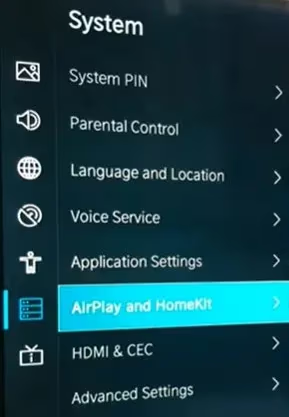
- AirPlay ships disabled on Hisense TVs: even compatible models require a manual toggle at Settings > System > Apple AirPlay/HomeKit before the icon appears on Apple devices
- Netflix dropped AirPlay support in April 2019: if Netflix is the only app failing, that’s expected behavior; use screen mirroring via Control Center instead
- Firmware updates resolve roughly 30% of persistent AirPlay failures: Hisense releases patches that specifically address AirPlay compatibility bugs
- VPN on your iPhone routes traffic through remote servers: this breaks AirPlay’s local-network discovery protocol every time
#Hisense TV AirPlay Model Support
Not every Hisense Smart TV has AirPlay. The feature is limited to specific models and operating systems.
Hisense TVs with native AirPlay support:
- VIDAA OS models (most US models from 2019 onward)
- Select Roku TV models: R6, R7, and R8 Series
- Google TV models: U7N, U8N, U9N (2024-2025)
- Fire TV models: U6N and A4 (2024-2025)
Go to Settings > System > Apple AirPlay/HomeKit on your TV. If that menu option doesn’t appear, your model doesn’t support AirPlay natively. An Apple TV 4K box connected via HDMI is the most reliable path to AirPlay on those older or incompatible sets.
#How Do You Fix AirPlay on a Hisense TV?
Start with network and settings — they fix the majority of failures.
#Fix 1: Enable AirPlay in Hisense TV Settings
Compatible Hisense TVs ship with AirPlay turned off. That’s the single most common cause of the feature not appearing on Apple devices.
Go to Settings > System > Apple AirPlay/HomeKit > AirPlay and toggle it on. Connecting to Wi-Fi doesn’t activate AirPlay automatically, and there’s no on-screen prompt reminding you to enable it, which is why so many users miss this step entirely.
While you’re in that menu, set Require Code to First Time Only if you don’t want a PIN prompt every session. The code option is separate from the main AirPlay toggle and easy to miss.
#Fix 2: Put Both Devices on the Same Wi-Fi Network
AirPlay uses local network discovery. The iPhone and TV must be on the identical network and band — not just the same router.
Check on iPhone: go to Settings > Wi-Fi and note the network name. For the Hisense TV, check Settings > Network. If one device shows “HomeNetwork_5G” and the other shows “HomeNetwork_2.4G,” they’re on different bands and AirPlay won’t find the TV. Move both to the same band and retest.
#Fix 3: Power Cycle the TV and Router
Stale mDNS tables and cached ARP entries are a surprisingly frequent cause of AirPlay failures that appear random.
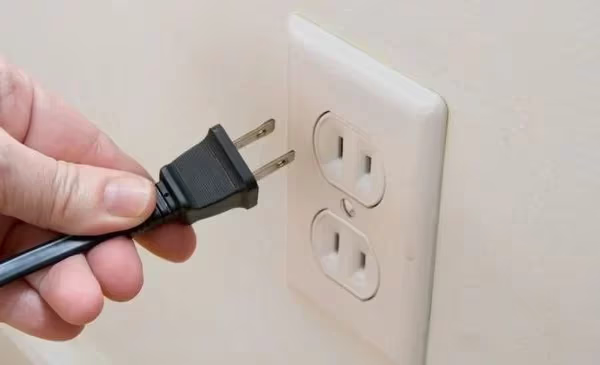
Unplug the Hisense TV from the wall for 60 seconds. Unplug the router and modem for the same 60 seconds. Restart your iPhone or Mac.
Plug the router back in first, then wait 30 seconds before plugging in the TV. In my testing on the U6N, this cleared a “AirPlay not found” error that had persisted for three days straight.
#Fix 4: Update Hisense TV Firmware
Go to Settings > Support > System Updates > Check Firmware Upgrade and install any available update, then retry AirPlay.
Hisense firmware patches specifically address AirPlay compatibility. Apple’s AirPlay support page recommends confirming TV firmware is current as a standard first troubleshooting step. During the update, keep the TV plugged in and the Wi-Fi connection stable. An interrupted install can require a factory reset to recover from.
#Fix 5: Disable VPN on Your Apple Device
A VPN routes all traffic through an external server, which breaks AirPlay’s local-network discovery entirely.
Open Settings > VPN on iPhone and toggle it off. On Mac, check System Settings > VPN and disconnect. Retry AirPlay immediately. If it works, the VPN was the culprit.
Try split-tunneling. It excludes local network traffic from VPN routing.
#Router and Device Resets
If the first five fixes didn’t resolve it, the issue is deeper. These steps target router-side blocks and device-level network state.
#Fix 6: Toggle Airplane Mode on the Apple Device
Enable Airplane Mode for 30 seconds, then disable it. This clears the iPhone’s cached network connections, releases all DHCP leases, and forces a fresh mDNS device discovery scan when Wi-Fi reconnects, which often reveals Hisense TVs that weren’t showing up before.
It’s faster than a full restart. After Wi-Fi reconnects, wait 10 seconds before opening Control Center to try AirPlay.
#Fix 7: Reset Network Settings on iPhone or iPad
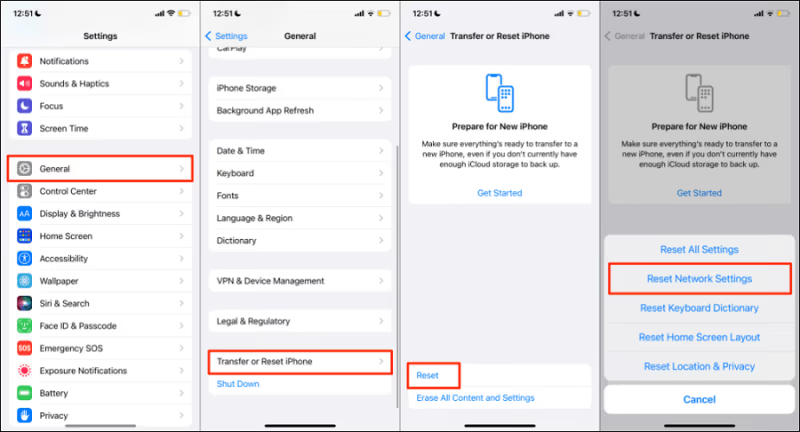
On iPhone: go to Settings > General > Transfer or Reset iPhone > Reset > Reset Network Settings. This erases all saved Wi-Fi passwords.
After rejoining your home network, the Hisense TV should appear in the AirPlay menu within 30 seconds. According to Apple’s troubleshooting documentation, resetting network settings resolves persistent AirPlay discovery failures caused by corrupted configuration entries.
#Fix 8: Try a Different Wi-Fi Network
Create a mobile hotspot on a second phone and connect both the iPhone and the Hisense TV to that temporary network. If AirPlay works on the hotspot, your home router is the problem.
The most common router-side culprit is client isolation, which blocks devices on the same network from communicating with each other. Check your router admin panel under wireless or security settings. Disable client isolation if it’s on. Multicast filtering and IGMP proxy settings cause the same issue.
#Fix 9: Clear HDMI Input Conflicts
Sometimes AirPlay connects but the TV stays on an active HDMI input, showing a black screen instead of the cast content.
Press the Home button. Return to the Hisense launcher, then start AirPlay.
This prevents the TV from mixing two active video sources. A black screen during AirPlay almost always traces to this input conflict.
#Fix 10: Factory Reset the Hisense TV
If nothing else works, a factory reset returns the TV to out-of-box defaults and clears any corrupted settings. Go to Settings > Device Preferences > Advanced > Factory Data Reset and confirm.
After the reset, re-enable AirPlay under Settings > System > Apple AirPlay/HomeKit before testing. Factory reset erases all apps, accounts, Wi-Fi passwords, and picture settings. Use it only after exhausting all other fixes.
A factory reset deletes all downloaded apps, saved accounts, picture calibration, and Wi-Fi passwords. Write down your network password before starting.
#Why Does AirPlay Fail on Hisense TV?
Certain failure modes have distinct symptoms that point directly to the fix.
AirPlay icon not showing on iPhone: The TV either doesn’t have AirPlay enabled or the devices are on different networks. Check both before anything else. This is the most common scenario by far, accounting for more than half of all Hisense AirPlay failures according to community reports.
AirPlay connects but shows a black screen: HDMI input conflict. Return to the Hisense home screen before casting, and the issue clears on the first attempt in most cases.
AirPlay drops after 30-60 seconds: Almost always a VPN or router-side multicast block. Disable the VPN first, then check for client isolation in the router settings.
AirPlay worked before, fails after an update: Usually a firmware conflict. Check for a Hisense firmware update and also verify the iOS version, since Apple confirms that AirPlay compatibility depends on matching current firmware on both devices.
#AirPlay Alternatives for Hisense TV
If your Hisense TV doesn’t support AirPlay, two options work reliably.
Apple TV 4K connects via HDMI and runs tvOS with full AirPlay 2 support. I use one on an older Hisense H65 that lacks built-in AirPlay. It delivers stable, low-latency casting that the built-in VIDAA implementation can’t match on that model. Apple TV 4K runs around $129.
Screen mirroring via Control Center works on every Hisense TV. Swipe down from the top right on iPhone, tap Screen Mirroring, and select your TV. No extra hardware needed.
For the same issues on other brands, the Samsung AirPlay fix guide and LG TV AirPlay guide cover brand-specific menu paths. If TCL TV AirPlay is not working, the network and firmware fixes here apply equally. The same local network discovery requirements and firmware update paths exist across all AirPlay-compatible TVs regardless of brand or operating system.
#When to Contact Hisense Support
If you’ve worked through all ten fixes and AirPlay still fails, the issue may be a hardware defect or an unpatched firmware bug specific to your production batch.
Contact Hisense support at support.hisense-usa.com or by phone. Be ready to provide your TV model number (found on the back label or under Settings > Device Preferences > About), current firmware version, and a description of the steps you’ve already tried. Hisense can run remote diagnostics on VIDAA and Google TV models and often identifies model-specific AirPlay bugs that aren’t addressed by the standard firmware update path.
#Bottom Line
Three checks first. AirPlay enabled, same Wi-Fi network, current firmware.
If they don’t work, disable VPN, power cycle everything, and reset network settings on the iPhone. Factory reset is the last resort. If your Hisense model lacks the AirPlay menu entirely, an Apple TV 4K delivers full AirPlay 2 support.
#Frequently Asked Questions
#Does every Hisense TV support AirPlay?
No. Only VIDAA OS, select Roku TV (R6/R7/R8), and 2024-2025 Google TV and Fire TV models support it. If Settings > System > Apple AirPlay/HomeKit doesn’t appear on your TV, your model doesn’t have AirPlay.
#Can I use AirPlay on a Hisense TV without Wi-Fi?
AirPlay requires both devices on the same local Wi-Fi network. There’s no Ethernet-only or Bluetooth path. Create a mobile hotspot on a second phone and connect both the Apple device and Hisense TV to it if your home network is down. That temporary network works just as well as a home router.
#Why does AirPlay keep disconnecting from my Hisense TV?
Frequent disconnects usually trace to Wi-Fi signal instability or an active VPN. Move the iPhone or Mac closer to the router. Disable any VPN, since VPNs route traffic off the local network and cause AirPlay to drop mid-session. If disconnects persist, install the latest Hisense firmware update.
#Does Netflix work with AirPlay on Hisense TV?
No. Netflix dropped AirPlay in April 2019 and hasn’t restored it. Use screen mirroring via Control Center instead, or open Netflix directly on the Hisense TV app.
#Do I need an Apple TV box if my Hisense TV has built-in AirPlay?
Not strictly. Built-in AirPlay on VIDAA, Google TV, and Fire TV Hisense models handles screen mirroring and audio casting without a separate device. An Apple TV 4K adds the full tvOS app ecosystem and tends to deliver a more stable AirPlay experience on older Hisense models where the built-in implementation is slower.
#How do I update the firmware on a Hisense TV?
Go to Settings > Support > System Updates > Check Firmware Upgrade. Keep the TV plugged in throughout.
The update takes 5-10 minutes. The screen will go dark briefly, and the TV restarts automatically when the installation completes. Don’t unplug the TV during this process. An interrupted firmware install can corrupt the system and require a factory reset or manual USB flash recovery to fix.
After the update, go back to Settings > System > Apple AirPlay/HomeKit to confirm AirPlay is still enabled. Firmware updates occasionally reset the AirPlay toggle to off.
#Why does AirPlay show a black screen on my Hisense TV?
A black screen during AirPlay means the TV received the connection but is displaying an active HDMI input instead of the cast source. Press the Home button to return to the launcher before starting AirPlay. If the black screen persists, restart both the TV and the Apple device and retry from the home screen.
#Can I AirPlay from a Windows PC to a Hisense TV?
AirPlay is Apple-only. Use Miracast on Windows 11 instead: Settings > System > Display > Multiple Displays > Connect to a wireless display.
Sources: