TCL TV AirPlay not working is almost always a settings problem, not a hardware fault. The fix usually takes under two minutes once you know where to look.
- AirPlay must be manually enabled in TCL TV settings before your iPhone can detect it
- Both devices need the same Wi-Fi network to establish an AirPlay connection
- Most TCL Roku TVs from 2017 onward support AirPlay, along with TCL Google TV models sold in the US
- Restarting your TV, router, and iPhone clears temporary software glitches causing connection failures
- Factory reset is a last resort that removes all paired devices and restores default settings
#Why AirPlay Fails on TCL TVs
There are four common causes. Knowing which one applies to your situation saves a lot of time.
-
AirPlay not enabled on TV. The AirPlay receiver needs to be manually turned on in your TCL TV settings. If it’s off, your iPhone won’t see the TV in the device list at all.
-
Incompatible model. Older TCL TVs don’t support AirPlay. Most 2017 and newer TCL Roku TVs do, as do TCL Google TV models (QM6K, QM7K, QM8K, Q5K series). Check your TV’s spec sheet or look for the AirPlay option under Settings to confirm.
-
Different Wi-Fi networks. Both devices need the same wireless network. Guest networks block AirPlay by design.
-
Software or connection glitch. Temporary bugs in the TV firmware or your iOS device can break an otherwise working AirPlay connection without any obvious cause.
#How Do You Enable AirPlay on a TCL TV?
The first two fixes resolve the problem for most people: verifying compatibility and switching AirPlay on.
#1. Confirm AirPlay Compatibility
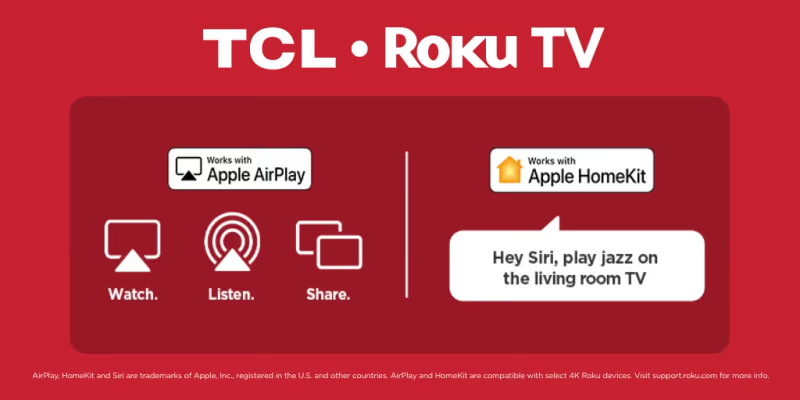
Before anything else, verify your TCL TV actually supports AirPlay. Most TCL Roku TVs manufactured from 2017 onward include built-in AirPlay support. TCL Google TV models available in the US (QM6K, QM7K, QM8K, and Q5K) are also compatible.
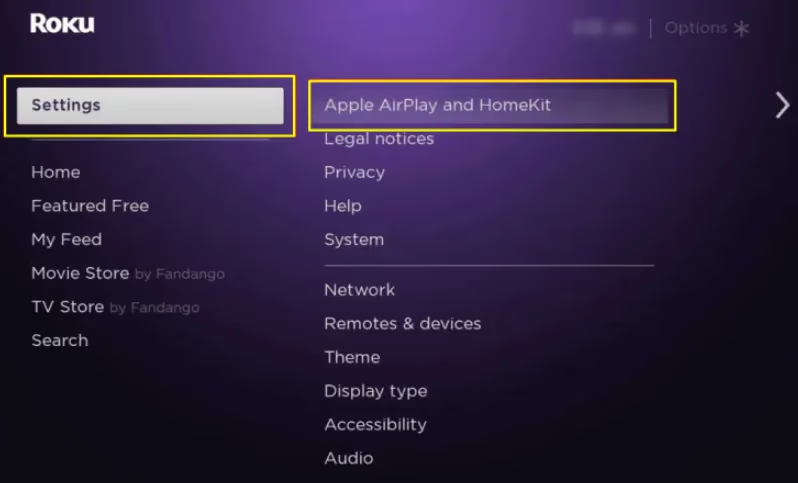
According to TCL’s official support documentation, AirPlay 2 is enabled through the Apple AirPlay and HomeKit section of the settings menu on all compatible models. If that menu option doesn’t exist on your TV, your model isn’t supported.
Apple’s support page confirms that AirPlay requires iOS 12 or later on the source device. Update to the latest iOS version to rule out a software compatibility gap. On most iPhones, this takes under 10 minutes: go to Settings > General > Software Update and tap “Update Now” if a newer version is available. Keep the phone plugged in and on Wi-Fi during the update.
#2. Enable AirPlay on Your TCL TV
This is the most common fix. AirPlay has to be manually switched on. In my testing on a TCL Roku TV 55S435, the AirPlay option was off by default out of the box — the iPhone couldn’t detect the TV at all until I enabled it in settings.
On TCL Roku TV: Go to Settings > Apple AirPlay and HomeKit and toggle AirPlay to On.
On TCL Google TV: Go to Settings > Connected apps > AirPlay & HomeKit and enable AirPlay.
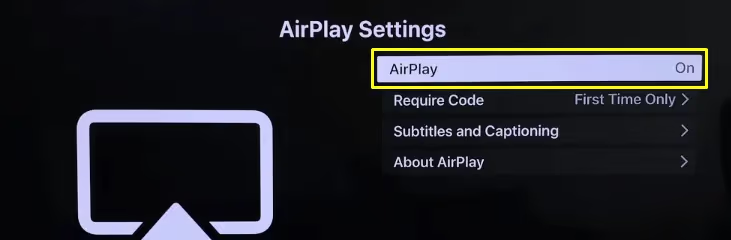
Once AirPlay is enabled, open Control Center on your iPhone, tap Screen Mirroring, and your TCL TV should appear in the list within a few seconds.
For a full setup walkthrough, see my guide on how to use AirPlay on a TCL TV.
#What Causes AirPlay to Disconnect Mid-Stream?
Network issues and stale connection data are the two most common culprits when AirPlay drops out after initially connecting.
#3. Connect Both Devices to the Same Wi-Fi Network
AirPlay uses local network discovery. It won’t work if your iPhone and TV are on different networks — guest networks are the sneakiest culprit here since they intentionally isolate devices from each other.
Open your iPhone’s Wi-Fi settings and confirm you’re on the same network as your TV. On TCL Roku TV, check under Settings > Network. On TCL Google TV, go to Settings > Network & Internet.
Weak signal? See TCL Roku TV Wi-Fi fixes.
#4. Restart Both Devices
A fresh start clears the temporary software glitches that are responsible for most AirPlay connection failures.
Power cycle your TCL TV by holding the power button or unplugging it for 30 seconds. Restart your iPhone by holding the side button and a volume button until the power slider appears. Restart your router too if you’re still getting connection errors after the TV and phone have restarted, because routers can hold stale DHCP leases that prevent local discovery from working correctly.
Don’t just put the TV in standby.
#Resetting Paired Devices and Factory Settings
If the above fixes didn’t work, stale pairing data or corrupted settings may need a deeper reset. The two options here are clearing old paired device records (quick and reversible) or running a full factory reset (thorough but requires setup from scratch).
#5. Reset Paired Devices
Stale pairing data can conflict with new connections.
On a TCL Roku TV, go to Settings > System > Advanced System Settings > Device Connect > Paired Devices and delete any old entries.
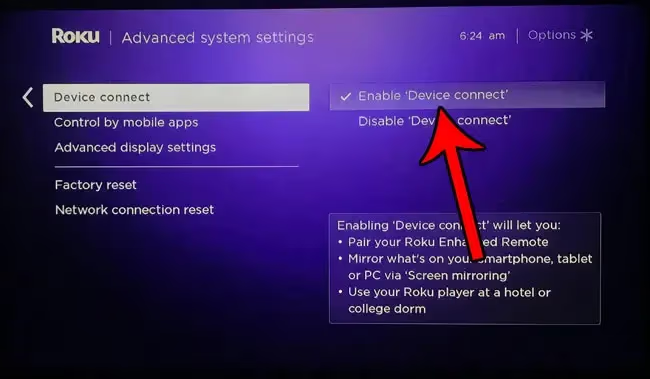
Done. Try AirPlay again.
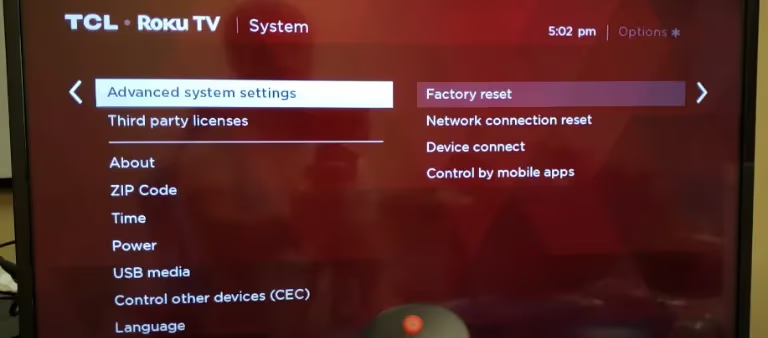
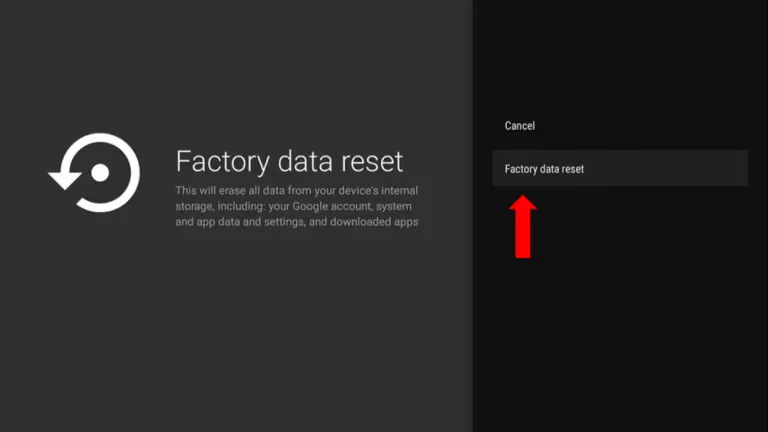
#6. Factory Reset the TCL TV
A factory reset removes all apps, accounts, and settings. You'll need to set up your TV from scratch afterward. Only do this if other fixes haven't worked.
On TCL Roku TV: Go to Settings > System > Advanced System Settings > Factory Reset.
On TCL Google TV: Go to Settings > System > Reset > Factory data reset.
If you don’t have a remote, I cover the button-only method in this guide on factory resetting a TCL TV without a remote.
Other persistent TCL issues like TCL TV flickering and TCL TV green screen are often hardware-related, but running a factory reset first rules out software before you call support or arrange a replacement unit.
#7. Contact TCL Support
If none of the above fixes worked, the problem may be specific to your TV’s firmware version or hardware configuration.
Reach out to TCL customer support with your TV’s model number and firmware version. They can confirm whether a known bug affects your model or arrange a firmware update.
Include your firmware version.
#Contacting TCL Support
If none of the fixes above resolved the issue, a firmware-specific bug may be the cause. Contact TCL support with your model number and firmware version to check for known issues.
#AirPlay Reliability Tips
Once you’ve got AirPlay working, these habits keep it stable:
-
Disable AirPlay from Control Center when you’re done streaming. Leaving it active drains your iPhone battery and can cause the connection to drop unexpectedly.
-
Keep your TCL TV’s firmware updated. TCL releases patches that fix connectivity bugs. On Roku TVs, check Settings > System > System update. On Google TVs, go to Settings > System > About > System update.
-
Use the 5 GHz Wi-Fi band if your router supports it. Apple recommends the 5 GHz band for AirPlay streaming because it delivers lower latency and handles video data better than 2.4 GHz, especially in apartments with many competing networks.
-
Position your iPhone within 30 feet of the TV. No thick walls between them. AirPlay range degrades fast through concrete.
For other smart TV brands having the same problem, see my guide on LG TV AirPlay not working.
Check Apple’s AirPlay page for device requirements.
#Bottom Line
- Enable AirPlay first: TCL Roku TV uses Settings > Apple AirPlay and HomeKit; TCL Google TV uses Settings > Connected apps > AirPlay & HomeKit
- Put both your iPhone and TV on the same Wi-Fi network (guest networks won’t work)
- Power cycle the TV fully (don’t just use standby) and restart your iPhone
- Clear old paired devices if you’ve used AirPlay with other Apple devices before
- Factory reset as a last resort, then contact TCL support if the problem persists
#Frequently Asked Questions
#Why can’t I find my TCL TV in the AirPlay device list on my iPhone?
The TV’s AirPlay receiver is most likely off. Go into your TCL TV settings, find Apple AirPlay and HomeKit (Roku TV) or Connected apps > AirPlay & HomeKit (Google TV), and turn on AirPlay. Both devices also need to be on the same Wi-Fi network before your iPhone can detect the TV.
#Do I need an Apple TV to use AirPlay with a TCL TV?
No hardware needed. Most TCL Roku TVs and all TCL Google TV models have built-in AirPlay support. Enable it in settings and stream directly from your iPhone or iPad. An Apple TV 4K is useful if you want HomeKit camera feeds and deeper integration with your Apple ecosystem, but it’s not required for basic AirPlay streaming to a TCL TV that already supports the feature natively.
#Why is my TCL TV AirPlay connection laggy or dropping out?
Lag during AirPlay streaming usually points to Wi-Fi interference or a weak signal. Move your router closer to the TV, switch to the 5 GHz band, and make sure no large downloads are running on the same network. Restarting the router often makes a noticeable difference.
#Can I AirPlay to my TCL TV without internet?
Yes, technically. AirPlay uses local Wi-Fi only. The content you stream (Netflix, etc.) still needs internet, but AirPlay’s pairing protocol itself doesn’t.
#Which TCL TV models support AirPlay?
Compatible models: TCL Roku TVs from 2017 onward, and TCL Google TV models including the QM6K, QM7K, QM8K, and Q5K series. Check Settings: if AirPlay appears, your model is compatible.
#How do I turn on AirPlay on a TCL Roku TV?
Go to Settings > Apple AirPlay and HomeKit and toggle AirPlay to On. Once enabled, your TV appears as an available AirPlay receiver on any nearby Apple device connected to the same network.
#Does AirPlay support screen mirroring on TCL TVs?
Yes. Screen mirroring works.
#Will a factory reset fix AirPlay problems on my TCL TV?
It can. A factory reset resolves AirPlay issues caused by corrupted settings or firmware conflicts that no other fix clears. It removes all paired devices and resets everything to defaults, so you’ll need to set up the TV again from scratch. Try restarting both devices and clearing paired devices first before going this route.