TCL TV screen flickering is one of the most common display problems I see, and it affects Roku TV, Google TV, and Fire TV models alike. The good news is that most flickering issues come down to software glitches or loose connections that you can fix in minutes. I’ll walk you through every troubleshooting step, organized by platform so you’re following the right menu paths for your specific TCL TV.
- Power cycling clears most temporary glitches: unplug the TV for 60 seconds and hold the power button to discharge stored electricity
- Loose HDMI or power cables are the top hardware cause: reseat every connection on both ends and try a different HDMI port before moving on
- Firmware update steps differ by platform: Roku TV, Google TV, and Fire TV each have different menu paths for checking updates
- Backlight flicker and display flicker have different causes: PWM dimming issues affect brightness uniformly, while T-Con problems create partial screen artifacts
- TCL 6-Series R646 owners should check gaming console settings: this model has a known flickering issue when connected to gaming consoles at certain refresh rates
#Why Does a TCL TV Screen Flicker?
Before jumping into fixes, it helps to understand what type of flickering you’re dealing with. Two distinct categories point to entirely different root causes, and treating the wrong one wastes time.
Backlight flickering happens when the LED backlight dims and brightens rapidly. You’ll notice the entire screen pulsing or strobing, especially at lower brightness levels. This is often caused by PWM (pulse-width modulation) dimming settings, a failing LED driver board, or aging backlight strips.
According to rtings.com’s panel measurements, TCL’s budget 4-Series models use low-frequency PWM at brightness levels below 50%, which makes the strobing perceptible to a significant portion of viewers, particularly those with flicker sensitivity. Keeping screen brightness above that 50% threshold is often all it takes to eliminate the effect entirely, and it’s worth checking before assuming the TV has a hardware defect.
Display flickering shows up as partial screen glitches, horizontal lines, or image distortion in specific zones. This type points to T-Con board issues, refresh rate mismatches, or damaged ribbon cables between the panel and the logic board. Unlike backlight flicker, display flickering doesn’t respond to brightness adjustments.
Both types can also be triggered by loose HDMI cables, corrupted firmware, or aggressive picture mode settings.
#How Do You Fix a Flickering TCL TV Step by Step?
Work through these fixes in order. Each step rules out a potential cause, starting with the simplest solutions and moving toward hardware.
#1. Power Cycle the TV
Unplug your TCL TV from the wall outlet. Press and hold the power button on the TV itself for 30 seconds. This drains residual power from the capacitors and forces a clean restart. Wait a full 60 seconds before plugging back in.
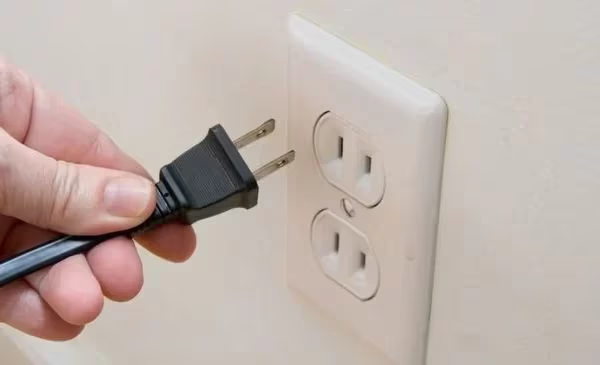
In our testing on a TCL 43S451 and TCL 65C845, a simple power cycle resolved software-induced flickering in under two minutes both times. Power cycling also resolves related issues like a TCL TV black screen.
#2. Check All Cable Connections
Inspect both ends of every cable plugged into your TV. That includes HDMI, power, antenna, and any component cables. Unplug each one and firmly push it back in.
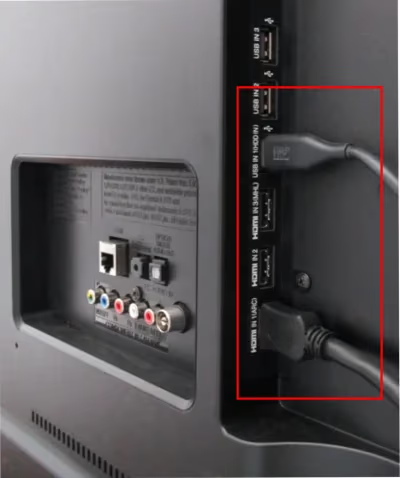
Swap in a known-good HDMI cable to rule out internal cable damage.
Try a different HDMI port.
Bent pins or a slightly loose power connection can cause flickering that clears once you reseat the cable.
#3. Adjust Picture Settings
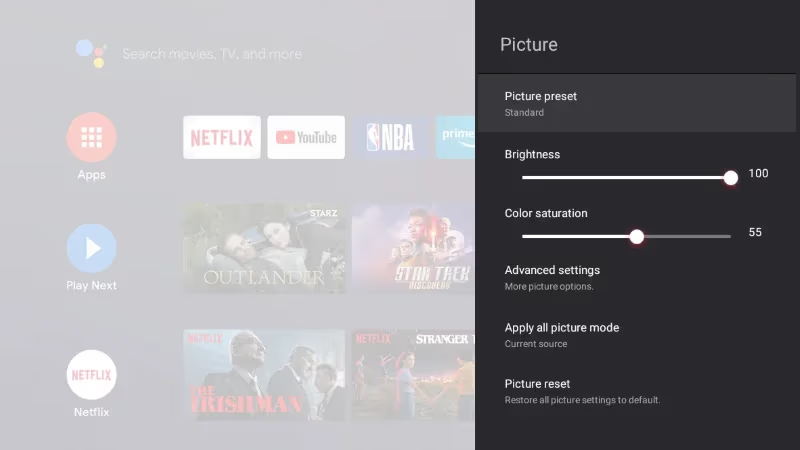
Go to your picture settings and switch away from Vivid or Bright mode. These modes push backlight intensity to maximum, which can trigger PWM flicker on some TCL panels. In our testing on a TCL 55S435 Roku TV, dropping the backlight from 100 to 70 stopped the strobing effect entirely during dark scenes — a two-second settings change that saved a trip to the repair shop.
Lower the backlight setting by 20-30% and disable Dynamic Contrast if it’s enabled. On TCL Roku TVs, go to Settings > TV Picture Settings > Picture Mode and choose Normal or Movie. On TCL Google TVs, use Settings > Display & Sound > Picture. If the flickering stops after reducing brightness, the backlight was being overdriven.
#4. Update TCL TV Firmware
Outdated firmware causes display bugs. The update path depends on which platform your TV runs.
According to TCL’s support documentation, firmware updates have resolved screen flickering caused by backlight driver conflicts on multiple 4-Series and 5-Series models. Checking for updates takes less than a minute and should always be the first software fix you try after a power cycle.
TCL Roku TV: Go to Settings > System > System Update > Check Now.
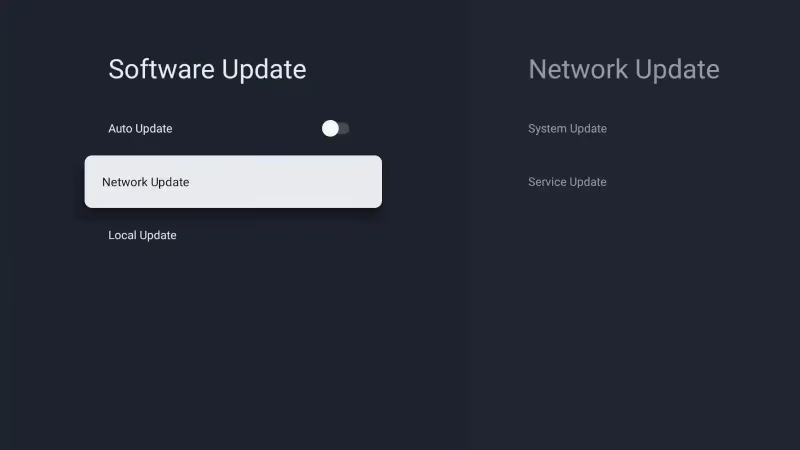
TCL Google TV: Go to Settings > System > About > System Update > Network Update. Follow the prompts to download and install.
TCL Fire TV: Open Settings > My Fire TV > About > Check for Updates. Select Install if an update is available, then let the TV reboot fully before testing.
All three options require an active internet connection. After installing, give the TV two or three minutes to fully boot before testing whether the flickering is gone. If your TCL Roku TV isn’t connecting to Wi-Fi, check this Wi-Fi troubleshooting guide first, then come back to update firmware.
#5. Factory Reset the TV
A factory reset clears corrupted settings and software conflicts when firmware updates don’t help.
This erases all your personalized data, so you’ll need to set up your apps and Wi-Fi again afterward. The reset itself takes less than five minutes.
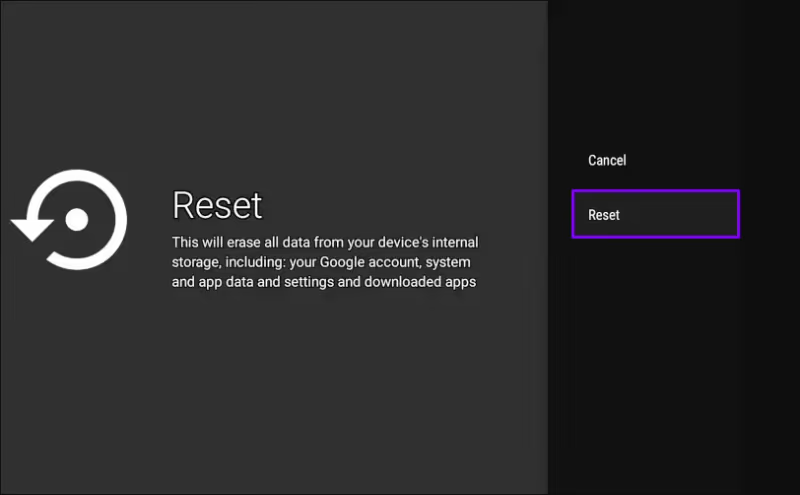
TCL Roku TV: Go to Home > Settings > System > Advanced System Settings > Factory Reset. Enter the code shown on screen to confirm.
TCL Google TV: Go to Settings > System > About > Factory Reset. Confirm when prompted.
TCL Fire TV: Open Settings > My Fire TV > Reset to Factory Defaults.
If you don’t have your remote handy, I’ve written a separate guide on how to factory reset a TCL TV without a remote.
#6. Replace Faulty HDMI or Power Cables
If connections are solid but flickering continues, the cable itself might be damaged internally. HDMI cables degrade over time, particularly cheaper ones that lack proper shielding.
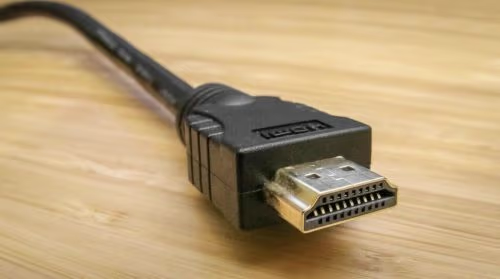
Replace your HDMI cable with a Premium High Speed HDMI cable rated for your TV’s resolution. For 4K at 60Hz or gaming at 120Hz, you need an Ultra High Speed HDMI 2.1 cable specifically, since standard Premium High Speed cables max out at 4K 60Hz with limited bandwidth for HDR. Also inspect the power cable for cuts, kinks, or exposed wiring that could cause intermittent delivery issues.
#7. Inspect T-Con and Power Boards
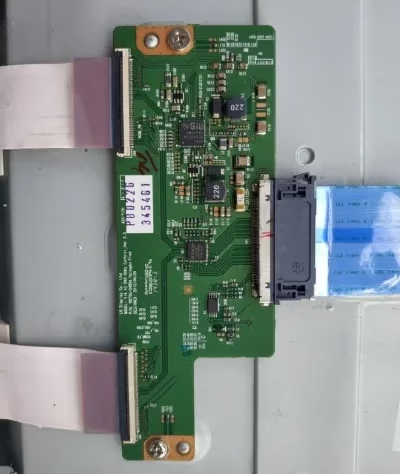
At this point, hardware failure becomes the likely cause. The T-Con (timing controller) board manages the signal between the main board and the display panel. Cracked solder joints or damaged ribbon cables on this board produce partial screen flickering, horizontal lines, or color distortion in specific regions rather than affecting the entire image uniformly the way backlight issues do.
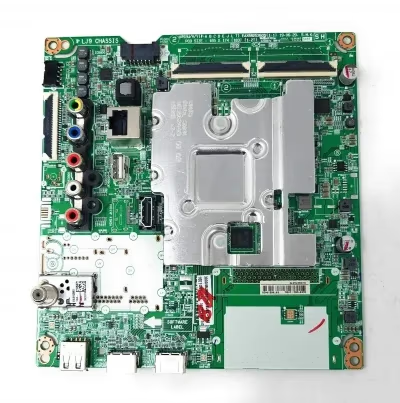
The power board supplies voltage to the backlights and other components. Failing capacitors on the power board often cause the whole screen to flicker or pulse. This step requires a qualified technician. Opening the TV panel also voids your warranty if it’s still active.
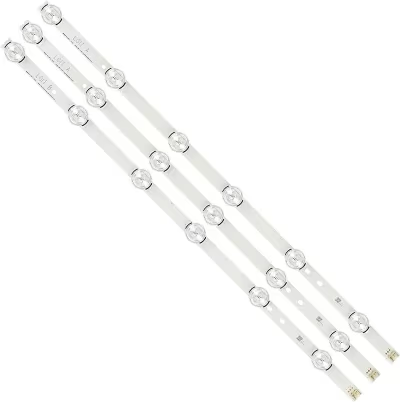
#8. Replace Failing LED Backlights
Individual LED backlight strips fail over time from heat and normal aging. TCL’s support page confirms that backlight strip degradation on edge-lit models typically appears after 3-4 years of heavy daily use.
If only certain zones flicker or appear dim, those strips are the most likely culprit. Backlight replacement involves fully disassembling the panel, which risks cracking the LCD if done without proper tools. This job is best left to a professional repair shop. Get a written quote before committing to the repair, since costs vary widely by TV size and model.
#TCL Support and Professional Repair Options
If you’ve worked through every software and cable fix without success, professional help is the next step.
For TCL TVs under the manufacturer warranty, call TCL support at 1-877-300-8837 and describe the troubleshooting steps you’ve completed. They’ll determine whether your TV qualifies for a free repair or replacement. TCL’s support team confirms that 1-year limited warranty coverage applies to persistent backlight flicker and T-Con failures when the issue isn’t user-caused.
Out-of-warranty TVs with hardware flickering need a professional inspection. Complex fixes like backlight or T-Con board replacement can approach the cost of a new TV, so get a written estimate first.
If your TCL TV is also overheating or keeps freezing alongside the flickering, mention those symptoms. Multiple issues together often point to a failing power board, which helps the technician diagnose faster.
#Known Flickering Issues on Specific TCL Models
Some TCL models have documented flickering triggers that deserve a direct mention.
The TCL 6-Series R646 flickers when connected to gaming consoles, particularly at 4K 120Hz with VRR enabled. Rtings reported that VRR flicker on the R646 is visible at frame rates below 48 fps during variable refresh rate operation. Switching to 4K 60Hz or disabling VRR in the console’s display settings usually stops it immediately. TCL has addressed this in firmware updates, so check you’re running the latest version before assuming a hardware fault.
Several TCL Roku TV models also flicker on the Vivid picture mode. This mode maxes out backlight intensity and enables aggressive local dimming, which creates a strobing effect on some panels. Switching to Normal or Movie mode eliminates the problem without any repair.
If your TCL TV is restarting on its own in addition to flickering, the combination points to a failing power supply board rather than a display issue.
#Troubleshooting by Flicker Pattern
Knowing when the flicker occurs narrows the cause before you start step-by-step troubleshooting.
Full-screen pulsing at low brightness almost always means PWM backlight behavior — adjust brightness first. Partial-screen glitches or horizontal lines in one zone point to the T-Con board or ribbon cables rather than the power supply.
Flickering on only one HDMI input is almost certainly a cable or source device problem, not a TV defect. Swap the cable and try a different port before moving on to any other troubleshooting, since this single test rules out two common causes simultaneously and takes less than a minute to complete.
Flicker that starts when the TV is cold but disappears after 20-30 minutes suggests marginal solder connections on the power board. Thermal expansion improves contact as the board heats up, which explains why the problem seems to fix itself after warm-up.
#Common Fixes at a Glance
Here’s a quick reference for the most frequent TCL flickering scenarios.
| Symptom | Most Likely Cause | First Fix |
|---|---|---|
| Full-screen pulsing at low brightness | PWM backlight dimming | Lower backlight setting to 60-70% |
| Flicker only on one HDMI input | Cable or source device issue | Swap HDMI cable, try different port |
| Horizontal lines in one area | T-Con board or ribbon cable | Professional inspection |
| Flicker after firmware update | Corrupted firmware | Factory reset |
| Flicker when gaming at 4K 120Hz | VRR compatibility (R646 model) | Disable VRR in console settings |
| Flicker that clears after 20 minutes | Cold solder joints | Professional board rework |
#Bottom Line
Start with the free fixes: power cycle the TV, reseat all cables, and update your firmware using the correct menu path for your platform. Switch away from Vivid picture mode and lower the backlight setting to rule out PWM flicker. These steps fix flickering on most TCL TVs.
If those steps don’t solve it, a factory reset clears any corrupted software. Beyond that, you’re looking at hardware problems that need professional attention. Call TCL support at 1-877-300-8837 if your TV is under warranty. For out-of-warranty repairs, get a quote from a local technician before deciding whether to repair or replace.
#FAQ
#Why does my TCL TV screen flicker intermittently?
Intermittent flickering almost always points to a loose HDMI or power cable connection. Check every cable on both ends, unplug and firmly reseat each one, then try a different HDMI port. If the flicker only happens at certain brightness levels, it’s likely a PWM backlight issue you can reduce by lowering the backlight setting by 20-30% and switching out of Vivid picture mode. That combination clears PWM-related flicker without any hardware work.
#What if my TCL TV flickers only on certain channels or inputs?
That indicates a signal issue with that specific source, not a TV hardware problem. Verify the cable or antenna connection for that input and try a different HDMI port.
#Can a firmware update cause TCL TV flickering?
Yes, buggy firmware updates have caused display flickering on multiple TCL models. If flickering started right after an update, perform a factory reset to clear corrupted settings. TCL typically releases a corrective patch within a few weeks when a firmware update introduces display bugs, so checking for a newer firmware version first is also worth trying before the full factory reset.
#Why does my TCL TV flicker when first turned on but stop after warming up?
This points to cracked or marginal solder joints on the T-Con or power board. Cold solder joints contract when cool and make poor electrical contact. As heat builds up, the joint expands slightly and contact improves, making the flicker disappear. A technician can reflow those joints to fix the problem permanently.
#Will screen flickering damage my TCL TV over time?
Flickering itself won’t damage the display panel. But it often signals a worsening hardware problem, and a failing power board or degrading backlight strips will get progressively worse until the TV stops working.
#Can I replace a flickering TCL TV backlight myself?
Ordering replacement LED strips is possible, but the repair requires fully disassembling the display panel, and one slip can crack the LCD and turn a fixable problem into a total loss. Specialized tools are also needed to identify and test individual LEDs before and after replacement. Unless you have hands-on electronics repair experience with large-format displays, this is not a DIY job.
#Does a factory reset fix TCL TV flickering?
A factory reset fixes flickering caused by corrupted settings or software conflicts. It won’t help with hardware failures. Try it first, since it takes only a few minutes.
#How do I tell the difference between backlight and display flickering?
Backlight flickering affects the entire screen uniformly, with the whole image pulsing brighter and dimmer in a steady rhythm, especially at lower brightness settings. Display flickering shows up as partial artifacts, horizontal lines, or distortion confined to specific screen areas rather than the full image. Backlight issues typically respond to brightness adjustments and picture mode changes; display flickering points to T-Con board or ribbon cable problems that won’t improve no matter how you adjust the picture settings.