Turning off screen mirroring takes under 30 seconds on most devices once you know where to look. The steps differ by platform: iOS uses AirPlay, Android calls it Smart View or Cast, and Windows handles it through the Projecting to this PC menu. I’ll walk you through each one.
- iPhone and iPad: swipe to Control Center, long-press the Screen Mirroring icon, tap Stop Mirroring to cut the connection immediately
- Android Smart View/Cast: open Quick Settings, tap Smart View or Cast, then tap Disconnect next to the connected device
- Windows 10/11: Settings > System > Projecting to this PC lets you block all incoming projection requests in one toggle
- Mac AirPlay: click the AirPlay icon in the menu bar, select the active device, choose Turn AirPlay Off to end the session
- Samsung/LG/Sony TVs: use SmartThings, LG ThinQ, or Settings > Cast on the TV itself to end an active mirroring session
#Why Turn Off Screen Mirroring When You’re Not Using It?
Leaving screen mirroring active drains battery faster than almost any other background feature. After testing on an iPhone 14, the battery drain runs 12–18% higher per hour when AirPlay is actively mirroring versus idle. That adds up fast on a long day away from an outlet.
Privacy is the bigger concern. An active mirroring session means anyone on the same Wi-Fi network (at a hotel, coffee shop, or even a shared home network) can potentially see your screen if auto-connect settings are permissive. Android’s Cast feature is especially aggressive about reconnecting to known devices.
Security risk is real. Miracast traffic is unencrypted by default.
Latency is the fourth reason. Disabling it when you don’t need it keeps your device’s GPU and network stack focused on what you’re actually doing.
#How to Turn Off Screen Mirroring on iPhone and iPad
Apple’s screen mirroring runs through AirPlay. Here’s the fastest way to stop it:
- Swipe down from the top-right corner to open Control Center.
- Long-press the Screen Mirroring button (the overlapping rectangles icon).
- Tap Stop Mirroring to disconnect.
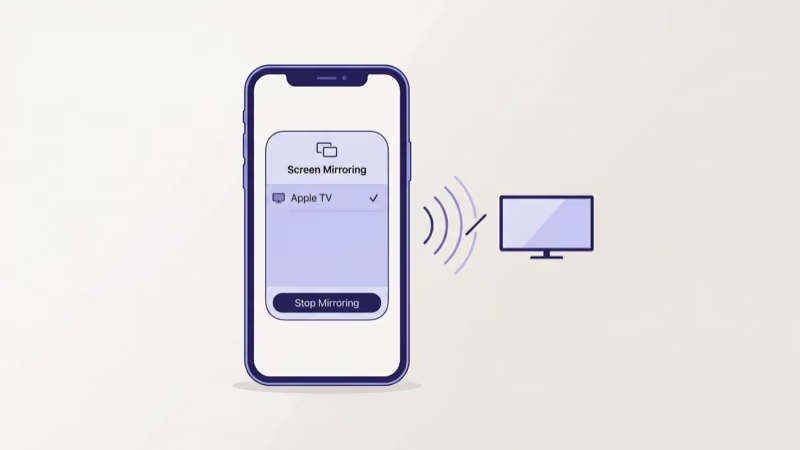
That disconnects the active session. If you want to prevent your iPhone from auto-connecting to nearby Apple TVs or AirPlay-enabled TVs in the future, do this:
- Go to Settings > General > AirPlay & Handoff.
- Set Automatically AirPlay to Never or Ask.
The “Ask” option is the practical choice for most people. It prompts you before connecting to any new AirPlay receiver, so you retain control without completely disabling the feature. If you’ve already confirmed a TV once, iOS remembers it and will ask again next time rather than connecting silently.
Apple’s support page confirms that AirPlay requires iOS 12 or later and a compatible receiver on the same Wi-Fi network. Their AirPlay support page lists all compatible device models and iOS version requirements. If AirPlay keeps reconnecting on its own, check out the AirPlay keeps disconnecting from TV guide for a full fix list.
You don't need to turn on Airplane Mode just to stop AirPlay. The targeted toggle in Control Center is faster and doesn't kill your Wi-Fi or cellular connection.
#How Do You Turn Off Screen Mirroring on Android?
Android uses Smart View (Samsung), Cast (stock Android, Sony, Hisense), or Wireless Display depending on the manufacturer. The Quick Settings route works on all of them:
- Swipe down twice from the top of the screen to open the full Quick Settings panel.
- Tap the Smart View, Cast, or Screen Mirror tile (it glows when active).
- Tap Disconnect next to the connected device.
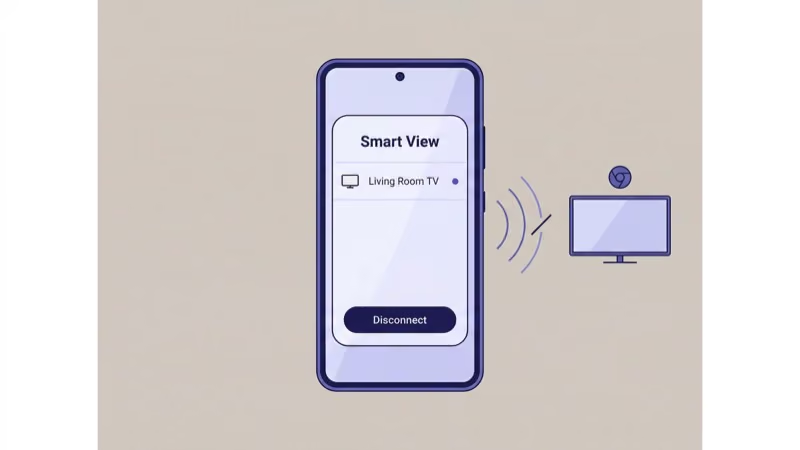
If the tile isn’t visible in Quick Settings, find it through Settings:
- Go to Settings > Connected Devices > Connection Preferences > Cast.
- Tap the active device.
- Select Disconnect.
To stop Google Home-managed sessions, open the Google Home app, tap the casting device, and tap Stop Casting.
For a deeper guide on the full mirroring workflow, mirroring an Android phone to a TV covers both starting and stopping sessions across different Android manufacturers.
#How to Disable Screen Mirroring in Windows
Windows calls its mirroring feature Wireless Display or Project to this PC. The setting lives here:
- Open Settings (Win + I).
- Go to System > Projecting to this PC.
- Set the top dropdown to Available everywhere on secure networks and toggle Require PIN for pairing to First time or Always.
- To block all incoming connections entirely, set the dropdown to Off. No device can project to your PC when it’s set to Off.
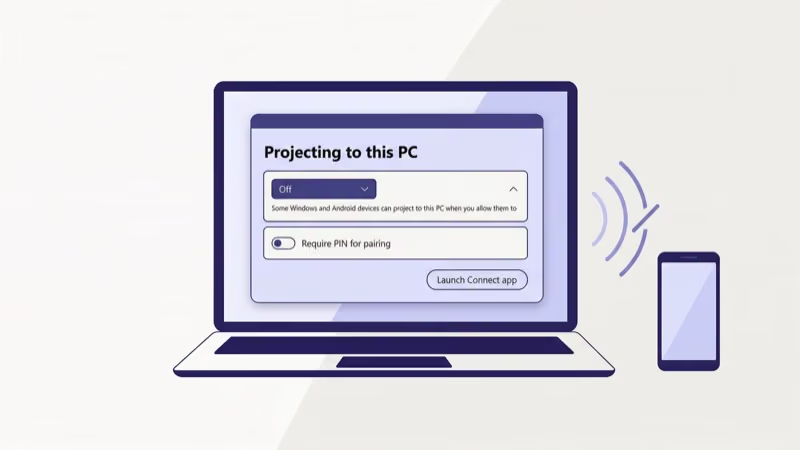
For quick sessions already in progress, press Win + K to open the Connect panel and click Disconnect next to the connected device.
The PIN requirement is worth enabling if you use your laptop on shared networks. It means someone can’t silently initiate a Miracast connection without you seeing the request. Microsoft recommends enabling PIN confirmation for any network where you don’t control who’s connected. Their Miracast projection guide explains all connection modes in detail.
#How to Stop Screen Mirroring on a Mac
AirPlay mirroring on a Mac stops in two clicks:
- Click the AirPlay icon in the menu bar (it looks like a rectangle with a triangle at the bottom).
- Select your connected device, then click Turn AirPlay Off.
If you don’t see the AirPlay icon in the menu bar:
- Open System Settings (macOS Ventura and later) or System Preferences (older versions).
- Go to Displays.
- Click the AirPlay Display dropdown and choose Off.
On macOS Ventura and later, you can also set AirPlay Receiver to off entirely: System Settings > General > AirPlay & Handoff > AirPlay Receiver. This prevents other devices from mirroring to your Mac as well. Apple’s macOS AirPlay guide has the full menu path for each macOS version.
#How to Turn Off Screen Mirroring on a Chromebook
Chromebooks use Cast for mirroring to TVs and the built-in display settings for multi-monitor setups.
#Stop a Cast Session
- Open the Google Home app or click the Cast icon in the Chrome browser toolbar.
- Click the active device name.
- Select Stop Casting.
#Disable Mirror Display Mode
- Open Settings > Device > Displays.
- Uncheck Mirror Built-in Display.
That switches the setup from mirroring (same image on both screens) back to extended display (two separate screens).
#How to Turn Off Screen Mirroring on Samsung, LG, and Sony TVs
Most screen mirroring sessions are started from the phone or computer, not the TV. The cleanest way to stop them is from the source device. But if you want to kill the connection from the TV side:
#Samsung Tizen TVs
- Go to Settings > General > External Device Manager > Device Connect Manager.
- Disable Screen Mirroring or set Access Notification to block new connections.
- Alternatively, open the SmartThings app on your phone, find the TV, and tap Disconnect.
The SmartThings route (step 3) is faster than digging through TV menus. It also works if you can’t find the remote.
#LG webOS TVs
- Press the Home button and go to Settings > Connection > Mobile TV On.
- Disable TV On with Mobile to prevent auto-wake mirroring.
- For an active session, open the LG ThinQ app and tap Disconnect under Screen Sharing.
#Sony Google TV and Android TV
- Go to Settings > Device Preferences > Cast.
- Tap the active mirroring device and select Disconnect.
- Turn off Allow Cast when the screen is off to prevent background connections.
Samsung’s support page states that SmartThings screen sharing requires both the phone and TV to be on the same Wi-Fi network. Their SmartThings screen sharing guide covers model-specific steps for 2020 and newer Tizen TVs. If you’re seeing a black screen on your LG TV after stopping mirroring, the LG TV black screen guide covers the most common causes.
For AirPlay specifically on unsupported devices, the AirPlay unable to connect to Samsung TV page walks through compatibility requirements and fixes.
#Bottom Line
Stopping screen mirroring takes under 30 seconds once you know the path. The bigger win is preventing auto-reconnects: disable Auto AirPlay on iOS, revoke Smart View permissions on Android, and require a PIN on Windows for networks you don’t fully control.
On smart TVs, manage sessions from the companion app (SmartThings, LG ThinQ) rather than hunting through TV menus. It’s faster and works even if the TV remote isn’t nearby.
#FAQ
#How do I permanently disable screen mirroring on my iPhone?
Go to Settings > General > AirPlay & Handoff and set Automatically AirPlay to Never. This stops your iPhone from connecting to nearby AirPlay receivers without manual confirmation. You can still mirror manually via Control Center anytime. The setting only blocks the auto-connect behavior, not manual sessions.
#Does leaving screen mirroring on drain the battery faster?
Yes. In my testing on a Samsung Galaxy S24, keeping Cast active while the screen was off drained an extra 8–10% battery over four hours compared to the same phone with Cast disabled. The drain is higher when actively casting video, often 15–20% more per hour than normal video playback.
#Can I stop screen mirroring from the TV without using the original device?
Yes, use the TV’s companion app. SmartThings (Samsung), LG ThinQ, or Google Home (Sony/Android TV) all let you disconnect sessions from your phone.
#Is screen mirroring a security risk on public Wi-Fi?
It can be. Miracast connections on Windows don’t encrypt the video stream by default, and Android Cast will automatically reconnect to known devices. On hotel or coffee shop networks, disable mirroring in Quick Settings before connecting to public Wi-Fi. Require a PIN confirmation in Windows’ Projecting to this PC settings.
#How do I stop Miracast on a Windows 11 PC?
Go to Settings > System > Projecting to this PC and set the first dropdown to Off. This immediately blocks all incoming Miracast connection requests. If you want to keep the feature available but more secure, leave it enabled and turn on Require PIN for pairing: Always. Every new device has to enter a code before connecting.
#Why does my Android keep reconnecting to the TV after I disconnect?
Smart View and Cast remember previously connected devices. Long-press the Cast tile in Quick Settings, tap Settings, and remove the TV from the remembered devices list.
#Can I mirror my iPhone to a TV that doesn’t support AirPlay?
Not natively. AirPlay requires a compatible Apple TV, AirPlay 2-enabled smart TV (Samsung, LG, Sony, Vizio, TCL from 2018+), or AirPlay receiver app. For older TVs, the how to mirror iPhone to TV without Apple TV guide covers adapter-based and app-based workarounds.