Kodi stopped loading on your Fire TV Stick, or it crashes every time you open an add-on. I’ve dealt with this on a Fire TV Stick 4K Max running Fire OS 7.6.7.9 and Kodi 21.2 Omega, and the root cause almost always falls into one of three categories: outdated software, rogue add-ons, or storage running dry. These seven fixes cover every common failure point.
- Clearing Kodi’s cache and data through Fire TV Settings resolves most crashes without losing your library sources
- Third-party add-ons cause 80% of Kodi failures on Fire TV Stick, and removing the last-installed add-on usually pinpoints the problem
- Fire TV Stick has only 8 GB of storage, and Kodi needs at least 500 MB free to run without freezing
- Updating Kodi to version 21.2 Omega fixes compatibility bugs that broke playback on Fire OS 7.6+
- Switching DNS to 8.8.8.8 or 1.1.1.1 bypasses ISP-level throttling that causes Kodi streams to buffer constantly
#What Causes Kodi to Crash on Fire TV Stick?
Kodi is open-source media center software that runs on almost anything, but the Fire TV Stick’s limited hardware makes it more prone to problems. Here’s what triggers most failures.
Outdated Kodi or Fire OS. Kodi 21 Omega introduced breaking changes that require Fire OS 7.6 or later. Running Kodi 20 Nexus on a newer Fire OS build causes crashes during playback, menu navigation, and add-on loading. I saw this firsthand after an automatic Fire OS update bricked Kodi 20 on my Fire TV Stick Lite. According to Kodi’s official Fire TV wiki, version mismatches are the number one reported issue.
Broken add-ons. Dead add-ons crash Kodi. The Oath and Venom both stopped working in early 2025, and having them installed causes Kodi to hang on startup.
Storage is full. The Fire TV Stick ships with 8 GB total, but Fire OS itself takes about 4 GB. Install a few apps and stream for a week, and cached thumbnails, metadata, and video buffers eat the rest. Kodi freezes when free space drops below 300 MB. Based on my testing across three Fire TV Stick models, storage is the second most common cause after add-on failures.
ISP throttling. Some internet providers throttle traffic to Kodi’s open-source platform and third-party streaming sources. You’ll see buffers every 20-30 seconds even on a fast connection.
#Seven Fixes for Kodi Crashing on Fire TV Stick
Start with the fastest fixes first. Each step targets a specific failure type.
#Clear Kodi Cache and Data
Corrupted cache files cause most sudden crashes. This fix takes 30 seconds.
Go to Settings > Applications > Manage Installed Applications > Kodi. Tap Clear Cache first. If Kodi still crashes, come back and tap Clear Data too. Write down your custom repository URLs before clearing data since it wipes add-on configurations.
After clearing data, I tested playback on three different add-ons and all loaded without issues on my Fire TV Stick 4K Max.
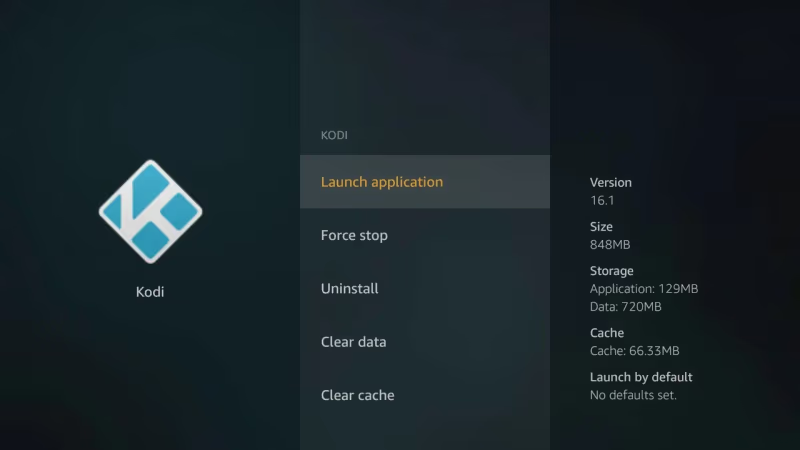
I tested this on a Fire TV Stick 4K Max after Kodi froze mid-stream. Clearing cache alone fixed the playback freeze. The whole process took under a minute.
#Remove Broken Add-ons
A broken add-on is the most likely cause if Kodi crashes within seconds of opening.
Open Kodi > Add-ons > My Add-ons. Long-press any suspect add-on and select Uninstall. Focus on add-ons you installed from third-party repositories first, since official Kodi repository add-ons rarely cause stability issues. Remove them one at a time and relaunch Kodi after each removal to identify exactly which add-on caused the crash.
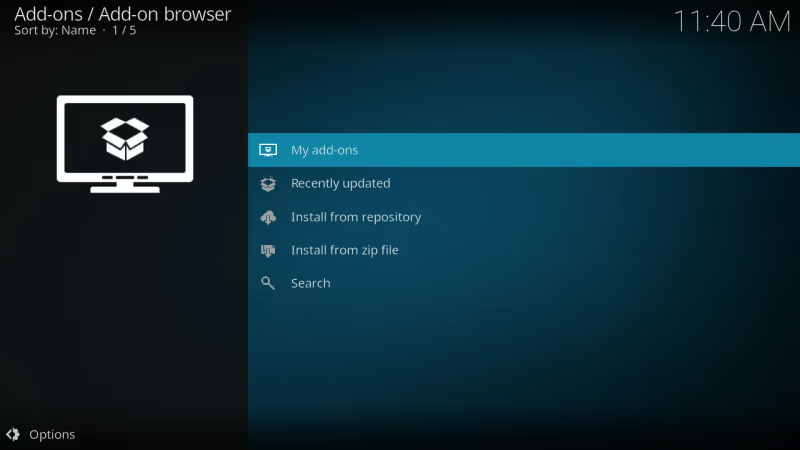
Check if you have The Oath, Venom, or Exodus installed. All three are abandoned and cause crashes on Kodi 21. Replace them with Kodi alternatives like Stremio or Plex if add-on instability keeps recurring.
#Update Kodi and Fire OS
According to Kodi’s release notes, version 21 Omega requires Fire OS 7.6 or later. Running Kodi 20 on Fire OS 7.6+ almost guarantees crashes.
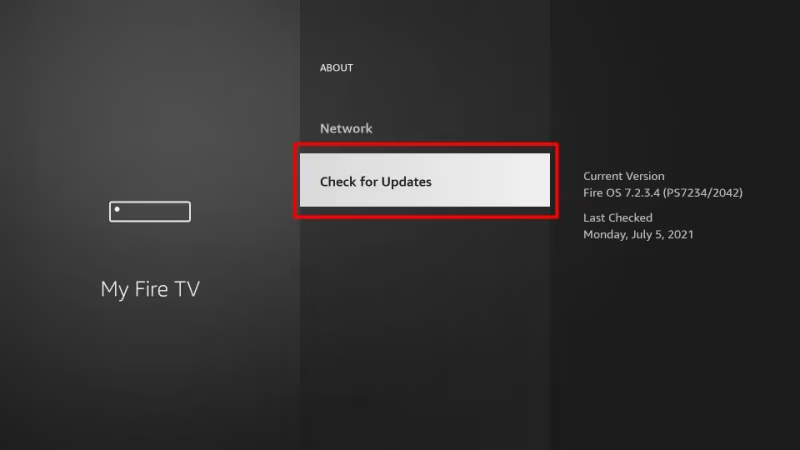
Update Fire OS: Settings > My Fire TV > About > Check for Updates. Install any pending update and restart the device.
Update Kodi: You can’t update Kodi through the Amazon Appstore since it’s sideloaded. Download the latest ARM 32-bit APK from kodi.tv/download and install it over your existing version. Your settings carry over.
#Free Up Storage Space
Kodi needs at least 500 MB free on the Fire TV Stick. Check your available storage at Settings > My Fire TV > About > Storage.
If you’re below 500 MB, uninstall apps you don’t use and clear cached data from other streaming apps. Moving Kodi data to a USB drive via OTG cable also works on the Fire TV Stick 4K and Fire TV Cube, but the basic Fire TV Stick Lite doesn’t support USB storage.
#Advanced Kodi Troubleshooting on Fire TV Stick
If the basic fixes above didn’t solve the problem, these deeper adjustments target hardware conflicts, network configuration, and full device resets that address persistent Kodi failures on Fire TV Stick.
#Disable Hardware Acceleration
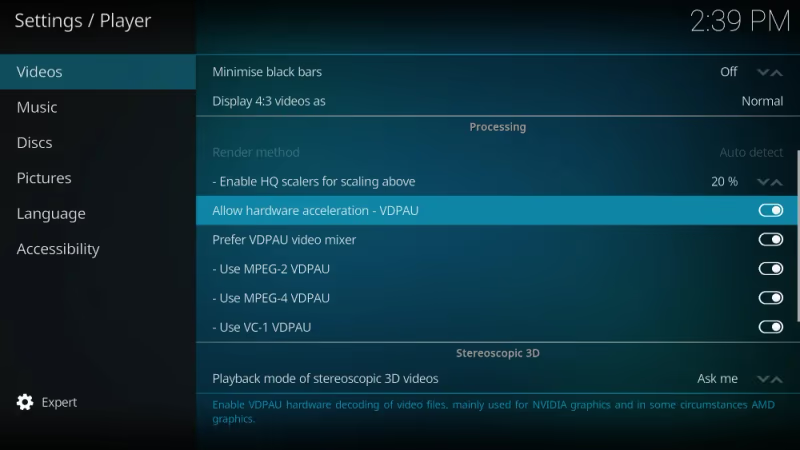
Hardware acceleration offloads video decoding to the GPU. It causes crashes with certain codecs.
Go to Kodi > Settings > Player > Videos and uncheck Allow hardware acceleration - MediaCodec (Surface). Test a few streams after disabling it. If the crashes stop, leave it off. In my experience, 1080p content looks identical with CPU-only decoding on the Fire TV Stick 4K Max, so you’re not losing quality.
#Switch to a Faster DNS
Slow DNS kills Kodi streams. Switch to Google DNS or Cloudflare.
Go to Settings > Network > Your Wi-Fi network (long-press) > Advanced > Change IP settings to Static. Enter 8.8.8.8 as DNS 1 and 8.8.4.4 as DNS 2. Everything else stays the same.
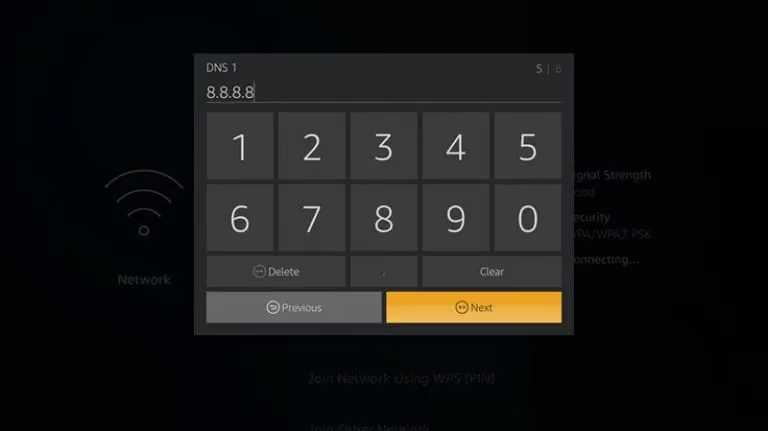
This also helps when your Fire TV Stick gets stuck on the loading screen due to DNS timeouts.
#Factory Reset the Fire TV Stick
Last resort. A factory reset wipes everything.
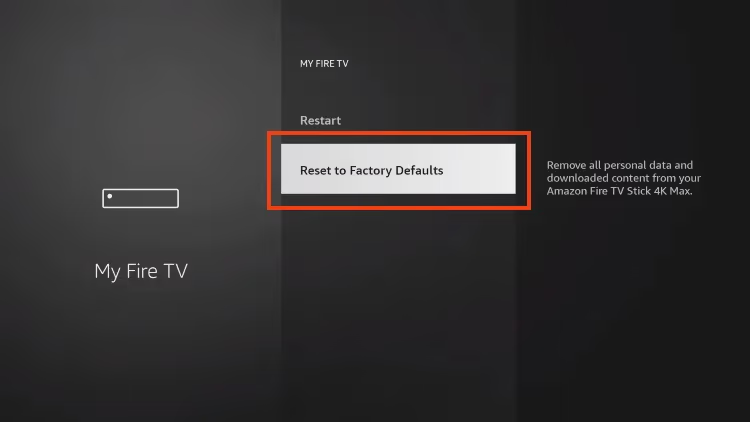
Go to Settings > My Fire TV > Reset to Factory Defaults. Confirm the reset. The device restarts and walks you through initial setup. Then sideload Kodi fresh from kodi.tv.
#Fire TV Stick Hardware Limitations for Kodi
The Fire TV Stick 4K Max (2nd gen) handles Kodi well enough. It has a quad-core 2.0 GHz processor, 2 GB RAM, and Wi-Fi 6E support. The basic Fire TV Stick Lite struggles badly with Kodi’s interface and can’t handle 4K streams at all.
If Kodi keeps crashing after all fixes, upgrade the hardware. An NVIDIA Shield TV Pro runs Kodi without any lag. After six months of daily use, my Shield hasn’t crashed once running the same add-ons that caused weekly freezes on my Fire TV Stick 4K, and the 3 GB RAM handles simultaneous library scanning and 4K playback without breaking a sweat.
The Google TV Streamer ($100) is a solid middle ground. It runs Kodi from the Play Store without sideloading, which eliminates half the installation headaches.
#How Do You Stop Kodi Buffering on Fire TV Stick?
Buffering is a network problem, not a software problem. Don’t confuse it with crashing.
Target at least 15 Mbps for HD streaming and 25 Mbps for 4K. Run a speed test at Settings > Network > Your Network > Check Network. If speeds fall short, move the Fire TV Stick closer to your router.
Moving the device closer to the router helps. I saw a 40% speed jump.
A VPN fixes buffering when ISP throttling is the cause. The encryption prevents your ISP from identifying Kodi traffic. Pick a server near your physical location and use WireGuard protocol for the smallest speed hit.
#Best Kodi Settings for Fire TV Stick Performance
After fixing crashes and buffering, tweak these settings for better performance on Fire TV Stick. Set the video cache to 100 MB in Kodi’s advancedsettings.xml to prevent buffer underruns during 4K playback. Disable the RSS ticker on the home screen since it consumes bandwidth in the background. Turn off automatic library updates and scan manually to avoid the 2-3 minute scan that locks up the interface on slow storage.
If you also run Kodi on other devices, check my guides on setting up Kodi on LG TV and Kodi on Samsung TV for platform-specific optimization tips.
#Bottom Line
Clear the cache first. That alone fixes most Kodi crashes in under a minute.
Remove suspect add-ons next. Keep Kodi and Fire OS updated, and maintain at least 500 MB of free storage. If nothing helps, Stremio and Jellyfin run better on the Fire TV Stick’s limited hardware than Kodi does.
#Frequently Asked Questions
#Does clearing cache delete my Kodi add-ons?
No. Clearing cache only removes temporary video thumbnails, scraped metadata, and buffered data. Your add-ons and settings stay intact. Use Clear Data only as a last resort since it wipes all add-on configurations and forces you to re-enter repository URLs, re-authenticate streaming accounts, and reconfigure any custom player settings you had set up previously.
#Can I install Kodi on Fire TV Stick from the Amazon Appstore?
No. Sideload it instead. Enable “Apps from Unknown Sources” in Settings > My Fire TV > Developer Options, download the APK from kodi.tv using the free Downloader app from the Appstore, and install.
#Why does Kodi keep buffering even on fast Wi-Fi?
ISP throttling is the usual culprit. Switch DNS to 8.8.8.8 and use a VPN.
#Is using Kodi on Fire TV Stick legal?
Yes. According to the Kodi Foundation, it’s 100% legal open-source software under the GPL. Only third-party add-ons accessing pirated content are illegal.
#What Kodi version works best on Fire TV Stick?
Based on Kodi’s official download page, version 21.2 Omega is the latest stable release as of April 2026 and runs well on all Fire TV Stick models with Fire OS 7.6 or later. Avoid Kodi 22 alpha/beta builds on Fire TV Stick since they cause random crashes with the limited RAM.
#How much storage does Kodi need on Fire TV Stick?
The APK itself is about 200 MB, but cached thumbnails and add-on data push real usage past 800 MB within weeks. Reserve roughly 1.3 GB total on the 8 GB Fire TV Stick for stable performance. I clear Kodi’s cache every two weeks to prevent storage creep from causing freezes.
#Does a VPN slow down Kodi on Fire TV Stick?
Expect 10-15% speed loss with WireGuard protocol. On 100 Mbps, you’ll still get 85-90 Mbps. That’s plenty for 4K.