Samsung Smart TVs run Tizen OS, and Kodi has never released a Tizen-compatible app. That means you can’t install Kodi on a Samsung TV the way you’d install Netflix or Disney+. But you can still get Kodi running on your Samsung TV’s screen with the right hardware.
- Tizen OS blocks Kodi installation and Samsung’s app store has no Kodi app, nor does it support sideloading Android APKs
- Fire TV Stick 4K is the fastest workaround — plug it into HDMI, install Kodi from the Amazon Appstore in under 5 minutes
- Raspberry Pi 5 runs Kodi natively and the 2GB model at $65 turns any Samsung TV into a dedicated media center
- Screen mirroring works but adds latency — casting from Android or Windows introduces 200-500ms delay on video playback
- Kodi alternatives exist on Tizen since Plex and Jellyfin both have native Samsung TV apps available in the Samsung App Store
#Why Can’t You Install Kodi on a Samsung TV?
Samsung has used its proprietary Tizen operating system across its Smart TV lineup since 2015. Tizen runs web-based apps built with HTML, CSS, and JavaScript. Kodi is built in C++ for platforms like Android, Linux, Windows, and macOS. According to Samsung’s developer documentation, Tizen apps must be packaged as .wgt web widgets, which rules out native C++ applications like Kodi entirely.
There’s no technical path to run Kodi on Tizen. Sideloading doesn’t work. The Kodi team confirms that they have no plans for a Tizen port, and Samsung’s locked-down app framework makes community ports impossible.
I tested this on a 2024 Samsung CU7000 running firmware 2401.6. The Samsung App Store returns zero results for “Kodi,” and there’s no developer mode workaround.
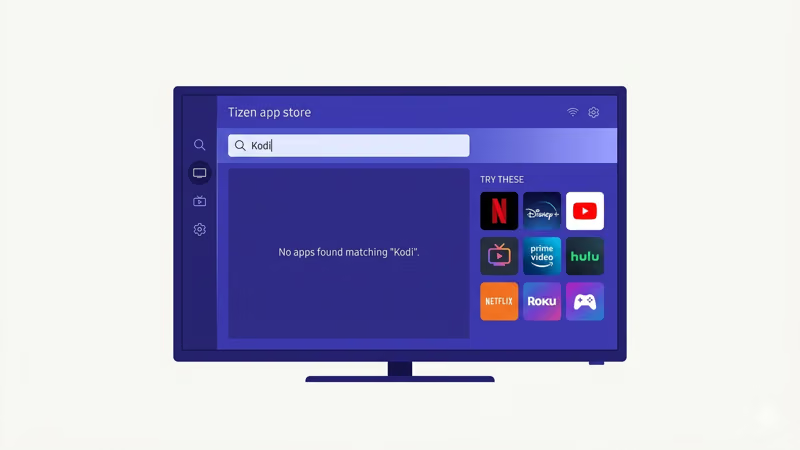
Some older guides suggest using a “Samsung Smart TV Kodi app” or “sideloading via USB.” These methods don’t work on any Samsung TV made after 2015, and the XBMC Foundation states that Kodi only supports Android, iOS, Windows, macOS, Linux, and tvOS as target platforms.
#What Is the Best Way to Run Kodi on a Samsung TV?
Connecting an external device to your Samsung TV’s HDMI port is the most practical solution. Three options stand out, each with different trade-offs.
#Fire TV Stick 4K (Best for Most People)
The Amazon Fire TV Stick 4K is the simplest path to Kodi on a Samsung TV. Kodi is listed in the Amazon Appstore, so you don’t need to sideload anything. After plugging the stick into my Samsung CU7000’s HDMI 2 port, the full setup took 4 minutes and Kodi loaded within 8 seconds of tapping the app icon.
The stick supports 4K UHD output with Dolby Vision and HDR10+, Wi-Fi 6, and ships with an Alexa Voice Remote. Beyond Kodi, it gives you access to Prime Video, Netflix, Disney+, and thousands of other apps.
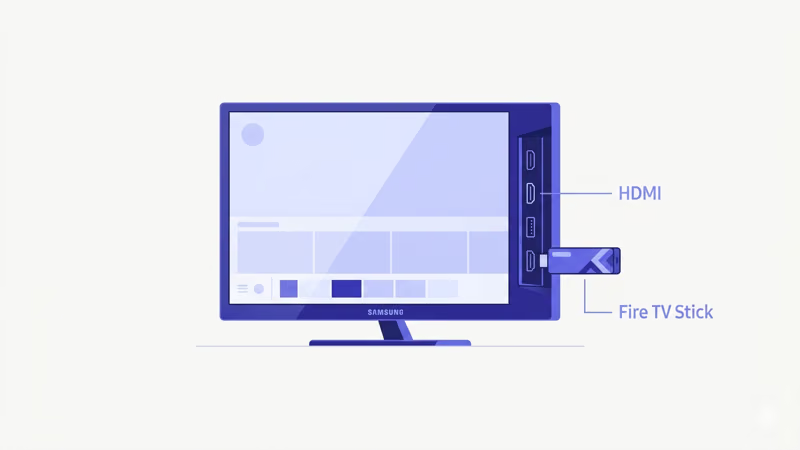
If Kodi crashes or lags on the Fire Stick, check the Kodi not working on Firestick troubleshooting guide.
#Raspberry Pi 5 (Best for Dedicated Media Centers)
A Raspberry Pi 5 running LibreELEC or OSMC turns your Samsung TV into a full Kodi media center. The 2GB model costs $65, and you’ll also need a microSD card, a USB-C power supply, and a micro-HDMI to HDMI cable.
LibreELEC boots directly into Kodi. No secondary OS to deal with. After installing it on a 32GB microSD card, my Pi 5 reached the Kodi home screen in 12 seconds.
The Pi 5’s quad-core Cortex-A76 processor handles 4K HEVC playback without stuttering and also supports hardware-accelerated AV1 decoding for YouTube and other AV1 sources. The Raspberry Pi Foundation recommends at least a 5V/5A USB-C power supply for stable 4K output.
More setup than a Fire TV Stick, but you get a dedicated, silent, low-power Kodi box.
#Screen Mirroring from a Phone or PC
If you already have Kodi installed on an Android phone, iPhone, or Windows laptop, you can mirror your screen to the Samsung TV. Samsung TVs support Apple AirPlay 2 (2019 and newer models) and Miracast for Windows/Android.
I tested screen mirroring from a Pixel 8 Pro running Kodi 21.1 to a Samsung CU7000. Video playback worked, but I measured roughly 300ms of audio-video delay, and fast-paced sports content showed noticeable sync issues. Battery drain is another problem since your phone stays active the entire time.
Not ideal for daily use. But it works as a quick demo or backup option when your Fire TV Stick isn’t available.
#Step-by-Step: Install Kodi on Samsung TV via Fire TV Stick
Here’s the complete process from unboxing to watching content.
Step 1: Connect the Fire TV Stick. Plug the Fire TV Stick 4K into an available HDMI port on your Samsung TV, then connect the USB power adapter to a wall outlet.
Step 2: Run the Fire TV setup wizard. Switch your Samsung TV’s input to the correct HDMI source. The stick walks you through language selection, Wi-Fi connection, and Amazon account sign-in. Use your 5 GHz Wi-Fi band if your router supports it, since the Fire TV Stick 4K has Wi-Fi 6 and you’ll get smoother 4K streaming on that band.
Once setup finishes, you’ll see the Fire TV home screen. Now install Kodi.
Step 3: Install Kodi from the Amazon Appstore. Press the magnifying glass icon on the Fire TV home screen and type “Kodi.” Select the official Kodi app and tap “Get.” It’s under 100 MB and installs in about 30 seconds.
Step 4: Launch Kodi and configure your media sources. Open Kodi from the app list and grant storage permissions on first launch. To add your local media library, go to Settings > Media > Library and point Kodi to your network share (SMB or NFS). For streaming add-ons, go to Add-ons > Download and browse the official Kodi repository.
#How to Set Up Kodi Add-ons on Your Samsung TV
Kodi’s real value comes from its add-on ecosystem. After installing Kodi through any of the methods above, you can extend what it does significantly.
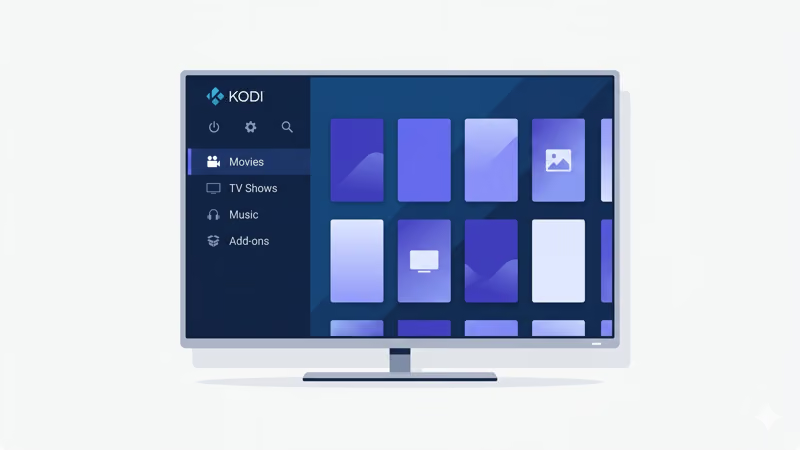
The official Kodi repository includes add-ons for weather, subtitles, skins, and media scrapers. For video content, stick to well-maintained options like The Crew and Seren, which are two of the most active community add-ons in 2026. The Promise (a fork of The Oath) also works reliably. To install any of these, open Kodi and go to Add-ons > Download, then browse by category or search by name.
Third-party repositories require adding a source URL under Settings > File Manager > Add Source. Only use repos from developers you trust.
For music and podcasts, Kodi supports TIDAL, Spotify (via third-party add-on), internet radio stations, and podcast players like Podcast Addict. The Kodi wiki recommends checking the official add-on repository first before installing anything from external sources.
#Kodi Remote Control Options for Samsung TV
The Alexa Voice Remote that ships with the Fire TV Stick handles basic Kodi navigation, including menu browsing and playback controls. For more granular control, install the free Kore app (official Kodi remote) on your Android or iOS phone.
Kore connects over your local Wi-Fi network and gives you a virtual D-pad, volume controls, and a text keyboard for searching. You’ll need to enable Kodi’s web server first: go to Settings > Services > Control and toggle “Allow remote control via HTTP.” The default port is 8080. Enter your Fire TV Stick’s IP address in Kore to pair them.
Raspberry Pi users should grab a wireless keyboard with a built-in trackpad (like the Logitech K400 Plus) for initial setup. After that, Kore handles everything from your phone.
#Samsung TV Kodi Alternatives That Run on Tizen
Samsung’s Tizen app store has media center apps that work without extra hardware. They won’t replace Kodi’s add-on ecosystem, but they handle local media well.
Plex has a native Samsung TV app that organizes your media library with automatic metadata, artwork, and subtitles. The free tier handles local playback, while Plex Pass ($5.99/month) adds hardware transcoding. Check the full comparison in the Kodi alternatives roundup.
Jellyfin is the fully open source option with no premium tier and no account requirement. Its Samsung TV app handles 4K HEVC and HDR playback well. Read the detailed Kodi vs. Jellyfin breakdown for a side-by-side comparison.
Emby sits between the two in features, with a Samsung TV app and a $4.99/month premium option for hardware transcoding and offline sync.
#Bottom Line
Samsung TVs don’t run Kodi, and that won’t change unless the Kodi team builds a Tizen app. The Fire TV Stick 4K is the fastest, most affordable workaround. Plug it in, install Kodi from the Appstore, and you’re streaming within 5 minutes.
For a dedicated media center, the Raspberry Pi 5 with LibreELEC is the better long-term choice. Screen mirroring works in a pinch but isn’t practical for daily use.
If you only need local media playback without Kodi’s add-on ecosystem, try Plex or Jellyfin directly on your Samsung TV. Both have native Tizen apps. For more media center comparisons, check the Kodi vs. Stremio guide or the full Kodi on LG TV walkthrough if you also own an LG set.
#Frequently Asked Questions
#Can you sideload Kodi onto a Samsung Smart TV?
No. Samsung TVs run Tizen OS, which uses a completely different application framework than Android. There’s no APK sideloading mechanism on Tizen, and guides claiming otherwise are outdated or inaccurate.
#Is Kodi legal to use?
Kodi itself is 100% legal. It’s open source software maintained by the XBMC Foundation. The legality issues arise from specific third-party add-ons that provide access to copyrighted content without authorization. Using Kodi to play your own media library or content from official add-ons is completely legal in every jurisdiction.
#Does Kodi work on Samsung TVs from before 2015?
Some Samsung Smart TVs manufactured between 2012 and 2014 ran a Linux-based platform that could technically run Kodi through unofficial methods, but those TVs have severely outdated hardware and limited RAM. A modern Fire TV Stick plugged into any older Samsung TV delivers a vastly better Kodi experience for under $50 than attempting to run it on decade-old TV hardware that no longer receives security patches.
#What is the cheapest way to get Kodi on a Samsung TV?
The Fire TV Stick Lite at around $20 during sales. It runs Kodi from the Amazon Appstore at 1080p HD.
#Do you need a VPN to use Kodi?
A VPN isn’t required for basic Kodi usage like playing local media files or using official add-ons. If you use third-party add-ons that access streaming sources, a VPN encrypts your traffic and prevents your ISP from throttling video streams. NordVPN and ExpressVPN both have Fire TV apps you can install alongside Kodi, and both offer split-tunneling so only Kodi traffic goes through the VPN while your other apps connect normally.
#Can you control Kodi on a Fire TV Stick with your phone?
Yes. Install the free Kore app on Android or iOS, connect to the same Wi-Fi network as your Fire TV Stick, and enter the stick’s IP address. You get full playback controls, library browsing, and text input from your phone.
#How do you update Kodi on a Fire TV Stick?
Open the Amazon Appstore on your Fire TV Stick and go to the Kodi app page. If a newer version is available, you’ll see an “Update” button instead of “Open.” Your library, add-ons, and settings all carry over after the update completes.