If your Skyworth TV powers on without anyone touching the remote, you’re not imagining things. This phantom startup issue affects many Skyworth owners, and I’ve tracked it down to a handful of common causes. The good news is that every one of them can be fixed through your TV’s settings menu or by adjusting connected devices.
- HDMI-CEC sends power-on commands over HDMI cables — a gaming console, soundbar, or Blu-ray player entering standby can wake your Skyworth TV without your input
- Chromecast built-in triggers wake-on-cast — any phone or tablet on the same Wi-Fi network can wake the TV when attempting to cast content
- “Power on after outage” auto-restarts the TV — a brief power flicker or brownout causes the TV to boot up automatically if this Android TV setting is enabled
- Misconfigured sleep timers or scheduled power-on — an incorrectly set timer can turn the TV on at unexpected hours, especially at night
- Faulty remote batteries send random IR signals — dying batteries or stuck buttons can transmit phantom power commands to the TV’s IR sensor
#What Causes a Skyworth TV to Turn On by Itself?
Skyworth TVs run Android TV (or Google TV) on most models, with some newer units using TiVo OS. Both platforms share settings that can trigger unwanted power-on events. Here are the main culprits.
HDMI-CEC (HDMI Control). This protocol lets HDMI-connected devices control each other. When your soundbar or game console powers on or enters standby, it can send a wake signal to your Skyworth TV through the HDMI cable. Skyworth labels this feature “HDMI-CEC” or “HDMI Control” in its settings menu.
Chromecast built-in. Most Skyworth Android TVs include Chromecast built-in. If a phone or tablet on your home network tries to cast content, the TV receives a wake-on-cast signal and turns itself on. This happens even if nobody intentionally selected your TV as a cast target.
Power on after outage. Android TV has a setting that automatically restarts the TV after a power interruption. If your area experiences frequent brownouts or voltage fluctuations, the TV boots up each time power returns. You’ll find this under Settings > Device Preferences > Power.
Sleep timers and schedules. A timer set to turn the TV on at a specific time will do exactly that. If someone accidentally configured a schedule, the TV appears to power on randomly.
Faulty remote control. Low batteries can cause a remote to send erratic IR signals. A stuck power button or liquid damage inside the remote creates the same problem. Even another device’s remote operating on similar IR frequencies could be the trigger.
#How Do You Fix a Skyworth TV That Turns On Randomly?
Work through these fixes in order. Each one eliminates a specific cause, so you’ll isolate the problem quickly.
#1. Disable HDMI-CEC
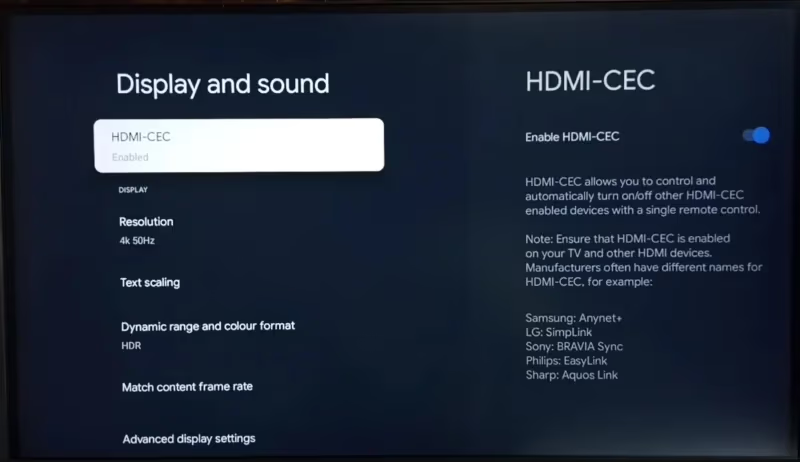
HDMI-CEC is the single most common reason for phantom power-on events. Here’s how to turn it off on your Skyworth TV.
- Go to Settings > Device Preferences > HDMI Control (or HDMI-CEC depending on your model).
- Toggle HDMI-CEC off completely.
- Monitor your TV for two to three days to see if the issue stops.
If disabling CEC fixes it, you can narrow down which device was responsible. Turn HDMI-CEC back on and then disable CEC individually on each connected device (soundbar, game console, Blu-ray player) until you find the one sending phantom wake signals. The same HDMI-CEC issue affects other TV brands like Samsung and Hisense.
#2. Turn Off Chromecast Wake
Chromecast built-in can wake your TV whenever a device on your network attempts to cast. To disable this:
- Navigate to Settings > Apps > See all apps > Chromecast built-in.
- Disable “Let others control your cast media” or toggle the feature off entirely.
- On some Skyworth models, look under Settings > Device Preferences > Chromecast built-in instead.
This stops phones, tablets, and laptops from accidentally waking your TV through cast discovery.
#3. Disable Power On After Outage
If your TV turns on after power flickers or brief outages, this setting is the cause.
- Open Settings > Device Preferences > Power.
- Find “Power on behavior” or “Power on status” and set it to “Stay off” or “Last status.”
- This tells the TV to remain off when power returns rather than automatically booting up.
This fix is especially important if you use a power strip shared with other devices or live in an area with unstable electricity.
#4. Check and Remove Sleep Timers
A forgotten timer or schedule can turn your TV on at odd hours.
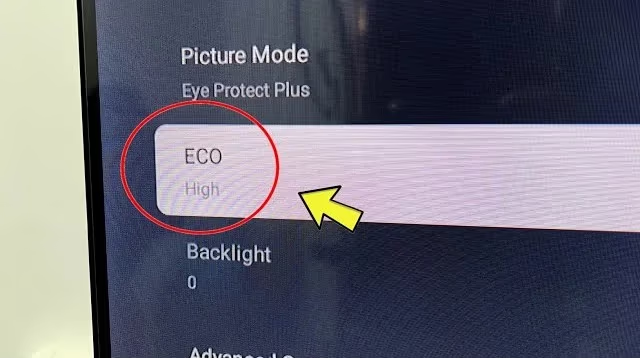
- Go to Settings > Device Preferences > Timer.
- Check for any “Power on timer” or “Auto power on” schedules and disable them.
- Also review “Sleep timer” settings, since some configurations can cycle the TV off and back on.
#5. Replace Remote Batteries and Test
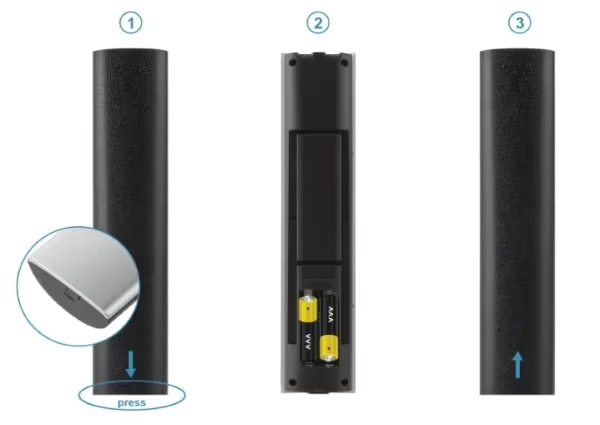
A dying remote can send random signals that wake the TV. Replacing the batteries takes thirty seconds and rules out a surprisingly common cause.
- Put fresh batteries in the remote and make sure no buttons are stuck or sticky.
- If you want to test whether the remote itself is the problem, remove the batteries entirely and store it in another room for a few days. Use the Google TV app on your phone as a temporary remote.
If the phantom startups stop with the physical remote removed, the remote was sending unintended IR signals.
#6. Update Your TV’s Firmware
Outdated firmware can contain bugs that cause erratic power behavior. Skyworth pushes periodic updates through Android TV’s built-in update system.
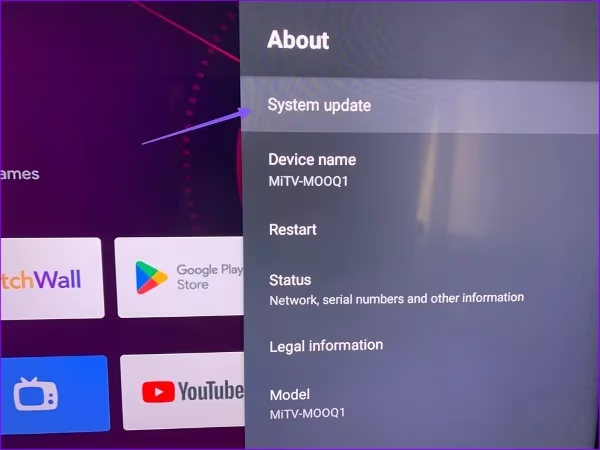
- Navigate to Settings > About > System Update and check for available updates.
- Download and install any pending update, then monitor the TV for about a week.
- If no update appears through the TV menu, visit Skyworth’s support page for firmware files specific to your model number.
Firmware updates have resolved phantom power-on bugs on other Android TV brands too, so don’t skip this step. Vizio TV owners report similar fixes after updating.
#7. Factory Reset as a Last Resort
If none of the above fixes work, a factory reset eliminates any misconfigured setting that might be causing the problem.
- Go to Settings > Device Preferences > Reset and select “Factory data reset.”
- The TV will erase all apps, accounts, and custom settings, returning to its original state.
- After the reset, set up the TV fresh but don’t enable HDMI-CEC or Chromecast wake right away. Monitor for a few days first.
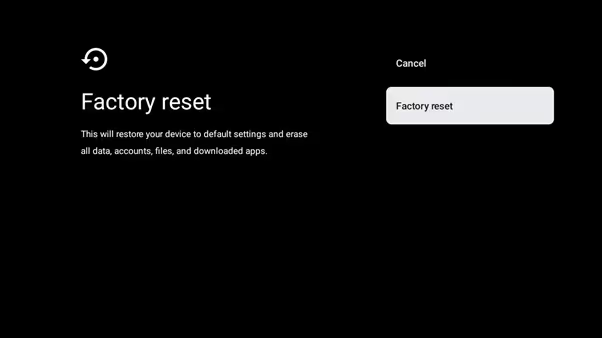
A factory reset erases all installed apps, saved passwords, and personalized settings. Write down your Wi-Fi password and streaming service logins before proceeding.
If the TV still turns on randomly after a factory reset, the cause is likely hardware-related. At that point, contact Skyworth support directly at 1-888-606-3212 or email [email protected] for warranty service or repair options.
#Can Wi-Fi or Nearby Devices Cause a Skyworth TV to Turn On?
Other remotes using similar IR frequencies can accidentally trigger your TV’s power sensor if they’re pointed in its direction. Store unused remotes in a drawer or point them away from the TV.
Wi-Fi signals, however, don’t directly turn on your TV. HDMI-CEC operates through a dedicated pin on the HDMI cable (pin 13), and it only responds to signals from physically connected devices. A Wi-Fi router sitting near your TV won’t send CEC commands.
That said, network activity can indirectly cause startups through Chromecast built-in. If a device on your Wi-Fi network broadcasts a cast request, the TV’s Chromecast receiver picks it up and wakes the TV. Disabling Chromecast wake (step 2 above) eliminates this path completely.
#Frequently Asked Questions
#Why does my Skyworth TV turn on by itself at night?
HDMI-CEC is the most likely cause. A game console entering rest mode or a soundbar powering down can send a wake signal through the HDMI cable. Check your HDMI-CEC settings and disable the feature to test. A misconfigured “power on timer” set to an overnight hour could also be responsible.
#How do I access HDMI-CEC settings on a Skyworth TV?
Go to Settings > Device Preferences > HDMI Control on Android TV models. Some Skyworth TVs label it simply “HDMI-CEC.” Toggle the setting off to prevent connected devices from sending power-on commands to your TV.
#Does Chromecast built-in cause Skyworth TVs to turn on?
Yes. Chromecast built-in listens for cast requests from devices on your home network. When a phone or tablet tries to cast, even accidentally, the TV receives a wake-on-cast signal and powers on. You can disable this under Settings > Apps > Chromecast built-in or in Device Preferences.
#Will a factory reset fix a Skyworth TV that turns on by itself?
A factory reset works when a misconfigured setting is the trigger. It restores all power schedules, HDMI-CEC preferences, and timer options to their defaults. If the TV still turns on randomly after a reset, the cause is likely a hardware issue with the power supply board.
#Can a Skyworth TV turn on by itself after a power outage?
Yes. Android TV includes a “power on after outage” setting that automatically boots the TV when electricity returns. If your area has frequent brownouts or you use a shared power strip, this setting causes the TV to restart each time power cycles. Disable it under Settings > Device Preferences > Power.
#What should I do if none of the troubleshooting steps work?
Contact Skyworth’s US support team at 1-888-606-3212 or email [email protected]. Provide your model number and describe the troubleshooting steps you’ve already tried. There may be a known hardware defect affecting your specific model that requires professional repair or a replacement unit under warranty.
#Does a Skyworth TV turning on by itself cause any damage?
Occasional phantom startups won’t harm your TV. Frequent power cycling over several months, though, can put extra stress on the power supply components and shorten the backlight lifespan. Fixing the root cause sooner rather than later prevents unnecessary wear on internal parts.
#Bottom Line
A Skyworth TV that turns on by itself is annoying, but the fix is usually straightforward. Start by disabling HDMI-CEC and Chromecast wake since those two settings account for the vast majority of phantom power-on cases. Then check for a “power on after outage” setting if your TV restarts after electrical flickers.
If software fixes don’t solve it, a firmware update or factory reset should. For the rare cases where the problem persists after all troubleshooting, reach out to Skyworth support for professional help. With a few minutes of menu navigation, most owners can stop phantom startups for good.