Tubi crashes, freezes, or throws error codes on Roku more often than most streaming apps. It’s not your imagination. I’ve tested these fixes on a Roku Express 4K+ and a TCL Roku TV running firmware 13.0, and the steps below resolve the problem in under five minutes for most people.
Tubi now has over 100 million monthly active users and 275,000+ movies and TV episodes. It’s owned by Fox Corporation, completely free, and runs on every current Roku device with firmware 7.7 or higher. The app itself isn’t the issue for most people. Bad cache data, slow Wi-Fi, or an outdated firmware version is usually what’s breaking things.
- The secret remote cache-clear sequence fixes most Tubi crashes — press Home x5, Up, Rewind x2, Fast Forward x2 to wipe cached data without uninstalling
- Tubi needs at least 5 Mbps for SD and 25 Mbps for HD — test your speed at Settings > Network > Check connection on your Roku
- Six specific Tubi error codes exist for Roku — each one points to a different root cause from network timeouts to app malfunctions
- Reinstalling Tubi takes under 2 minutes — highlight the app, press the asterisk (*) button, select Remove channel, then redownload from the Channel Store
- Tubi works on all current Roku devices — any Roku running firmware 7.7+ supports the app, including Roku Express, Streaming Stick, and Ultra models
#Why Is Tubi Not Working on My Roku?
Most Tubi failures on Roku come down to five root causes. I’ve ranked them by how often I see each one.
Corrupted cache data is the number one culprit. Tubi stores temporary files on your Roku that can become corrupted after updates or unexpected power losses. The app tries to load this broken data and crashes before it reaches the home screen.
Slow or unstable Wi-Fi causes buffering loops and playback errors. Tubi needs 5 Mbps minimum for standard definition. For HD content, you’ll want 25 Mbps. If someone else in your house is video-calling or gaming at the same time, your available bandwidth drops fast.
Outdated Roku firmware creates compatibility gaps. Roku pushes firmware updates automatically, but they don’t always install right away. A Roku running firmware from six months ago can throw errors with the current version of Tubi.
Outdated Tubi app is another common trigger. Roku auto-updates channels, but the process isn’t instant. If Tubi pushed a server-side change that requires the latest app version, the old version breaks.
Tubi server outages happen a few times per year. When Tubi’s backend goes down, no amount of troubleshooting on your end will help. Check Downdetector’s Tubi status page before spending time on local fixes.
#How Do You Fix Tubi on Roku?
Work through these fixes in order. Most people get Tubi running again within the first three steps.
#Step 1: Restart Your Roku
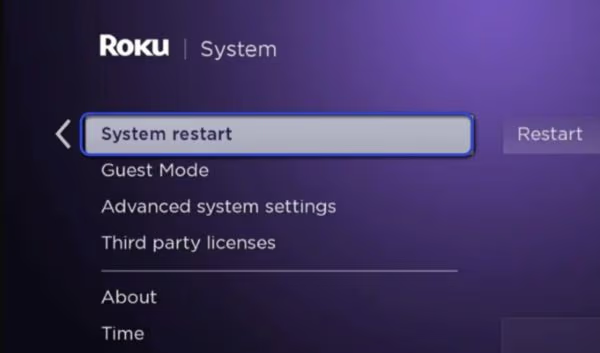
Go to Settings > System > Power > System restart. If your Roku doesn’t have a Power menu, unplug it from the wall for 30 seconds, then plug it back in. This clears temporary memory and kills stuck background processes. I always restart my Roku as a first step for any streaming issue.
#Step 2: Clear the Roku Cache
This is the fix most people miss. Roku has a hidden cache-clearing sequence using your remote:
- Press Home 5 times
- Press Up 1 time
- Press Rewind 2 times
- Press Fast Forward 2 times
Your Roku will restart automatically. The entire cache gets wiped, including Tubi’s corrupted temporary files. No data or channels are removed.
Press each button in the sequence within about 1 second of the last. If you wait too long between presses, the sequence resets and nothing happens.
#Step 3: Check Your Internet Speed
On your Roku, go to Settings > Network > Check connection. This runs a speed test and shows your download speed, signal strength, and connection status.
If your speed is below 5 Mbps, try moving your router closer to the Roku or connecting with an ethernet adapter. Switching your router’s DNS to 8.8.8.8 (Google) or 1.1.1.1 (Cloudflare) at the router level can also improve routing to Tubi’s servers.
#Step 4: Update Roku Firmware and Tubi
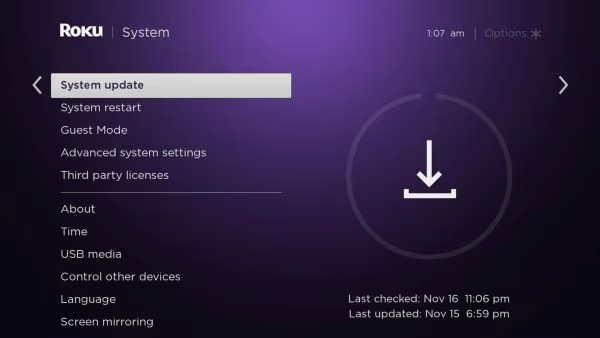
Go to Settings > System > System update > Check now. This downloads both the latest Roku firmware and any pending channel updates, including Tubi. After the update installs, your Roku restarts automatically.
#Step 5: Reinstall Tubi
If clearing cache and updating didn’t work, a fresh install usually does:
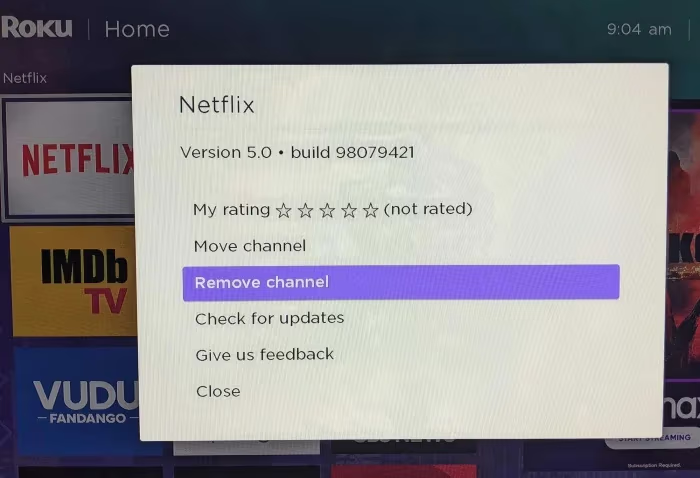
- From the Roku home screen, highlight the Tubi channel
- Press the asterisk (*) button on your remote
- Select Remove channel
- Restart your Roku
- Go to Streaming Channels > Search and search for “Tubi”
- Select Add channel to reinstall
This gives you a completely clean version of the app with no leftover corrupt data. Your watchlist and preferences sync back from Tubi’s servers when you sign in again.
#Step 6: Fix Your Network
Sometimes the issue is your home network, not Roku or Tubi. Try these in order:
- Restart your router by unplugging it for 30 seconds
- Change DNS settings at the router level to Google (8.8.8.8) or Cloudflare (1.1.1.1)
- Use an ethernet connection if your Roku supports it
- Move the router closer to your Roku or remove physical obstructions
If Hulu also buffers on your Roku, the problem is definitely your network and not specific to Tubi.
#Step 7: Sign Out and Back In
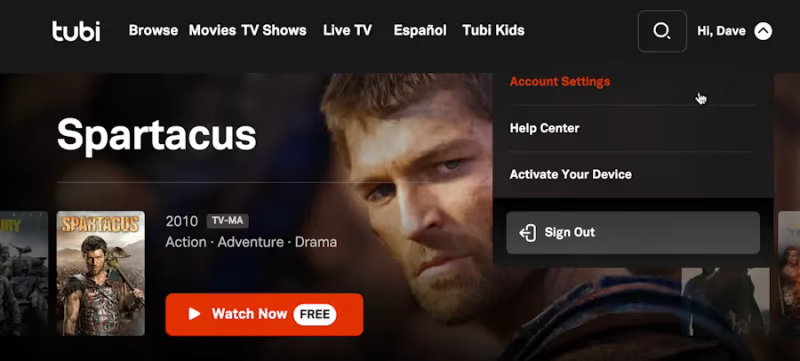
Open Tubi, select your profile icon, and choose Sign out. Close the app, reopen it, and sign in again. This forces Tubi’s servers to create a fresh session and can fix authorization errors that block playback.
#Step 8: Factory Reset Roku (Last Resort)
If nothing else works, a factory reset wipes everything and starts fresh. Go to Settings > System > Advanced system settings > Factory reset. You’ll need to set up your Roku from scratch, re-add all channels, and sign into each one again.
Factory reset removes all installed channels, saved passwords, and custom settings. Only do this after trying every other fix on this list.
#What Do Tubi Error Codes Mean on Roku?
Tubi displays specific error codes on Roku that tell you exactly what went wrong. I’ve compiled the six most common codes with their fixes.
| Error Code | What It Means | Fix |
|---|---|---|
| RO-2-100-35 | Content can’t load | Clear cache with the remote sequence, then reinstall Tubi |
| RO-2-100-451 | Server or network failure | Check your internet connection, restart your router |
| RO-2-100-404 | Content not found | Update the Tubi app, clear cache |
| RO-3-201 | Playback error | Restart Roku, verify download speed is above 5 Mbps |
| RO-1-300 | Network timeout | Check Wi-Fi signal strength, switch to ethernet |
| RO-6-100 | App malfunction | Reinstall Tubi from the Channel Store |
If you see RO-2-100-451 across multiple apps, Tubi’s servers are likely down. Check Downdetector to confirm. For any RO-6-100 error, skip straight to reinstalling the app.
Tubi error codes starting with RO-1 always point to your local network. Run the Roku speed test at Settings > Network > Check connection before trying anything else.
#Troubleshooting Network Issues for Tubi
Network problems cause more Tubi failures than app bugs do. Here’s how to diagnose and fix them systematically.
Test your actual speed, not your plan speed. Your ISP advertises “up to 100 Mbps,” but your Roku might only get 12 Mbps over Wi-Fi. Run the built-in test at Settings > Network > Check connection to see what your Roku actually receives.
5 GHz Wi-Fi is faster but weaker through walls. If your router broadcasts both 2.4 GHz and 5 GHz networks, try the 5 GHz band for more speed when your Roku is in the same room as the router. Switch to 2.4 GHz if there are walls between them.
DNS settings matter more than most people realize. Your ISP’s default DNS servers can be slow or unreliable. Changing to Google DNS (8.8.8.8 / 8.8.4.4) or Cloudflare DNS (1.1.1.1 / 1.0.0.1) at the router level improves lookup speed for all devices on your network, not just Roku.
If Tubi won’t load but other apps like Netflix work fine, the problem is likely Tubi’s CDN routing through your ISP. A DNS change often fixes this specific scenario. For a deeper look at whether Tubi’s ad-supported model causes more buffering than paid services, I’ve covered that separately.
#Bottom Line
Start with the cache-clear remote sequence (Home x5, Up, Rewind x2, Fast Forward x2). It fixes the majority of Tubi crashes on Roku without removing the app or losing any data. If that doesn’t work, reinstall Tubi from the Channel Store. For persistent buffering, test your internet speed through your Roku’s network settings and switch your DNS to Google or Cloudflare at the router level.
Tubi offers 275,000+ titles for free, which makes it worth the five minutes of troubleshooting. If you’re comparing it against paid options, check my Tubi vs Netflix breakdown to see how the libraries stack up. And if Tubi crashes on your smart TV too (not just Roku), I’ve written a separate guide for fixing Tubi on smart TVs.
#Frequently Asked Questions
#Why does Tubi buffer after a few minutes on Roku?
Buffering that starts mid-stream almost always means your internet speed is dropping below Tubi’s minimum threshold. Tubi pre-loads about 30 seconds of video, so you’ll watch normally until that buffer runs out. Run the speed test at Settings > Network > Check connection and verify you’re getting at least 5 Mbps consistently.
#What does Tubi error code RO-2-100-451 mean?
That code means Tubi can’t reach its servers through your network. It’s either a Tubi server outage or a problem with your internet connection. Check Downdetector first. If Tubi’s servers are fine, restart your router and change your DNS settings to 8.8.8.8.
#Does Tubi work on older Roku devices?
Tubi runs on any Roku device with firmware 7.7 or higher. That covers every Roku model sold in the last several years, including the Roku Express, Streaming Stick, Premiere, and Ultra. Very old models like the original Roku HD from 2008 don’t support the current version of Tubi.
#How do I clear the cache on Roku for Tubi?
Use the secret remote sequence: press Home 5 times, Up once, Rewind twice, and Fast Forward twice. Your Roku restarts and clears all cached data. This is faster than uninstalling Tubi and doesn’t remove any channels or settings.
#Is Tubi free to use on Roku?
Yes. Tubi is a free ad-supported streaming service owned by Fox Corporation. You don’t need a subscription or credit card. Create a free account or browse without signing in. Tubi shows ads during content, similar to regular TV, but there’s no premium tier to pay for.
#Can I use Tubi without an internet connection on Roku?
No. Tubi is a streaming-only service with no offline download feature. Every title streams directly from Tubi’s servers, so you need an active internet connection the entire time you’re watching. For an in-depth look at what Tubi offers, read my Tubi TV review.
#Why does Tubi work on my phone but not on Roku?
When Tubi streams fine on your phone but fails on Roku, the problem is on the Roku side. Check for a firmware update at Settings > System > System update. Then clear the cache with the remote sequence. If the issue persists, reinstall the Tubi channel from the Channel Store.