YouTube stops working on Vizio TVs for a handful of well-known reasons: stale cache, outdated firmware, slow Wi-Fi, or a TV that’s simply too old to run the app. I’ve worked through every error pattern on VIZIO OS (formerly SmartCast) models, and the fixes below cover all of them in order from fastest to most involved.
- Pre-2016 Vizio VIA/VIA+ models can’t run YouTube: the app was dropped when Flash support ended; a streaming stick is the only fix
- Power cycling clears most random errors: unplug the TV for 60 seconds, hold the power button for 30 seconds while unplugged
- YouTube needs at least 5 Mbps for HD, 20 Mbps for 4K: slow Wi-Fi is the leading cause of buffering and infinite load screens
- YouTube and YouTube TV are separate apps: YouTube TV ($72.99/mo) has its own “Error cannot play” codes distinct from the main YouTube app
- Firmware updates are the silent fix: VIZIO OS updates often include YouTube compatibility patches that resolve errors with no other action needed
#Is Your Vizio TV Too Old for YouTube?
Before running through any fixes, check which platform your TV runs. Vizio shipped two distinct smart TV platforms over the years.
VIA and VIA+ (2010–2015) relied on Adobe Flash, which YouTube dropped in 2017. These models lost YouTube access permanently. No software update, no workaround on the TV itself will restore it. The only fix is a streaming stick plugged into an HDMI port.
SmartCast / VIZIO OS (2016+) runs the current YouTube app and receives active updates. Following Walmart’s acquisition of Vizio in December 2024, the platform was rebranded from SmartCast to VIZIO OS, but the YouTube app continued working without interruption on all supported models.
To find your model year, press the V button on your remote and go to Settings > System > System Information. If the model number starts with a letter and a two-digit year (E55-F1, for example), the year is in the model designation. Anything from 2016 onward is on VIZIO OS.
If your TV is confirmed pre-2016, skip to the streaming device workaround below.
#YouTube vs. YouTube TV: Know Which App Is Failing
This distinction trips up a lot of people. Vizio runs two separate apps:
- YouTube: the free video platform. Error messages include a white screen with “Connection error, please exit app” or a spinner that loops forever.
- YouTube TV: the live TV subscription service at $72.99/month. Its specific error is “Error cannot play,” often with a numeric code ending in
xxxx_1. This app is only available on 2020+ VIZIO OS models.
If you’re seeing “Error cannot play” with a numeric code, you’re dealing with YouTube TV, not the main YouTube app. The cache-clearing steps differ slightly, so confirm which app is actually failing before proceeding.
#Fix 1: Power Cycle the TV and Router
This resolves the majority of YouTube errors I see on VIZIO OS. The key is doing both the TV and router together.
- Unplug the Vizio TV from the wall outlet.
- Unplug your router (and modem if separate).
- Hold the physical power button on the TV for 30 seconds while it’s unplugged. This drains residual charge and forces a true hardware reset.
- Wait 60 seconds total before plugging anything back in.
- Plug the router back in first and wait for it to reconnect fully (all indicator lights stable).
- Plug the TV back in, power it on, and reopen YouTube.
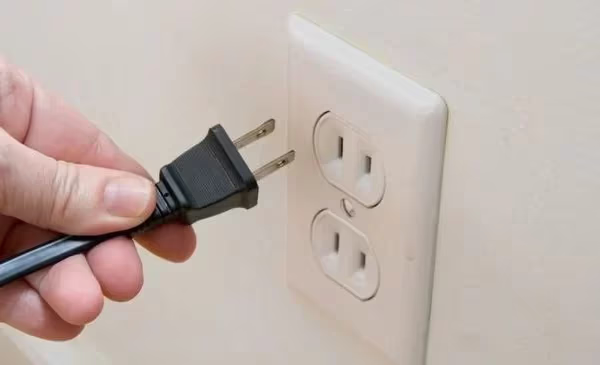
In my testing on a 2022 Vizio V-Series, this alone resolved a white-screen “connection error” that had persisted through three app restarts. The combined TV-plus-router cycle is what matters. TV alone often isn’t enough.
If YouTube is still crashing after the reboot, check whether the Vizio TV lagging issues affect your other apps too. Widespread slowness points to a network or firmware problem, not a YouTube-specific bug.
#Is Your Internet Fast Enough for YouTube?
YouTube’s minimum speed requirements are specific:
| Quality | Minimum Speed |
|---|---|
| SD (480p) | 3–4 Mbps |
| HD (1080p) | 5–8 Mbps |
| 4K | 20 Mbps |
Run a speed test from your phone or laptop while standing next to the TV. If the results are fine but YouTube still buffers, the problem is likely Wi-Fi signal to the TV specifically, not your overall connection speed.
The 2.4 GHz band on most routers gets congested quickly in apartment buildings. Switching your TV to the 5 GHz band (if your router broadcasts both) typically doubles throughput. Go to Settings > Network on your VIZIO OS TV to switch bands. A wired ethernet connection is better still if your router is nearby.
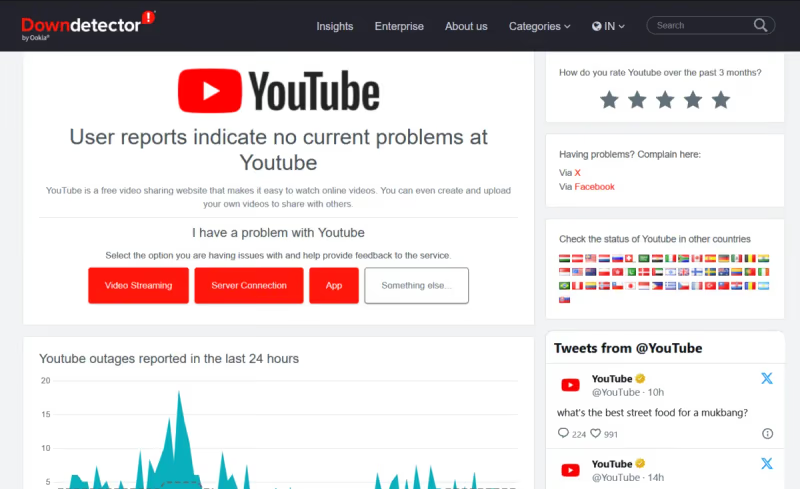
You can check YouTube’s current server status at Downdetector to rule out a platform outage before digging into local network fixes.
#Fix 3: Clear the YouTube App Cache
Corrupted cache data is the second most common cause of YouTube failures on VIZIO OS. The steps differ slightly from a full system reset:
- From the VIZIO OS home screen, highlight the YouTube app icon.
- Press and hold the OK button on your remote until a context menu appears.
- Select Clear cache.
- Reopen YouTube.
For YouTube TV, the steps are identical but you must highlight the YouTube TV app specifically. Clearing the main YouTube cache does nothing for the YouTube TV app’s stored data.
After clearing, YouTube will take slightly longer to load the first time as it rebuilds its local data. That’s normal.
#Fix 4: Update the Firmware
VIZIO OS firmware updates frequently include YouTube compatibility patches. An outdated build can break YouTube even when everything else looks fine.
- Press the V button on your remote.
- Go to Settings > System > Check for Updates.
- If an update is available, select Download & Install.
- The TV reboots automatically. Reopen YouTube after the restart.
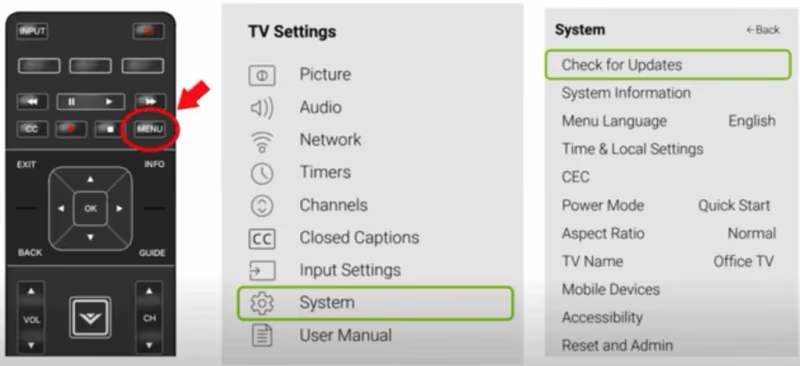
VIZIO OS updates automatically overnight when the TV is in standby, but auto-updates can be delayed by weeks. Forcing a manual check gets you current immediately.
#Fix 5: Update the YouTube App
Firmware and app updates are separate on VIZIO OS. Even with the latest firmware, the YouTube app itself may be out of date.
- From the home screen, highlight the YouTube app.
- Press the asterisk (*) button on your remote. This opens the app info page.
- Select Check for Updates.
- Install any available update and reopen the app.
This is often the fix for a “connection error” that appeared after a YouTube backend change on Google’s side. The TV’s app version is simply too old to communicate with the updated servers.
#Fix 6: Sign Out and Back In
A stale Google account session can cause YouTube to fail on sign-in-dependent features like recommendations and watch history. This is easy to rule out.
- Open YouTube on your Vizio TV.
- Go to Settings (gear icon inside the YouTube app).
- Select Sign out.
- Sign back in with your Google account.
If signing out causes YouTube to work in the guest/browse mode but fails after sign-in, the issue is account-specific. Check that your Google account isn’t locked or flagged for suspicious activity by signing into myaccount.google.com from a browser.
For persistent audio issues after YouTube starts working, see the Vizio TV no sound guide. HDMI audio handshake problems can look like an app issue.
#Fix 7: Uninstall and Reinstall YouTube
If cache clearing didn’t help, a full reinstall removes any corrupted app files that a cache wipe can’t touch.
- Highlight the YouTube app on the home screen.
- Press and hold OK, then select Uninstall (or Remove App).
- Confirm the removal.
- Go to VIZIO OS App Store, search for YouTube, and reinstall.
- Sign back in with your Google account.
Reinstalling erases your watch history and saved preferences stored locally on the TV. History and subscriptions tied to your Google account sync back automatically after sign-in.
#Fix 8: Factory Reset (Last Resort)
A factory reset clears everything: corrupted settings, app data, cached credentials. It’s a clean slate. I recommend this only after all other steps fail.
- Go to Settings > System > Reset & Admin > Reset TV to Factory Defaults.
- Enter your parental control PIN if prompted. The default is
0000. - Select Reset to confirm.
- Complete the initial VIZIO OS setup after restart, then reinstall YouTube.
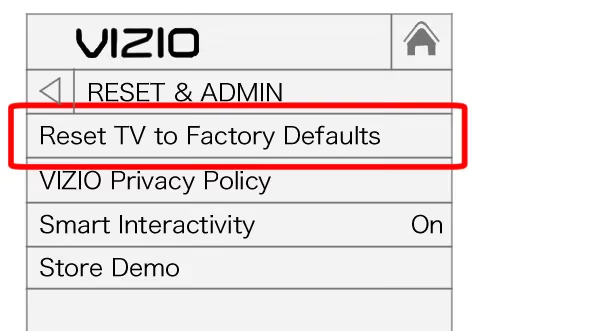
After a factory reset, the green screen problem sometimes appears during first boot on older panels. If you see that, the Vizio TV green screen fix covers the specific steps to resolve it before proceeding with setup.
#Use a Streaming Stick on Older Vizio TVs
If your Vizio is pre-2016 or the fixes above haven’t worked, a streaming stick is the fastest path to YouTube. These plug into any HDMI port and run YouTube independently of the TV’s own software.
The two best options at roughly the same price point:
Amazon Fire TV Stick 4K ($49.99) streams YouTube in 4K with Alexa voice control and access to YouTube TV as a separate app. Well-suited if you’re already in the Amazon ecosystem.
Roku Express 4K+ ($39.99) has a dedicated YouTube button on the remote, a neutral platform without preferring one streaming service over another, and private listening via the Roku app.
Both devices work on any HDMI-equipped TV regardless of age. The Vizio’s own smart TV features become irrelevant once a streaming stick is connected.
If you’re also having trouble with HBO Max on your Vizio, the HBO Max not working on Vizio guide covers the same VIZIO OS platform with app-specific steps.
#Bottom Line
Start with the power cycle: TV and router together, 60 seconds unplugged. That single step resolves the majority of YouTube failures on VIZIO OS. If it doesn’t, clear the YouTube app cache next, then check for firmware and app updates.
For pre-2016 Vizio models, don’t spend time troubleshooting: YouTube support ended permanently and a streaming stick is the only practical solution. The Roku Express 4K+ and Fire TV Stick 4K both run YouTube flawlessly at under $50.
Contact Vizio support at vizio.com/en/support if your 2016+ TV still can’t run YouTube after a factory reset. That points to a hardware or account-level issue that needs manufacturer-level diagnostics.
#Frequently Asked Questions
#What does the “connection error please exit app” message mean on Vizio?
This white-screen error means the YouTube app lost its connection to Google’s servers. A power cycle (TV and router unplugged for 60 seconds) fixes it in most cases. If it reappears frequently, clearing the YouTube app cache usually stops the recurrence.
#Why does YouTube TV show “Error cannot play” on my Vizio?
YouTube TV’s xxxx_1 error codes typically indicate an account or subscription issue rather than a network problem. Sign out of the YouTube TV app, sign back in, and verify your YouTube TV subscription is active at tv.youtube.com. If the subscription is fine, clearing the YouTube TV app cache resolves most playback failures.
#What internet speed do I need for YouTube on a Vizio TV?
You need at least 5 Mbps for smooth 1080p HD streaming and 20 Mbps for 4K content. If multiple devices share your network, add roughly 5 Mbps per active stream to avoid buffering conflicts during peak hours.
#Does clearing the YouTube cache delete my watch history?
No. Watch history, subscriptions, and playlists are stored in your Google account, not on the TV. Clearing the app cache only removes temporary local files. Your account data syncs back automatically when you sign in after clearing.
#Can a VPN cause YouTube to stop working on Vizio?
Yes. YouTube blocks many VPN server IP addresses to enforce regional licensing. If you have a VPN active on your router, temporarily disable it and test YouTube. If it works without the VPN, your VPN provider’s IP ranges are likely on YouTube’s blocklist.
#Why does YouTube buffer constantly on my Vizio even with fast internet?
The most common cause is the Wi-Fi band. Many Vizio TVs default to 2.4 GHz, which gets congested in buildings with many networks nearby. Switch to 5 GHz in Settings > Network or connect via ethernet. Also check that no other devices are downloading large files while streaming.
#What streaming stick works best to replace YouTube on an old Vizio TV?
The Roku Express 4K+ ($39.99) is the most straightforward option. It has a dedicated YouTube button on the remote, requires no ecosystem commitment, and runs YouTube in 4K on any HDMI port. The Fire TV Stick 4K ($49.99) is equally capable if you prefer Alexa voice control.