TCL sells TVs with two different platforms in the US: Roku TV and Google TV. Both support AirPlay 2 on compatible models, so you can wirelessly cast photos, videos, and music from your iPhone, iPad, or Mac. This guide covers setup for both platforms. For AirPlay guides on other brands, check out Roku, Vizio, Sharp, and Philips TVs.
- TCL Roku TVs and TCL Google TVs both support AirPlay 2 on compatible models with the feature enabled in Settings
- Legacy TCL Roku models (S325, S327, S435, 535, 635) need Roku OS 9.4+ while newer Roku models ship with AirPlay built in
- TCL Google TV models (QM6K, QM7K, QM8K, Q5K, S551G) include AirPlay 2 through the Google TV platform’s native support
- Mac users need macOS Monterey 12 or later for reliable AirPlay-to-TV streaming
- Google Cast is the primary casting option on TCL Google TVs with AirPlay 2 as a second wireless option for Apple device owners
#Which TCL TV Models Support AirPlay?
TCL ships TVs on two platforms, and AirPlay 2 availability depends on which one your TV runs.
#TCL Roku TV Models
AirPlay 2 arrived on TCL Roku TVs through a Roku OS update. The following legacy model prefixes support AirPlay when running Roku OS 9.4 or later:
- S325 (2019)
- S327 (2019)
- S435 (2020)
- 535 (2020)
- 635 (2020)
These models are discontinued but still receive Roku OS updates. The current Roku OS version is 15.x, so any of these TVs that stayed connected to Wi-Fi should already meet the 9.4 minimum.
Newer TCL Roku TVs released after 2020 also include AirPlay 2 support. Check Settings > Apple AirPlay and HomeKit on your TV. If the menu exists, your model is compatible.
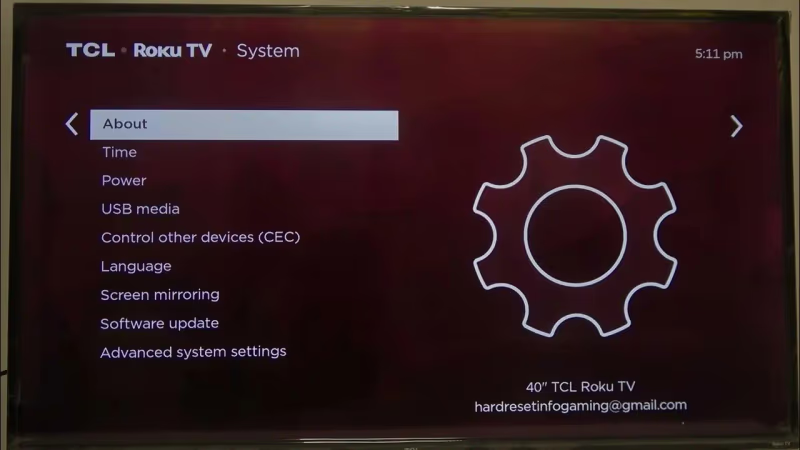
To verify your model number, go to Settings > System > About on your TCL Roku TV.
#TCL Google TV Models
TCL’s newer US lineup runs Google TV instead of Roku. These models include AirPlay 2 through Google TV’s built-in Apple AirPlay integration:
- QM6K (QLED)
- QM7K (Mini LED)
- QM8K (Mini LED)
- Q5K (QLED)
- S551G (4K HDR)
On TCL Google TVs, find the AirPlay toggle under Settings > System > AirPlay. If you see this option, your TV supports it.
#How Do You Set Up AirPlay on a TCL Roku TV?
Enabling AirPlay on TCL Roku TV takes about a minute. Here’s the process.
1. Connect both devices to the same Wi-Fi network
Your TCL Roku TV and your Apple device must be on the same 2.4 GHz or 5 GHz network. Roku’s Wi-Fi Direct remote signal can occasionally cause interference on the 5 GHz band, so switch to 2.4 GHz if you notice connection drops.
2. Enable AirPlay on the TV
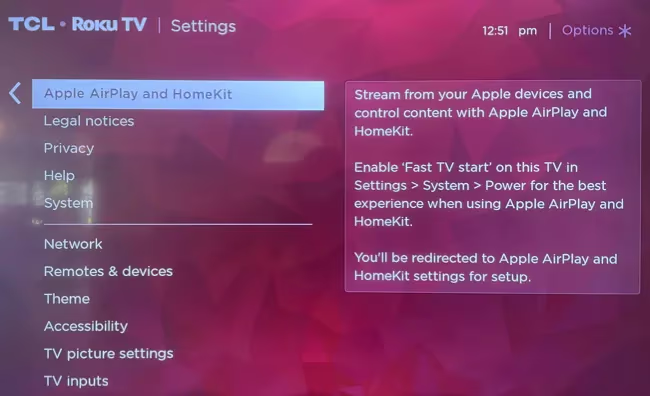
Navigate to Settings > Apple AirPlay and HomeKit. Toggle AirPlay to On.
3. Set a password (optional)
Under the same AirPlay and HomeKit menu, you can create an AirPlay password. This prevents neighbors or guests from casting to your TV without permission.
4. Find the TV on your Apple device
Open Control Center on your iPhone, iPad, or Mac. Your TCL Roku TV appears in the screen mirroring and AirPlay output lists. Select it, and you’re connected.
#How Do You Set Up AirPlay on a TCL Google TV?
The process is slightly different on Google TV.
1. Connect to the same Wi-Fi network
Both your TCL Google TV and Apple device need to share the same network.
2. Enable AirPlay
Go to Settings > System > AirPlay on the TV. Turn it on.
3. Cast from your Apple device
Open Control Center and tap Screen Mirroring, or use the AirPlay icon inside any supported app. Your TCL Google TV shows up as an available target.
TCL Google TVs also support Google Cast natively. Android and Chrome users can cast directly without AirPlay. AirPlay is specifically for Apple devices.
#How Do You Cast from iPhone and iPad to a TCL TV?
AirPlay 2 supports both full screen mirroring and app-specific casting from iOS devices.
Mirror Your Entire Screen
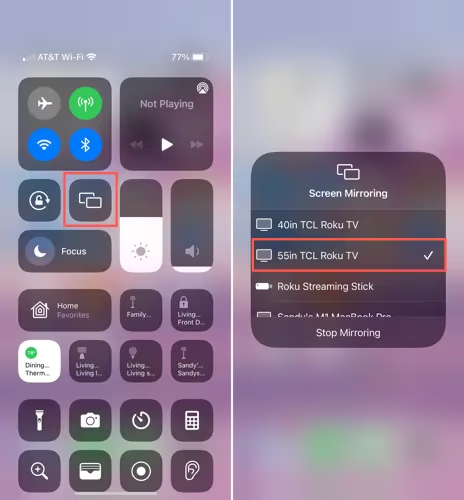
Swipe to open Control Center, tap Screen Mirroring, and select your TCL TV. Everything on your iPhone or iPad display shows on the TV in real time.
Stream Photos and Videos
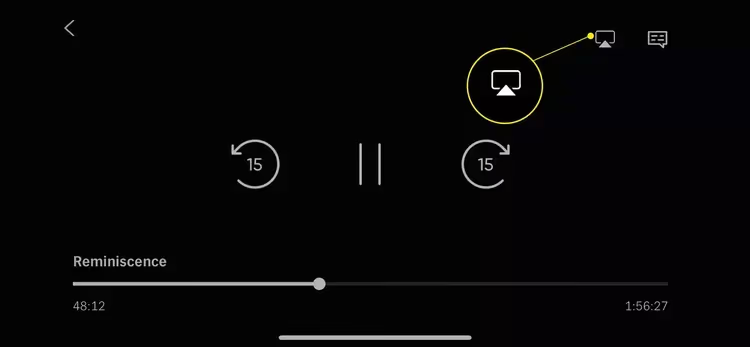
Open the Photos app and tap the AirPlay icon while viewing a photo or video. The content plays on your TV at full resolution without mirroring your entire screen.
Cast Apple Music
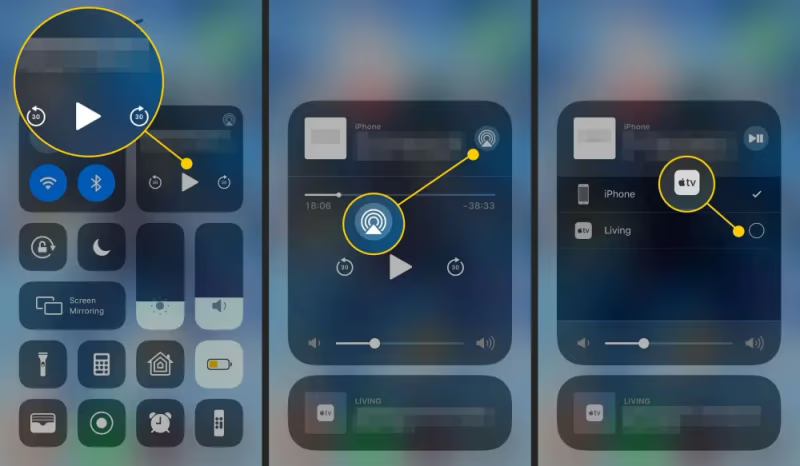
During playback, tap the AirPlay icon in the Now Playing controls. Select your TCL TV to route audio through the TV’s speakers.
Cast from Third-Party Apps
Apps like YouTube, Hulu, Disney+, and Amazon Prime Video have built-in AirPlay support. Look for the AirPlay icon in the app’s playback controls. This sends the video feed directly to the TV, which typically looks better than full-screen mirroring.
#How Do You AirPlay from Mac to a TCL TV?
Macs running macOS Monterey (12) or later can AirPlay directly to compatible TCL TVs.
Mirror Your Mac Screen
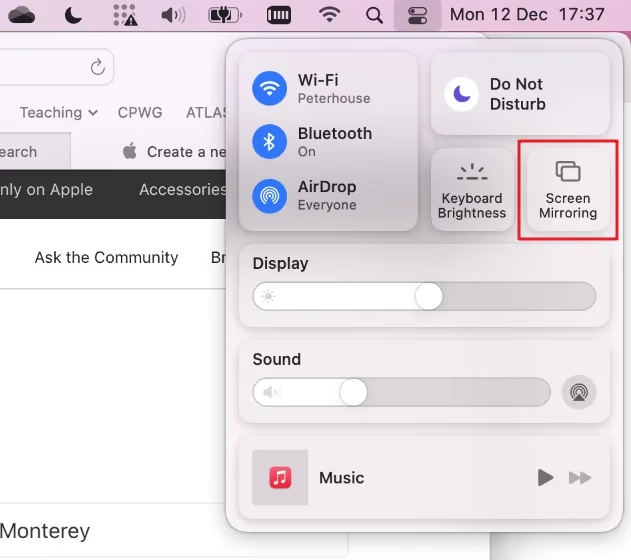
Click the Screen Mirroring icon in the menu bar (or Control Center on newer macOS versions). Select your TCL TV. Your entire desktop appears on the TV.
Cast Individual Content
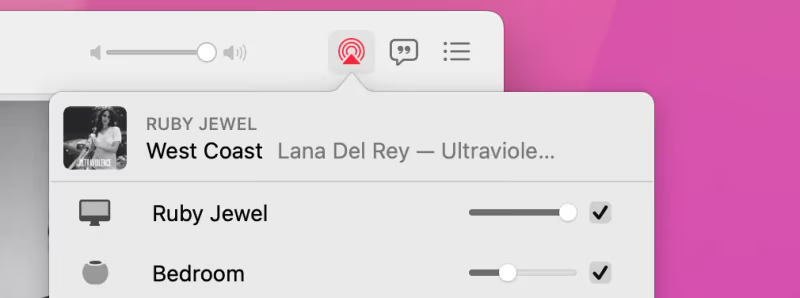
Right-click on a photo or video file and select AirPlay. In Apple Music or other compatible apps, use the AirPlay icon to send just the media to your TV while keeping your Mac screen private.
Older macOS versions don’t support AirPlay to TVs natively. If you can’t upgrade, a third-party app like a Miracast adapter or the Roku app can work as alternatives.
#What Are the Alternatives if Your TCL TV Lacks AirPlay?
Not every TCL TV supports AirPlay 2. Here are fallback options.
Google Cast (TCL Google TV)
If you have a TCL Google TV model, Google Cast is built in. Android users and Chrome browser users can cast content without any additional setup. It’s the native casting protocol for the Google TV platform.
Roku App (TCL Roku TV)
The official Roku mobile app lets you push personal photos, videos, and music from your phone to any TCL Roku TV. Both devices need to be on the same Wi-Fi network. It works regardless of whether your TV model supports AirPlay.
Miracast HDMI Adapter
A Miracast HDMI adapter plugs into your TV’s HDMI port and accepts wireless connections from Windows and Android devices. It won’t work with iPhones or iPads, but it’s useful if you have non-Apple devices that need to cast.
Apple TV Streaming Box
An Apple TV 4K connected to any TCL TV’s HDMI port gives you full AirPlay support regardless of the TV’s native capabilities. It’s the most reliable option for heavy Apple ecosystem users.
For more casting options, check out the guide on AirPlaying to Amazon Fire TV.
#How Do You Fix AirPlay Connection Issues?
If AirPlay isn’t connecting or keeps dropping, work through these steps. I also have a dedicated TCL TV AirPlay troubleshooting guide with more fixes.
Confirm the Same Wi-Fi Network
AirPlay only works when both devices share the same network. Double-check that your Apple device isn’t on a guest network or mobile data.
Restart Everything
Power cycle your TCL TV, your Apple device, and your router. This clears temporary network glitches that block AirPlay discovery.
Update Firmware
On TCL Roku TV, go to Settings > System > Software Update. On TCL Google TV, go to Settings > System > About > System Update. Outdated firmware can break AirPlay.
Toggle AirPlay Off and On
Disable AirPlay in the TV’s settings, wait 60 seconds, then re-enable it. This forces the protocol to re-register on the network.
Switch Wi-Fi Bands
If you’re on 5 GHz and experiencing drops, try 2.4 GHz. The Roku remote’s Wi-Fi Direct signal can occasionally interfere with the 5 GHz band on some router configurations.
#FAQ
#Why doesn’t my TCL TV show up in the AirPlay device list?
Your TV either lacks AirPlay 2 support or isn’t discoverable. Verify that AirPlay is turned on in your TV’s settings and that both devices share the same Wi-Fi network. On Roku TVs, the AirPlay menu is under Settings > Apple AirPlay and HomeKit. If the menu doesn’t exist, your model doesn’t support it.
#Do TCL Google TVs support AirPlay differently than TCL Roku TVs?
The end result is the same, but the setup path differs. TCL Google TVs put AirPlay under Settings > System > AirPlay, while Roku TVs use Settings > Apple AirPlay and HomeKit. Google TV models also offer Google Cast as a native alternative, which Roku models don’t have.
#Can I AirPlay Hulu and YouTube to my TCL TV?
Yes. Hulu, YouTube, Amazon Prime Video, Disney+, and Apple TV+ all support in-app AirPlay. Tap the AirPlay icon in the app’s playback controls to send the video directly to your TV. This looks better than mirroring your entire screen because it streams the content at native resolution.
#Does Netflix support AirPlay on TCL TVs?
No. Netflix removed AirPlay support from its iOS and Mac apps in April 2019. You can’t cast Netflix via AirPlay to any TV. Instead, use the Netflix app installed directly on your TCL TV, or mirror your entire screen as a workaround (quality may be lower).
#Can I control AirPlay playback with the Roku remote?
The Roku remote can adjust volume and power the TV off during AirPlay, but it can’t pause, rewind, or skip. You’ll need to control playback from the iPhone, iPad, or Mac that’s casting the content.
#What’s the minimum macOS version for AirPlay to a TCL TV?
macOS Monterey (version 12) is the recommended minimum. Apple added native AirPlay-to-TV support starting with macOS Monterey. Earlier versions like Big Sur and Catalina don’t include this feature without third-party software.
#Does AirPlay work over ethernet instead of Wi-Fi?
Yes. If your TCL TV is connected to your router via ethernet cable and your Apple device is on the same router’s Wi-Fi, AirPlay works. Ethernet actually provides a more stable connection for the TV side, reducing video stuttering and dropouts.
#Bottom Line
AirPlay 2 works on both TCL Roku TVs and TCL Google TVs. Check your TV’s settings menu for the AirPlay option, enable it, and start casting from any Apple device on the same Wi-Fi network. If your TCL TV doesn’t support AirPlay natively, the Roku app, Google Cast, or an Apple TV box can fill the gap. For persistent connection problems, start with the TCL AirPlay troubleshooting guide before anything else.