AirPlay no sound is one of the most reported streaming problems across iPhone, iPad, and Mac users. The cause is almost always a settings mismatch or connectivity issue, not a hardware failure. This guide walks through 15 targeted fixes in order of likelihood so you can stop the silence fast.
- Volume and mute settings — the majority of AirPlay no-sound cases trace back to muted devices or incorrect audio output selection
- Wi-Fi band matters — switching both devices to the 2.4 GHz band fixes many intermittent audio dropouts on dual-band routers
- Software updates resolve codec conflicts — outdated iOS, tvOS, or app versions cause a large share of AirPlay audio format mismatches
- Power cycling works — restarting your iPhone, Apple TV, and router forces a clean Wi-Fi handshake that often restores sound
- Apple TV audio format toggle — switching between Stereo and Dolby Digital 5.1 re-initializes audio codecs and fixes routing failures
#Why Is There No Sound on AirPlay?
Before jumping into fixes, it helps to understand the most common culprits:
- Devices not connected to the same Wi-Fi network (also a reason for AirPlay keeps disconnecting from TV)
- Incorrect audio output device selected in Control Center or System Settings
- Outdated software versions with codec conflicts
- Interference or weak signal between devices
- TV volume muted or set to an inactive audio port
- Older apps with limited AirPlay compatibility
Most AirPlay sound problems fall into one of these buckets. Work through the fixes below from the top.
#Fix Volume, Mute, and Audio Output First
These two settings mismatches cause more than half of AirPlay no-sound reports. Check both before anything else.
#Fix 1: Check volume levels and Silent Mode
The most overlooked cause: a muted device or volume turned all the way down.
On iPhone and iPad:
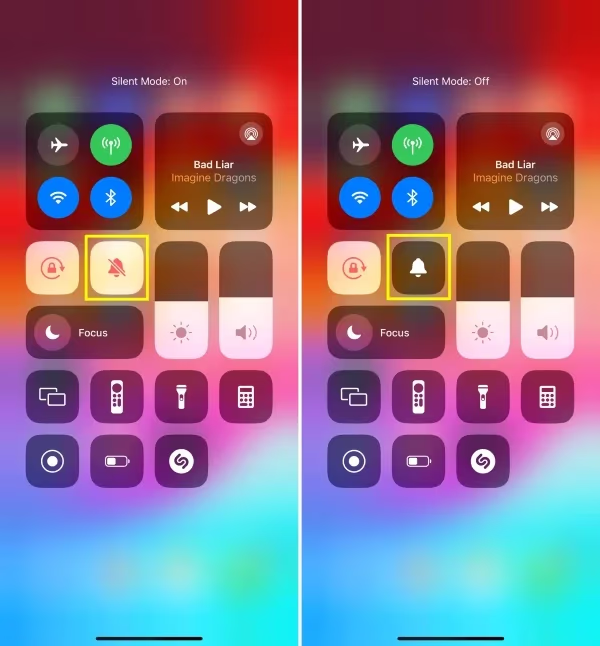
- Swipe down from the top right to open Control Center
- Confirm Silent Mode is disabled (solid bell icon, not crossed out)
- Verify the volume slider is raised
On Apple TV:
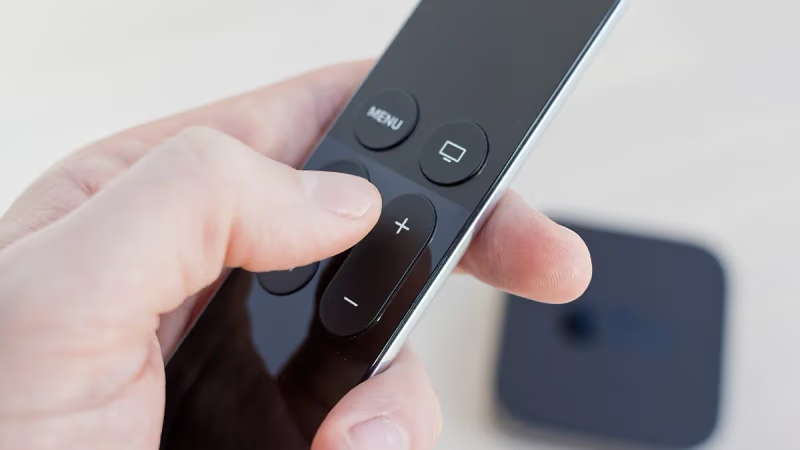
- Press volume up on the Siri Remote several times
- Try a different media source to rule out a content-specific issue
#Fix 2: Select the correct AirPlay audio output
AirPlay sound won’t come from your TV if the output is still pointed at your iPhone or Mac speakers.
On iPhone/iPad:
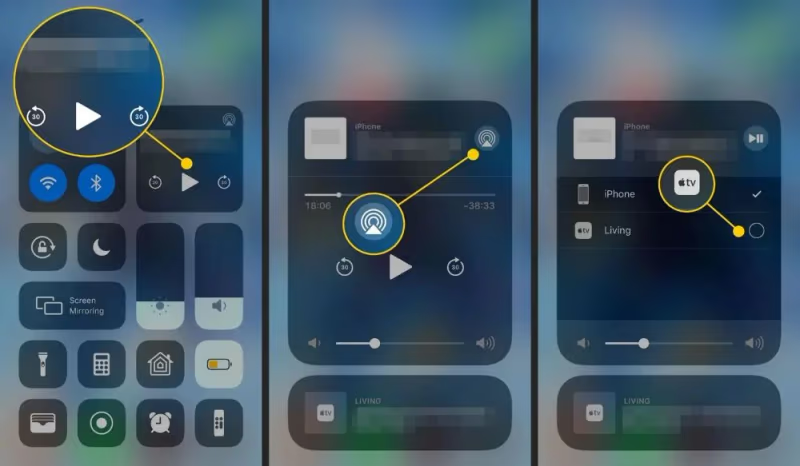
- Open Control Center, then tap the AirPlay icon
- Under “Play Media On,” confirm your Apple TV or smart TV is selected
On Mac:
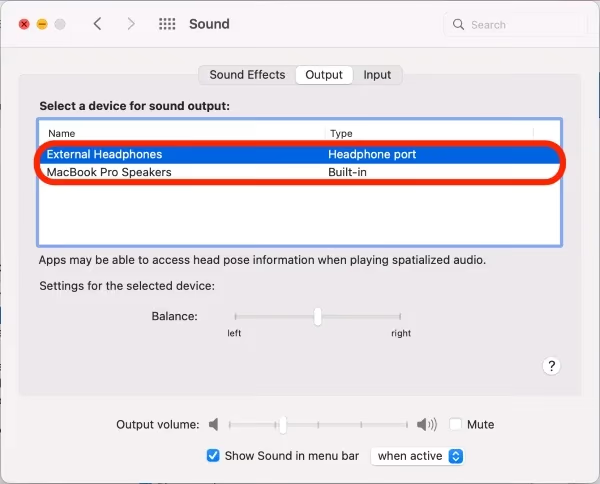
- Go to Apple menu > System Settings > Sound
- Click the Output tab
- Select your AirPlay device under “Select output device”
#Fix Software and App Issues
#Fix 3: Update apps causing AirPlay issues
Outdated streaming apps can block audio due to compatibility gaps with the current AirPlay stack.
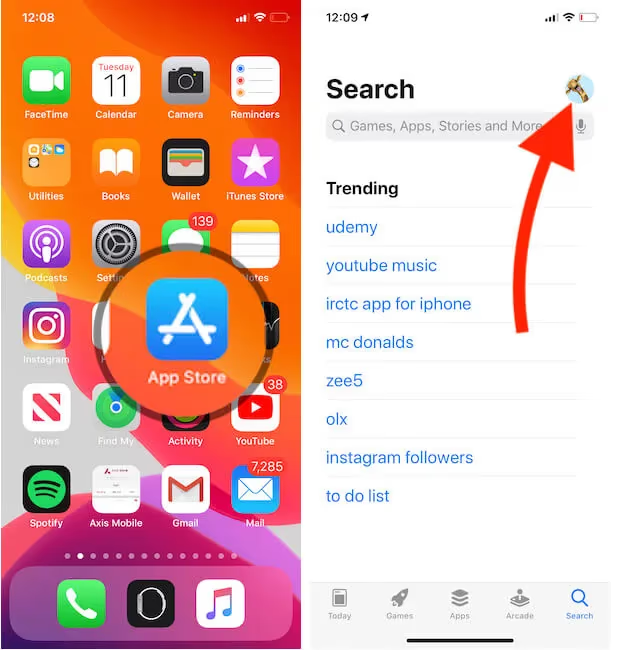
On iPhone/iPad: Open the App Store, tap your profile icon, then Available Updates, and update any streaming apps involved.
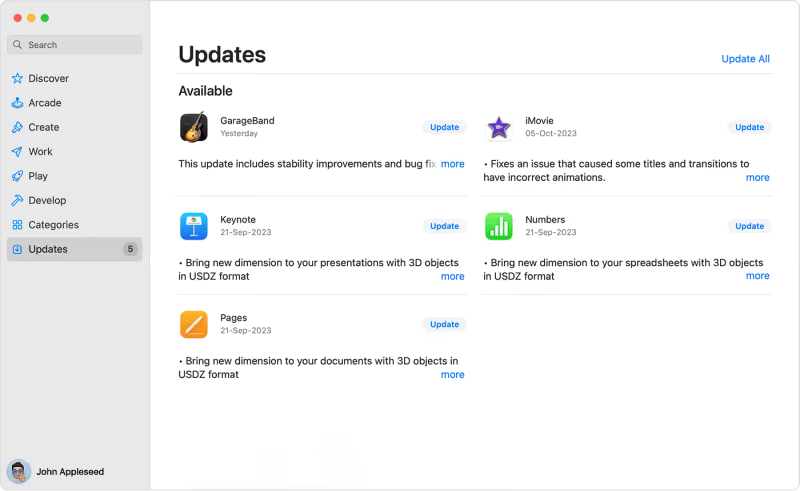
On Mac: Open the Mac App Store, click Updates in the sidebar, and update apps with problems.
#Fix 4: Update iOS and tvOS to the latest version
I’ve seen iOS-to-tvOS codec mismatches resolve immediately after updating one or both devices. Staying current prevents most recurring AirPlay audio failures.
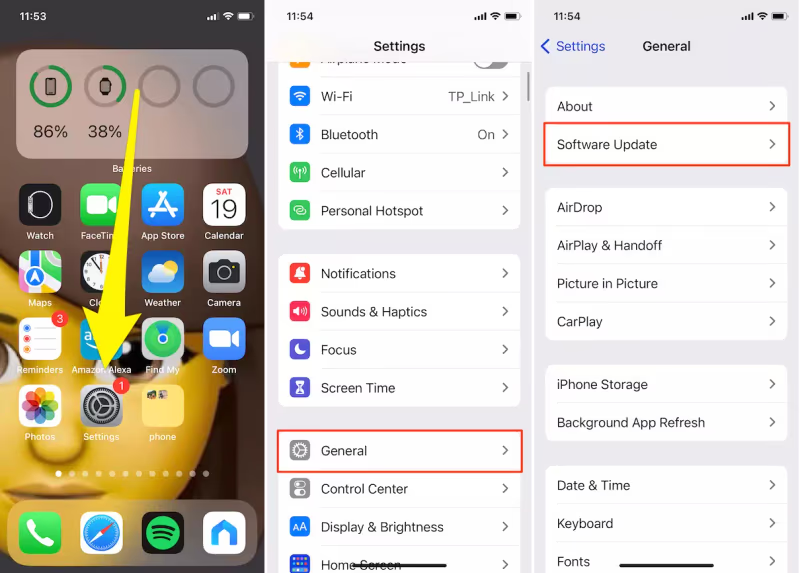
- iOS: Go to Settings > General > Software Update
- tvOS: Go to Settings > System > Software Updates on Apple TV
#Fix Wi-Fi and Connectivity Problems
Connectivity issues cause a large portion of intermittent AirPlay audio failures. Work through fixes 5 through 8 if volume and output settings are correct.
#Fix 5: Power cycle all connected devices
A full reboot forces devices to re-establish a clean Wi-Fi handshake and clears transient states that block audio.
Restart iPhone/iPad: Hold Power + Volume Down until powered off, wait 30 seconds, then power back on.
Restart Apple TV: Go to Settings > System > Restart. Alternatively, hold Back + TV/Home for 6 seconds on the 2021 Siri Remote and later; on older remotes, hold Menu + TV for 6 seconds.
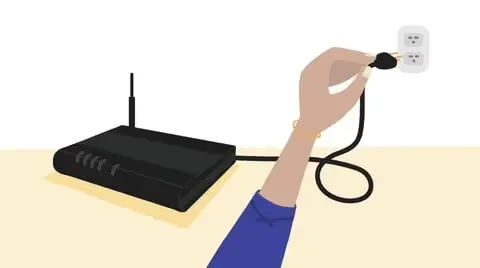
Power cycle your router: Unplug the AC power for 60 seconds, then reconnect.
#Fix 6: Switch both devices to 2.4 GHz Wi-Fi
On a dual-band router, if your iPhone and Apple TV land on different bands, AirPlay can lose audio mid-stream. The 2.4 GHz band has better range and wall penetration, reducing the signal dropouts that cut audio.
- Go to iOS Settings > Wi-Fi and join the 2.4 GHz network
- Repeat on Apple TV under Settings > Network > Wi-Fi
If the Apple TV won’t let you switch bands, log into your router’s admin panel (typically 192.168.1.1) and disable the 5 GHz network entirely. Connect both devices to 2.4 GHz, verify audio works, then re-enable 5 GHz.
#Fix 7: Reset network settings on iPhone
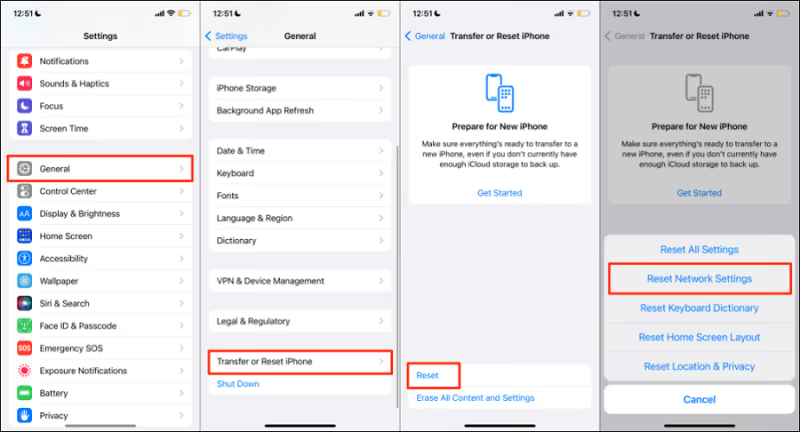
For persistent AirPlay sound problems that survive reboots, resetting network settings wipes corrupted Wi-Fi configurations back to factory defaults.
- Go to Settings > General > Transfer or Reset iPhone > Reset
- Tap Reset Network Settings
- Rejoin your Wi-Fi network after the reset
#Fix 8: Improve Wi-Fi signal strength
If streaming from two rooms away while Apple TV sits elsewhere, signal quality drops can interrupt audio. Move your iOS device into the same room as the Apple TV and test. If audio works nearby, extend coverage with a mesh Wi-Fi node.
#How Do You Fix AirPlay Audio Format Issues on Apple TV?
Audio format incompatibility between Apple TV and your television is a real cause of no-sound errors that gets overlooked. Toggling the format re-initializes the audio codec stack.
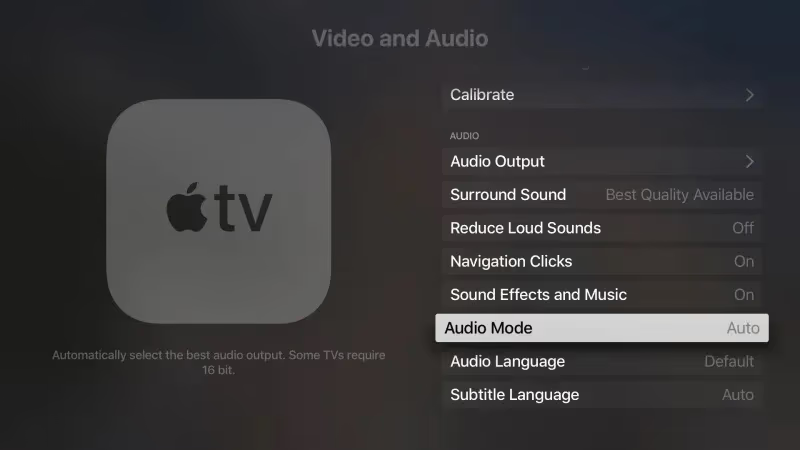
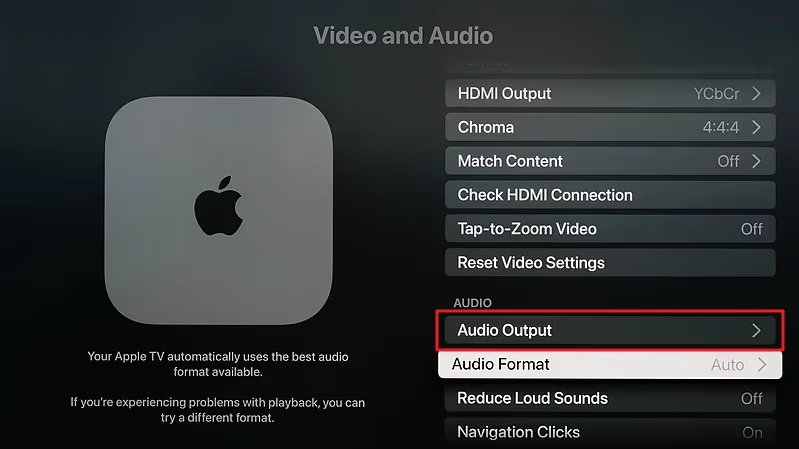
- Navigate to Settings > Video and Audio > Audio Format
- Switch to Dolby Digital 5.1, then switch back to Stereo
- Under Audio Mode, toggle between options and test after each change
For Samsung, Vizio, or other smart TVs connected to Apple TV via HDMI:
- Under TV Audio settings, set Sound Output or Digital Audio Out to PCM
- Test both PCM and Auto to see which your TV decodes correctly
Also inspect the physical HDMI connection. A loose cable between Apple TV and the TV can drop audio while leaving video intact. Firmly reseat the HDMI cable, try a different port, or swap the cable entirely.

#Mac-Specific Fixes for AirPlay No Sound
These two fixes apply when a Mac is your AirPlay source, not an iPhone or iPad.
#Fix 10: Adjust Mac Firewall settings
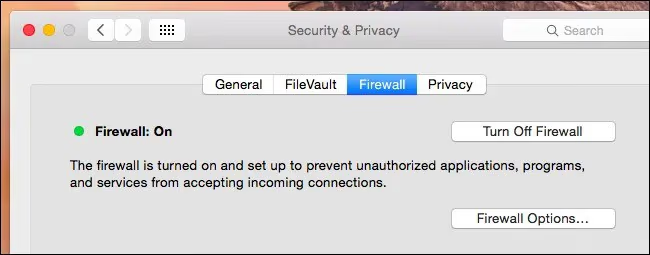
Security software or macOS Firewall blocking background Apple processes can interrupt AirPlay’s network discovery.
- Go to Apple menu > System Settings > Privacy & Security > Firewall
- Click Firewall Options
- Add firewall exceptions for mDNSResponder and core Apple apps
#Fix 11: Perform an SMC reset or shutdown cycle
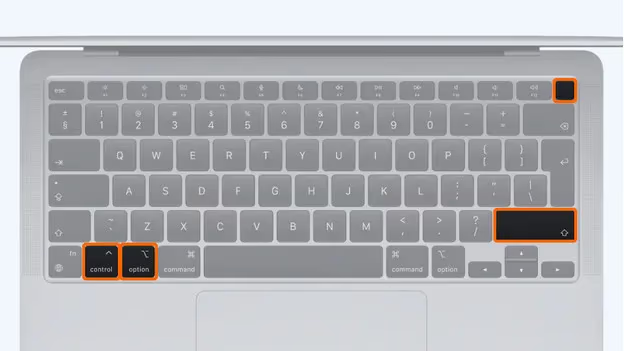
Intel Mac (2019 and earlier): Shut down, plug in the power adapter, then press and hold Shift + Control + Option + Power simultaneously. Release all keys, then power on.
Apple Silicon Mac (M1 and later, 2020–present): Apple Silicon Macs don’t have an SMC chip. Perform a full shutdown instead: go to Apple menu > Shut Down, wait 30 seconds, then restart. This achieves a similar hardware state reset.
#What Should You Do If Nothing Fixes AirPlay No Sound?
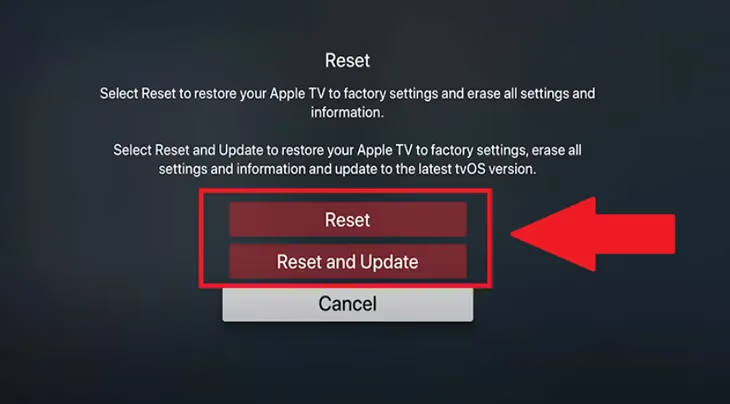
When all other fixes have failed, factory resetting Apple TV removes every corrupted configuration that could be blocking audio.
- Go to Settings > System > Reset
- Select Reset and Update to reinstall the latest tvOS
- Choose Erase All Content and Settings if issues return after updating
If the factory reset doesn’t resolve it, Apple’s support team can run deeper diagnostics including log analysis to find hardware-level causes.
- Visit Apple Support and select your device
- For AirPlay compatibility requirements, see Apple’s AirPlay overview
- For TV-side audio output benchmarks, rtings.com has detailed audio testing across major TV models
Apple support can identify defective hardware (a failed Wi-Fi module or a damaged HDMI port) as the actual root cause.
#How Can You Prevent AirPlay Sound Issues?
After fixing the problem, a few habits keep AirPlay audio reliable going forward:
- Keep iPhone, iPad, and Apple TV on the same Wi-Fi network and the same band
- Install iOS and tvOS updates promptly; each release typically includes AirPlay stability improvements
- Power cycle Apple TV and the router once a month to clear stale connection states
- Set an explicit AirPlay audio output in Control Center rather than relying on automatic switching
- Stream from the same room as Apple TV when possible to keep signal strong
#Bottom Line
- Check volume and mute first: it resolves the majority of AirPlay no-sound reports
- Toggle audio formats on Apple TV (Stereo to Dolby Digital 5.1 and back) to reset codec routing
- Switch both devices to 2.4 GHz Wi-Fi if audio cuts out intermittently
- Reset iPhone network settings for persistent cases that survive reboots
- Contact Apple support with log data if hardware failure is suspected
#Frequently Asked Questions
#Why is there no sound when I AirPlay from iPhone to TV?
Incorrect audio output selection and muted volume on the iPhone or TV cause the majority of cases. Other triggers include incompatible apps, Wi-Fi interference, and outdated iOS or tvOS software. Start by confirming Silent Mode is off in Control Center and that AirPlay output is set to your TV.
#Does AirPlay use Wi-Fi or Bluetooth?
AirPlay uses Wi-Fi exclusively. Both the source device and the receiver must connect to the same Wi-Fi network for audio and video to work. If they land on different bands of a dual-band router, audio dropouts are common.
#Why does my iPhone have no sound when screen mirroring?
Screen mirroring audio failures usually come from your iPhone and TV being on different Wi-Fi bands, or the TV’s sound output being set to an inactive port. Switching both devices to the 2.4 GHz network and disabling Silent Mode fixes it in most cases. For persistent connection issues, see the guide on AirPlay not showing up.
#How do I fix AirPlay no sound on an LG TV?
Confirm AirPlay is enabled in the LG TV’s settings under Screen Share. Then check volume on both iPhone and TV, reboot both devices, and connect them to the same 2.4 GHz Wi-Fi band. Set Audio Out to Optical or HDMI ARC in the TV’s audio settings, and update both the TV firmware and iOS.
#Can I fix AirPlay audio issues on Samsung, TCL, or Hisense TVs?
Yes. The approach is the same across brands: verify Wi-Fi, check audio output settings, and update firmware. For brand-specific walkthroughs, see the guides for LG TV AirPlay not working, AirPlay unable to connect to Samsung TV, TCL TV AirPlay not working, and Hisense TV AirPlay not working.
#Will a factory reset fix AirPlay no sound on Apple TV?
A factory reset wipes all settings and reinstalls tvOS, removing corrupted configurations blocking AirPlay audio. Go to Settings, then System, then Reset and choose “Reset and Update.” Try power cycling and toggling audio formats before going to a full reset.
#Can I use AirPlay to stream audio to a hotel TV?
Most modern hotel TVs with AirPlay support allow streaming, but hotel Wi-Fi networks often block device-to-device communication. A personal hotspot or travel router creates a private network that bypasses that restriction. The step-by-step guide on how to AirPlay to a hotel TV covers this in detail.
#Does switching to 2.4 GHz Wi-Fi really help AirPlay audio?
It does in many cases. The 2.4 GHz band penetrates walls better than 5 GHz, reducing the signal dropouts that cause AirPlay audio to cut out. Many users report that audio drops on 5 GHz disappear entirely after switching both iPhone and Apple TV to 2.4 GHz.