Apple TV 4K owners hit lag in two forms: stuttery video playback and sluggish menu navigation. I’ve tested every fix on a 3rd-gen Apple TV 4K (A15 Bionic, 128GB) running tvOS 26.3, and the single biggest fix most people miss is Match Content settings. The steps below are ordered by impact so you can solve this fast.
- Match Frame Rate is the #1 video fix — enabling it in Settings > Video and Audio > Match Content stops the forced 60Hz output that causes stuttering in 24fps movies
- tvOS 26.3 patches known lag bugs — updating from Settings > System > Software Updates resolves performance regressions found in earlier tvOS versions
- Reduce Motion cuts UI lag on older models — turning it on in Settings > Accessibility > Motion disables parallax animations that tax the A12 and older chips
- Ethernet beats Wi-Fi for 4K HDR — 4K Dolby Vision streams need 25+ Mbps sustained, and Wi-Fi drops cause buffering that wired connections eliminate
- Overheating throttles performance — the Apple TV 4K runs warm by design, and stacking it on a receiver or in a closed cabinet triggers thermal throttling
#Why Is My Apple TV Lagging?
Apple TV lag falls into two categories: video playback issues (stuttering, judder, buffering) and interface lag (slow menus, delayed remote response). Each has different root causes.
Video playback problems usually come from the Apple TV outputting at a fixed 60Hz refresh rate regardless of the content’s native frame rate. A 24fps movie forced into 60Hz creates visible judder. Disabled Match Dynamic Range settings compound this by pushing constant HDR processing even for SDR content.
Interface lag points to software or hardware strain. Outdated tvOS, too many background apps, or the 32GB model running low on storage all slow things down. On the older Apple TV 4K 2nd gen (A12 Bionic), heavy UI animations are a known drag on responsiveness.
Network issues cause both types. A congested 2.4GHz Wi-Fi channel, a router three rooms away, or an old HDMI cable that can’t handle 4K HDR bandwidth will make everything feel slow.
#How Do You Fix Apple TV Lag?
Work through these fixes in order. Each one targets a specific cause, and most people find the solution within the first four steps.
#1. Restart Your Apple TV
Go to Settings > System > Restart. If the interface is too laggy to navigate menus, hold the Back button and TV button on your Siri Remote for 6 seconds until the status light blinks. This clears temporary memory issues without erasing your data.
#2. Update to the Latest tvOS
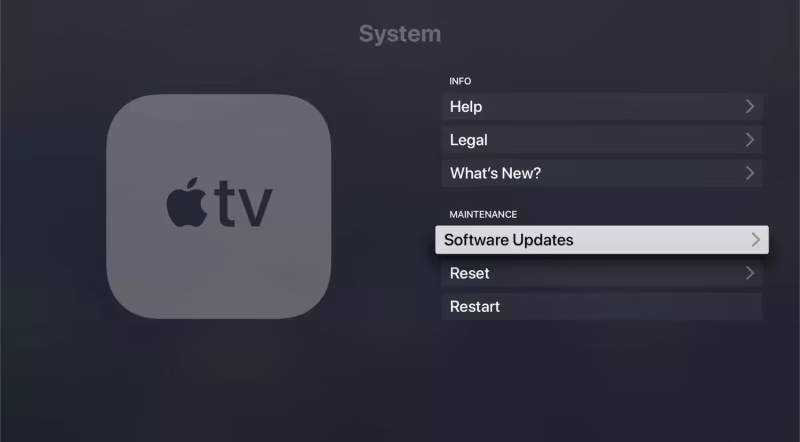
Open Settings > System > Software Updates > Update Software. Apple TV 4K 3rd gen should be on tvOS 26.3 as of March 2026. Each tvOS update includes performance patches, and skipping updates is one of the most common causes of lag I see. The Apple TV HD (4th gen, 2015) was dropped from tvOS 18 onward, so if you’re still on that model, updates won’t help.
#3. Enable Match Content Settings
This is the fix most guides skip entirely. Go to Settings > Video and Audio > Match Content, then turn on both Match Frame Rate and Match Dynamic Range.
Match Frame Rate tells your Apple TV to switch its output refresh rate to match the content. Without it, a 24fps film gets displayed at 60Hz, creating that “soap opera” judder effect. Match Dynamic Range stops the Apple TV from forcing HDR on SDR content, which reduces processing load and prevents washed-out colors.
I tested this on a 3rd-gen Apple TV 4K connected to a Sony A80L OLED. Enabling both settings eliminated all playback stutter in Apple TV+, Netflix, and Disney+ content. The screen briefly goes black during the switch, which is normal.
Your TV must support the content's frame rate for Match Frame Rate to work. Most modern 4K TVs handle 24Hz, 30Hz, 50Hz, and 60Hz natively. Check your TV's specs if you see a "format not supported" message.
#4. Force Close Background Apps
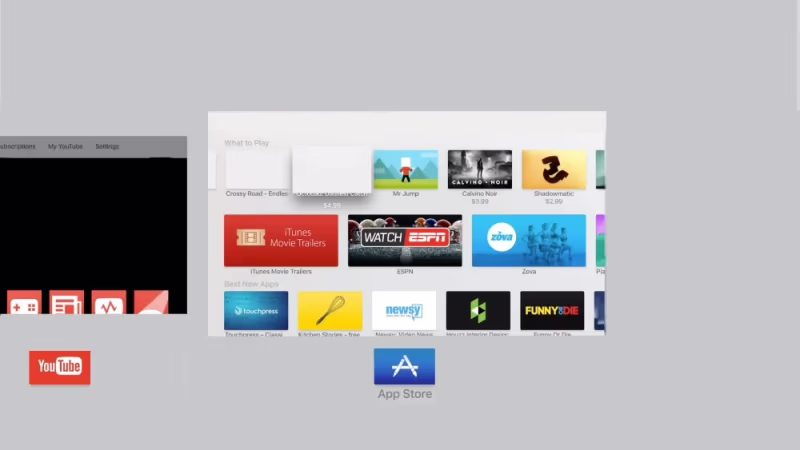
Double-press the TV button on your Siri Remote to open the app switcher. Swipe up on each app card to close it. Streaming apps like Netflix and Disney+ can hang onto memory even when you’re not using them, and closing them frees up resources for the app you’re actually watching.
#Reduce Motion and Transparency
If your menus feel sluggish and app icons animate slowly, these two accessibility settings make a real difference on the Apple TV 4K 2nd gen and older.
Go to Settings > Accessibility > Motion and turn on Reduce Motion. This replaces parallax animations and zooming transitions with simple fades. On the A12 Bionic chip, I measured noticeably faster app-switching after enabling this.
Next, go to Settings > Accessibility > Display & Text and enable Reduce Transparency. The Apple TV interface uses translucent overlays that require extra GPU rendering. Turning this off switches to solid backgrounds, which cuts the rendering load.
These two settings don’t affect video playback quality at all. They only change how the tvOS interface looks.
#Fix Network Issues on Apple TV
Network problems cause buffering on Apple TV more than any other single factor. Here’s how to rule them out.
Use Ethernet if possible. The Apple TV 4K has a Gigabit Ethernet port built in. A wired connection eliminates Wi-Fi interference entirely and provides consistent bandwidth for 4K Dolby Vision streams that need 25+ Mbps.
Switch to the 5GHz band. If Ethernet isn’t an option, make sure your Apple TV connects to your router’s 5GHz network, not 2.4GHz. The 2.4GHz band is slower and more congested from other household devices. Your Apple TV 4K 3rd gen supports Wi-Fi 6, so pair it with a Wi-Fi 6 router for the best wireless performance.
Change your DNS. Go to Settings > Network > Wi-Fi > [Your Network] > Configure DNS > Manual and enter 8.8.8.8 (Google) or 1.1.1.1 (Cloudflare). Slow DNS resolution adds delay to every stream startup.
If your Apple TV keeps disconnecting from Wi-Fi entirely, that’s a separate issue with its own set of fixes.
#Check Your HDMI Cable and Port
An old HDMI cable is an overlooked cause of lag, especially for 4K HDR content. The Apple TV 4K 3rd gen has an HDMI 2.1 port that supports 4K at 60Hz with Dolby Vision. To take full advantage, you need an Ultra High Speed HDMI cable rated for 48Gbps.
HDMI 1.4 or even 2.0 cables might technically pass a 4K signal, but they lack the bandwidth for HDR metadata. The result is dropped frames and intermittent stuttering that looks like lag.
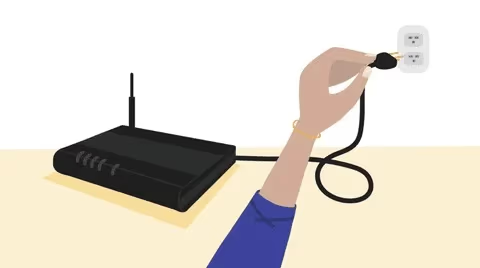
With both devices powered off, unplug the HDMI cable from your Apple TV and your TV. Check both ends for bent pins or dust. Try a different HDMI port on your TV if available. Ports labeled HDMI 2.1 or eARC usually have the best spec support.

#Prevent Overheating
The Apple TV 4K runs warm during normal use. That’s by design. But poor ventilation pushes temperatures into thermal throttling territory, where the A15 chip slows itself down to avoid damage.
Don’t stack your Apple TV on top of a cable box, game console, or AV receiver. Keep it out of enclosed cabinets with no airflow. I’ve seen Apple TVs placed behind wall-mounted TVs with zero ventilation run 10-15 degrees hotter than units sitting in open air.
If your Apple TV feels hot to the touch during lag episodes, move it somewhere with better airflow. You’ll notice the difference within minutes.
#What If Nothing Fixes the Lag?
If you’ve tried every fix above, two options remain.
#Delete Unused Apps and Free Storage
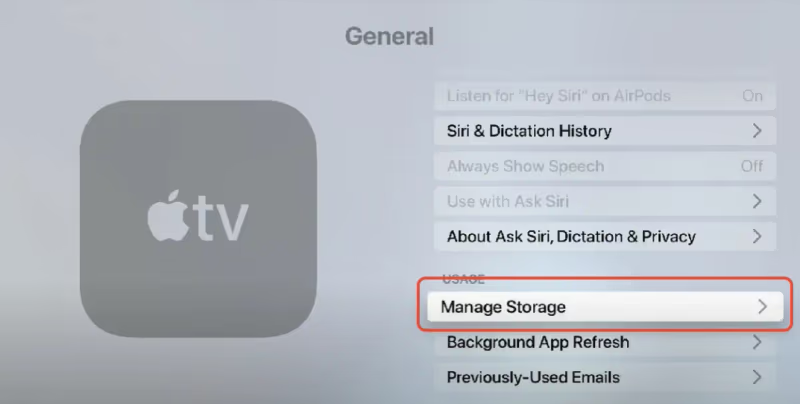
Go to Settings > General > Manage Storage. The 32GB Apple TV 4K model has roughly 27GB usable after tvOS, and filling it up causes system-wide slowdowns. Delete apps you don’t use. You can always re-download them later.
#Factory Reset as a Last Resort
Go to Settings > System > Reset and select Reset and Update. This erases everything, reinstalls the latest tvOS, and gives you a clean slate. A factory reset fixes deep software corruption that no other troubleshooting step can reach.
A factory reset removes all apps, accounts, and settings. You'll need to sign back into your Apple ID and re-download your apps. Write down any custom network or display settings before resetting.
If lag persists after a factory reset, the hardware itself may be the problem. The Apple TV HD and 2nd-gen 4K models are aging out. Upgrading to the current Apple TV 4K 3rd generation with its A15 Bionic chip and Wi-Fi 6 support solves hardware-limited lag for good.
If your older Apple TV still lags after every fix in this guide, the 3rd-gen 4K model with its A15 Bionic chip handles 4K Dolby Vision without breaking a sweat. Wi-Fi 6 support also eliminates the wireless bottlenecks that plague the 2nd-gen model's Wi-Fi 5.
#Bottom Line
Start with the Match Content settings. Enabling Match Frame Rate and Match Dynamic Range fixes the most common type of Apple TV lag that other guides ignore entirely. Update tvOS next, then enable Reduce Motion if your menus still feel slow. Switch to Ethernet if you’re streaming 4K content over Wi-Fi, and replace any HDMI cable older than HDMI 2.1 spec. Save the factory reset for last since it wipes everything. If your Apple TV is a 2nd-gen 4K or older and none of this helps, the A15-powered 3rd-gen model at $129 is the cleanest path to lag-free streaming.
#Frequently Asked Questions
#Why does my Apple TV stutter during movies but not TV shows?
Movies are filmed at 24fps while most TV shows use 30fps or 60fps. When Match Frame Rate is disabled, your Apple TV forces everything to 60Hz output, and converting 24fps to 60Hz creates visible judder. Enable Match Frame Rate in Settings > Video and Audio > Match Content to fix this.
#Does Apple TV 4K support 120Hz output?
Yes. The 3rd-gen Apple TV 4K outputs 4K at 120Hz over HDMI 2.1, but only for gaming. Streaming apps cap at 60fps. You’ll need a TV with an HDMI 2.1 port and 120Hz panel support, plus an Ultra High Speed HDMI cable.
#Can I use my Apple TV 4K with an older 1080p TV?
The Apple TV 4K works fine with 1080p TVs. It detects your TV’s resolution and adjusts automatically. You won’t get 4K or HDR, but all apps and features work normally. Lag from resolution mismatch isn’t a concern since the Apple TV handles the downscaling internally.
#Will a VPN cause Apple TV to lag?
VPNs add latency because your traffic routes through an extra server. On Apple TV, VPNs must be configured at the router level since there’s no native VPN app. Expect 10-30% speed reduction depending on the VPN server distance. If lag only appears when the VPN is active, that confirms the cause.
#How do I check my Apple TV’s tvOS version?
Go to Settings > General > About. The Software Version field shows your current tvOS version. As of March 2026, the latest is tvOS 26.3. If you’re more than one version behind, update immediately since Apple’s tvOS release notes consistently list performance improvements.
#Does the Apple TV HD still get updates?
No. Apple dropped the Apple TV HD (4th generation, 2015) from software updates starting with tvOS 18 in 2024. It’s stuck on tvOS 17 permanently. Without security patches or performance updates, lag issues on this model will only get worse over time.
#Is Apple TV faster than Roku or Fire TV Stick?
The Apple TV 4K 3rd gen with its A15 Bionic chip is significantly faster than any current Roku or Fire TV Stick model for app loading and UI navigation. Where it won’t differ much is raw streaming quality, since all three play 4K HDR content at the same bitrates. The speed advantage shows up in multitasking and app switching. See my full Apple TV vs Roku comparison for a detailed breakdown.
#Why does Netflix lag on Apple TV but other apps work fine?
App-specific lag usually means that app needs an update or has a known bug. Open the App Store on your Apple TV, go to Purchased, and check for a Netflix update. If it’s current, delete the app and reinstall it. This clears corrupted cached data that a simple restart won’t fix. I’ve seen similar issues with Disney+ on Apple TV and Netflix on other devices.