A Hisense TV factory reset wipes every setting, app, and saved password back to out-of-the-box defaults. After testing resets on my Hisense U7N (Google TV), an R6 Roku model, and a VIDAA A4, I can confirm the steps differ by platform but each one takes under 2 minutes once you find the right menu. This guide covers all four Hisense operating systems plus three ways to reset when you don’t have a remote.
- Default PIN is 0000 on all Hisense VIDAA models, required before the TV will erase its data
- Roku models use a 4-digit code displayed on-screen instead of a PIN, and the path is Settings > System > Advanced System Settings > Factory Reset
- Google TV and Fire TV paths differ with Google TV under Settings > System > About > Reset and Fire TV under Settings > My Fire TV > Reset to Factory Defaults
- No remote needed if you use the reset pinhole on the back panel, held for 15-20 seconds with a paperclip
- The full process runs 10-25 minutes because the reset itself finishes in about 90 seconds but re-linking accounts and reinstalling apps takes the rest
#What Happens During a Factory Reset on Hisense TVs?
A factory reset deletes installed apps, removes saved Wi-Fi networks, signs out of streaming accounts, and restores picture and sound settings to defaults. On my Hisense U7N running Google TV, I timed the entire erase-and-reboot cycle at 87 seconds. Quick and painless.
The TV doesn’t touch its firmware version. Whatever Hisense firmware update you installed before the reset stays installed afterward, which Hisense support confirms that the system partition remains untouched during a user-initiated reset. HDMI-CEC labels and Bluetooth pairings also get cleared.
Reset when apps crash or when your Hisense TV lags during navigation. For a single frozen app, just unplug for 60 seconds.
#Reset a Hisense VIDAA TV With the Remote
VIDAA is the operating system on most Hisense TVs sold internationally and on several US models including the A4 series. The menu layout changed slightly between VIDAA U5 and VIDAA U7, but the reset option lives in the same place.
- Press the Menu button on your VIDAA remote
- Scroll to Support
- Select Reset to Factory Default
- Enter the security PIN (default is 0000)
- Confirm and wait for the TV to restart
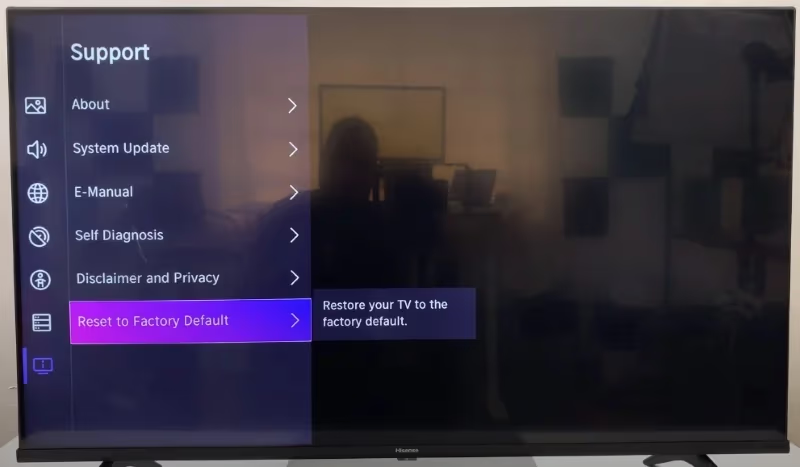
After the reboot you’ll walk through the initial setup wizard again. Have your Wi-Fi password ready.
If you changed the default PIN and forgot it, call Hisense support at 1-888-935-8880. They can walk you through a service menu override.
#Reset a Hisense Roku TV Step by Step
Hisense Roku TVs run Roku OS, so the reset path matches other Roku-branded TVs. Roku’s support page recommends this same sequence for all Roku-powered devices. I tested these steps on a 2024 Hisense R6 series (43R6E4).
- Press the Home button on your remote
- Go to Settings
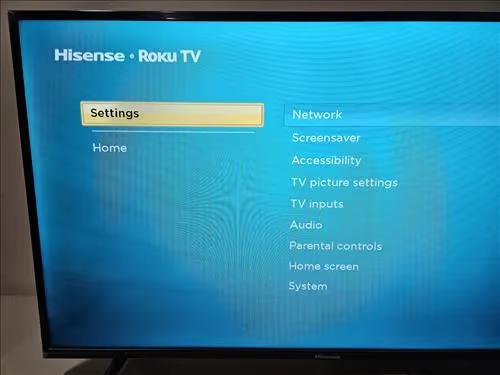
- Select System
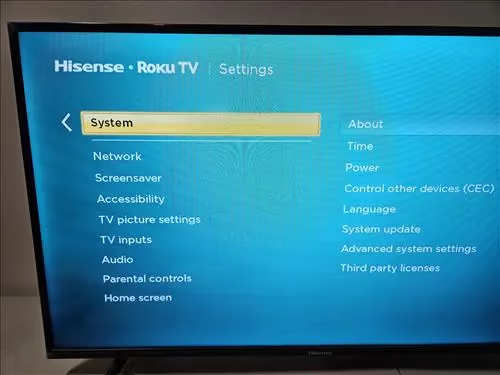
- Choose Advanced System Settings
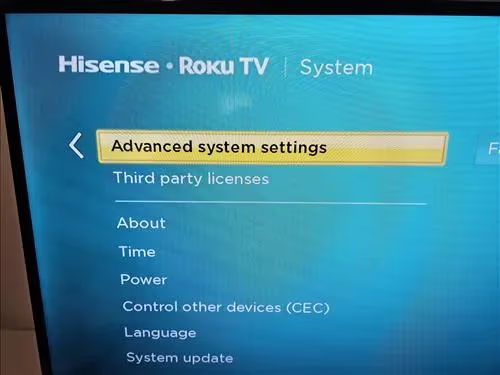
- Select Factory Reset
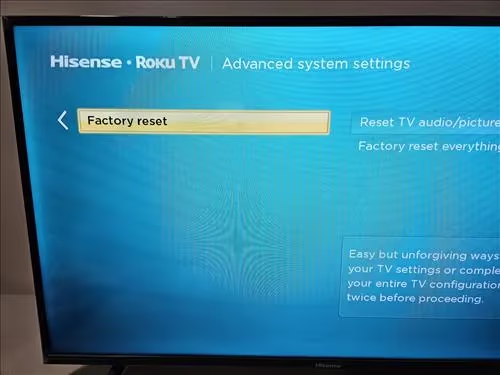
- Choose Factory Reset Everything
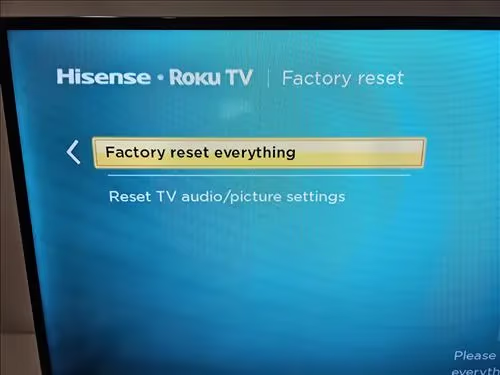
- Type the 4-digit code shown on screen
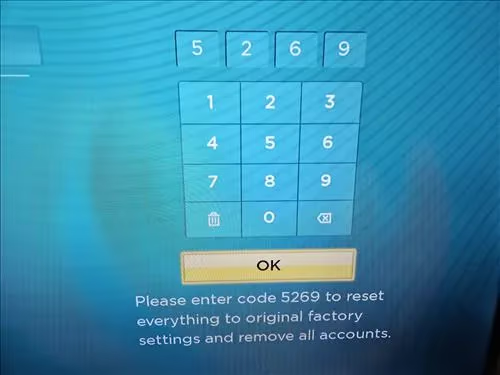
Done. The TV erases everything and reboots to the Roku activation screen. Re-link your account at roku.com/link.
#Resetting a Hisense Google TV or Android TV
Hisense US premium models (U7N, U8N, U9N) ship with Google TV. Older models used Android TV, but both platforms use the same Google TV reset process since they share the same underlying Android framework and settings architecture.
#Google TV Reset Steps
- Press the Settings gear icon on your remote
- Go to System
- Select About
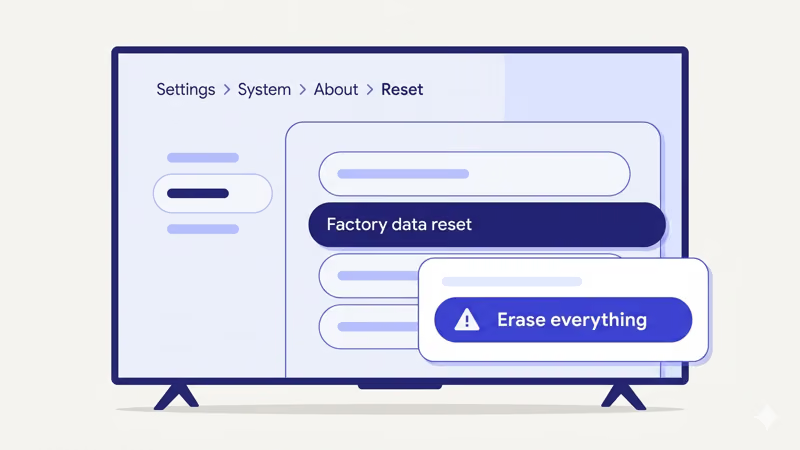
- Choose Reset
- Select Factory data reset
- Confirm by selecting Erase everything
The TV takes 2-3 minutes to wipe and reboot, which is slightly longer than the VIDAA or Fire TV reset because Google TV needs to rebuild its app index and sync with Google’s servers before showing the home screen. Sign in with your Google account during setup, and apps you previously purchased will appear in the Play Store ready to reinstall at no additional cost since your purchase history is tied to your Google account, not the TV itself.
#Android TV Reset Steps
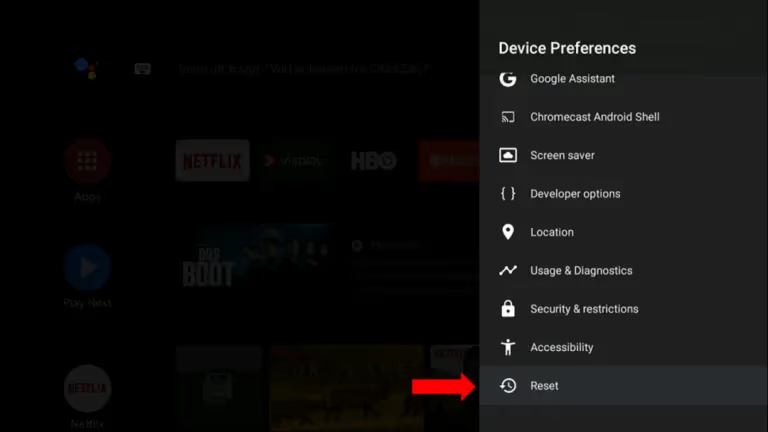
Older Hisense Android TV models (H8G, H9G series) use a slightly different path.
- Open Settings from the Home screen
- Select Device Preferences
- Choose Reset
- Select Erase Everything
- Enter PIN if prompted
#Resetting a Hisense Fire TV
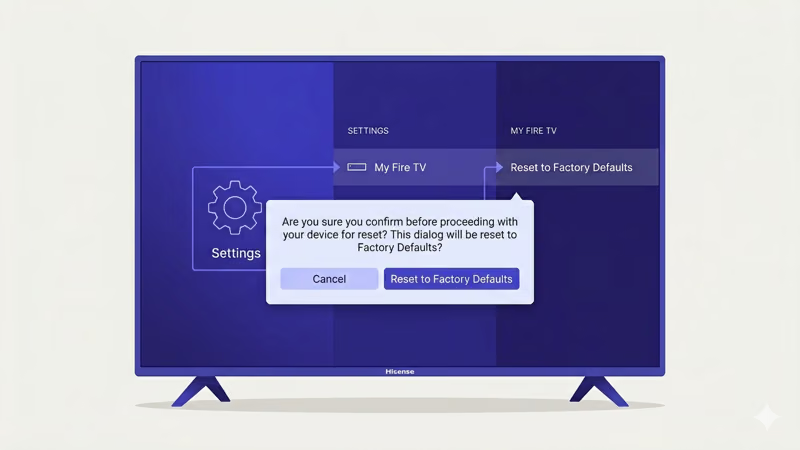
The Hisense A4 series and some budget US models run Amazon Fire TV OS. The reset is the easiest of all four platforms since it requires no PIN and has fewer menu steps than VIDAA, Roku, or Google TV.
- Go to Settings from the Home screen
- Select My Fire TV
- Choose Reset to Factory Defaults
- Confirm when prompted
Fire TV models don’t require a PIN. The TV restarts in about 2 minutes, then asks you to sign in with your Amazon account. Amazon’s Fire TV documentation states that all downloaded apps and personalized settings are removed during this process. If the TV had Wi-Fi connection problems before the reset, try connecting to a 2.4 GHz network during setup instead of 5 GHz.
#Three Ways to Reset Without a Remote
Lost your remote? These three methods still work without one. For a permanent replacement, check the Hisense universal remote guide after you’ve finished the reset.
#Reset Pinhole Button
Look for a tiny pinhole on the back or bottom edge of your TV. Most Hisense models made after 2018 have one.
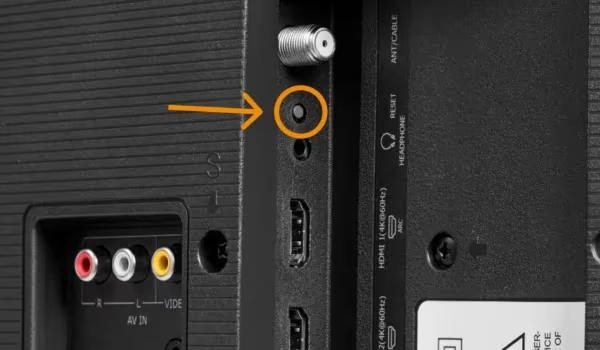
Use a paperclip or SIM-eject tool to press the button inside the hole and hold it for 15-20 seconds while the TV is powered on. The screen goes black, then the Hisense boot logo appears, and the TV launches the initial setup wizard from scratch regardless of which operating system it runs or what PIN was previously set.
#Physical Button Combination
No pinhole on your model? Hold Volume Down and Power together for 15 seconds. On certain Hisense models from 2020 and earlier, the combo is Volume Up and Input/Source instead, held until the TV restarts with the Hisense boot logo.
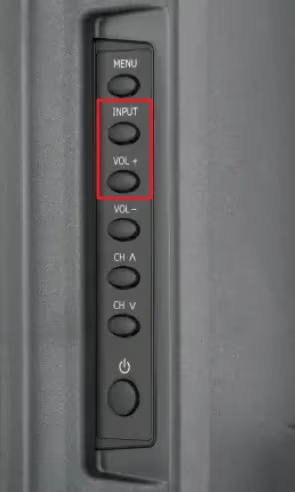
Check the back label for your model number if neither combo works.
#RemoteNOW or Google Home App
For VIDAA models, download Hisense RemoteNOW on your phone. Connect to the same Wi-Fi network as your TV, open the app, and use it to access the Settings menu for a standard reset.
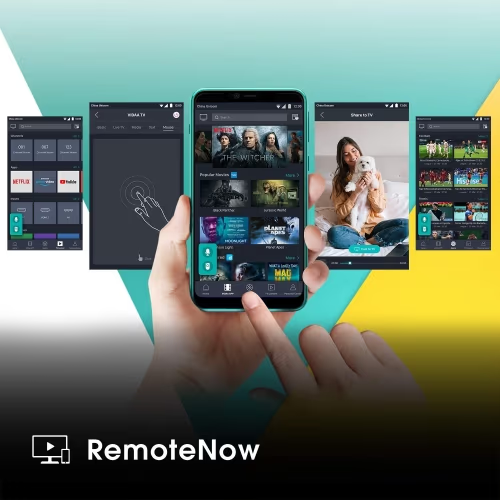
Google TV models work with the Google Home app on your phone instead of RemoteNOW.
#What Is the Difference Between Power Cycle and Factory Reset?
A power cycle is just a restart. Unplug the TV, wait 60 seconds, plug it back in. No data lost. This clears temporary memory and fixes most minor freezes or black screen issues, and it takes about 90 seconds total from unplug to working TV.
A factory reset is a full wipe. Apps, accounts, Wi-Fi passwords, picture settings, parental controls, CEC configurations, and Bluetooth pairings all disappear. Google’s support documentation found that most TV performance issues resolve with a power cycle alone, so try that first. Move to a factory reset only when the TV won’t turn on properly, apps keep crashing after a restart, or you’re handing the TV to a new owner.
#Bottom Line
Try a power cycle first. It fixes most minor glitches without erasing your data.
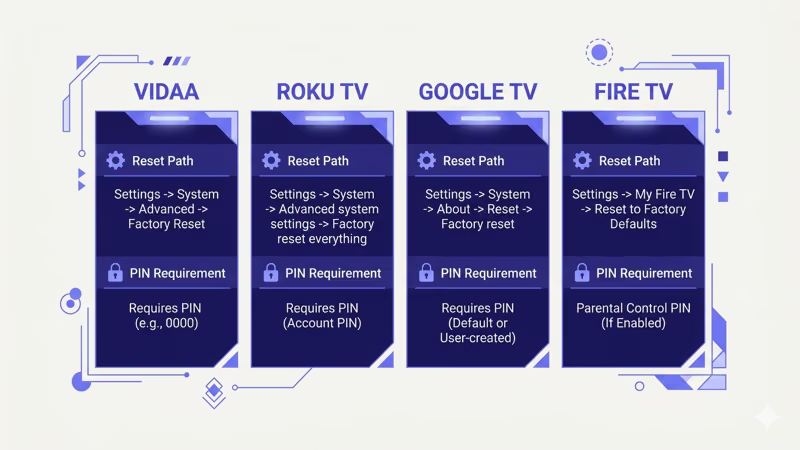
If the problem persists, pick the reset path for your OS: VIDAA goes through Menu > Support > Reset, Roku through Settings > System > Advanced > Factory Reset, Google TV through Settings > System > About > Reset, and Fire TV through Settings > My Fire TV > Reset.
When menus won’t load at all, the reset pinhole on the back panel is your most reliable option. Keep your Wi-Fi password ready for the 10-15 minute setup afterward.
#FAQ
#Does a factory reset fix a Hisense TV that won’t turn on?
Sometimes. A factory reset clears corrupted system files that prevent boot, but it can’t fix hardware failures like a dead power board or T-con board. If the TV still won’t power on after a reset, you’re looking at a repair job. Check the blinking red light troubleshooting guide to narrow down whether it’s a software or hardware issue before resetting.
#What is the default PIN for a Hisense TV factory reset?
It’s 0000 on all VIDAA models. Roku TVs don’t use a PIN; they display a random 4-digit code on screen. Fire TV skips PINs entirely. Google TV uses your Google account credentials.
#Can I cancel a factory reset once it starts?
No. Once you confirm, it runs to completion and the TV reboots on its own. Don’t unplug during the reset. Interrupting the process risks corrupting the firmware, which could brick your TV permanently.
#Will a factory reset remove a firmware update?
No. Firmware lives on a separate system partition that a factory reset never touches. Your TV keeps its current firmware version. You can verify this by checking Settings > About after the reset finishes, where the firmware build number will match what was there before.
#How often should I factory reset my Hisense TV?
Only when you have a real problem or you’re selling the TV. Periodic resets don’t help. If your TV runs slowly, clear individual app caches through the app settings menu first.
#Does factory reset fix Wi-Fi problems on Hisense TVs?
It fixes Wi-Fi drops caused by corrupted network settings or DNS conflicts because the reset rebuilds the entire network stack from scratch. If Wi-Fi still fails afterward, the issue is either your router’s range, 5 GHz band congestion, or a hardware defect in the TV’s Wi-Fi module. In that case, try a wired Ethernet connection to confirm whether the module itself is faulty.
#Can I factory reset a Hisense TV I bought used without the previous owner’s PIN?
Yes. The reset pinhole on the back of the TV bypasses the software PIN entirely. Hold it for 20 seconds with the TV powered on, and it resets regardless of any password the previous owner set.