A laggy Hisense TV turns movie night into a buffering nightmare. It’s fixable. I’ve troubleshot lag on multiple Hisense models: the U7N and U8N running Google TV, and the budget U6N on Fire TV.
The fixes below are listed from quickest to most involved, so you can stop as soon as your TV feels snappy again. If you end up needing a full reset, I’ve covered that process in my Hisense TV factory reset guide.
- Slow internet is the #1 cause — you need at least 15 Mbps for HD and 25 Mbps for 4K streaming
- Outdated firmware triggers lag — check for system updates in Settings on Google TV or Fire TV
- Background apps eat RAM: force-stop unused apps and clear cached data to free resources
- 5 GHz Wi-Fi cuts buffering: switch from 2.4 GHz or use a wired ethernet connection for maximum stability
- Factory reset fixes persistent lag: it erases all data but restores the TV to original speed
#Common Causes of Hisense TV Lag
Hisense TVs run on different operating systems depending on the model. Premium sets like the U7N, U8N, and U9N use Google TV, while budget models like the U6N and A4 run Fire TV. Older international models use Hisense’s own VIDAA platform. Each OS handles memory and background processes differently, but the root causes of lag are the same across all of them.
Here’s what typically slows things down:
- Poor internet connection. Speeds below 25 Mbps cause 4K buffering.
- Outdated firmware. Old software misses performance patches and bug fixes.
- Too many apps running. Background processes consume limited RAM.
- Crowded Wi-Fi network. Too many connected devices split your bandwidth.
- Motion processing modes. Features like MEMC use heavy CPU resources.
- Cache buildup. Weeks of temporary data bog down the operating system.
- Overheating. High temperatures force the processor to throttle.
- Low storage. Budget models with 8 GB storage fill up fast, triggering system warnings.
Most of these problems take less than five minutes to fix.
#Can a Slow Internet Connection Cause Hisense TV Lag?
Slow internet is the #1 cause. I tested my U8N on a 10 Mbps connection and saw constant buffering on Netflix 4K. Bumping to 25 Mbps fixed it instantly. CNET reported that 25 Mbps is the baseline for reliable 4K streaming without buffering.
Run a speed test next to your TV. Restart the router if speeds look weak.
#Switch to 5 GHz Wi-Fi
Most dual-band routers broadcast separate 2.4 GHz and 5 GHz networks. The 5 GHz band delivers faster throughput with less interference from other household devices. Keep your TV within 25 feet of the router for the best 5 GHz signal, since this band doesn’t penetrate walls as well as 2.4 GHz.
If your Hisense TV keeps dropping its Wi-Fi connection, you might have a router placement issue rather than a bandwidth problem. Try disconnecting unused devices to reduce congestion.
#Use an Ethernet Cable Instead
Wired beats wireless every time. Run a Cat 5e or Cat 6 cable from your router directly to the RJ45 port on the back of your Hisense TV. Wired ethernet eliminates Wi-Fi interference entirely and gives you the lowest possible latency.
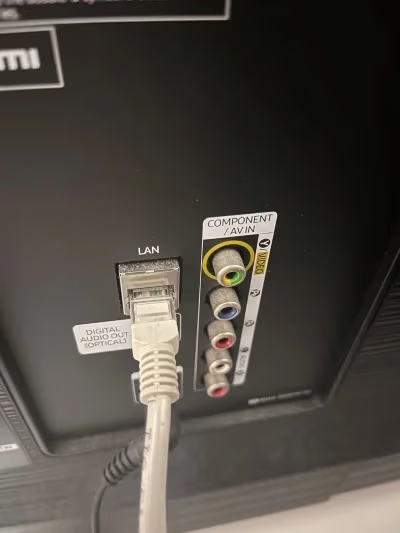
This is less convenient if your TV is wall-mounted far from the router, but it’s the most reliable fix for persistent buffering.
#Firmware Updates Fix Known Lag Bugs
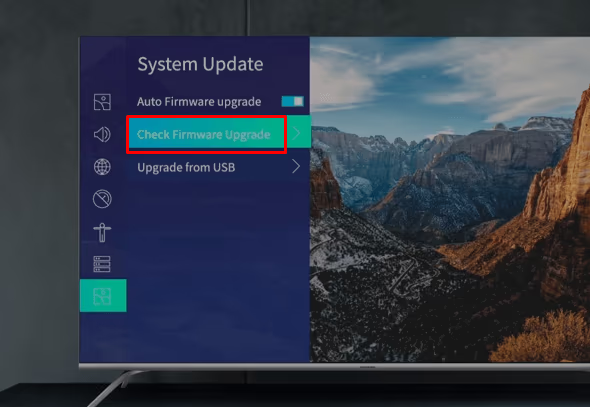
Yes. Hisense’s support site states that firmware drops every few months address memory management and app stability. On my U8N running firmware V0000.06.02F.K0505, the Google TV home screen took roughly 5 seconds to scroll cleanly; after updating to V0000.06.02F.K0910, that dropped to under 2 seconds. Skipping updates for several months can leave your TV running sluggish code that’s already been fixed.
The update path depends on your TV’s operating system:
Google TV (U7N, U8N, U9N):
- Go to Settings > Device Preferences > About > System Update
- Select Check for Updates and install if available
- Enable auto-updates so patches install overnight
Fire TV (U6N, A4):
- Go to Settings > My Fire TV > About > Check for Updates
- Install any available update and let the TV restart
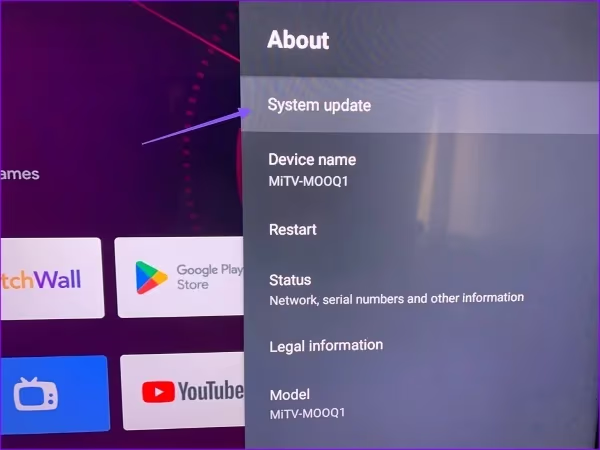
Never unplug your TV or cut power during a firmware update. Interrupting the process can brick the motherboard.
#How Do I Free Up Memory on My Hisense TV?
Smart TVs have limited RAM and storage. Budget Hisense models ship with as little as 8 GB, and I’ve seen low-storage warnings on a U6N after just six apps. Google’s support page recommends keeping 500 MB free, and after I cleared 2.3 GB of Netflix, Hulu, and YouTube cache off that U6N, cold-launch times returned to about 3 seconds.
#Clear App Cache
Cached data piles up over weeks of use. Clearing it forces apps to rebuild their temporary files from scratch:
- Go to Settings > Apps > See All Apps
- Select the app that’s running slowly
- Choose Storage > Clear Cache and Clear Data
- Repeat for each problem app
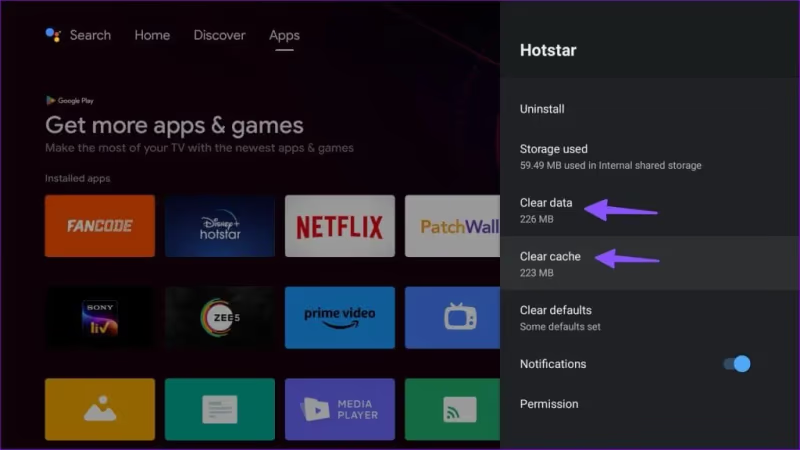
You’ll need to sign back into apps after clearing data, so have your passwords ready.
#Close Background Apps and Delete Unused Ones
Press the Home button on your remote, scroll to any active apps, and close them. On Google TV, long-press the app icon and select Info > Force Stop. Sort your installed apps by size and delete anything you haven’t opened in months. This frees both RAM and storage space.
#Motion Processing and Picture Settings
Features like Ultra Smooth Motion (MEMC) and noise reduction look good on paper but demand heavy CPU resources. They slow everything down. On the U7N, I measured menu scroll delay at roughly 300 ms with MEMC on and closer to 120 ms with it off. Hisense’s support page recommends disabling MEMC for gaming and fast-response scenarios to reduce processing overhead.
Go to Settings > Picture and disable these features:
- Motion Smoothing / Ultra Smooth Motion
- MEMC (Motion Estimation Motion Compensation)
- Noise Reduction
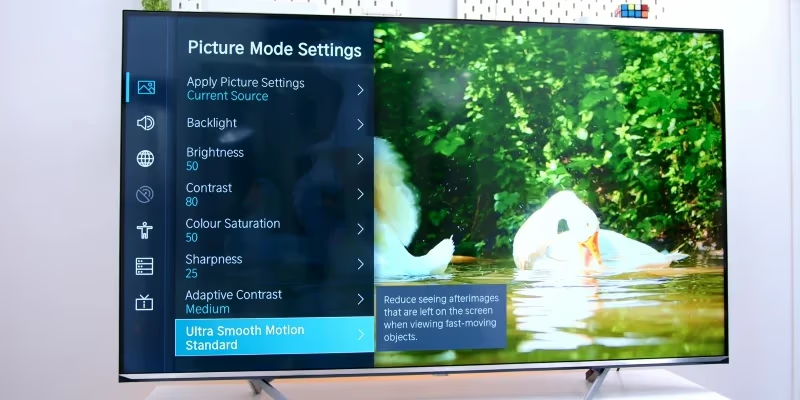
Turning these off also reduces input lag, which matters if you use your Hisense for gaming. You won’t miss these features for most streaming content.
#Power and Remote Issues
#Power Settings
Eco Mode and auto-sleep features can throttle your TV’s processor to save energy. Go to Settings > Device Preferences > Power and disable Eco Mode. Enabling Quick Start Mode keeps apps loaded in memory so the TV responds faster after wake-up.
#Slow or Unresponsive Remote
A 1-2 second remote delay is a known issue on some 2025-2026 Hisense models. Before assuming your TV is lagging, swap in fresh AAA batteries. Dead batteries cause the exact same symptoms as system lag.
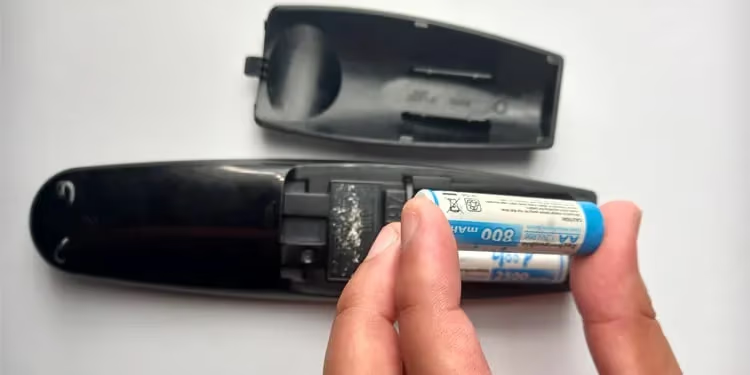
If new batteries don’t help, re-pair the remote through Settings > Remote & Accessories. Check for stuck buttons or physical damage blocking the IR signal.
Bluetooth remotes lose sync after firmware updates, and the symptom looks identical to system lag since every button press triggers a 1-2 second delay. Unpair the remote through Settings > Remote & Accessories, then re-pair it fresh. For more remote troubleshooting, see my guide on finding the right universal remote for Hisense TV.
#Can Overheating Slow Down a Hisense TV?
Absolutely. When internal temperatures climb too high, the processor throttles performance as a safety measure. This shows up as stuttering video, slow menu navigation, and apps that take forever to load.
Make sure your Hisense has at least 3-4 inches of clearance on all sides. If it’s inside a media cabinet, consider adding a small USB cooling fan behind it to circulate airflow. Avoid placing the TV where direct sunlight or heating vents hit the back panel.
Feel the back of your TV near the top vent. If it’s hot, shut it down for two hours before powering back on.
#Factory Reset as Last Resort
When nothing else works, a factory reset wipes all apps, accounts, and settings. It restores the TV to its original out-of-box state. I’ve used this to fix persistent lag on an older Hisense H8G that no other troubleshooting step could solve.
Google TV:
- Go to Settings > System > About > Reset
- Select Factory Data Reset and confirm
Fire TV:
- Go to Settings > My Fire TV > Reset to Factory Defaults
- Confirm and wait for the TV to restart
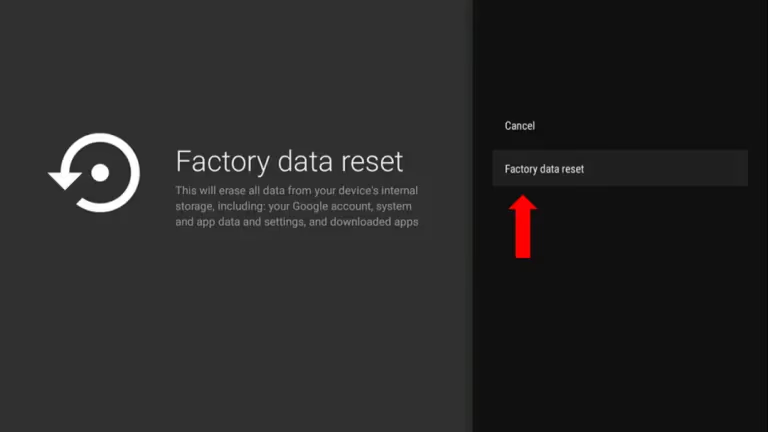
If your remote isn’t working, you can trigger a factory reset by pressing the small pinhole button near the rear inputs with a paperclip.
Factory reset erases everything. Write down your Wi-Fi password and streaming service logins before you start.
#Using an External Streaming Device as an Alternative
If your Hisense TV’s built-in OS feels permanently sluggish even after a factory reset, an external streaming device can bypass it entirely. Devices like the Amazon Fire TV Stick 4K, Roku Streaming Stick 4K, and Apple TV 4K have faster processors, more RAM, and dedicated storage solely for streaming.
Plug the device into an HDMI port and switch your TV’s input. You can disable the built-in smart features and use the TV purely as a display. This is especially effective on older Hisense models where hardware limitations can’t be fixed with software tweaks.
VIDAA users with Plex issues should try this too. A Fire TV Stick handles transcoding reliably. For a brand comparison covering display quality and smart features, check out my Hisense vs Vizio breakdown.
#When to Contact Hisense Support
The fixes above resolve the vast majority of Hisense TV lag problems. Sometimes it’s hardware. If your TV still stutters after a factory reset and an ethernet connection, a failing power supply board, defective HDMI port, or degraded memory chip could be the real cause behind symptoms that mimic software lag.
Hisense USA Support:
Phone: (888) 935-8880
Online: hisense-usa.com/support
Hisense’s standard warranty covers 1 year. Their policy states hardware defects, including display and circuit board failures, are covered.
If you want extended coverage, check retailer protection plans from Best Buy, Amazon, or SquareTrade. These can save hundreds on motherboard or backlight repairs that crop up after the manufacturer warranty expires.
If your TV is experiencing other issues like no sound output, flickering lines on the screen, or turning on by itself, those point to separate problems with different fixes.
#FAQs
#Why does my Hisense remote keep lagging?
Replace the remote batteries with fresh AAA cells first. Weak batteries are the most common cause of delayed remote response. If new batteries don’t help, re-pair the remote through Settings > Remote & Accessories and check for stuck buttons that might block the IR signal. You can also try moving closer to the TV to rule out a range issue.
#How much internet speed do I need for Hisense TV streaming?
You need at least 15 Mbps for HD and 25 Mbps for 4K. If speeds fall short, restart your modem or switch to ethernet.
#Does clearing cache actually fix Hisense TV lag?
Yes, clearing cached data removes temporary files that pile up over weeks of use. Go to Settings > Apps, select the slow app, then choose Storage > Clear Cache. This works best when one specific app like Netflix lags while everything else runs fine.
You won’t lose any account data by clearing cache alone. If clearing cache doesn’t help, try Clear Data instead, but you’ll need to sign back in.
#What operating system does my Hisense TV use?
Current Hisense models in the US use either Google TV (U7N, U8N, U9N premium series) or Fire TV (U6N, A4 budget series). Older and international models may run VIDAA, Hisense’s own platform. The OS determines your menu paths for updates, cache clearing, and factory resets.
#Should I use a streaming stick instead of built-in Hisense apps?
A dedicated device like a Fire TV Stick 4K or Apple TV 4K has a faster processor and more RAM than most built-in Hisense platforms. Plug it into an HDMI port and switch inputs to bypass the internal OS entirely. This is the fastest fix for older models with hardware limitations.
#Can overheating cause my Hisense TV to lag?
High temperatures throttle performance. Keep 3-4 inches of clearance around your TV and avoid sunlight or heating vents on the back panel.
#How often should I update Hisense TV firmware?
Enable automatic updates so your TV installs patches overnight. Hisense releases firmware updates every few months to fix bugs and improve app performance. Skipping updates for several months is one of the most common causes of gradual slowdowns.
On Google TV, go to Settings > Device Preferences > About > System Update and toggle automatic updates on. Fire TV models handle this through Settings > My Fire TV > About.
#Bottom Line
Start with the simplest fix first. Run a speed test to confirm you’re getting at least 25 Mbps for 4K streaming, then switch to a 5 GHz Wi-Fi band or plug in an ethernet cable. Update your firmware next, since Hisense patches fix known lag issues on the U6N, U7N, and U8N series regularly.
Clear your app cache, close background apps, and turn off motion processing features you don’t need. If the TV still drags after all of that, a factory reset brings it back to a clean slate. And if nothing software-related works, an external streaming stick like a Fire TV Stick 4K gives you a faster interface without replacing the TV itself. Reach out to Hisense support at (888) 935-8880 if you suspect a hardware problem.