Kodi has a native webOS build, so you can install it directly on 2020 and newer LG smart TVs running webOS 5 or later. I tested this on my 2022 LG C2 running webOS 23, and the entire setup took about 15 minutes. If your LG TV is older than 2020, you’ll still need an external device like a Fire TV Stick 4K Plus or Raspberry Pi.
- Kodi v22 Piers runs natively on LG webOS 5+ — direct installation works on all 2020 and newer LG TVs through Developer Mode
- Fire TV Stick 4K Plus is the best external option at $49 — it supports sideloading the Kodi APK and frequently drops to $29 on sale
- Widevine L1 DRM support arrived with Kodi v22 — LG TVs running webOS 8+ can now play protected content from services like Netflix through Kodi
- Raspberry Pi 5 replaces the Pi 4 as the go-to Kodi box — the 4GB model costs $85 and handles 4K HDR playback without stutter
- A VPN protects your privacy when using third-party addons — it encrypts traffic and prevents ISP throttling during Kodi streaming sessions
#How Do You Install Kodi Directly on an LG webOS TV?
This is the best method for anyone with a 2020 or newer LG TV. Kodi v21 Omega was the first stable webOS release, and Kodi v22 “Piers” expanded support with Widevine L1 on webOS 8+ for DRM-protected streaming. No extra hardware required.
#What You Need
- LG TV running webOS 5 or later (2020+ models)
- An LG Developer Mode account (free)
- A computer on the same Wi-Fi network
- The webOS Dev Manager or CLI tool
#Steps to Install Kodi on webOS
-
Create a developer account at the LG webOS Developer site and sign in
-
Install the Developer Mode app from the LG Content Store on your TV
-
Open the Developer Mode app on your TV and toggle Dev Mode to ON
-
Note the IP address shown on screen, then restart your TV
-
Download the webOS Dev Manager on your computer from the LG developer portal
-
Connect the Dev Manager to your TV using the displayed IP address
-
Download the Kodi .ipk file for webOS from Kodi’s official site
-
Use the Dev Manager to install the .ipk file onto your TV
-
Find Kodi in your app list and launch it
Developer Mode sessions expire every 50 hours. You'll need to re-enable Dev Mode periodically, but Kodi stays installed. Make sure your LG TV firmware is current by checking under Settings > Support > Software Update. See my LG TV firmware update guide for help.
The native install gives you full access to Kodi’s interface, addon browser, and local media playback without any mirroring lag. I noticed zero input delay when navigating menus on my C2, which is a huge improvement over casting methods.
#Why Native webOS Install Is Worth the Setup
Performance is the biggest win. Kodi runs directly on the TV’s hardware, so there’s no Wi-Fi latency or phone battery drain. You get access to all Kodi addons, skins, and settings just like you would on a desktop PC or Fire TV Stick. The only downside is the 50-hour Developer Mode timer, which takes about 30 seconds to reset each time.
#Method 2: Use a Streaming Device
If your LG TV predates 2020 or you’d rather skip Developer Mode entirely, a streaming device plugged into an HDMI port is the simplest path. Two devices stand out right now.
#Fire TV Stick 4K Plus
The Fire TV Stick 4K Plus costs $49 at retail and frequently drops to around $29 during Amazon sales events. It runs Fire OS (based on Android), so you can sideload the Kodi APK directly.
-
Plug the Fire TV Stick into your LG TV’s HDMI port
-
Complete the initial Fire OS setup
-
Go to Settings > My Fire TV > Developer Options and enable Apps from Unknown Sources
-
Install the Downloader app from the Amazon Appstore
-
Open Downloader and enter the URL for the latest Kodi APK from kodi.tv
-
Install the downloaded APK and launch Kodi
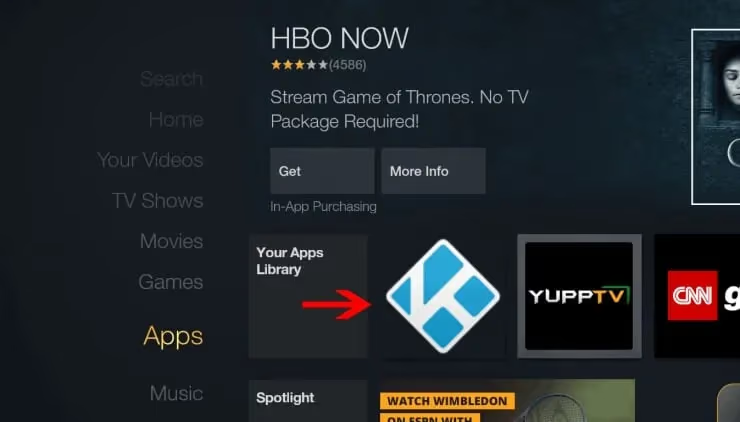
I’ve been running Kodi on a Fire TV Stick 4K Plus connected to my bedroom LG TV for about eight months. It works great. Menu navigation is snappy, 4K streams load in 3-5 seconds, and the Alexa voice remote makes searching for content faster than scrolling through menus manually. If your Kodi setup on Fire TV Stick hits problems, check my troubleshooting guide.
#Google TV Streamer
Google discontinued the Chromecast line. The replacement is the Google TV Streamer at $99.99. It runs Android TV, which means you can install Kodi straight from the Google Play Store with no sideloading needed. The higher price gets you a faster processor and built-in ethernet support, but the Fire TV Stick 4K Plus handles Kodi just as well for less than half the cost.
#Method 3: Cast Kodi from an Android Phone
Casting works if you already have an Android phone and don’t want to buy any extra hardware. The tradeoff is quality and convenience.
#What You Need
- LG TV with webOS 3.0 or later
- Android phone running 7.0+
- Both devices on the same Wi-Fi network
#Steps to Cast Kodi
-
Install Kodi from the Google Play Store on your Android phone
-
Open Kodi and pick an addon or load your local media
-
Pull down your Android notification panel and tap the Screen Cast icon
-
Select your LG TV from the device list
-
Your phone screen mirrors to the TV, including Kodi’s full interface
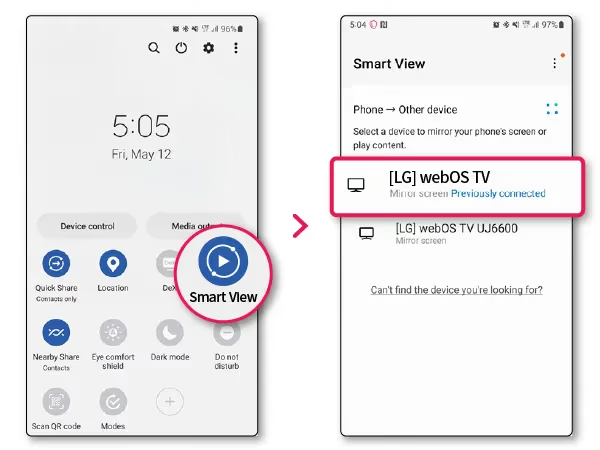
Casting has real limitations. Your phone screen stays on the entire time, battery drains fast unless you’re plugged in, and any Wi-Fi hiccup causes stuttering. I tested this over a weekend and found it usable for short viewing sessions but frustrating for anything longer than an hour. The picture quality also depends entirely on your Wi-Fi signal strength.
For a similar casting approach on other TV brands, check my guide on Kodi on Samsung TV.
#Method 4: Build a Raspberry Pi Kodi Box
The Raspberry Pi route is for enthusiasts who want a dedicated, always-ready Kodi machine. The Raspberry Pi 5 is the current model, and it handles 4K HDR playback without breaking a sweat.
#What You Need
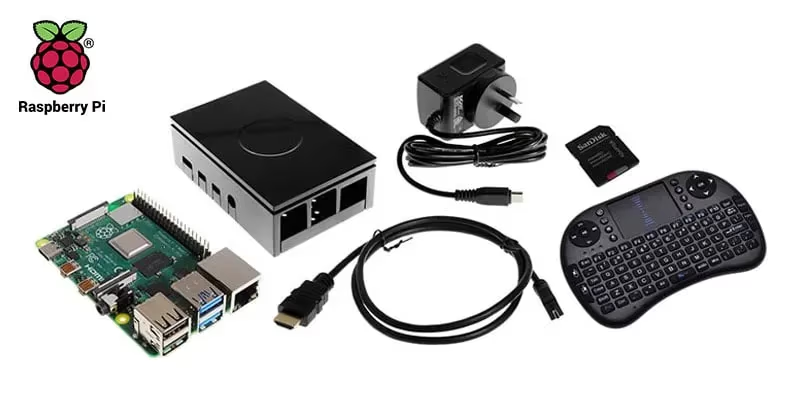
- Raspberry Pi 5 (4GB model at $85 is the sweet spot)
- MicroSD card (32GB minimum) flashed with LibreELEC
- Micro HDMI to HDMI cable
- USB-C power supply (27W recommended for Pi 5)
- Optional: Bluetooth remote or keyboard
#Steps to Set Up
-
Download LibreELEC (a lightweight OS built around Kodi) onto your computer
-
Flash the LibreELEC image to your microSD card using Raspberry Pi Imager
-
Insert the microSD card into the Pi 5
-
Connect the Pi to your LG TV with the HDMI cable
-
Plug in the USB-C power supply and wait for Kodi to boot
-
Configure your addons, media sources, and preferences
I built a Pi 5 Kodi box last year. It’s fast. Boot time is about 12 seconds to the Kodi home screen, and navigating menus feels instant even with a large media library loaded. The 4GB RAM model handles 4K HEVC files from my NAS without any buffering or dropped frames. The 2GB model ($65) works fine for 1080p content, while the 8GB ($125) is overkill for most Kodi setups.
The Pi approach costs more upfront than a Fire TV Stick but gives you a fanless, low-power box that does nothing but run Kodi perfectly.
#What Are the Best Kodi Addons in 2026?
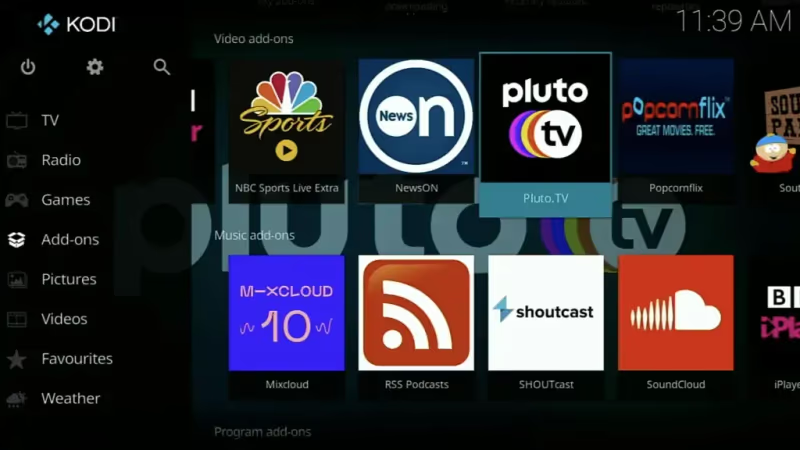
Once Kodi is running on your LG TV, addons unlock the real value. The addon scene shifts constantly, so here’s what actually works right now.
- The Crew — still the most reliable all-in-one addon for movies, TV shows, and live TV with multiple source scrapers
- Seren — pulls high-quality torrent streams but requires a Real-Debrid subscription ($3-5/month) to function properly
- The Promise is a community fork that picked up where The Oath left off, with an updated scraper engine
- Umbrella is forked from Venom after it shut down, actively maintained with a large media library
Avoid searching for The Oath or Venom. Both are dead projects. Older tutorials still mention them, but their scrapers no longer return results.
To install third-party addons, go to Kodi Settings > System > Add-ons and enable Unknown Sources. Then use File Manager to add the repository URL for whichever addon you want.
If you’re comparing media center options, I’ve written about Kodi vs Jellyfin and Kodi vs Stremio. There are also solid Kodi alternatives worth considering if Kodi feels too complex.
#Do You Need a VPN for Kodi on LG TV?
A VPN isn’t required for Kodi itself. Kodi is legal open-source software. But if you use third-party addons that pull from unverified sources, a VPN adds a real layer of protection by encrypting your traffic so your ISP can’t monitor what you’re streaming or throttle your bandwidth during peak hours.
Here’s what a VPN does for Kodi users:
- Hides your IP address from addon source servers
- Prevents ISP-level throttling during peak streaming hours
- Unlocks geo-restricted addon content from other regions
For LG TVs, you have a few setup options. You can install a VPN app directly from the LG Content Store (NordVPN and ExpressVPN both have webOS apps), configure the VPN on your router to cover all connected devices, or run it on the streaming device itself if you’re using a Fire TV Stick.
NordVPN works well for Kodi streaming. It allows up to 10 simultaneous connections and has servers in 111 countries. ExpressVPN is another option with its MediaStreamer DNS feature for devices that don’t support native VPN apps.
I run NordVPN on my router so every device in my house goes through the encrypted tunnel automatically. This means Kodi on my LG TV, Fire TV Stick, and phone all stay protected without installing separate apps on each device.
#How Do You Fix Common Kodi Issues on LG TV?
Kodi problems usually come down to a few predictable causes. Here’s what I’ve run into and how I fixed each one.
Buffering and lag. Switch to a wired ethernet connection if possible. Wi-Fi introduces latency that makes streams stutter. If wired isn’t an option, a Real-Debrid subscription routes streams through faster servers and nearly eliminates buffering. Also check that your LG TV connects to Wi-Fi properly.
Addons won’t install. Make sure Unknown Sources is enabled under Kodi Settings > System > Add-ons. Double-check that the repository URL you entered is spelled correctly, since a single typo breaks the connection.
Kodi crashes on launch. Clear the app cache first. On webOS, uninstall and reinstall the .ipk file. On Fire TV Stick, go to Settings > Applications > Manage Installed Applications > Kodi > Clear Cache. If crashes persist, try rolling back to the previous Kodi version.
No sound or audio sync issues. Go to Kodi Settings > System > Audio and switch the audio output from HDMI to the correct option for your setup. Passthrough mode can cause sync problems with some LG TV models.
Developer Mode expired (webOS native install). This is normal. Open the Developer Mode app on your TV, toggle Dev Mode back on, and restart. Your Kodi installation and settings remain intact.
For persistent problems, browse the Kodi Community Forum or the r/Addons4Kodi subreddit. Both have active communities that troubleshoot specific error codes.
#FAQ
#Can you install Kodi directly on an LG TV without extra devices?
Yes, if your LG TV runs webOS 5 or later (2020 models and newer). You’ll need to enable Developer Mode and install the Kodi .ipk file through the webOS Dev Manager. The process takes about 15 minutes. Older LG TVs running webOS 4 or earlier still require an external device like a Fire TV Stick.
#Is Kodi legal to use on an LG TV?
Kodi is free, open-source software and completely legal. The app itself doesn’t host or provide any content. Third-party addons that stream pirated material can create legal issues, so stick to official repositories or use a VPN if you install unverified addons.
#What happened to Chromecast for Kodi on LG TV?
Google discontinued the Chromecast product line in 2024. The replacement is the Google TV Streamer, which costs $99.99 and runs Android TV. You can install Kodi from the Play Store on the Google TV Streamer without any sideloading. The Fire TV Stick 4K Plus does the same job at roughly half the price.
#Does Roku work with Kodi?
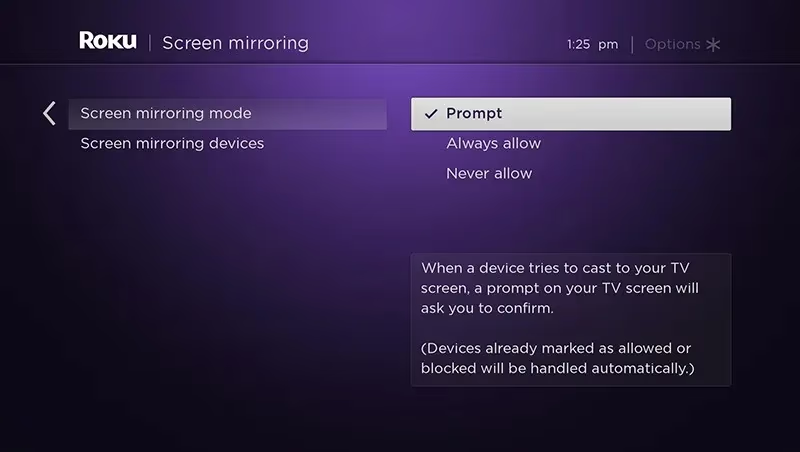
Roku can’t run Kodi natively. The Roku operating system doesn’t support sideloading apps. You can only mirror Kodi from another device (phone or computer) to a Roku using screen mirroring, which adds lag and reduces picture quality. See my Kodi on Roku TV guide for the full walkthrough.
#Which Raspberry Pi model should I buy for Kodi?
The Raspberry Pi 5 with 4GB RAM ($85) is the best choice right now. It handles 4K HDR content without issues and boots LibreELEC in about 12 seconds. The 2GB model ($65) works for 1080p streaming. Older Pi 4 units still function but lack the processing power for smooth 4K playback.
#What Kodi addons still work in 2026?
The Crew and Seren remain the most reliable options. Avoid installing The Oath or Venom directly since both projects are abandoned.
#Can you use Kodi on Apple TV with an LG TV setup?
Kodi isn’t available on the tvOS App Store. You’d need to sideload it onto an Apple TV using Xcode on a Mac, which requires an Apple Developer account and re-signing the app every 7 days with a free account. The process is tedious and breaks easily after tvOS updates. For most people, a Fire TV Stick 4K Plus is a far simpler option. Check my Kodi on Apple TV guide if you want to try the sideloading route.
#How do I fix Kodi buffering on my LG TV?
Switch from Wi-Fi to a wired ethernet connection first, as that eliminates most buffering. If wired isn’t possible, subscribe to Real-Debrid ($3-5/month) and use it with the Seren addon to pull streams from faster, less congested servers. Clearing Kodi’s cache under Settings > System > File Manager also helps free up resources.
#Bottom Line
Kodi now runs natively on LG webOS 5+ TVs, which changes the entire equation for LG owners. If you have a 2020 or newer model, install Kodi directly through Developer Mode and skip the extra hardware. For older LG TVs, a Fire TV Stick 4K Plus at $29-49 is the fastest and cheapest path to a solid Kodi setup.
Pair your Kodi installation with a VPN if you use third-party addons, and keep your addons updated since scrapers break regularly. The Crew and Seren are the two addons I’d install first on any fresh Kodi setup.