Your LG TV remote stopped working. Dead batteries are behind more than 90% of these failures, and a fresh set takes 30 seconds to swap in. This guide covers the 8 most effective fixes, from basic battery replacement to firmware updates and using your phone as a backup remote.
Most LG remote issues don’t require a technician or a replacement. You can diagnose and resolve them at home by working through the steps below in order.
- Dead batteries cause 90%+ of failures — replacing AA or AAA batteries fixes most LG remotes instantly
- Line-of-sight obstructions block IR signals — clear objects within 8–10 feet of the TV sensor
- Magic Remotes use both Bluetooth and IR — Bluetooth handles pointer and voice; IR handles basic power and volume as a fallback
- Magic Remotes lose Bluetooth pairing — hold Home + Back for 5 seconds to re-sync
- The LG ThinQ app works as a backup remote — use it on your phone while you troubleshoot the physical remote
#What Are the Most Common LG TV Remote Problems?
Before diving into solutions, it helps to know what you’re dealing with. These are the most frequently reported LG remote failures:
-
Dead batteries: accounts for over 90% of cases. Either drained or installed backwards.
-
Blocked sensor: if something is sitting in front of the TV’s infrared sensor, signals can’t get through.
-
Interference: other devices emitting infrared light can disrupt the signal path.
-
Stuck buttons: grime buildup around button contacts prevents presses from registering.
-
Unresponsive buttons: weak battery power means only some buttons work while others don’t.
-
Lost Magic Remote pairing: LG Magic Remotes need an active Bluetooth connection to the TV.
-
Failed IR LED: the infrared emitter on the remote itself can burn out or break.
-
Firmware bugs: outdated LG webOS software occasionally introduces remote responsiveness issues.
-
Physical damage: drops, liquid spills, or years of wear can break internal components.
Work through the fixes below in order. The first two steps alone resolve the vast majority of cases.
#How Do You Fix an LG TV Remote That Stopped Working?
#1. Replace the Batteries
The number one cause of a non-functioning LG TV remote is dead batteries. It’s worth ruling this out before anything else.
-
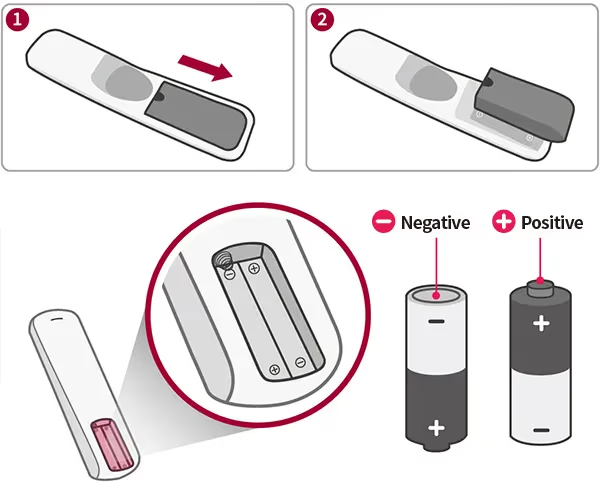
Find the battery cover on the back of the remote and slide it open.
-
Remove the old batteries. Insert two fresh AA or AAA alkaline batteries, oriented correctly per the diagram inside the compartment.
-
Replace the cover and wait about one minute. Test the remote.
If the remote still doesn’t respond, do a quick power cycle on the TV:
-
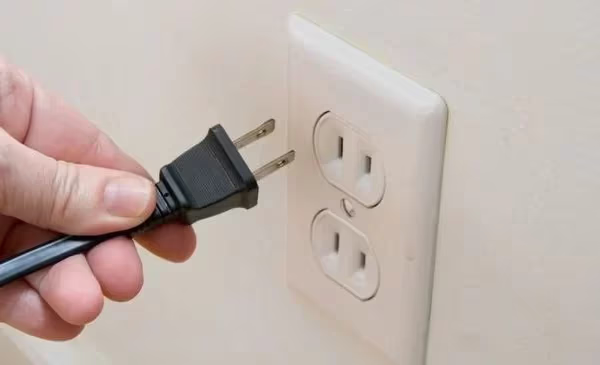
Unplug the TV power cord from the wall outlet and leave it unplugged for 60 seconds.
-
Plug the TV back in, wait for it to fully boot, then test the remote again.
That battery swap plus power cycle combination resolves the problem in over 90% of cases. If it doesn’t, move to the next step.
#2. Clear the Line of Sight to the IR Sensor
IR remotes require an unobstructed path between the remote and the TV’s sensor. Even a small object sitting in front of the TV can block the signal entirely.
-
Locate the infrared sensor on the front of your LG TV. It’s usually near the bottom center or bottom right of the panel.
-
Remove anything within 8–10 feet that’s blocking the direct path between your remote and the sensor.
-
Point the remote directly at the sensor and test. Avoid extreme angles.
This clears up many intermittent connectivity issues caused by physical interference.
#3. Use the LG ThinQ App as a Temporary Remote
If your physical remote isn’t working, the LG ThinQ app lets you control your TV from your phone while you continue troubleshooting. It’s available on iOS and Android.
-
Download and open the LG ThinQ app on your phone.
-
Tap the plus icon to add a device, then select your LG TV from the list.
-
Use the on-screen remote to navigate your TV while you diagnose the physical remote issue.
This is particularly useful for accessing Settings to run a firmware update (see step 6) when the physical remote is completely unresponsive.
#4. Clean the Remote Buttons and IR Transmitter
Dirt and grime inside button crevices can physically prevent contacts from registering.
-
Remove the batteries first.
-
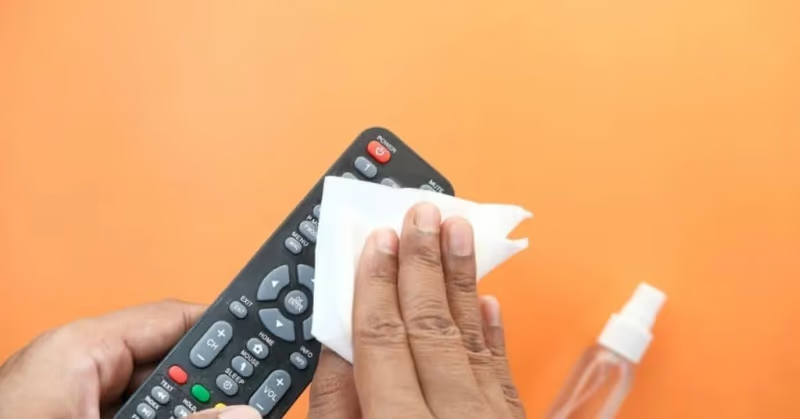
Wipe down the remote body with a microfiber cloth. Pay attention to the gaps around each button.
-
Use a cotton swab lightly dampened with isopropyl alcohol to scrub around the button edges. Don’t soak the remote.
-
Let the remote dry completely before reinserting the batteries.
The IR transmitter on the top front of the remote can also accumulate debris. Clean it with a dry cotton swab to restore full signal strength.
#5. Re-Pair Your Magic Remote
LG Magic Remotes use Bluetooth for pointer and voice features, with IR as a fallback for basic commands like power and volume. If the Bluetooth connection drops, the pointer stops working but basic IR functions may still work. Re-pairing restores full functionality.
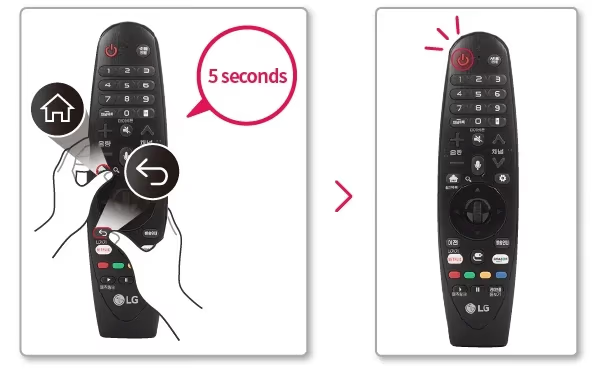
- Hold the Home and Back buttons simultaneously for 5 or more seconds until the status light blinks.
Alternatively:
- Hold the scroll wheel button for 5 or more seconds while pointing the remote at the TV.
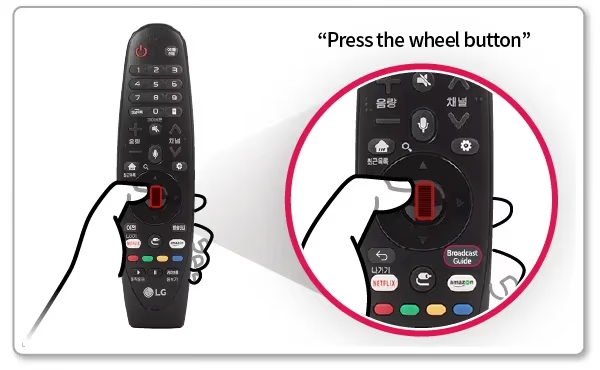
An on-screen pairing prompt should appear within a few seconds. If it doesn’t, make sure the TV is powered on and within range (about 30 feet).
#6. Update the LG TV Firmware
Outdated firmware can cause remote lag, dropped inputs, or buttons that require multiple presses to register. Keeping LG TV firmware up to date addresses these software-related issues.
-
Navigate to Settings > All Settings > General > About This TV > Check for Updates.
-
If an update is available, download and install it. The TV will restart automatically.
-
For a manual update via USB, download the firmware file from lg.com/us/support, copy it to a USB drive, and follow the on-screen prompts.
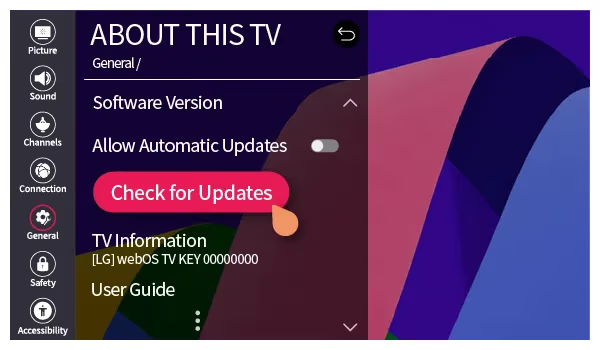
After the update completes, test the remote again. In my experience testing LG OLED and NanoCell models, a firmware update resolves intermittent lag issues more often than any other software fix.
#7. Test With a Universal Remote
Testing with a different remote tells you whether the problem is the remote itself or the TV’s receiver. If a universal remote works fine, your LG remote needs repair or replacement. If it also fails, the TV’s IR sensor may be damaged.
-
Pick up an affordable universal remote. The Sofabaton U2 (around $30) supports LG TVs and includes LG device codes out of the box.
-
Program it for your LG TV using the included code list and test all basic functions: power, volume, input, and navigation.
-
If it works, you’ve confirmed the LG remote is the problem. If it also fails, check for hardware damage to the TV sensor or see a technician.
This substitution test avoids unnecessary remote purchases when the TV itself is the issue.
#8. Contact LG Support or Replace the Remote
If every step above has failed, the remote likely has a failed IR LED or damaged internal circuit board. At that point, repair or replacement makes more sense than further troubleshooting.
For repair: Contact LG Support at 1-800-243-0000 or via lg.com/us/support. Their technicians can replace failed IR emitters and reprogram firmware. Repair fees sometimes approach the cost of a new remote, so this path makes most sense for limited-edition models.
For replacement remotes:
-
Order an official OEM remote from LG Support, matched to your TV model number.
-
Search Amazon or eBay for compatible LG remotes. Filter by your TV model year to find the right version.
-
Consider a universal smart remote from Sofabaton if you want voice control and backlit keys as an upgrade.
-
If your old remote was a standard IR model, consider upgrading to the latest LG Magic Remote. It pairs via Bluetooth and adds motion gesture control.
If replacement is your final step, responsible e-waste recycling keeps toxic components out of landfills.
#LG Remote Troubleshooting Summary
Follow this sequence whenever your LG remote stops cooperating:
-
Replace batteries: resolves 90%+ of failures instantly.
-
Clear line-of-sight: remove objects blocking the TV sensor.
-
Use LG ThinQ app: control the TV from your phone while troubleshooting.
-
Clean buttons and IR transmitter: removes grime blocking contacts.
-
Re-pair Magic Remote: restores Bluetooth connection and pointer function.
-
Update firmware: fixes software-related lag and dropped inputs.
-
Test with a universal remote: isolates whether the fault is the remote or the TV.
-
Repair or replace: final option when hardware has failed.
Most issues are resolved in the first two steps. If you’re seeing LG TV lagging or other performance issues alongside remote problems, a factory reset of your LG TV can clear software corruption that affects multiple systems at once.
#Further Help From LG
For issues beyond what this guide covers, LG’s support team can provide tailored diagnostics and arrange warranty service:
#Live Chat
Available at lg.com/us/support for real-time guidance.
#Phone Support
Call 1-800-243-0000 to speak with an LG representative directly about your specific remote or TV issue.
#Email Support
Submit a detailed issue description for a response within one business day.
With remote problems that have stumped home troubleshooting, LG’s technicians often identify hardware faults that aren’t obvious. Worth reaching out before assuming the remote is a write-off.
Related troubleshooting guides: LG TV not connecting to Wi-Fi, LG TV black screen fix.
#Frequently Asked Questions
#What is the most common LG remote problem?
Dead batteries cause over 90% of LG TV remote failures. Swap in fresh AA or AAA alkaline batteries, wait one minute for the remote to reconnect, and test again before trying anything else.
#Why does my LG remote work only sometimes?
Weak batteries are the most likely cause. Low power makes some button presses register while others don’t. Objects partially blocking the TV’s IR sensor, interference from nearby electronics, and physical wear on button contacts can all produce intermittent behavior. Start with a battery replacement, then check for obstructions.
#How do I reset an LG TV remote?
Remove the batteries and wait 60 seconds to drain any residual power. Insert fresh batteries, point the remote at the TV, and press the power button. For a deeper reset that addresses TV-side software issues, unplug the TV from the wall for 60 seconds before testing the remote again.
#Can I use my phone to control an LG TV?
Yes. Download the LG ThinQ app on iOS or Android, then add your TV as a device. The app includes a full on-screen remote and works over your home Wi-Fi connection. It’s a reliable backup when the physical remote isn’t working.
#Where is the IR sensor on an LG TV?
Most LG TVs place the infrared sensor near the bottom center or bottom right of the front panel. Check your model’s user manual for the exact position. Keep a clear path between the remote and the sensor with no objects in the first 8–10 feet.
#How do I re-pair an LG Magic Remote?
Hold the Home and Back buttons simultaneously for at least 5 seconds until the status light blinks. Alternatively, press and hold the scroll wheel for 5 seconds while pointing the remote at the TV. The on-screen pairing prompt should appear within a few seconds.
#Do LG remotes use Bluetooth or infrared?
Standard LG remotes use infrared only and require a direct line of sight to the TV sensor. LG Magic Remotes use both: Bluetooth handles pointer movement and voice commands, while IR serves as a fallback for basic functions like power and volume. Both types ship with LG webOS TVs depending on the model year.
#What universal remotes work with LG TVs?
The Sofabaton U2 (around $30) and GE universal remotes both support LG TVs. Follow the pairing instructions included with the remote and enter the LG device code when prompted. Avoid the discontinued Logitech Harmony line, as replacement units are no longer manufactured and support has ended.
#Bottom Line
Start with fresh batteries. That single step resolves most LG remote failures in under a minute. If batteries don’t fix it, clear any obstructions from the TV’s IR sensor, re-pair the Magic Remote if you have one, and update the firmware. For hardware failures, LG’s support line at 1-800-243-0000 can arrange repair, or you can order a replacement OEM remote matched to your TV model.
Keep the LG ThinQ app installed on your phone as a permanent backup. When a physical remote fails, you’ll have a working control option immediately without waiting for a replacement to arrive.