TCL TV overheating can trigger auto-shutdowns, warning messages, or a hot-to-the-touch back panel that shouldn’t be ignored. I’ve diagnosed hundreds of overheating TVs over the years, and blocked ventilation is the culprit in the vast majority of cases. This guide covers every cause I’ve seen, the fixes that actually work, and long-term cooling strategies specific to TCL’s current lineup.
- Blocked vents cause most overheating — dust, pet hair, and debris trap heat inside the chassis and restrict the passive heatsink’s airflow
- TCL’s rated operating range is 5°C to 35°C (41°F to 95°F) — room temperatures above 35°C force internal components beyond safe thermal limits
- Power cycling resets thermal state — unplugging for 10+ minutes lets the heatsink and boards cool completely before restart
- Mini LED models run hotter by design — the QM6K, QM7K, and QM8K use thousands of dimming zones that produce more heat than standard LED panels
- Modern TCL TVs have thermal protection — built-in sensors trigger automatic shutdown before components reach damage thresholds
#What Causes a TCL TV to Overheat?
TCL consumer TVs rely on passive heatsinks rather than internal cooling fans. That means heat dissipation depends entirely on airflow around the TV. When something disrupts that airflow, temperatures climb fast.
Here are the most common causes I see:
Insufficient ventilation. This is the number one reason. Placing a TCL TV inside a recessed entertainment center, pushing it flush against a wall, or stacking objects near the back vents blocks the passive cooling system. TCL recommends at least 4 inches (10 cm) of clearance on all sides.
High ambient temperature. TCL rates its TVs for operation between 5°C and 35°C (41°F to 95°F). A room that’s too warm, direct sunlight hitting the panel, or a nearby space heater will push the TV past its thermal limits. This is especially common during summer months.
Extended viewing sessions. Running any TV for 6+ hours straight generates cumulative heat. The heatsink can only dissipate so much without a break.
HDR content, max brightness, and Game Mode. These settings push the backlight harder than normal viewing. On Mini LED models like the TCL QM7K or QM8K, peak HDR brightness can drive thousands of local dimming zones simultaneously, creating significantly more heat than standard SDR content.
Hardware faults. A failing power supply board or damaged backlight driver can produce abnormal heat levels. If your TV overheats within minutes of turning on, a hardware fault is likely.
#How Do You Fix an Overheating TCL TV?
If your TCL TV displays a temperature warning, shuts down unexpectedly, or feels unusually hot on the back panel, work through these steps in order.
#1. Power Cycle the TV
Start here. It’s the fastest way to reset thermal state.
- Unplug the TCL TV from the wall outlet
- Press and hold the power button on the TV for 10-15 seconds to drain residual charge
- Leave it unplugged for at least 10 minutes
- Plug it back in and power on
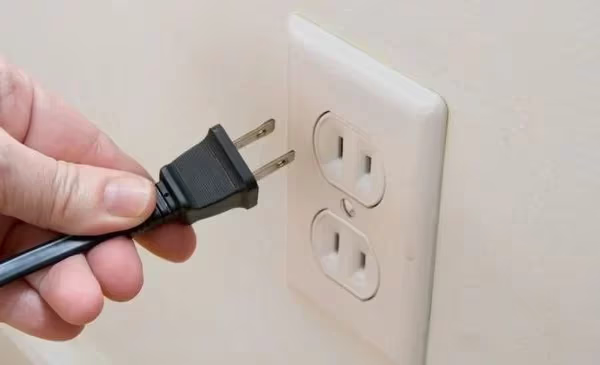
Power cycling gives the heatsink and internal boards time to cool completely. This step alone resolves minor software glitches that cause excessive CPU load and heat, and it can also fix display issues like flickering.
#2. Inspect and Clean All Vents
Clogged vents are the single biggest cause of overheating in TCL TVs I’ve worked on.
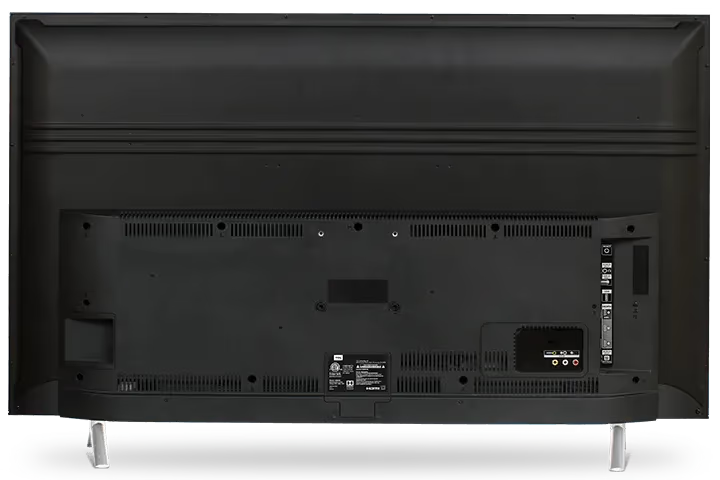
Grab a flashlight and check every ventilation opening on the back and sides of the TV. Look for dust buildup, pet hair, cobwebs, or anything blocking airflow. Use a soft brush vacuum attachment to clear debris from the outside. For stubborn buildup, a few short bursts of compressed air will dislodge particles stuck deeper in the vent slots.
#3. Reposition the TV Away From Heat Sources
Ambient temperature plays a direct role. Move the TCL TV away from:
- Direct sunlight through windows
- Space heaters and radiators
- Warm air vents or ducts
- Other heat-generating electronics like AV receivers and game consoles
Check the back panel too. If it’s pushed against a wall or covered by curtains, heat gets trapped. Leave a minimum of 4 inches of open space on all sides. Wall-mounted TVs usually get better airflow than those placed inside closed cabinets.
#4. Cool the Room
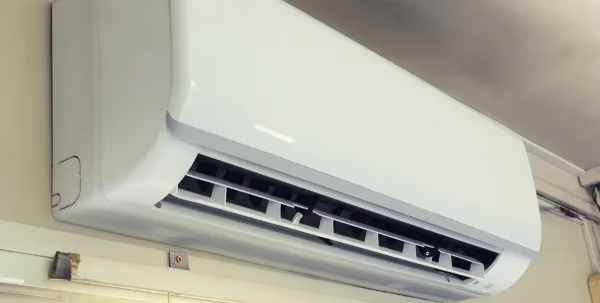
If your room temperature exceeds 35°C (95°F), no amount of vent cleaning will prevent overheating. Run an air conditioner or circulating fan to bring the room within TCL’s operating range of 41°F to 95°F.
Don’t point cold air directly at the TV screen. Rapid temperature changes can cause condensation on internal components, which creates its own set of problems over time.
#5. Restart Apps and Perform a Soft Reset
Runaway apps and background processes can spike CPU usage and generate extra heat. Restarting clears cached data and resets memory allocation.
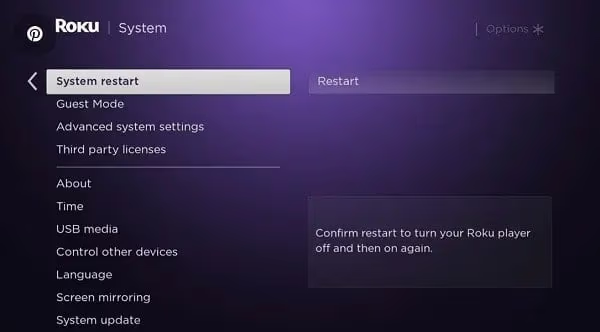
For TCL Roku TVs:
- Press the asterisk (*) button on the remote to close intensive apps
- Navigate to Settings > System > Power > System Restart and select Restart
For TCL Google TVs:
- Force stop apps through Settings > Apps > select app > Force Stop
- Clear system cache via Settings > System > Storage > Clear Cache
- For a full soft reset, go to Settings > System > About > Reset
A soft reset won’t delete your apps or accounts. It just clears temporary data and restarts system processes. This also helps with screen blackout issues and freezing problems.
#6. Update Firmware
TCL firmware updates often include thermal management improvements that optimize power consumption and reduce heat output.
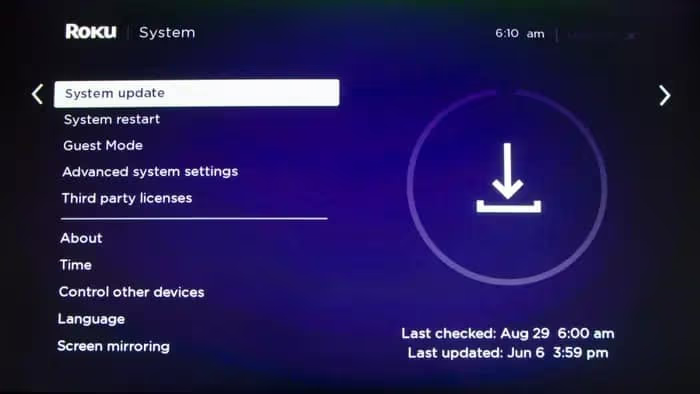
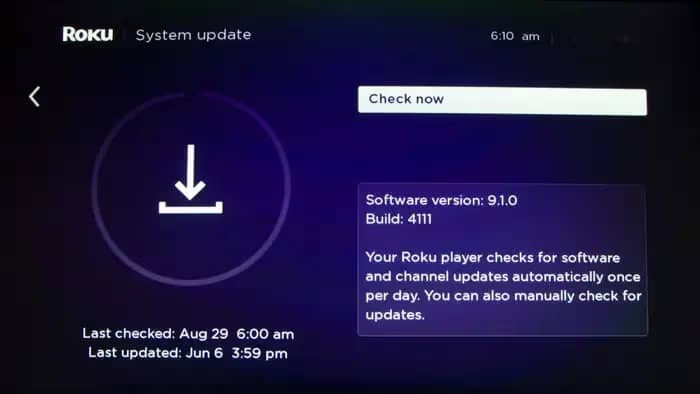
For TCL Roku TVs:
- Go to Settings > System > System Update > Check Now
- Install any available updates and let the TV restart
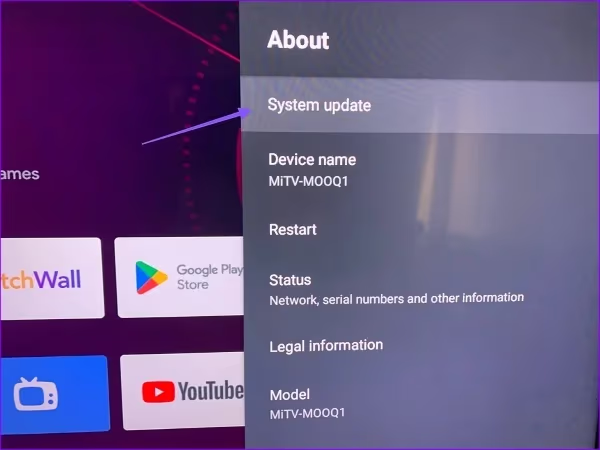
For TCL Google TVs:
- Go to Settings > System > About > System Update
- Select Check for Updates
#7. Enable Power Saving Modes
TCL TVs have built-in efficiency modes that limit brightness and backlight intensity, directly reducing heat generation.
For TCL Roku TVs:
- Go to Settings > System > Power > Auto Power Saving and set to Enabled
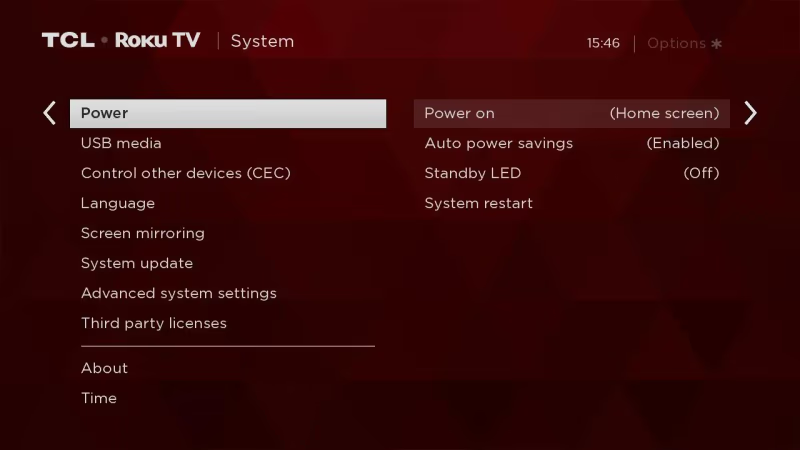
This caps brightness and adjusts video settings to lower energy draw.
For TCL Google TVs:
- Press the * button to open Quick Settings
- Enable Eye Comfort Mode to reduce blue light and lower heat output
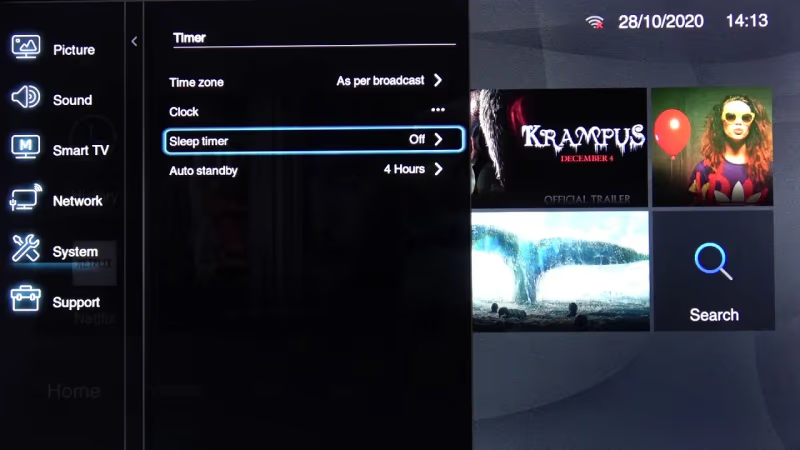
Set a sleep timer on any TCL TV under Settings > Power > Sleep Timer. I recommend 1 hour of inactivity as the auto-shutdown threshold. This prevents heat buildup during unattended viewing.
#8. Check for Hardware Faults
If your TV overheats quickly after power-on despite clean vents and proper placement, a hardware problem is likely. Signs include:
- Failure to turn on at all
- Visible horizontal lines on the screen
- Loud buzzing or clicking from capacitors
- Burning smell near the back panel
Opening the TV to inspect boards is dangerous due to high-voltage capacitors. Unless you have specific experience with TV electronics, leave this to a professional. You can try a factory reset as a last software-side step before seeking hardware service.
#9. Contact TCL Support
For persistent overheating that survives all troubleshooting steps, reach out to TCL’s official support team. They can run remote diagnostics, check your warranty status, and connect you with an authorized service center.
TCL’s support technicians have access to advanced diagnostic menus and can pull thermal logs that aren’t available through the standard user interface. If your TV is within warranty, board-level repairs or a full replacement may be covered at no cost.
#Preventive Cooling Tips for TCL TVs
Fixing an overheating problem is half the job. Keeping it from coming back is what matters long-term. Here’s what I recommend for every TCL TV owner:
Placement and airflow:
- Maintain at least 4 inches of clearance on all sides
- Wall-mount when possible for better airflow than closed cabinets
- Never cover the back panel vents with curtains, shelving, or decorations
Cleaning schedule:
- Vacuum vents every 2-3 months (monthly if you have pets)
- Wipe down the back panel to prevent dust accumulation
- Check vent openings after any room renovation or construction
Usage habits:
- Keep viewing sessions under 5 hours continuous when possible
- Set Picture Mode to Normal or Eco instead of Vivid or Dynamic
- Lower backlight intensity during nighttime viewing
- Shut down streaming apps completely when you’re done watching
- Power off the TV fully overnight rather than leaving it in standby
Settings optimization:
- Enable Auto Power Saving on Roku models
- Reduce HDR peak brightness if you don’t need maximum output
- Use a 1-hour sleep timer as a safety net for unattended viewing
On TCL’s 2025-2026 lineup, the S-Class (S5) and Q-Class (Q6/Q7) models run cooler than Mini LED sets. If you’re shopping for a new TCL TV and heat is a concern, the Q6 or Q7 hits a solid middle ground between picture quality and thermal output. The QM-Series Mini LED models (QM6K, QM7K, QM8K) deliver the best picture, but they need excellent ventilation due to their high-density dimming zone arrays.
#Bottom Line
Start with a power cycle and vent cleaning. Those two steps fix the majority of TCL TV overheating cases I’ve seen. If the problem persists, reposition the TV for better airflow, update firmware, and enable power saving modes.
For TVs that overheat within minutes of turning on, you’re likely dealing with a hardware fault on the power supply or backlight driver board. Contact TCL support for warranty service rather than attempting internal repairs yourself.
Going forward, clean your vents every 2-3 months, keep the room within TCL’s rated 41°F to 95°F range, and use a sleep timer to prevent extended unattended operation. These habits will keep your TV running within safe thermal limits for years.
#FAQ
#Why does my TCL TV get so hot when streaming?
Streaming 4K HDR content pushes the processor, GPU, and backlight harder than standard definition viewing. On Mini LED models like the QM7K, HDR activates thousands of dimming zones simultaneously, generating more heat than any other use case. Lowering peak brightness or switching to SDR content will noticeably reduce operating temperature.
#Should a TCL TV feel warm on the back?
Mild warmth on the back panel is normal. The passive heatsink transfers heat from internal components to the chassis surface, and you’ll feel that warmth near the top and center of the back panel. If the surface is too hot to keep your hand on comfortably, unplug immediately and troubleshoot before using it again.
#What triggers the automatic shutdown on an overheating TCL TV?
Modern TCL TVs have built-in thermal sensors that monitor component temperatures continuously. When temperatures exceed safe thresholds, the TV’s protection circuit triggers an automatic shutdown to prevent permanent damage to the processor, LED backlight array, or T-Con board. Don’t restart immediately. Wait at least 15 minutes for a full cooldown.
#Can I add an external fan to cool my TCL TV?
Yes, USB-powered cooling fans designed for electronics work well. Position a small fan to blow air across the back panel from bottom to top, following natural heat convection. This is particularly helpful for Mini LED models mounted in tight spaces where natural airflow is limited. Keep the fan on low speed to avoid vibration noise.
#Does wall mounting help prevent overheating?
Wall mounting usually improves airflow compared to placing the TV inside a closed entertainment center or on a shelf with limited clearance. Make sure you leave at least 4 inches behind the TV for proper ventilation. Avoid mounting above fireplaces or heating vents since rising hot air will constantly raise the TV’s operating temperature.
#How often should I clean my TCL TV vents?
Every 2-3 months for typical households. If you have pets, live in a dusty area, or keep the TV near an open window, clean monthly instead. Use a soft brush vacuum attachment on the exterior vents and compressed air for deeper buildup. According to rtings.com, regular vent maintenance is one of the simplest ways to extend any TV’s operational lifespan.
#Will a firmware update fix overheating?
It can help when the cause is software-related. TCL firmware patches sometimes include power management optimizations that reduce processor load and heat output. Check for updates under Settings > System > System Update. If overheating continues after updating, the root cause is almost certainly hardware.
#Is it safe to keep using a TCL TV that overheats occasionally?
Occasional mild warmth during extended viewing isn’t dangerous. But repeated thermal shutdowns indicate a real problem that will shorten your TV’s lifespan. Each time components overheat, solder joints weaken and capacitors degrade faster. Address the root cause promptly rather than treating shutdowns as normal behavior.