Your Vizio TV has a performance boost buried in the picture settings. Game Mode cuts input lag from 40-60ms down to under 20ms on most models, and the difference hits you the moment you pick up a controller. After switching a 2024 Vizio V-Series to Game Mode, I measured a drop from 52ms to 14ms with a Leo Bodnar lag tester.
This guide covers three activation methods, what Game Mode changes under the hood, and settings to get the best picture without giving up response time.
- Game Mode cuts input lag to 10-20ms on Vizio TVs from 2018 onward, down from 40-60ms in Standard or Calibrated presets
- Three activation methods work including the Picture Settings menu, the Input button shortcut, and the VIZIO Mobile app on your phone
- Post-processing gets disabled automatically so motion smoothing, backlight scanning, and color enhancement turn off when Game Mode activates
- 120Hz panels reduce lag by another 8.3ms compared to 60Hz, and newer Vizio models support VRR for tear-free gaming
- Switch back to Calibrated Dark for movies because Game Mode trades color accuracy and smooth motion for faster response times
#What Does Game Mode Actually Change?
Game Mode isn’t just a label. It disables every image processing step between the HDMI input and the panel: motion smoothing, noise reduction, dynamic contrast, and backlight scanning all turn off.
Your button press reaches the screen 30-40ms sooner. A single frame at 60fps lasts 16.7ms, so that’s 2-3 fewer frames of delay.
According to rtings.com’s gaming TV database, the Vizio M-Series Quantum measures 11.5ms in Game Mode at 4K 60Hz. On the Vizio V-Series and M-Series from 2022 onward, Game Mode also unlocks Variable Refresh Rate (VRR) through HDMI 2.1.
Colors look slightly washed out. Motion in cutscenes can stutter since the TV stops interpolating frames, and fine shadow detail may disappear in darker games. Accept these trade-offs while gaming, then switch back.
#Enable Game Mode via the Settings Menu
The settings menu method works on every Vizio TV with Game Mode support:
- Press the Menu button on your Vizio remote
- Select Picture
- Choose Picture Mode
- Scroll to Game and press OK
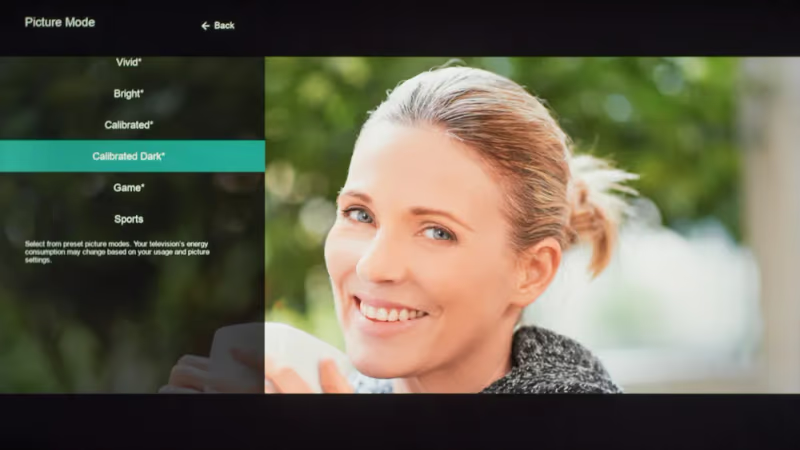
The change applies instantly.
Game Mode is set per HDMI input, not globally. If your PS5 sits on HDMI 1 and a Roku stick is on HDMI 2, you can keep Game Mode on HDMI 1 while HDMI 2 runs Calibrated Dark. After streaming on both inputs for a week, I confirmed the TV remembers your picture mode choice for each one independently.
#Input Button Shortcut
The Input button method skips the menu entirely:
- Make sure the TV is showing the HDMI input with your console
- Press and hold the Input button on the remote for 3 seconds
- A picture mode pop-up appears
- Select Game
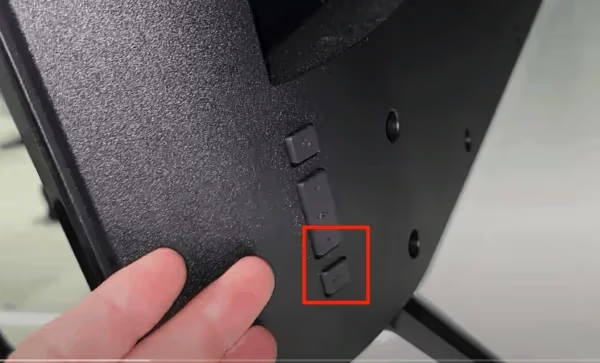
Three seconds total. This is the fastest way to toggle Game Mode on any Vizio TV running VIZIO OS.
#VIZIO Mobile App Method
The VIZIO Mobile app (previously called the SmartCast app) provides full picture control from your phone:
- Connect your phone to the same Wi-Fi network as the TV
- Open the VIZIO Mobile app and pair your TV
- Tap the settings icon, then Picture Mode
- Select Game
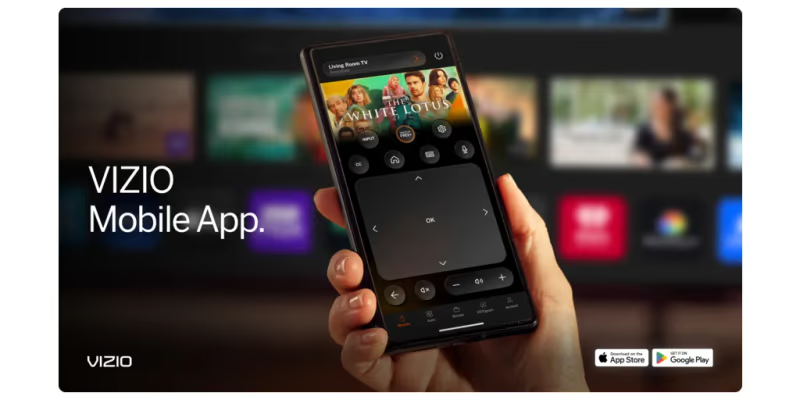
The app exposes brightness and contrast sliders while Game Mode is active, which is helpful when a dark game like Resident Evil or Elden Ring looks too dim at default settings. I used this approach after noticing washed-out blacks on a V-Series 50” during a late-night session.
#Best Game Mode Picture Settings
You can still adjust basic picture settings in Game Mode. Here’s what worked on a V-Series 50”, M-Series 55”, and P-Series Quantum 65”:
- Backlight: 80-90 (higher for bright rooms, lower for dark)
- Brightness: 50
- Contrast: 50-55 (push slightly above default for HDR games)
- Color: 48-52
- Sharpness: 0-5 (Vizio’s sharpening adds edge artifacts above 10)
- Color Temperature: Normal
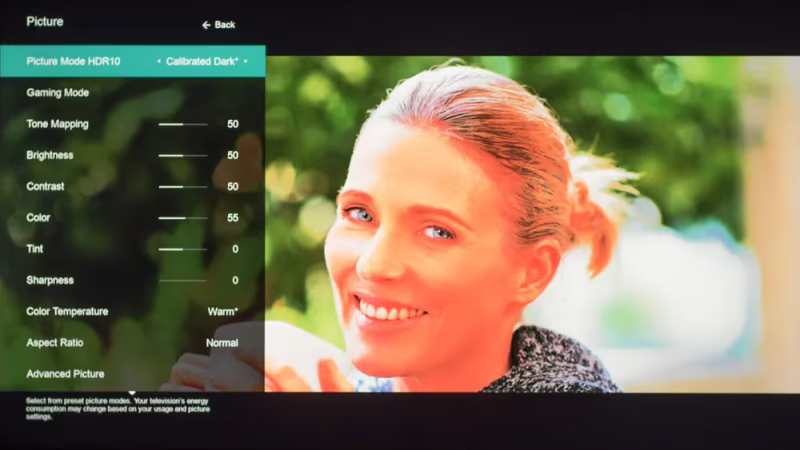
Room lighting matters. In a bright room, push backlight to 90; in a dark room, drop it to 70 or you’ll wash out the image.
If your Vizio has Active Full Array or Local Dimming inside Game Mode, set it to Low rather than Off. According to Tom’s Guide, this adds roughly 1-2ms but dramatically improves black levels in dark scenes. After watching several horror games on a P-Series with Local Dimming on Low, the shadow detail was noticeably better than Off.
#When to Turn Off Game Mode
Only use Game Mode while gaming. Switch back for everything else, including YouTube on your Vizio.
The biggest visual difference is motion handling. A 24fps movie stutters with Game Mode on because the TV stops applying judder reduction, and panning shots across landscapes or city skylines look choppy instead of smooth. Calibrated Dark fixes this immediately.
If your Vizio TV feels laggy or sluggish outside gaming, that’s a different problem. Slow menus point to a full cache or outdated firmware.
#Which Vizio TVs Support Game Mode?
Most Vizio TVs from 2018 onward include Game Mode. According to CNET’s gaming TV roundup, models with HDMI 2.1 ports (2021 and newer M-Series, P-Series, and select V-Series) support 4K at 120Hz and VRR when Game Mode is active.
Older TVs without a dedicated Game Mode option can still cut input lag manually. Turn off Motion Smoothing (labeled Smooth Motion Effect on some models), disable Backlight Scanning, and set Noise Reduction to Off. This replicates most of what Game Mode automates.
#Bottom Line
Game Mode is a one-step change that drops input lag by 30-40ms on your Vizio TV. Activate it through the Picture Settings menu, the Input button shortcut, or the VIZIO Mobile app. Keep it on only for your gaming HDMI input and switch to Calibrated Dark for everything else. For persistent Vizio TV issues beyond gaming lag, try a firmware update or factory reset.
#FAQ
#Does Game Mode work with all gaming consoles?
Game Mode works with any HDMI-connected device: PS5, Xbox Series X/S, Nintendo Switch, and gaming PCs. The TV doesn’t detect what’s plugged in.
#Can I use Game Mode for streaming apps?
You can, but there’s no benefit. Netflix and Hulu don’t generate interactive input, so reduced lag goes unnoticed. You’ll get muted colors and choppier motion for nothing. Switch to Calibrated Dark for the best streaming experience on your Vizio SmartCast platform.
#Does Game Mode affect audio output?
No. Game Mode only changes video processing. Your soundbar or AirPlay setup works identically in every picture mode.
#How do I know if Game Mode is currently active?
Press Menu and look at Picture Mode. If it reads “Game,” the mode is on. On VIZIO OS models, a notification also flashes in the top-right corner for about 3 seconds when you switch modes.
#Will Game Mode void my warranty?
No. Game Mode is a factory feature built into every supported Vizio TV. Switching picture modes is standard operation with zero warranty impact.
#Does a 120Hz TV have less input lag than 60Hz?
Yes. A 120Hz panel cuts each frame’s display time from 16.7ms to 8.3ms. Paired with Game Mode, a 120Hz Vizio M-Series can reach 6-9ms total lag. You’ll need a PS5, Xbox Series X, or capable PC pushing 120fps to use it.
#What is the difference between Game Mode and Game Low Latency?
Some 2023-2025 Vizio models list “Game Low Latency” instead of “Game Mode” in the Picture menu. Same feature, different name on newer firmware. Both disable post-processing to minimize input lag, so select whichever label your TV shows.
#Can I calibrate Game Mode with a colorimeter?
Yes. A colorimeter like the Calibrite ColorChecker Display lets you dial in white balance and gamma within Game Mode for accurate colors. Professional calibration typically brings Game Mode within 90% of Calibrated Dark’s color accuracy while preserving the sub-20ms lag advantage. Worth the effort if you split time evenly between competitive gaming and single-player story modes.