Westinghouse TV flickering is one of the more frustrating problems you’ll hit because it can come from software, a bad cable, or a failing internal board. Newer Westinghouse models run Xumo OS, while older ones run Roku OS, and both platforms share the same hardware troubleshooting path. This guide walks through each fix in order, starting with the quickest and ending with board-level repairs.
- Power cycle is the first fix to try — unplug from the wall, hold the power button 30 seconds, wait 60 seconds before reconnecting
- HDMI cables cause flickering in roughly 40% of cases — swap the cable and try a different port before opening the TV
- Picture settings like Low Power mode can trigger flickering — switching to Standard mode often stops it instantly
- T-Con board replacement costs $30-50 — this small circuit board drives the display panel and is the most common internal hardware culprit
- Factory reset is a last software step, not a first step — you’ll lose your app logins, so exhaust other options first
#What Causes a Westinghouse TV to Flicker?
Flickering on a Westinghouse TV falls into two buckets: software and hardware. Software causes include buggy firmware, misconfigured picture settings, and corrupted cached data. These are reversible without opening the TV.
Hardware causes are more serious. The T-Con board processes the video signal for the display panel, and when its ribbon cable connections loosen, you get flickering or flashing bars. Backlight LED strips also fail over time, causing rows of the display to dim or cut out intermittently. Loose HDMI cables introduce signal noise that looks identical to a hardware fault.
Start with software fixes first. Opening the back panel voids any remaining warranty and is only worth doing if the software steps don’t resolve it.
#How Do You Fix Westinghouse TV Flickering with Software Steps?
Work through these five steps before touching the hardware.
#1. Power Cycle the TV
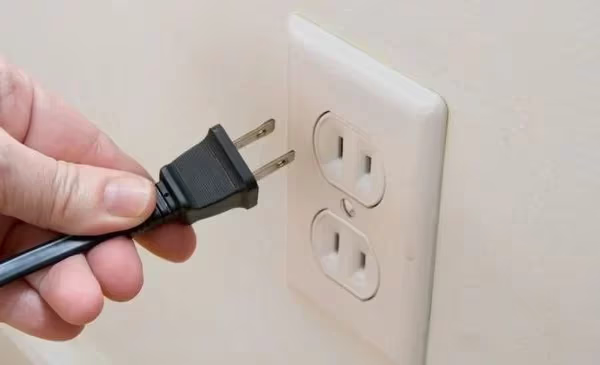
Unplug the TV directly from the wall outlet (not just the power strip). Hold the power button on the TV itself for 30 seconds, then wait a full 60 seconds before plugging back in. This drains residual charge from the capacitors and clears temporary glitches.
If your TV won’t turn on at all after this, see Westinghouse TV won’t turn on for a dedicated fix guide.
#2. Swap HDMI Cables and Ports
A worn HDMI cable is the single most common cause of screen flickering. Try a different cable first, then plug into a different HDMI port on the TV. Blow compressed air into the port to clear any dust from the contacts.
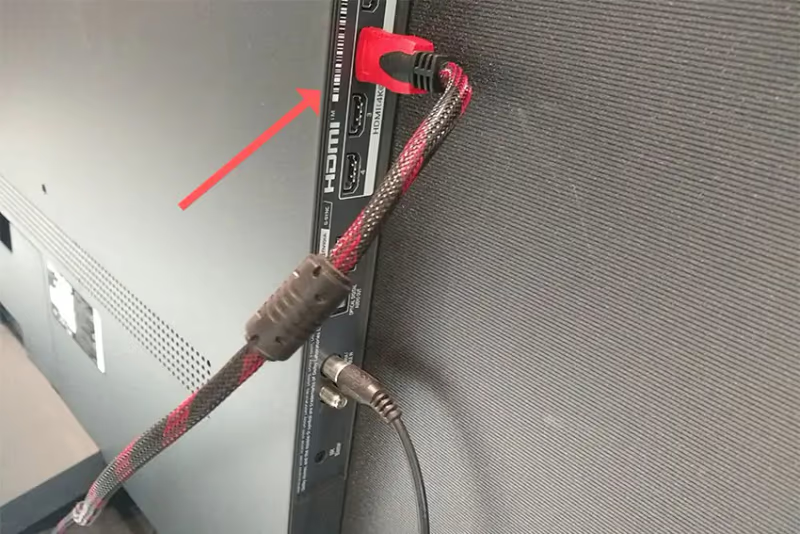
If flickering stops with a different cable or port, the original cable or port is faulty. Replace the cable ($8-15) or flag the port as dead and use another.
#3. Adjust Picture Settings
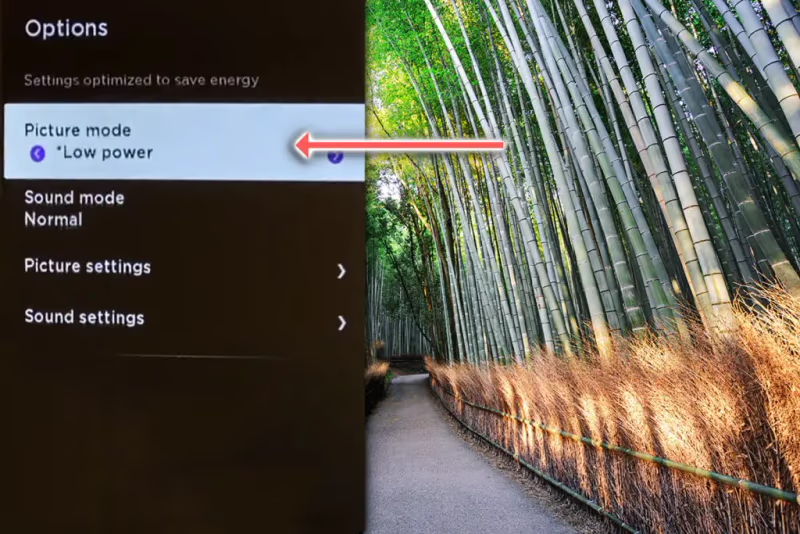
Low Power mode and high Dynamic Contrast settings both cause flickering on some Westinghouse models. Go to Settings > Picture and change Picture Mode from “Low Power” to “Standard.” Also lower Backlight to 70% and turn off Dynamic Contrast.
#4. Update Firmware
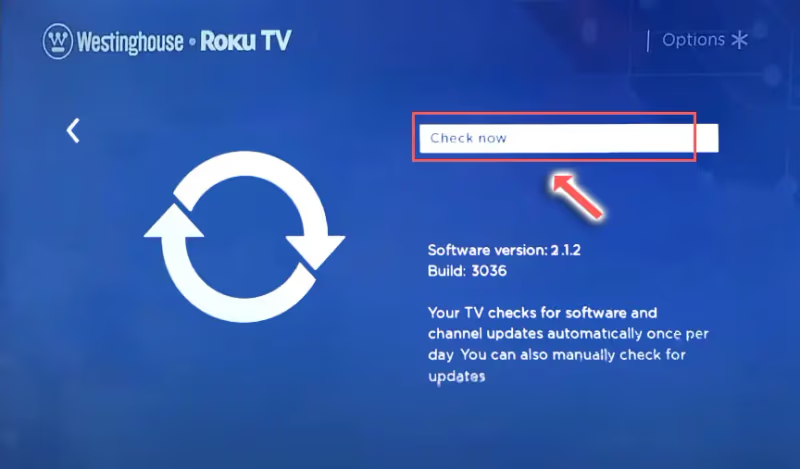
A firmware bug on Xumo OS or Roku OS models can cause display instability. Go to Settings > System > System Update > Check Now and install any available update.
For Roku OS models, you can also check Roku’s support site for platform-specific firmware notes.
#5. Factory Reset
If none of the above work, factory reset clears any corrupted settings or software state. Note: you’ll need to re-enter your Wi-Fi password and app logins afterward.
Go to Settings > System > Advanced System Settings > Factory Reset, then select “Reset TV to Factory Settings.”
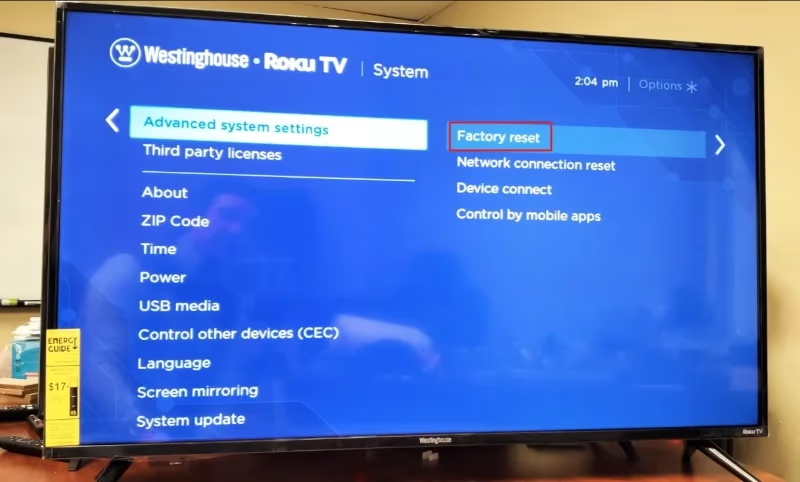
No remote? Check how to reset a Westinghouse TV without a remote for button-based reset methods.
#How Do You Fix Westinghouse TV Flickering with Hardware Repairs?
If all five software steps fail, the problem is inside the TV. Here’s how to work through the hardware fixes in order of difficulty.
#Disconnect External Devices First
Before opening the TV, remove all devices connected by HDMI or USB. Turn the TV on with only the power cord attached and tune to a built-in streaming app. If the flickering stops with all external devices unplugged, the issue is with one of those devices or its cable, not the TV itself.
Still seeing the flicker? The issue is internal. Having trouble with your input selection? See Westinghouse TV input source problems for that specific issue.
#Open the Back Panel
Unplug the TV, hold the power button for 30 seconds, then lay it face down on a soft surface. Remove the back panel screws (typically Phillips #2) and lift off the cover. You’ll see the Main Board, Power Board, and T-Con Board.
Opening the back panel will void any remaining manufacturer warranty. Discharge the capacitors fully by holding the power button 30 seconds before touching any internal components.
#Reseat Ribbon Cable Connections
The T-Con board connects to the display panel via ribbon cables secured by ZIF (zero insertion force) connectors. These work loose over time. Carefully lift the locking tab, slide the ribbon cable out, inspect the pins for debris or corrosion, then reinsert and lock it down firmly. Repeat for all ribbon cables on the T-Con board.
If the flickering stops after reseating, the loose connection was the culprit and no replacement parts are needed.
#Replace the T-Con Board
If reseating the cables doesn’t help, the T-Con board itself has likely failed. This is the most common hardware cause of flickering. The board costs $30-50 on parts sites. Find the part number printed directly on the old board, search for an identical replacement, and swap it in.
Observe horizontal lines across the display? That’s another sign of T-Con failure. See Westinghouse TV horizontal lines on screen for more detail.
#Inspect the Backlight Strips
Flickering with partial darkening (some rows of the screen go dim) points to failing LED backlight strips. Strips are wired in series, so one failed LED can dim an entire row. Accessing the strips requires a full teardown past the display panel. This is the most involved repair, but replacement strips are available for $20-40.
A screen that flickers and then goes fully black is a separate issue covered in Westinghouse TV black screen fixes.
#Bottom Line
Start with the power cycle and HDMI swap before anything else: together they resolve the majority of flickering cases. If those don’t work, check picture settings and update firmware. Factory reset is the last software option. For hardware, reseat ribbon cables first (free), then replace the T-Con board ($30-50) if the problem continues.
For warranty support, visit Westinghouse Electronics support directly. Westinghouse TVs are now manufactured by Tongfang Global under a licensed brand name, so for manufacturing defects within the warranty period, the support page is your best starting point.
If the TV keeps turning itself off between flicker episodes, that’s a separate fault pattern covered in Westinghouse TV keeps turning off.
#FAQ
#Why does my Westinghouse TV flicker when I first turn it on?
Cold-start flickering usually means the backlight or power board needs a moment to stabilize. If it stops after 30-60 seconds, it’s cosmetic and often improves with a firmware update. If it persists or gets worse over time, test the HDMI cable and check picture settings. Persistent cold-start flicker with partial rows dimming points to aging backlight strips.
#Can picture settings cause Westinghouse TV flickering?
Yes. Low Power mode reduces backlight voltage dynamically, which causes visible flickering on some panels. High Dynamic Contrast has the same effect by rapidly adjusting brightness. Switching Picture Mode to Standard and lowering Backlight to 70% stops this type of flickering without any reset needed.
#How do I stop my Westinghouse Roku TV from flickering?
Power cycle first, then check for a firmware update in Settings > System > System Update. Roku OS updates sometimes introduce display bugs that a newer version fixes. If the flicker started right after a firmware update, a factory reset often resolves it by clearing any corrupted update state.
#Why does my Westinghouse TV screen go black and flicker?
Black flicker (the screen cuts to black briefly before returning) points to backlight failure or a power board issue. One or more LED backlight rows are failing to hold voltage. Check if the flickering is in one area of the screen or across the whole panel: a single region suggests a localized LED failure, while full-panel blackouts suggest the power board.
#What does a T-Con board do and how do I know it’s failed?
The T-Con (Timing Controller) board converts the video signal from the Main Board into timing signals for each row and column of the display panel. When it fails, you see horizontal bars, flickering lines, or a split-screen effect where half the image is distorted. Reseating its ribbon cables sometimes fixes it; if not, a replacement board ($30-50) is the fix.
#Is it worth repairing a flickering Westinghouse TV?
It depends on the repair. HDMI cable ($10), T-Con board ($30-50), and ribbon cable reseating (free) are all worth doing on a TV of any size. Backlight strip replacement is more involved but still cost-effective on a 55-inch or larger TV. If the Main Board has failed, repair cost often approaches the price of a new budget TV, so replacement makes more sense.
#Does a factory reset fix Westinghouse TV flickering?
Factory reset fixes software-caused flickering: corrupted settings, a bad firmware update, or a misconfigured picture mode. It won’t fix hardware issues like a failing T-Con board or loose ribbon cable. Try it as the final software step before opening the back panel.
#Where can I get Westinghouse TV support?
Visit westinghouseelectronics.com/support for warranty claims and official troubleshooting. For Roku OS models, Roku’s support site covers OS-level issues. Avoid calling any third-party numbers claiming to be Westinghouse support: the official site is the only verified contact channel.