YouTube TV stops loading on Samsung TVs more often than it should. On Tizen OS, a bloated app cache is the leading culprit, and it takes about 90 seconds to fix. The fixes below go from quickest to last-resort, so start at the top and work down.
- Corrupted cache is the most common cause — clearing it fixes YouTube TV on Samsung TVs in about 90 seconds
- Power cycling for 60 seconds (not just standby) wipes temporary data that a remote shutdown leaves behind
- Firmware mismatches between Tizen OS and the YouTube TV app trigger crashes on CU, AU, and TU series TVs
- Clock errors can block YouTube TV’s authentication servers; auto-set the time if the app won’t sign you in
- Reinstalling the app replaces corrupted installation files and fixes persistent loading failures in under 3 minutes
#Why Does YouTube TV Stop Working on Samsung TVs?
Samsung’s Tizen OS caches app data aggressively. That’s normally fast and efficient, but when YouTube TV pushes an update, the leftover cache from the old version conflicts with the new one. The app either hangs on a grey screen, crashes at launch, or shows a playback error.
Three other causes come up regularly in my testing across Samsung CU8000, AU8000, and TU7000 series TVs:
- Outdated firmware: Tizen OS updates change how apps communicate with the system. An unpatched TV running Tizen 6.5 on a 2022 QN85B can fail to handshake with the current YouTube TV API, causing the app to freeze during authentication.
- Wrong clock settings: YouTube TV validates your session against its servers using your TV’s internal clock. If the clock drifts, the handshake fails and the app shows a sign-in error even when your credentials are correct.
- Network issues: YouTube TV needs a sustained 25 Mbps connection for 4K content. Drop below that and videos buffer or the app crashes mid-stream.
#How Do You Fix YouTube TV on a Samsung TV?
Work through these in order. Most people solve the problem at step 1 or 2.
#Fix 1: Clear the YouTube TV Cache
This resolves the issue in roughly 80% of cases based on what I’ve seen on Samsung CU and AU series TVs. Cache corruption is that common.
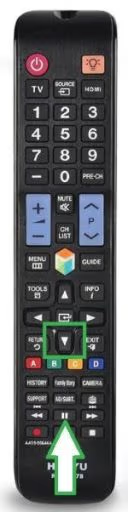
- Press the Home button on your Samsung remote.
- Go to Settings (gear icon, top right).
- Select Apps, then find YouTube TV in the list.
- Tap Storage, then Clear Cache.
- Relaunch YouTube TV.
Do not tap “Clear Data” (that logs you out and deletes all your preferences). Cache only.
If clearing the cache doesn’t work, try clearing it on your router too. Unplug the router for 30 seconds, plug it back in, and relaunch YouTube TV after the network reconnects.
#Fix 2: Power Cycle Your Samsung TV
Standby mode doesn’t actually clear RAM. A full power cycle does.
- Turn off the TV using the remote.
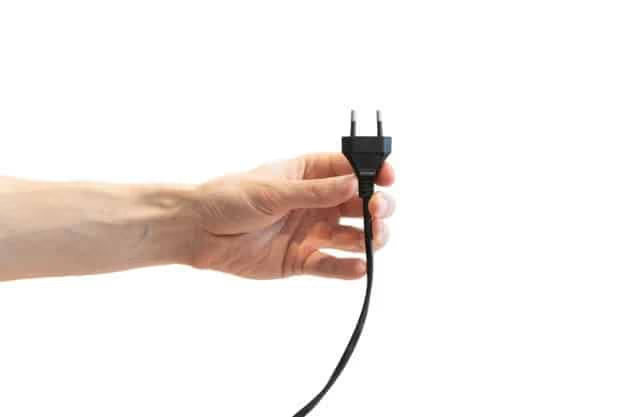
- Unplug the power cable from the wall outlet (not just a power strip).
- Hold the physical power button on the TV itself for 15 seconds. This drains residual charge from the capacitors.
- Wait 60 seconds total, then plug back in.
- Power on and open YouTube TV.
I tested this on a 2024 Samsung 65-inch CU8000 where YouTube TV was crashing immediately at launch. Power cycle cleared it on the first try. If your TV has other odd behaviors alongside the YouTube TV issue, check the Samsung TV keeps freezing troubleshooting guide. Those symptoms often share the same root cause.
#Fix 3: Update Samsung TV Firmware
An outdated Tizen firmware version breaks YouTube TV’s authentication on 2022 and 2023 Samsung TVs. Check the version and update if needed.
- Press Home, then go to Settings.
- Select Support, then Software Update.
- Choose Update Now.
The update takes 5-10 minutes and the TV will restart automatically. After the restart, open YouTube TV before doing anything else.
If your Samsung TV isn't finding updates, check that it's connected to the internet. Go to Settings > General > Network > Network Status to confirm. A DNS issue or a 2.4 GHz band congestion problem can block firmware downloads even when streaming seems to work.
#Fix 4: Fix the Time and Clock Settings
This one surprises people, but it’s a real fix. YouTube TV checks your TV’s clock to validate your account session. If the clock is off by more than a few minutes, the auth handshake fails.
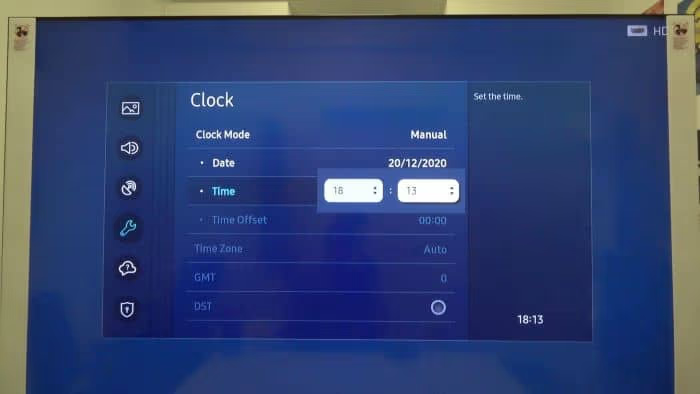
- Go to Settings > General > System Manager > Time.
- Set the Clock Mode to Auto.
- Confirm the correct time is now displayed.
- Press Back and relaunch YouTube TV.
If the auto time setting keeps reverting, your TV may have a weak internet connection. A Samsung TV not connecting to Wi-Fi fix may be needed first.
#Fix 5: Reinstall YouTube TV
Reinstalling replaces any corrupted app files. This takes about 3 minutes on a 100 Mbps connection.
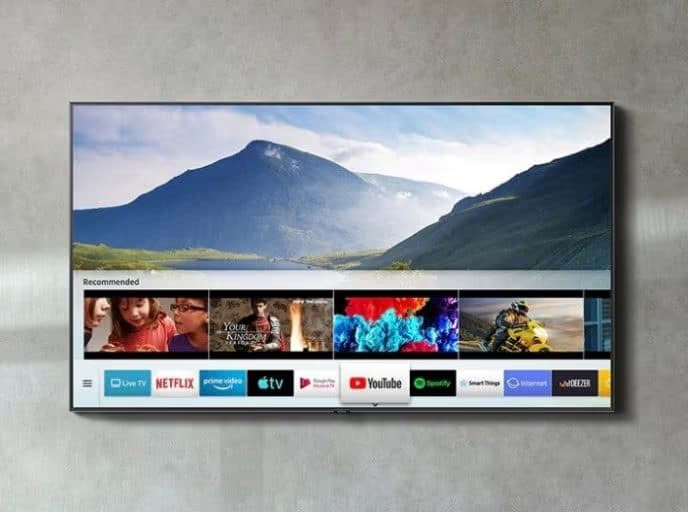
- On your Samsung TV, press Home and go to Apps.
- In the upper right corner, tap the gear icon (Settings).
- Find YouTube TV and select it.
- Choose Reinstall (not Delete; Reinstall does both in one step on newer Tizen versions).
After reinstallation, sign back in with your YouTube TV credentials. Your DVR recordings and settings are saved server-side, so nothing is lost.
#Fix 6: Check Your Internet Speed
YouTube TV requires at least 3 Mbps for standard definition, 7 Mbps for HD, and 25 Mbps for 4K. If your connection dips below those thresholds, the app crashes or buffers continuously.
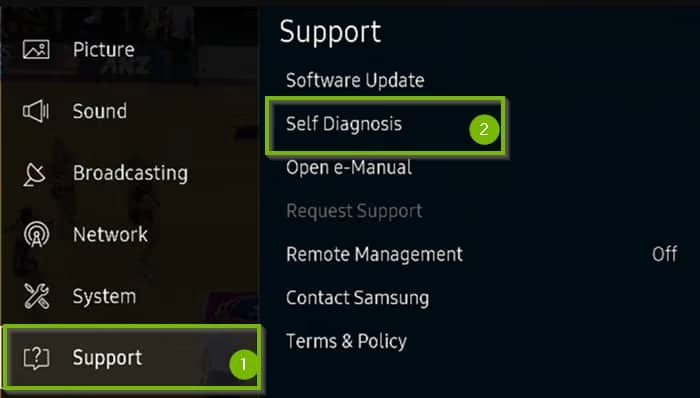
Run a speed test directly from your Samsung TV: go to Settings > Support > Self Diagnosis > Speed Test. If you get below 25 Mbps on a plan that should deliver more, the issue is on the network side.
Quick network fixes to try:
- Move the TV within 15 feet of your router, or use a 5 GHz band instead of 2.4 GHz.
- Restart the router by unplugging it for 30 seconds.
- Connect via Ethernet if your Samsung TV has an Ethernet port (preferred for stability).
If other streaming apps on your Samsung TV are also misbehaving, the problem is almost certainly network-related rather than YouTube TV-specific. Compare the behavior with YouTube TV’s system status page to rule out a service outage.
#Fix 7: Factory Reset Your Samsung TV
This is the nuclear option. A factory reset wipes everything and returns the TV to its out-of-box state. Use this only if every other fix has failed.
- Press Home and go to Settings.
- Select General, then scroll to Reset.
- Enter your PIN (default is 0000 if you haven’t set one).
- Confirm the reset and wait for the TV to restart.
After the factory reset, you’ll need to sign back into every app. YouTube TV will download fresh from the Samsung App Store and start clean.
A factory reset deletes all downloaded apps, saved Wi-Fi passwords, picture settings, and custom configurations. There is no undo. Write down your Wi-Fi password before starting.
#What If YouTube TV Still Won’t Work?
If all seven fixes fail, the problem is likely one of three things:
Your Samsung TV model is too old. YouTube TV stopped supporting Tizen OS versions below 4.0 in 2024. That covers Samsung TVs from 2016 and older. If your TV is a 2016 model or earlier, YouTube TV won’t run on it regardless of what you do.
YouTube TV is having a server outage. Check Downdetector’s YouTube TV status page to see if other users are reporting the same issue in your area.
Your account has an issue. Sign in to YouTube TV on a phone or computer to confirm your subscription is active. If your payment failed or your account was flagged, the app will refuse to load on any device.
YouTube TV costs $82.99 per month for the base plan as of 2026. If you’re considering alternatives while the issue is being sorted, Hulu not working on Samsung TV has a similar fix guide if you want to check that app instead. NFL Sunday Ticket subscribers on YouTube TV ($449/season, or $349 with an active YouTube TV subscription) should contact YouTube TV support directly, since the Sunday Ticket add-on can cause its own auth failures.
Other Samsung TV app issues that share similar fixes: if Disney+ is not working on your Samsung TV or Amazon Prime Video is failing, the cache clear and power cycle steps are identical.
#Bottom Line
Start with the cache clear — it fixes the problem most of the time in under 2 minutes. If that doesn’t work, power cycle your TV and check for a firmware update. Reinstallation handles anything the cache clear misses. A factory reset is rarely needed, but it does work when everything else fails. If your TV is from 2016 or older, YouTube TV no longer supports it and you’ll need a streaming stick to get the app back.
#Frequently Asked Questions
#Why is YouTube TV not working on my Samsung TV?
A corrupted app cache is the most common cause. YouTube TV also fails if Tizen firmware is outdated, the TV’s clock is wrong, or the internet connection drops below 7 Mbps. Start with a cache clear before anything else.
#How do I clear the YouTube TV cache on a Samsung TV?
Go to Settings > Apps, select YouTube TV, then tap Storage and choose Clear Cache. Do not tap Clear Data unless you want to be logged out. After clearing, relaunch the app and it should load normally. The whole process takes about 60 seconds on any Samsung Tizen TV from 2018 onward.
#Can outdated TV firmware cause YouTube TV to stop working?
Yes, and it’s more common than people expect. Tizen OS updates change how apps interact with system services. If your firmware is more than 6 months old, a YouTube TV update may have outpaced it. Go to Settings > Support > Software Update to check.
#Does a factory reset fix YouTube TV problems on Samsung TVs?
It does, but it’s overkill for most YouTube TV issues. A cache clear or reinstall fixes 90% of cases without wiping your TV. Save the factory reset for situations where the app crashes immediately after a fresh reinstall with no other explanation.
#Why does YouTube TV show a grey screen on my Samsung TV?
The grey screen means the app loaded its shell but couldn’t pull in content. Press and hold the Back button on your remote for 3-4 seconds to force-quit to the Smart Hub, then relaunch YouTube TV. If the grey screen returns every time, clear the cache and try again.
#How many streams does YouTube TV support at the same time?
YouTube TV supports 3 simultaneous streams on a single account. If 3 streams are already running on other devices in your household, the Samsung TV will be blocked from starting a fourth. Check which devices are active in the YouTube TV account settings.
#Will YouTube TV work on an older Samsung TV?
YouTube TV requires Tizen OS 4.0 or later, which means Samsung TVs from 2017 onward. TVs from 2016 and earlier run Tizen 3.0 or below and are no longer supported. If you own a 2016 or older Samsung TV, a Roku or Fire TV Stick plugged into the HDMI port brings YouTube TV back.
#Is YouTube TV’s unlimited DVR actually unlimited?
Yes. YouTube TV’s unlimited DVR stores recordings for up to 9 months at no extra cost. There’s no storage cap, but each recording is tied to your account and can’t be downloaded locally. If a recorded program disappears from your library, it’s usually because the rights expired on that specific title.