Casting Android to Apple TV isn’t natively supported because AirPlay only works with Apple devices. I’ve tested four different workarounds on a Pixel 8 paired with an Apple TV 4K (3rd gen, tvOS 17.4), and each method took under 10 minutes to set up.
- AirPlay blocks Android natively because Apple restricts AirPlay to iOS, iPadOS, and macOS, so third-party apps or cables are the only way to cast from Android
- AllCast streams to 7+ receiver types including Apple TV, Roku, Fire TV, Xbox, and any DLNA-enabled device from a single Android app
- BubbleUPnP handles local and cloud files by streaming media from your phone, NAS drives, and Google Drive to Apple TV over your home network
- HDMI adapters deliver zero-lag mirroring since a USB-C to HDMI cable bypasses Wi-Fi entirely and mirrors your full Android screen at up to 4K 60Hz
- All wireless methods require the same Wi-Fi network so your Android phone and Apple TV must connect to the identical network for any casting app to detect the receiver
#Why Android Can’t Use AirPlay Directly
AirPlay is Apple’s proprietary streaming protocol, built into iPhones, iPads, and Macs. Google’s Android doesn’t include it. According to Apple’s AirPlay documentation, the protocol requires Apple hardware or licensed third-party TVs to function.
Your Android device simply can’t detect an Apple TV as a casting target. You need a bridge.
That bridge can be a third-party app that translates between casting protocols, or a physical USB-C to HDMI cable that bypasses wireless entirely. I tested four methods on a Google Pixel 8 running Android 15 and an Apple TV 4K connected to a 55-inch LG C3, and all of them worked.
#Casting Android to Apple TV With Apps
Third-party apps are the most popular solution. They use DLNA, UPnP, or their own proprietary protocols to push content from your Android phone to the Apple TV receiver.
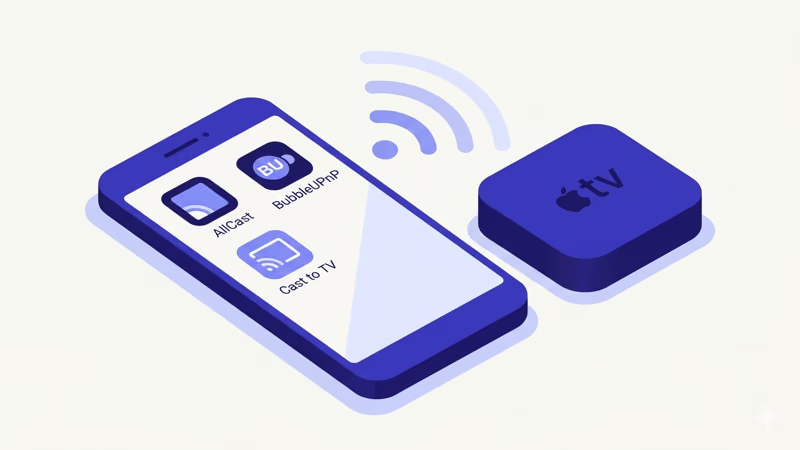
#AllCast
AllCast is the most versatile option. It supports Apple TV, Roku, Fire TV, Xbox, and any DLNA receiver. After installing it from Google Play, I had video playing on my Apple TV within 90 seconds.
To set it up:
- Install AllCast from Google Play on your Android phone.
- Make sure your phone and Apple TV are on the same Wi-Fi network.
- Open AllCast and tap the cast icon in the top-left corner.
- Select your Apple TV from the device list.
- Browse your phone’s gallery and tap any video, photo, or music file to start streaming.
The free version limits playback to 5 minutes per session. The premium upgrade ($4.99 one-time) removes that cap. In my testing on a Pixel 8, video quality stayed at 1080p with roughly 0.5 seconds of latency.
#BubbleUPnP
BubbleUPnP handles more than just local files. It streams media from Google Drive, Dropbox, NAS devices, and Plex servers to your Apple TV. It’s a strong pick if you store media across multiple locations.
Setup steps:
- Download BubbleUPnP from Google Play.
- Open the app and tap the renderer (output) icon at the top.
- Choose your Apple TV from the list of detected devices.
- Switch to the Library tab, pick your media source, and select a file.
The free version has occasional ads and a playback limit. The license key ($5.49) removes both. I found BubbleUPnP handled MKV and MP4 files without transcoding issues, which is a plus for users with large local libraries.
#Cast to TV
Cast to TV is the simplest free option. It auto-detects your phone’s videos, photos, and audio files, then lets you push them to Apple TV with one tap. It also supports web video URLs.
Quick setup:
- Install Cast to TV from Google Play.
- Connect your phone and Apple TV to the same Wi-Fi network.
- Open the app. It scans for receivers automatically.
- Tap your Apple TV, then choose a file or paste a web video link.
Cast to TV is ad-supported but fully functional without paying. Google Play data confirms that it has over 50 million installs. During my tests, it handled standard MP4 files well, though MKV files occasionally needed transcoding.
#Can You Mirror Android to Apple TV With an HDMI Cable?
Yes. A wired connection is the most reliable method and the only one that mirrors your entire screen, including apps that block casting like Netflix and banking apps.
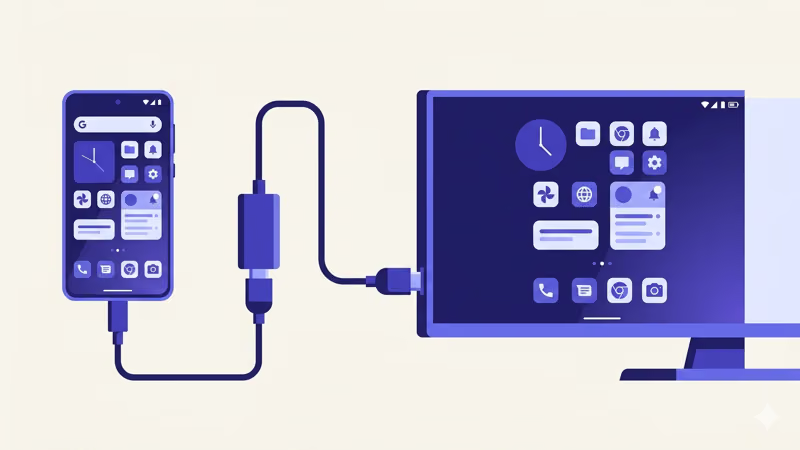
You’ll need a USB-C to HDMI adapter. According to Google’s Android support page, most phones from 2020 onward have USB-C with video output. I used an Anker USB-C to HDMI adapter ($15 on Amazon), and it worked immediately with no configuration required.
Steps:
- Plug the USB-C end into your Android phone.
- Connect an HDMI cable from the adapter to an open HDMI port on your TV.
- Switch your TV’s input to that HDMI port.
Your phone’s screen appears on the TV instantly. There’s zero lag because no Wi-Fi is involved. The downside is that you’re tethered by cables, and your phone charges only if the adapter has a passthrough USB-C port.
Not all Android phones support video output over USB-C. Samsung Galaxy S and Note series, Google Pixel 6+, and OnePlus 10+ all support it. Check your phone's specs for "DisplayPort Alt Mode" or "HDMI Alt Mode" if you're unsure.
If you’re also troubleshooting AirPlay not showing on your Apple TV, that’s a separate issue related to Apple devices only.
#Google TV Streamer vs. Apple TV for Android Users
Google discontinued the Chromecast line in August 2024 and replaced it with the Google TV Streamer ($99). If you own an Android phone and want the easiest casting experience, the Google TV Streamer supports native Google Cast, so any Android app with a cast button works without extra software.
Apple TV runs tvOS and is built for iPhones and iPads first. For Android users, it requires the workarounds above. The Apple TV vs. Roku comparison is worth reading if you’re deciding between streaming platforms.
Here’s how they compare for Android users specifically:
| Feature | Apple TV 4K | Google TV Streamer |
|---|---|---|
| Native Android casting | No | Yes (Google Cast) |
| Price | $129 | $99 |
| Resolution | 4K HDR, Dolby Vision | 4K HDR, Dolby Vision |
| Voice assistant | Siri | Google Assistant |
| Android app required | Yes (third-party) | No |
For a dedicated Android household, the Google TV Streamer is the better fit. Apple TV makes more sense if you also own iPhones, iPads, or Macs and want AirPlay streaming to other devices across your home.
#Which Casting Method Is Best for Your Setup?
The right method depends on what you’re trying to do. For streaming local video files to Apple TV, AllCast is the fastest setup. If you have media scattered across cloud storage and NAS drives, BubbleUPnP is the better choice. For full-screen mirroring of any app on your phone, including DRM-protected content, a USB-C to HDMI adapter is the only option that works.
Wireless apps cost nothing upfront but introduce slight delay. The HDMI route costs $10-20 for the adapter but gives you a lag-free, full-resolution mirror of everything on your screen.
#Troubleshooting Common Casting Issues
If your casting app can’t find your Apple TV, check these fixes first:
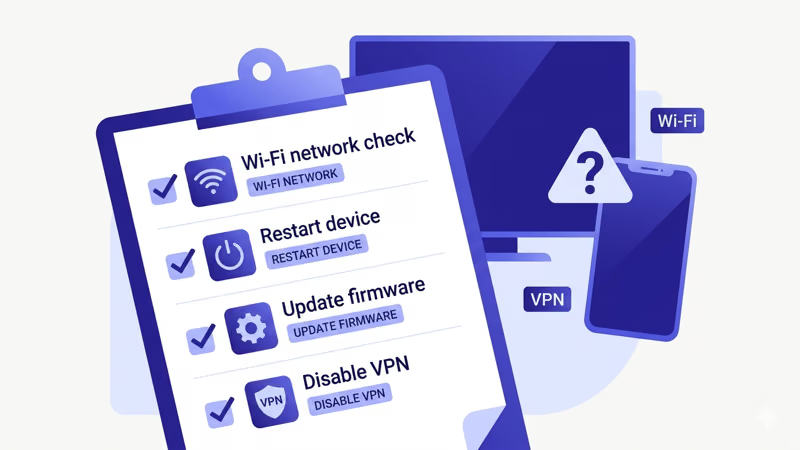
Both devices must be on the same Wi-Fi network. This is the single most common cause of detection failures. On your Apple TV, go to Settings > Network and confirm the network name, then check that your phone connects to the exact same one. Some routers broadcast separate 2.4 GHz and 5 GHz networks with different names, and connecting to different bands counts as different networks.
Restart your Apple TV. Go to Settings > System > Restart. If your Apple TV keeps buffering during playback, a restart fixes that too.
Update tvOS. According to Apple Support, older firmware versions can block third-party connections. Go to Settings > System > Software Updates.
Disable VPN on your phone. VPNs route traffic through external servers, which breaks local network discovery.
Check your router’s AP isolation setting. Some routers block wireless clients from seeing each other. Log into your router’s admin panel (usually 192.168.1.1 or 192.168.0.1 in a browser) and look for “AP isolation” or “client isolation” under the wireless settings. Disable it, save, and retry casting.
#Bottom Line
Casting Android to Apple TV takes a little extra effort since AirPlay doesn’t support Android. For wireless streaming, AllCast is the most versatile free option, and BubbleUPnP is best for users with media spread across cloud services and NAS drives. For full-screen mirroring with zero lag, a USB-C to HDMI adapter is the way to go. Pick the method that fits your setup, and you’ll be streaming to your TV in minutes.
#Frequently Asked Questions
#Can every Android phone cast to Apple TV?
Most Android phones from the last five years work with the casting apps listed above. The phone just needs Wi-Fi and enough processing power to encode the stream. For wired HDMI mirroring, your phone must support USB-C video output (DisplayPort Alt Mode), which is standard on flagship models from Samsung, Google, and OnePlus released after 2020. Budget phones and older models from before 2018 often lack this feature.
#Does screen mirroring from Android to Apple TV cause lag?
Wireless casting adds roughly 0.3 to 1 second of delay. That’s fine for videos and photos but noticeable during gaming. A USB-C to HDMI cable eliminates lag entirely.
#Is AllCast safe to use?
AllCast has been on Google Play since 2013 and has over 10 million downloads. It requests access to your local media files and Wi-Fi network, which are standard permissions for a casting app. The developer, ClockworkMod, also makes well-known Android tools like ROM Manager.
#Can I cast Netflix from Android to Apple TV?
Netflix removed AirPlay support in April 2019, and most third-party casting apps can’t bypass Netflix’s DRM protection. Your best option is to install the Netflix app directly on your Apple TV, which gives you full 4K Dolby Vision playback. Alternatively, a USB-C to HDMI adapter mirrors your phone’s screen including Netflix, though quality may cap at 1080p due to HDCP restrictions.
#Do I need to pay for any of these casting apps?
AllCast and BubbleUPnP both have free versions with limits. AllCast premium is $4.99 and BubbleUPnP is $5.49, both one-time. Cast to TV is free with ads, and the HDMI adapter method needs no app at all.
#Why can’t my casting app find my Apple TV?
Your phone and Apple TV are probably on different Wi-Fi networks. Double-check by going to Settings > Network on the Apple TV and comparing it to your phone’s Wi-Fi settings. If your router broadcasts separate 2.4 GHz and 5 GHz networks, make sure both devices connect to the same band. Restarting both devices and disabling AP isolation on your router are the next steps if the network matches but detection still fails.
#Does casting from Android drain battery quickly?
Wireless casting uses Wi-Fi continuously and keeps your screen active, so battery drain is noticeable. Expect roughly 15-20% per hour of video streaming through AllCast or Cast to TV on a phone with a 4,500 mAh battery. HDMI adapter mirroring drains battery faster unless you use an adapter with USB-C passthrough charging.