Samsung TV built-in speakers have improved over the years, but they still can’t match dedicated external speakers. I’ve tested multiple connection methods across Samsung models from 2018 through 2025, and this guide covers each option with the correct menu paths and settings.
- HDMI eARC delivers the best audio quality — it passes uncompressed Dolby Atmos and 7.1 surround to compatible speakers
- Four connection methods available — HDMI eARC, optical, Bluetooth, and RCA each suit different speaker setups and TV models
- Bluetooth on Samsung TVs uses the SBC codec — some models support AAC, but wired connections always deliver better sound quality
- Q-Symphony lets TV and soundbar play together — Samsung TVs from 2020 onward support simultaneous audio from both sources
- Sound Output is the key menu — go to Settings > Sound > Sound Output to select your connected speaker system
#Why Should You Connect External Speakers?
TV speakers sit inside thin panels that limit bass response and volume. External speakers solve that problem entirely. Here’s what you gain:
-
Room-filling volume: Even a budget soundbar plays louder and fuller than built-in TV speakers. The difference is noticeable from day one.
-
Real surround sound: A 5.1 or 7.1 system with speakers placed around your room creates immersive audio that built-in TV speakers simply can’t replicate.
-
Clearer dialogue: Dedicated center channels and tuned drivers make voices easier to hear without cranking the overall volume.
-
Actual bass: TV speakers physically can’t produce deep low frequencies. A subwoofer handles explosions, music, and sound effects the way the content creators intended.
Adding external speakers is the single biggest upgrade you can make to your Samsung TV experience.
#How Do You Connect Speakers via HDMI eARC?
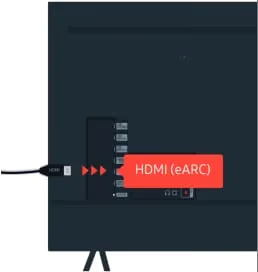
HDMI eARC is the best connection method for modern Samsung TVs. It carries uncompressed multichannel audio including Dolby Atmos and DTS:X, and it supports ARC and eARC on most Samsung models from 2018 onward.
What you’ll need:
- Speakers or soundbar with HDMI ARC/eARC input
- High-speed HDMI cable (Ultra High Speed or HDMI 2.1 for full eARC bandwidth)
Steps:
-
Connect the HDMI cable from your TV’s HDMI eARC port (usually HDMI 3) to your speaker’s HDMI ARC/eARC port.
-
Enable Anynet+ (HDMI-CEC) at Settings > Connection > External Device Manager > Anynet+ and set it to On.
-
Enable eARC mode at Settings > Sound > Expert Settings > HDMI-eARC Mode and set it to Auto.
-
Go to Settings > Sound > Sound Output and select your external speaker system.
Without enabling both Anynet+ and HDMI-eARC Mode, the TV won’t recognize your speaker over the HDMI connection. I’ve seen this trip up a lot of people who plug in the cable and expect it to work automatically.
#What About Q-Symphony?
Samsung TVs from 2020 and later support Q-Symphony, a feature that lets your TV speakers and a compatible Samsung soundbar play audio simultaneously. Instead of muting the TV speakers when you connect a soundbar, Q-Symphony uses all available speakers to fill the room. You’ll find this option under Settings > Sound > Sound Output when a compatible Samsung soundbar is connected.
#How Do You Set Up an Optical Connection?
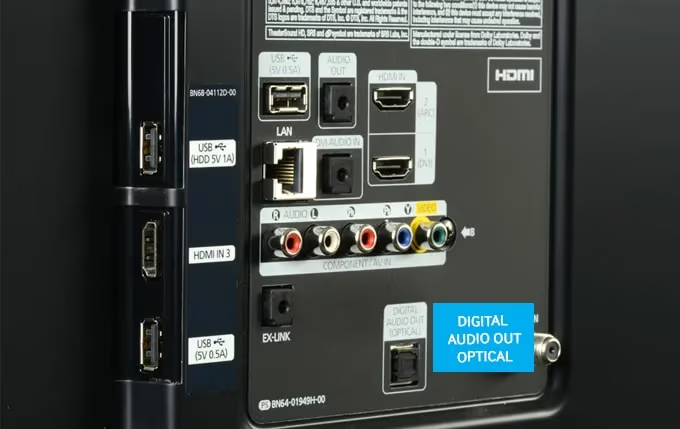
Optical (Toslink) is your next best option if your speakers don’t have HDMI ARC. It carries compressed 5.1 Dolby Digital audio, which sounds excellent for most content.
What you’ll need:
- Speakers or soundbar with an optical input
- Optical/Toslink cable
Steps:
-
Connect the optical cable from your TV’s Optical Digital Audio Out port to the speakers.
-
Switch the speaker’s input mode to optical.
-
On the Samsung TV, go to Settings > Sound > Sound Output and select your speaker.
Optical doesn’t carry lossless audio formats like Dolby TrueHD or uncompressed Atmos. For most movies and shows, though, the compressed Dolby Digital 5.1 signal sounds great. If you’re deciding between a soundbar and Bluetooth speaker for TV audio, optical-connected soundbars have a clear advantage in sound quality.
#Connecting Speakers via Bluetooth
Bluetooth gives you a wireless connection without any cables. The tradeoff is audio quality and latency.
What you’ll need:
- Bluetooth speakers or headphones
Steps:
-
Put your speaker into pairing mode (check the speaker’s manual for the specific button combination).
-
On the Samsung TV, go to Settings > Sound > Sound Output > Bluetooth Speaker List.
-
Select your speaker from the list to pair.
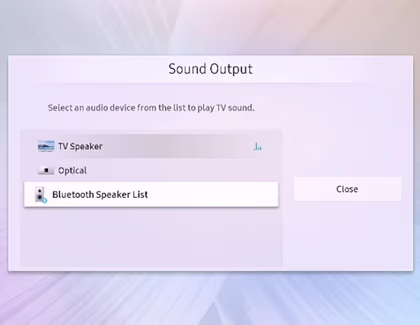
Samsung TVs primarily use the SBC Bluetooth codec, and some newer models also support AAC. Neither matches the quality of a wired connection. You’ll notice the biggest difference with music and fast-paced action scenes where compression artifacts and slight audio delay become more apparent.
#Dual Audio on 2022+ Models
Samsung TVs from 2022 onward support Dual Audio, letting you connect two Bluetooth devices at the same time. This is handy when two people want to use wireless headphones simultaneously. Go to Settings > Sound > Sound Output > Bluetooth Speaker List and pair your second device.
Keep in mind that Samsung TVs only output to one Sound Output category at a time. You can’t play audio through a wired soundbar and a Bluetooth speaker simultaneously.
#Can You Still Use RCA or the Headphone Jack?
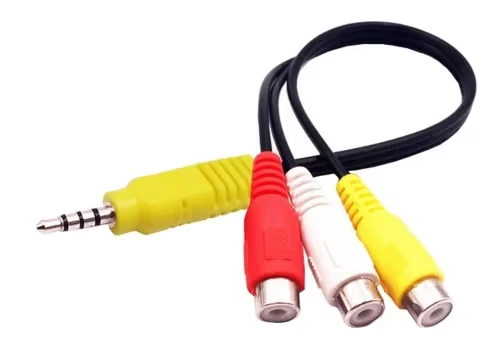
Samsung removed the 3.5mm headphone jack from most TV models around 2016-2017. If you have an older Samsung TV with a headphone jack, RCA is an option, but there’s an important detail many guides get wrong.
You need powered (active) speakers for a direct RCA connection. Passive speakers require a separate amplifier or receiver between the TV and the speakers. Plugging passive speakers directly into a headphone jack won’t produce any usable sound because the TV’s headphone output doesn’t supply enough power to drive them.
What you’ll need:
- Powered (active) speakers with RCA or 3.5mm input
- 3.5mm to RCA cable (or 3.5mm to 3.5mm if speakers have an aux input)
- A Samsung TV with a headphone jack (pre-2017 models)
Steps:
-
Connect the cable from the TV’s headphone jack to the L/R inputs on your powered speakers.
-
Turn the speakers on.
-
Go to Settings > Sound > Sound Output and select Audio Out/Headphone Jack.
This method only outputs stereo audio. For newer Samsung TVs without a headphone jack, you’ll need to use HDMI, optical, or Bluetooth instead.
#How Do You Optimize Audio Settings?
Once your speakers are connected, a few settings adjustments make a noticeable difference.
Set your speaker as the default output. Go to Settings > Sound > Sound Output and select your connected system. This ensures audio plays through external speakers automatically when they’re powered on. If you’re having trouble with your Samsung soundbar switching back to TV speakers, check that the default output is set correctly.
Fix audio delay (lip sync issues). If dialogue doesn’t match the actors’ mouths, go to Settings > Sound > Expert Settings > Digital Output Audio Delay and adjust the value. Start around 50ms and increase gradually until the audio syncs with the video. Audio sync problems are common with Bluetooth and optical connections. I’ve also written about fixing audio sync on Roku if you’re using a Roku player with your setup.
Adjust the equalizer. Under Settings > Sound > Sound Mode, try different presets. Standard works for most content. Movie mode boosts surround effects, while Amplify mode increases dialogue clarity on Samsung TVs from 2020 and later.
#What Speakers Work Best With Samsung TVs?
Samsung soundbars offer the tightest integration with Samsung TVs thanks to Q-Symphony and Anynet+ automatic input switching. The current flagship is the Samsung HW-Q990F (2025), an 11.1.4 channel system with wireless surround speakers and a subwoofer. The HW-Q990D (2024) is a solid alternative if you find it at a lower price.
For a detailed guide on connecting Samsung soundbars, I’ve covered every connection method and troubleshooting step in a separate article.
Non-Samsung speakers work perfectly fine over HDMI eARC, optical, and Bluetooth. Sonos, JBL, Bose, and other brands all connect the same way. You just won’t get Q-Symphony or Anynet+ automatic switching with third-party equipment.
#Bottom Line
HDMI eARC is the connection to use if your speakers support it. Enable Anynet+ and HDMI-eARC Mode in the settings, select your speaker under Sound Output, and you’re set. Optical is a reliable backup for speakers without HDMI, and Bluetooth works when you want a cable-free setup. Skip the RCA method unless you have an older Samsung TV with a headphone jack and powered speakers.
For more details on supported audio formats and troubleshooting, check Samsung’s official audio support page.
#FAQ
#What HDMI cable do I need for eARC on a Samsung TV?
You need a cable labeled Ultra High Speed or HDMI 2.1 to get full eARC bandwidth. Standard HDMI cables support basic ARC but won’t carry uncompressed Dolby Atmos or high-bitrate multichannel audio. Check the cable packaging for eARC or HDMI 2.1 certification before buying.
#Does connecting external speakers disable the TV’s built-in speakers?
Yes, selecting an external speaker under Sound Output mutes the TV’s internal speakers. The exception is Q-Symphony on Samsung TVs from 2020 onward, which plays audio through both the TV speakers and a compatible Samsung soundbar at the same time.
#Why is there no sound from my external speakers?
Check Settings > Sound > Sound Output and confirm your speaker is selected as the active output. If it doesn’t appear, verify that Anynet+ is enabled for HDMI connections, or re-pair for Bluetooth. Power cycle both devices by unplugging them for 30 seconds, then reconnect.
#Can Samsung TVs connect to two Bluetooth speakers at once?
Samsung TVs from 2022 and later support Dual Audio, letting you pair two Bluetooth devices simultaneously. Older models only support one Bluetooth audio device at a time. Note that you still can’t mix Bluetooth output with a wired speaker connection.
#What’s the difference between ARC and eARC on Samsung TVs?
ARC (Audio Return Channel) supports compressed formats up to Dolby Digital 5.1. eARC (Enhanced Audio Return Channel) handles uncompressed audio including Dolby TrueHD, DTS:X, and Dolby Atmos with full object-based metadata. If your soundbar or receiver supports Atmos, eARC is worth using.
#Do I need a Samsung soundbar for the best compatibility?
Samsung soundbars get exclusive features like Q-Symphony and automatic Anynet+ input switching that third-party brands don’t support. However, any soundbar or AV receiver with HDMI ARC/eARC works perfectly for audio passthrough. You only miss the Samsung-specific extras.
#How do I fix audio delay with external speakers?
Go to Settings > Sound > Expert Settings > Digital Output Audio Delay and adjust the slider. Start at around 50ms and increase until dialogue matches the actors’ lips. Bluetooth connections tend to have more latency than wired ones, so you may need a higher delay value for wireless speakers.
#Can I use old passive speakers with my Samsung TV?
Passive speakers need an amplifier or AV receiver between the TV and the speakers. Connect the TV to the receiver via HDMI eARC or optical, then wire your passive speakers to the receiver’s speaker terminals. You can’t connect passive speakers directly to a TV’s audio output.