Max not working on your Vizio Smart TV is one of the more common streaming complaints I see. The same issues crop up on other platforms too. If you’ve run into this on a Samsung, check HBO Max not working on Samsung TV.
- VIZIO OS TVs from 2016 onward support Max natively — pre-2016 VIA/VIA+ models don’t and need an external stick
- Power cycling fixes the majority of glitches — unplug for 60 seconds, hold the power button for 10 seconds while unplugged
- 5 Mbps minimum for HD, 25 Mbps for 4K — run a speed test on the same network your TV uses
- Clearing app cache and data resolves endless loading screens and corrupted app states
- A streaming stick is the fastest workaround if the Max app keeps failing on your specific TV hardware
#Why Is Max Not Working on Your Vizio TV?
Before jumping into fixes, it helps to know what you’re dealing with. The most common causes fall into four buckets:
- Compatibility: Max requires a VIZIO OS TV from 2016 or later. Older Vizio VIA and VIA+ models can’t run the Max app at all.
- Network problems: A slow or unstable connection will cause buffering, error codes, or the app refusing to load.
- Corrupted app cache: Over time, cached data builds up and causes loading failures or freezes.
- Outdated firmware: Vizio pushes firmware updates that fix app compatibility issues. Running old firmware is a common culprit.
Error code M30004 specifically means an internet connectivity problem. If you’re seeing that, start with Steps 2 and 3.
#How Do You Fix Max on a Vizio TV?
Work through these 8 steps in order. Most people solve the problem by Step 4.
#1. Confirm Your Vizio TV Supports Max
Max runs on VIZIO OS TVs manufactured from 2016 onward. If your Vizio is a VIA or VIA+ model (pre-2016), the app isn’t available natively. Your options are to use a Roku or Fire TV Stick plugged into an HDMI port.
Check your TV’s model number on the label on the back. If it begins with a letter-number combo like E55-F2 or M70-F3, you have a SmartCast/VIZIO OS model and Max should work.
Max requires at least 5 Mbps for HD and 25 Mbps for 4K. The TV also needs to be HDCP 2.2 compliant for protected 4K content. All VIZIO OS models from 2016 onward meet this requirement.
#2. Power Cycle the TV
This fixes more issues than any other step.
- Unplug the TV’s power cord from the wall outlet.
- Wait a full 60 seconds. Don’t skip this.
- While it’s unplugged, hold the physical power button on the TV itself for 10 seconds to drain residual voltage.
- Plug back in, power on, and try Max again.
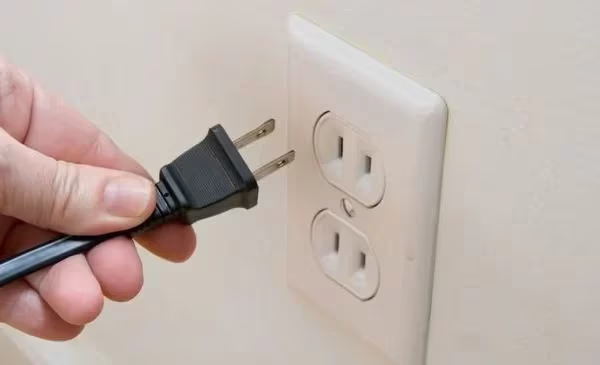
This clears the TV’s RAM and kills any stuck background processes that might be blocking the app.
#3. Test and Fix Your Internet Connection
A weak or unstable connection is the cause behind error code M30004 and a lot of generic loading failures.
- Run a speed test from your phone while on the same Wi-Fi network. You need at least 5 Mbps for HD.
- Try loading Max on another device like a laptop or phone. If it buffers there too, the problem is your network, not the TV.
- Connect your Vizio TV via ethernet instead of Wi-Fi if possible. This eliminates wireless interference entirely.
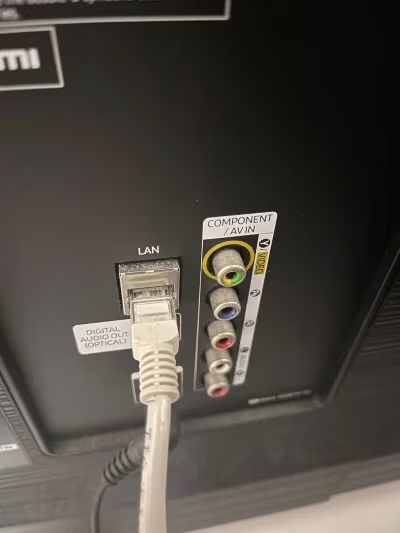
If speeds are consistently below 5 Mbps, contact your ISP. Max’s own speed requirements are listed on the Max Help Center{rel=“noopener” target=“_blank”}.
#4. Restart Your Router
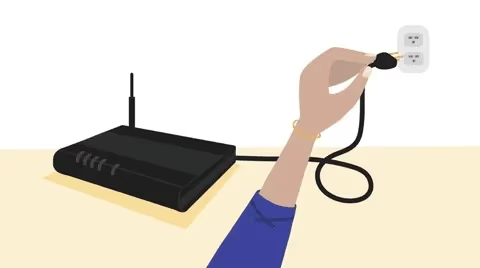
Unplug both your modem and router for 60 seconds, then plug them back in. Give the devices 3-5 minutes to fully reconnect before testing Max again. A lot of intermittent streaming failures trace back to the router, not the TV.
#5. Update Firmware and the Max App
Outdated software is a top cause of app breakage on Vizio TVs.
To update Vizio firmware: Navigate to Menu > Settings > Admin & Privacy > Check for Updates. Install any available update and let the TV restart.
To update Max: Go to the app store on your VIZIO OS TV, find Max, and check if an update is available. The app auto-updates in most cases, but it’s worth verifying.
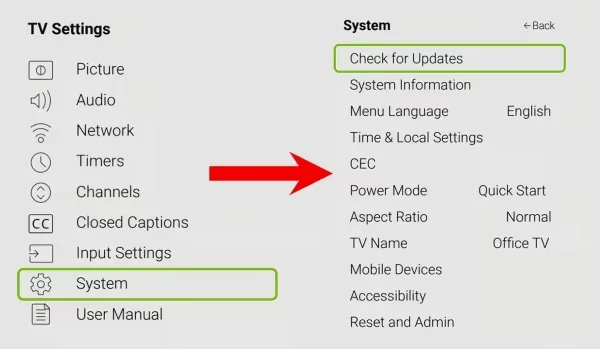
Note that the Vizio support page{rel=“noopener” target=“_blank”} has model-specific instructions if you’re having trouble finding the update menu on your particular TV.
#6. Clear the Max App Cache
Corrupted cache data causes endless loading screens and black screens on launch. Here’s how to clear it on a Vizio:
- Go to Settings > Apps > See All Apps.
- Select Max.
- Tap Clear Cache, then Clear Data.
- Close the app completely and reopen it.
This forces Max to rebuild its stored data from scratch. Most loading and freeze issues clear up immediately after this.
#7. Disable Any VPN
Max blocks VPN and proxy connections to enforce regional licensing restrictions. If you have a VPN running on your router or any device sharing the same network, turn it off and test Max again.
The same applies to DNS-level VPNs like those configured directly on your router. If Max loads fine after disabling the VPN, that was your issue. You’ll need to stream without it.
#8. Factory Reset the TV (Last Resort)
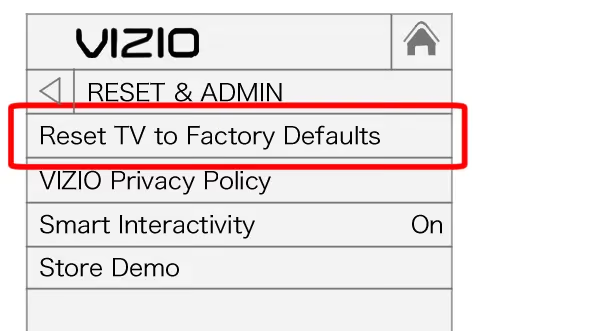
If nothing above works, a factory reset will clear any deep software problems affecting the Max app.
A factory reset erases all your apps, logins, custom settings, and saved data. You'll need to set the TV up from scratch. Only do this after trying every other step.
- Go to Settings > System > Reset & Admin.
- Select Reset TV to Factory Defaults.
- Complete the initial setup, reinstall Max, and sign back in.
#Bonus: Use an External Streaming Device
If Max keeps failing on your Vizio specifically, plug a streaming stick into the HDMI port and run Max there instead. A Fire TV Stick or Roku Streaming Stick bypasses the TV’s own software entirely. This works regardless of your Vizio’s age or OS version.
When Max keeps failing on the Vizio's native OS, plugging in the Roku Streaming Stick 4K into any HDMI port gets you running in under 5 minutes. It runs Max natively, supports Dolby Vision HDR, and costs under $50. It's the fastest path to a working Max setup if your Vizio TV itself is the problem.
#Bottom Line
Most Max problems on Vizio TVs come down to one of three things: a compatibility mismatch on older hardware, a corrupted app cache, or a firmware version that hasn’t been updated. Power cycling and clearing the cache solve the majority of cases. If error code M30004 keeps appearing, the issue is your network connection. Restart your router and test with ethernet.
For persistent problems that survive a factory reset, an external streaming stick is the most reliable long-term fix. It runs Max independently of the TV’s native software and works on any Vizio with an HDMI port.
If you’re hitting the same issue on other TVs, see Max not working on LG TV or Max keeps crashing for more platform-specific troubleshooting.
#Frequently Asked Questions
#Why does Max crash or freeze on my Vizio TV?
An outdated app version is the most common cause. Check the VIZIO OS app store for pending Max updates and install them. If that doesn’t help, clear the app cache under Settings > Apps > Max > Clear Cache. Persistent crashes after a cache clear usually point to a firmware issue. Update the TV software and test again.
#What does Max error code M30004 mean?
M30004 means the app can’t reach Max’s servers. It’s an internet connectivity error. Restart your router, confirm your speeds are at least 5 Mbps, and try connecting your Vizio via ethernet instead of Wi-Fi. If speeds are fine but the error persists, check whether a VPN is running on your network.
#Which Vizio TV models support Max?
Max runs on VIZIO OS TVs manufactured from 2016 onward. Older Vizio VIA and VIA+ models don’t have the VIZIO OS platform and can’t install Max natively. On those older TVs, plug in a Roku or Fire TV Stick to watch Max through the streaming device instead.
#Does a VPN stop Max from working?
Yes. Max actively blocks VPN and proxy connections to enforce regional content licensing. Disable any VPN running on your router or connected devices, then relaunch Max. If the app loads after turning off the VPN, that’s your answer. You’ll need to stream without it.
#How do I clear the Max cache on a Vizio TV?
Go to Settings > Apps > See All Apps, select Max, then tap Clear Cache followed by Clear Data. Force-close the app and relaunch it. This removes corrupted temporary files that cause loading failures and black screens on startup.
#How do I update the firmware on a Vizio TV?
Press Menu on your remote, then go to Settings > Admin & Privacy > Check for Updates. If an update is available, the TV will download and install it automatically. The TV restarts after the update completes. Vizio’s support page has model-specific instructions if your menu layout differs.
#What internet speed does Max require?
Max needs at least 5 Mbps for HD streaming and 25 Mbps for 4K Ultra HD content. Run a speed test on your phone while connected to the same Wi-Fi network your TV uses. If speeds are consistently below the threshold, contact your ISP or move the router closer to the TV.
#Can I watch Max on an older Vizio TV that doesn’t support the app?
Yes. Plug a streaming stick into the HDMI port. A Roku Streaming Stick 4K or Fire TV Stick 4K runs Max independently of the TV’s own software. Setup takes under 5 minutes and works on any Vizio with a free HDMI input, regardless of the TV’s age.