If your Hisense TV has no sound, you’re dealing with one of the most common issues these TVs face. The problem usually comes down to a muted remote, a wrong audio output setting, or a cable that’s not fully seated. I’ve put together every fix I know below, organized from quickest to most involved, so you can get your audio back without wasting time.
- Mute and volume checks fix over half of all cases — always start with the remote’s mute button and volume controls before anything else
- Power cycling clears temporary audio glitches — unplug your TV for 60 seconds, then plug it back in to reset the sound system
- Wrong audio output is the #1 overlooked cause — navigate to your platform’s sound menu and switch output to TV Speakers
- HDMI ARC vs eARC matters for external audio — ARC handles basic surround sound while eARC supports Dolby Atmos and lossless formats
- Bluetooth audio lag is a known Hisense issue — wireless earbuds and soundbars often have 100-300ms delay that requires manual sync adjustment
#What Causes No Sound on a Hisense TV?
Before jumping into fixes, it helps to understand why your Hisense TV stopped outputting audio. Here are the most common culprits:
- The volume is muted or turned all the way down.
- Audio output is set to an external device that isn’t connected.
- A loose or faulty HDMI cable is breaking the audio signal.
- The digital audio format (PCM, Auto, or Passthrough) doesn’t match your speaker setup.
- Outdated firmware has an audio bug that’s already been patched.
- Bluetooth audio is paired to a device you forgot about.
- Internal speakers are physically damaged.
Pinpointing the cause saves you from trying every fix on this list. Start with the quick checks below.
#How Do You Fix Hisense TV Audio Quickly?
Before getting into advanced troubleshooting, try these fast fixes. They resolve the majority of Hisense no-sound cases:
Check the mute button. Press the mute key on your Hisense remote and watch for the on-screen mute icon. Also press volume up a few times. If you’ve lost your remote, use the physical buttons on the TV itself or grab a universal remote for Hisense TV.
Power cycle the TV. Unplug it from the wall for 60 seconds. While it’s unplugged, hold the power button on the TV for 10 seconds to drain any residual charge. Plug it back in and test.
Reset connected devices. If you’re watching through a streaming stick, Blu-ray player, or game console, restart that device too. The source device can be the actual problem, not your TV.
Swap cables. Try a different HDMI cable and a different HDMI port on the TV. A cable that passes video just fine can still fail to carry the audio signal properly.
#How Do You Adjust Sound Settings on Each Hisense Platform?
Hisense ships TVs with four different operating systems, and each one buries the audio settings in a slightly different place. Setting the wrong output or digital audio format is one of the top reasons for silent speakers.
#VIDAA (Most Hisense Models)
- Press the Menu button on your remote.
- Go to Sound > Audio Output.
- Select TV Speakers for built-in audio, or choose your external device.
- Under Digital Audio Format, pick PCM if you’re using TV speakers or a basic soundbar.
#Roku TV
- Press Home on your remote, then go to Settings > Audio.
- Select Audio Output and confirm it’s set to your desired device.
- Set Digital Output Format to Stereo (PCM) if you’re not using a surround receiver.
#Google TV
- Open Settings > Display & Sound > Sound.
- Check that Sound Output is set to TV Speakers or your external system.
- Adjust Digital Audio Output as needed.
#Fire TV
- Go to Settings > Display & Sound > Audio.
- Verify the output device under Audio Output.
- Set the Digital Audio Format to match your speaker setup.
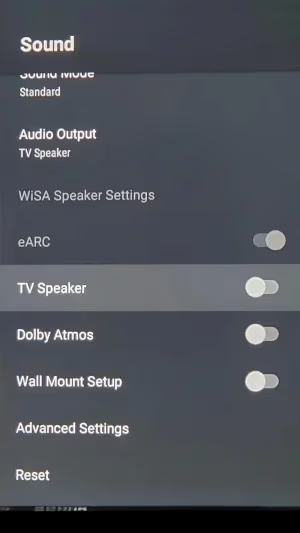
If your TV had been routing audio to a soundbar you disconnected, switching back to TV Speakers will fix it immediately.
#What Do PCM, Auto, and Passthrough Mean?
This setting trips up a lot of people, especially those connecting a soundbar or AV receiver. Here’s the breakdown:
PCM (Pulse Code Modulation) decodes audio inside your TV and sends a standard stereo or 5.1 signal to your speakers. Use this if your soundbar doesn’t support Dolby or DTS decoding, or if you’re using TV speakers.
Auto lets the TV decide which format to send. It works well most of the time, but it can cause silence when the TV picks a format your external speaker doesn’t support.
Passthrough sends the raw audio bitstream directly to your external receiver or soundbar without any decoding. Your receiver handles everything. This is the correct setting for AV receivers that support Dolby Atmos, DTS:X, or other advanced codecs.
If you hear no sound after connecting a new soundbar, switch your digital audio format to PCM first. Once audio works, try Auto or Passthrough to see if your soundbar supports higher-quality formats.
#Can a Firmware Update Fix Hisense TV Audio?
Yes. Hisense pushes firmware updates that patch audio bugs, fix app crashes, and improve overall stability. If your TV hasn’t been updated in a while, an outdated software version could be the root cause.
To update your Hisense TV firmware:
- Connect the TV to the internet using Wi-Fi or Ethernet.
- Go to Settings > Support > System Update.
- Select Check Firmware Upgrade and follow the on-screen prompts.
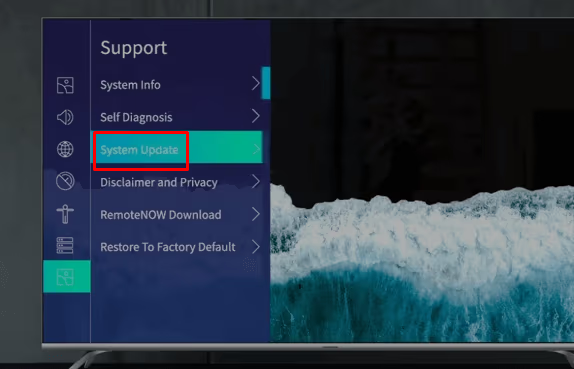
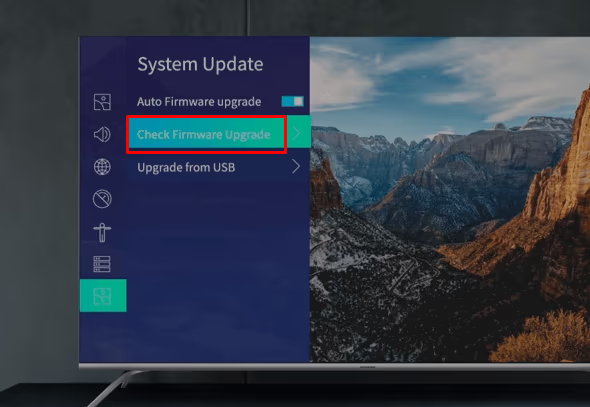
The update process takes 15-20 minutes including the reboot. Don’t unplug the TV during the update. If your Hisense TV won’t power back on after updating, check the Hisense Roku TV not turning on guide for recovery steps.
#How Do You Fix HDMI Audio Problems?
HDMI cables carry both video and audio, so a cable or port issue can kill sound while the picture keeps working. Issues like static, popping, or complete silence while using an HDMI source usually come down to the physical connection.
Try these steps in order:
- Unplug the HDMI cable from both the TV and the source device, then reseat it firmly.
- Test a different HDMI cable (preferably a certified HDMI 2.1 cable).
- Switch to a different HDMI port on the TV.
- Restart the source device connected via HDMI.
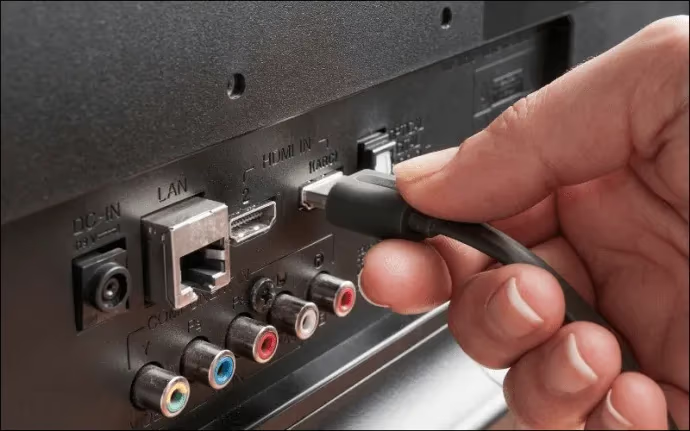
Some Hisense models also show a blinking red light when they detect an HDMI handshake failure, which can accompany the audio loss.
#HDMI ARC vs eARC: Which Port Do You Need?
If you’re connecting a soundbar or AV receiver, you need to use the HDMI port labeled ARC or eARC on your TV. Not all HDMI ports support audio return.
ARC (Audio Return Channel) handles compressed Dolby Digital and DTS audio. It’s fine for most soundbars.
eARC (Enhanced Audio Return Channel) supports lossless audio formats like Dolby TrueHD and DTS-HD Master Audio, plus Dolby Atmos. Most Hisense U7 and above models support eARC.
If your soundbar or receiver supports Atmos but you’re using a regular ARC port, you’ll only get basic surround sound at best. Make sure the HDMI cable you’re using also supports eARC (any Ultra High Speed HDMI cable will).
#Optical/TOSLINK as an Alternative
If HDMI ARC isn’t cooperating or your soundbar is older, use an optical (TOSLINK) cable instead. Optical carries Dolby Digital 5.1 but doesn’t support Atmos or lossless formats. It’s a reliable fallback that avoids HDMI handshake issues entirely.
#Why Does Bluetooth Audio Lag on Hisense TVs?
Bluetooth audio delay is a well-known problem on Hisense TVs, particularly with wireless earbuds and budget Bluetooth soundbars. The lag typically ranges from 100 to 300 milliseconds, which makes dialogue noticeably out of sync with lip movements.
Here’s how to minimize it:
- Use the TV’s audio sync setting. On VIDAA, go to Menu > Sound > Audio Delay and adjust the slider until audio matches the picture. Roku and Google TV have similar delay settings under their audio menus.
- Switch to aptX or AAC codecs. If your Bluetooth headphones support aptX Low Latency, the delay drops significantly. Check your headphone specs.
- Move closer to the TV. Bluetooth signal degrades with distance and obstacles. Stay within 15 feet with a clear line of sight.
- Use a Bluetooth transmitter with aptX LL. A plug-in transmitter connected to the TV’s headphone jack or optical output bypasses the TV’s Bluetooth entirely and often delivers sub-40ms latency.
If the lag remains unbearable, a wired connection through the TV’s 3.5mm headphone jack or a Wi-Fi-based speaker system eliminates the problem completely.
#How Do You Factory Reset Hisense TV Audio?
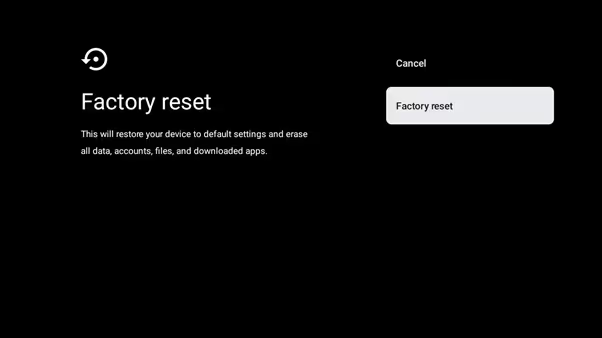
If nothing else has worked, a factory reset restores all audio configurations to their original defaults. Keep in mind this erases your Wi-Fi networks, app logins, and personalized settings.
On Hisense VIDAA or Google TV:
- Go to Settings > Device Preferences > Factory Reset.
- Select Reset and confirm when prompted.
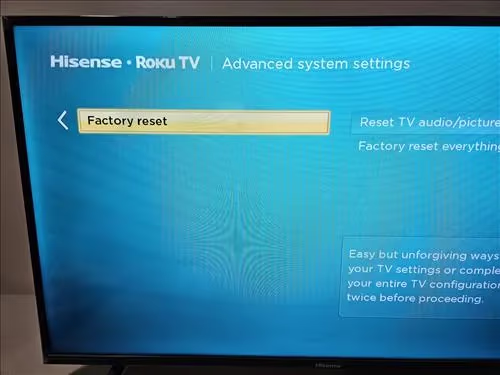
On Hisense Roku TV:
- Open Settings > System > Advanced System Settings > Factory Reset.
- Enter your parental PIN code if enabled.
- Choose Factory Reset Everything.
After the reset completes, your TV reboots and walks you through initial setup. Test the speakers before reinstalling apps and reconnecting devices. If there’s still no sound after a full reset, you’re likely dealing with a hardware issue that needs professional repair.
#When Should You Contact Hisense Support?
Call Hisense support if:
- Factory reset didn’t bring sound back.
- You hear crackling, buzzing, or distortion from the internal speakers.
- Physical damage is visible on the TV.
- Your TV is still within the 1-year manufacturer warranty.
Phone support can run remote diagnostics on your specific model and determine if you qualify for free repair or replacement. If your warranty has expired and the internal speakers are dead, connecting an external soundbar or upgrading to a new TV from a brand like Vizio or Hisense might cost less than a repair.
#Bottom Line
Most Hisense TV sound problems come down to a muted remote, a wrong audio output setting, or a bad HDMI connection. Start with the basics: check mute, power cycle, and verify your sound output is set to TV Speakers. If you’re using a soundbar or receiver, make sure you’re plugged into the ARC or eARC port and that your digital audio format is set correctly (PCM for basic setups, Passthrough for receivers). Bluetooth lag can be tamed with audio sync adjustments or a wired fallback. When software fixes don’t help and your TV is lagging across the board, a firmware update or factory reset should be your next move before calling Hisense support.
#FAQ
#Why does my Hisense TV sound keep cutting out?
Frequent audio dropouts usually point to a loose HDMI or optical cable. Check both ends of every cable and reseat them firmly. If you’re using Bluetooth audio, interference from nearby devices or distance from the TV can also cause intermittent drops. Power cycling the TV and any connected devices clears temporary glitches that cause this behavior.
#How do I reset the sound on my Hisense TV without a factory reset?
Go to your platform’s sound settings and switch the audio output back to TV Speakers. On VIDAA, that’s Menu > Sound > Audio Output. Then set the digital audio format to PCM and adjust volume, bass, and treble to default levels. This restores normal audio routing without erasing your apps or Wi-Fi settings.
#What universal remote works with a Hisense TV?
Most IR-based universal remotes from brands like GE, Philips, and One For All work with Hisense TVs. You’ll need to program them using Hisense-specific remote codes found in the remote’s manual or the manufacturer’s code lookup tool. Logitech Harmony remotes also support Hisense models through their online database.
#Can HDMI ARC cause no sound on a Hisense TV?
Yes. If HDMI ARC is enabled in your sound settings but no soundbar or receiver is connected to the ARC port, the TV routes audio to a device that doesn’t exist. Switch the audio output back to TV Speakers under your sound settings to fix this. You should also check that CEC (called Anynet+ or HDMI Control depending on your platform) is enabled if you want ARC to work with a connected device.
#Why does my Hisense TV have picture but no sound on one app?
A single app losing audio usually means the app itself has a bug or needs an update. Force-close the app, clear its cache under Settings > Apps, and reopen it. If the problem continues, uninstall and reinstall the app. Some streaming apps also have their own internal audio settings that can get set to a surround format your TV speakers don’t support.
#Does Hisense TV support Dolby Atmos?
Hisense models with eARC (U7 series and above) support Dolby Atmos passthrough to a compatible soundbar or AV receiver. The TV sends the Atmos bitstream through the eARC port without decoding it. Built-in TV speakers on most Hisense sets don’t decode Atmos natively, so you’ll need external audio equipment to hear it.
#What’s the difference between optical and HDMI ARC for a Hisense TV?
Optical (TOSLINK) carries compressed Dolby Digital 5.1 audio and works reliably with older soundbars that lack HDMI. HDMI ARC supports the same formats plus CEC control, so your TV remote can adjust the soundbar’s volume. eARC goes further with lossless audio and Atmos support. Use optical as a backup if HDMI ARC gives you handshake problems.
#How do I fix Bluetooth audio delay on my Hisense TV?
Open your sound settings and look for an audio delay or audio sync slider. Adjust it until dialogue matches lip movements on screen. If the lag is still noticeable, switch to Bluetooth headphones that support aptX Low Latency, or connect a Bluetooth transmitter with aptX LL to your TV’s optical or headphone output. For zero-latency audio, a wired connection always wins.