Your Android phone has a 6-inch screen. Your TV has a 55-inch one. Getting your phone’s display onto that TV takes under a minute with the right method. I’ve tested all the major options and this guide covers every way to mirror your Android phone to a TV, whether you own a smart TV, a streaming device, or just an HDMI cable.
- Google Home Cast works with any Google TV or Chromecast-compatible device and mirrors your full screen in under 30 seconds
- Miracast connects directly between your phone and TV with no Wi-Fi network required
- Samsung Smart View offers one-tap mirroring from the quick settings panel on Galaxy phones
- Wired HDMI gives the lowest latency at under 1ms, making it the best option for gaming and presentations
- Most wireless mirroring failures come from devices being on different Wi-Fi networks or using the 5 GHz band at long range
#Screen Mirroring vs Casting on Android
Screen mirroring duplicates your Android’s entire display on your TV in real time. Everything you see on your phone shows up on the big screen: photos, videos, games, apps, and browser tabs.
This is different from casting. When you cast, you send a specific video (like a YouTube clip) to the TV while freeing up your phone for other tasks. Screen mirroring locks your phone and TV together so both show the same thing.
I use mirroring most often for photo slideshows with family, game streaming to my living room TV, and sharing browser tabs during group planning sessions. Casting works better for Netflix and YouTube since those apps hand off playback directly to the TV.
#Wireless Screen Mirroring Methods
There are four main ways to mirror wirelessly. Your best option depends on the devices you already own.
#Google Home App (Cast Screen)
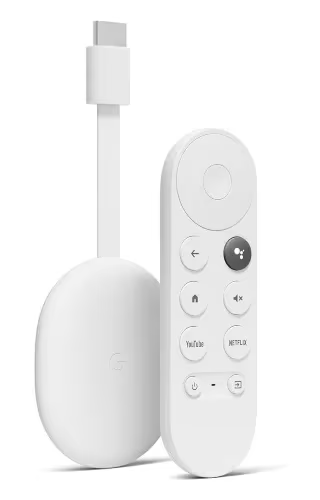
Google discontinued the standalone Chromecast in early 2025, but the Cast feature lives on. The Google TV Streamer ($99) replaced it, and any TV with Chromecast built-in (most smart TVs from 2019 onward) still supports screen casting through the Google Home app.
To mirror your screen:
- Make sure your phone and TV (or Google TV Streamer) are on the same Wi-Fi network
- Open the Google Home app on your Android phone
- Tap your TV or streaming device from the device list
- Tap Cast my screen at the bottom
Your full Android display will appear on the TV. To stop, open the notification shade and tap Disconnect.
Video apps like YouTube and Netflix also have a dedicated Cast button that sends playback to the TV without mirroring your entire screen. If you need to turn off Chromecast or stop casting, a single tap in the notification bar handles it.
#Miracast (No Internet Needed)
Miracast creates a direct wireless link between your phone and TV. No router, no internet connection. Most Android phones running version 5.0 or later and many smart TVs from Samsung, LG, and Sony support it.
To start mirroring with Miracast:
- Go to Settings > Display > Cast on your Android phone
- Tap the three-dot menu and enable Wireless display
- On your TV, navigate to Inputs and select Screen Mirroring or Miracast
- Your phone should detect the TV within a few seconds
The connection is peer-to-peer, so it works in hotel rooms, conference spaces, and anywhere without a Wi-Fi network. Range tops out at about 30 feet with a clear line of sight.
#Smart View (Samsung Galaxy)
Samsung Galaxy phones have Smart View built into the quick settings panel. I tested this on a Galaxy S24 with a Samsung QN85B, and the connection took about 3 seconds.
- Pull down the quick settings shade on your Galaxy phone
- Tap Smart View
- Select your Samsung TV from the list
That’s it. If your TV doesn’t appear, both devices need to be on the same Wi-Fi network. Our guide on troubleshooting Smart View not working covers the most common fixes.
#Media Streamers (Roku and Fire TV)
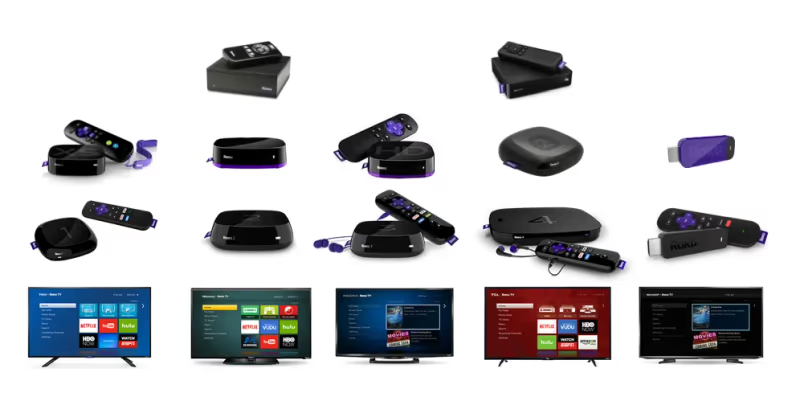
Roku and Amazon Fire TV Stick both support Android screen mirroring. The setup is nearly identical:
- On your streaming device, go to Settings > System > Screen Mirroring and set it to Always Allow or Prompt
- On your Android phone, open Settings > Display > Cast
- Select the streaming device from the list
Roku calls this feature “Screen Mirroring Mode.” Fire TV labels it “Display Mirroring.” Both work over your local Wi-Fi network.
For Roku-specific steps, see my guide on how to mirror Android to Roku.
#Wired Screen Mirroring with HDMI
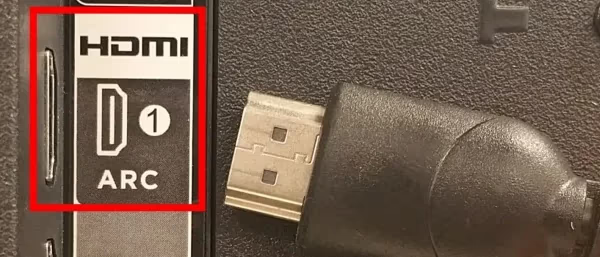
For zero-lag mirroring, a USB-C to HDMI cable is the way to go. I use this method for mobile gaming on my TV because wireless mirroring adds 100-200ms of input delay.
You’ll need:
- A phone that supports HDMI Alt Mode (Samsung Galaxy S series, Google Pixel 6+, most flagship phones from 2020 onward)
- A USB-C to HDMI adapter ($10-15 on Amazon)
- An HDMI cable
Steps:
- Plug the USB-C adapter into your phone
- Connect the HDMI cable from the adapter to a free HDMI port on your TV
- Switch the TV input to that HDMI port
- Your Android screen should appear immediately
If nothing shows up, your phone may not support HDMI Alt Mode. Budget and mid-range phones often skip this feature. Check your phone’s spec sheet on the manufacturer’s website to confirm.
#What Are the Best Tips for Better Mirroring?
A few settings make a noticeable difference in screen mirroring quality:
Reduce notifications. Turn on Do Not Disturb before mirroring so private messages and alerts don’t pop up on the TV screen during a presentation or movie night.
Rotate to horizontal. Turn your phone sideways before starting the mirror. A vertical phone screen wastes two-thirds of your TV’s display area.
Enable Game Mode. If your TV has a Game Mode in its picture settings, turn it on. This reduces the TV’s processing delay from 30-50ms down to 5-10ms, which matters for gaming.
Use 2.4 GHz Wi-Fi for range. The 5 GHz band is faster but has shorter range. If your TV is in a different room from your router, 2.4 GHz gives a more stable mirroring connection.
Plug in your phone. Screen mirroring drains battery fast. In my testing, a Pixel 8 lost about 15% per hour while mirroring over Miracast. Keep a charger nearby.
#How Do You Fix Screen Mirroring Problems?
If screen mirroring won’t connect or keeps dropping, work through these steps:
- Verify both devices are on the same Wi-Fi network. This is the number one cause of failed connections. Check the network name in your phone’s Wi-Fi settings and compare it to the TV’s network settings.
- Restart both devices. Power cycle your phone and TV. On the TV, unplug it from the wall for 30 seconds, then plug it back in.
- Move closer. Wireless mirroring degrades past 25-30 feet. Walls and floors between devices cut the effective range further.
- Disable VPN. VPN apps can block local network discovery, preventing your phone from finding the TV.
- Update firmware. On your TV, go to Settings > Support > Software Update (Samsung) or Settings > System > About > System Update (Sony/Google TV) and install any available updates.
For more help, see the guides on how to turn off screen mirroring and fixing Smart View problems.
#Which Method to Pick
Your choice depends on three things: what hardware you own, how much lag you can tolerate, and whether you have Wi-Fi.
| Method | Latency | Needs Wi-Fi | Best For |
|---|---|---|---|
| Google Home Cast | 150-300ms | Yes | Quick wireless mirroring to any Chromecast-compatible TV |
| Miracast | 100-200ms | No | Hotel rooms, offices, and locations without Wi-Fi |
| Smart View | 100-200ms | Yes | Samsung Galaxy + Samsung TV combos |
| Roku/Fire TV | 150-300ms | Yes | If you already own a streaming stick |
| USB-C to HDMI | Under 1ms | No | Gaming, presentations, and anything needing zero lag |
For most people, the wireless method that matches their existing gear is the right starting point. Switch to wired HDMI only if you notice lag that bothers you.
#Bottom Line
Start with whatever hardware you already have. If your TV has Chromecast built-in or you own a Google TV Streamer, the Google Home app’s Cast feature is the fastest wireless option. Samsung Galaxy owners should try Smart View first since it’s already in the quick settings panel. For the most reliable connection with zero lag, a $12 USB-C to HDMI adapter beats every wireless method. If mirroring drops or won’t connect, check that both devices are on the same Wi-Fi network and restart them both.
For iPhone users, the process is completely different. Check my guides on mirroring iPhone to a TV without Apple TV and mirroring iPhone to a Sony TV.
#Frequently Asked Questions
#Can I use my phone while screen mirroring?
It depends on the method. Casting through apps like YouTube and Netflix lets you use your phone freely because the TV handles playback independently. True screen mirroring locks your displays together, so anything you do on your phone shows on the TV. If you need to multitask, cast instead of mirror.
#How do I know if my phone supports screen mirroring?
Open Settings > Display or Settings > Connected Devices and look for a Cast or Wireless Display option. Most Android phones running version 5.0 (Lollipop) or later have this built in. Samsung Galaxy phones show Smart View in the quick settings panel.
#Can I mirror my Android phone to a TV without Wi-Fi?
Yes, two ways. A USB-C to HDMI adapter and cable mirrors your screen with no network at all. Miracast also works without Wi-Fi because it creates a direct peer-to-peer wireless connection between your phone and TV, bypassing your router entirely. Range is limited to about 30 feet.
#Does screen mirroring cause audio delay?
Wireless mirroring typically adds 100-200 milliseconds of audio delay. For movies and casual browsing, you won’t notice it. For rhythm games or live music apps, it’s distracting. Wired HDMI mirroring has near-zero delay, making it the right choice when audio sync matters.
#Will these methods work with an iPhone?
No. Apple devices use AirPlay, which is a different protocol. AirPlay works with Apple TV 4K and AirPlay 2-compatible smart TVs from Samsung, LG, Sony, and Vizio (2018 models and newer). You can also mirror an iPhone to a Sony TV using built-in AirPlay support.
#What is the difference between screen mirroring and casting?
Screen mirroring duplicates your entire phone display on the TV in real time. Casting sends a specific video or audio stream to the TV while your phone stays free for other tasks. The Cast button in apps like YouTube uses casting, not mirroring. Mirroring is better for presentations and gaming; casting is better for watching content.
#Can I mirror my Android screen to an Apple TV?
Not natively. Apple TV uses AirPlay, which Android doesn’t support. Third-party apps like AirScreen or AirDroid Cast bridge the gap by turning Apple TV into a Miracast-compatible receiver. I tested AirScreen on an Apple TV 4K, and the connection worked but added about 300ms of latency. See my full guide on casting Android to Apple TV for step-by-step setup.