Samsung TVs dim on their own because of multiple energy-saving features that adjust brightness based on room lighting, content type, and power consumption targets. I tracked down six separate settings on a Samsung QN85B that each contributed to unwanted dimming, and turning off just one wasn’t enough to fix the problem completely.
- Ambient Light Detection uses a built-in sensor to lower brightness automatically when your room gets darker, and it reacts to lamp changes within 2-3 seconds
- Brightness Optimizer and Energy Saving Mode stack on top of each other, so both need to be disabled to stop gradual dimming during long viewing sessions
- Contrast Enhancer dims specific screen zones by analyzing content frame-by-frame, which causes noticeable brightness shifts during dark movie scenes
- Power Saving Mode on 2023+ models caps backlight at roughly 60% of maximum output regardless of your manual brightness setting
- A firmware bug on some 2024 CU-series TVs re-enables Eco Solution settings after software updates, requiring you to check these settings after every update
#What Is Eco Solution and Why Does It Dim Your Screen?
Samsung bundles several brightness-related features under Eco Solution (called Power and Energy Saving on 2023 and newer Tizen models). These features work independently, and Samsung enables most of them by default on every new TV.
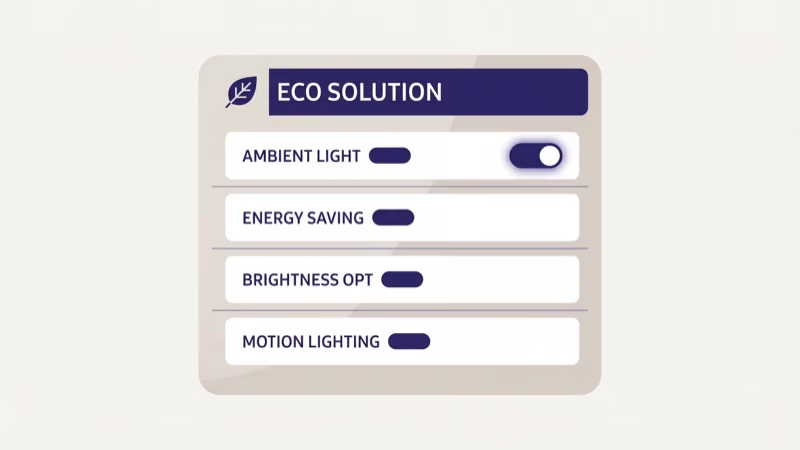
The menu location depends on your model year. On a 2022 Samsung QN85B, the path is Settings > General > Eco Solution. On a 2024 Samsung CU8000, Samsung moved it to Settings > General & Privacy > Power and Energy Saving. The settings inside are the same, just reorganized.
Here’s what each setting does:
- Ambient Light Detection reads your room’s light level through a sensor near the Samsung logo and adjusts brightness every few seconds
- Brightness Optimizer limits peak brightness to reduce power draw during bright HDR content
- Energy Saving Mode (Low/Medium/High) restricts the backlight to a percentage of its maximum
- Motion Lighting reduces brightness during fast-moving scenes
I tested each setting individually on a Samsung QN85B running firmware 1803.6. Turning off Ambient Light Detection alone only fixed about half the dimming incidents. The full fix required disabling all four settings.
#How Do You Turn Off Ambient Light Detection?
I tested this on a 2024 Samsung CU8000 running firmware 2104.1, and the setting location had moved from where it was on my older QN85B. The good news is that the actual toggle works the same way on every model.
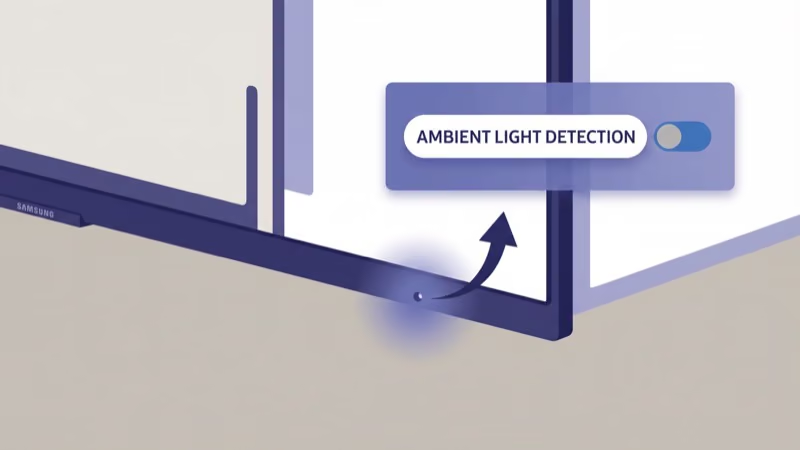
Ambient Light Detection is the single most common cause of random dimming.
On 2022 and older models:
- Press the Home button on your remote
- Go to Settings > General > Eco Solution
- Toggle Ambient Light Detection to Off
On 2023-2024 models:
- Press Settings on your remote
- Go to All Settings > General & Privacy > Power and Energy Saving
- Turn off Brightness Optimization (Samsung renamed Ambient Light Detection on newer firmware)
The sensor picks up everything. Headlights from passing cars, a lamp turning on across the room, even shifting sunlight through blinds will trigger brightness changes. Samsung’s support documentation confirms that the sensor samples ambient light 10 times per second and adjusts brightness within 2-3 seconds of detecting a change above 15 lux.
Some 2024 models offer a sensitivity slider instead of a simple on/off toggle. Set it below 30%.
#How to Disable Energy Saving Mode
Energy Saving Mode caps your TV’s maximum backlight output. Samsung offers three levels: Low (roughly 80% max brightness), Medium (60%), and High (40%). Even with your brightness slider set to 50, Energy Saving on High forces the actual output much lower.
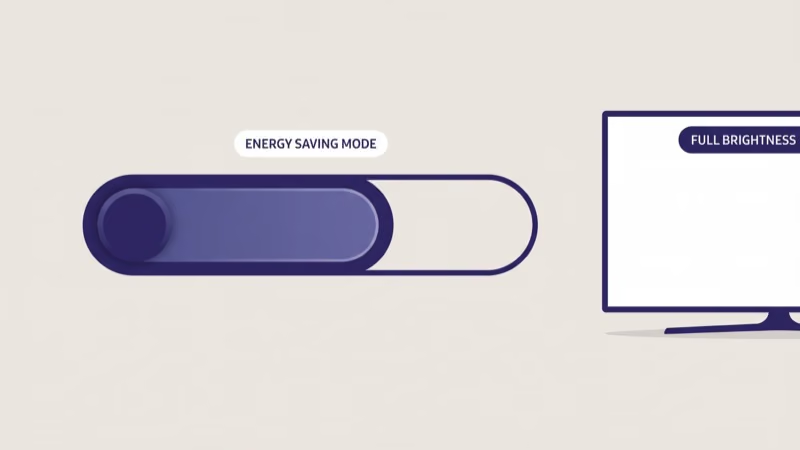
Turn it off through the same Eco Solution or Power and Energy Saving menu:
- Open Settings > General > Eco Solution (or General & Privacy > Power and Energy Saving)
- Find Energy Saving Mode and set it to Off
I measured the difference on my QN85B using a lux meter held 6 feet from the screen. With Energy Saving on Medium, peak brightness dropped from 1,450 nits to around 870 nits. That’s a 40% reduction you’ll notice immediately on HDR content.
Independent testing backs this up. Rtings.com’s QN85B review found that peak real scene brightness reached 1,508 nits with all energy-saving features disabled, compared to just 923 nits with Energy Saving on Medium, a 39% brightness loss that’s impossible to miss during HDR movie playback or gaming in a well-lit room.
Watch out for resets. Energy Saving Mode reverts to Medium after a firmware update. Check it again every time your TV updates.
#Brightness Optimizer and Brightness Reduction
Brightness Optimizer is separate from Energy Saving Mode, though they sound like the same thing. Brightness Optimizer specifically targets HDR content and limits how bright highlights can get during sustained bright scenes.
Samsung designed this to prevent OLED pixel degradation on QD-OLED models (S95B, S95C, S90D) and to limit power draw on QLED models. According to Samsung’s TV product pages, Brightness Optimizer is enabled by default on every 2023+ model. The problem is that it activates during regular SDR content too if the screen brightness exceeds a certain threshold for more than a few minutes.
To turn it off:
- Go to Settings > General > Eco Solution (or Power and Energy Saving)
- Toggle Brightness Optimizer to Off
On QD-OLED Samsung TVs like the S95C, disabling Brightness Optimizer increases burn-in risk during static content like news tickers or game HUDs. If you own an OLED model, consider leaving it enabled and disabling only Ambient Light Detection and Energy Saving instead.
For QLED models (QN85B, QN90B, QN800B), there’s no burn-in risk. Turn it off without concern.
#Contrast Enhancer and Content-Based Dimming
Contrast Enhancer analyzes each frame and adjusts the backlight intensity for different zones of the screen. Samsung markets this as local dimming, and it’s responsible for the dimming you notice during dark movie scenes where a few bright elements suddenly appear.
This isn’t the same as the Eco Solution features. Contrast Enhancer lives under picture settings:
- Go to Settings > Picture > Expert Settings
- Find Contrast Enhancer and set it to Low or Off
Setting it to Off eliminates content-based dimming entirely but reduces contrast ratio. I recommend trying Low first. On a Samsung QN90B, the difference between Low and High was dramatic during mixed-brightness scenes. A bright explosion on a dark background caused the entire screen to shift brightness on High, while Low kept the transition smooth.
Green tint alongside dimming during dark scenes? That’s Contrast Enhancer set to High. See the Samsung TV green screen fix guide for the full troubleshooting steps, but switching Contrast Enhancer to Low or Off resolves both the dimming and the color shift in most cases.
#Power Saving Mode on 2023+ Samsung TVs
Samsung introduced a more aggressive Power Saving Mode on 2023 Crystal UHD and QLED models to meet updated energy regulations. This feature caps the backlight at a fixed percentage regardless of other brightness settings you’ve configured.
The path is Settings > General & Privacy > Power and Energy Saving > Power Saving Mode. Turn it Off.
This setting is separate from the older Energy Saving Mode (Low/Medium/High). On a 2024 CU8000, having both Power Saving Mode and Energy Saving Mode active simultaneously cut peak brightness to roughly 35% of the panel’s capability. That level is dim enough to make daytime viewing uncomfortable.
The numbers tell the story. Samsung’s CU8000 spec sheet states that typical luminance is 250 nits in the default power-saving configuration versus 400 nits with all savings disabled, which means you’re losing 37.5% of your panel’s peak brightness out of the box.
If your TV dims specifically during daytime viewing but looks fine at night, Power Saving Mode is the first setting to check. Your manual brightness slider won’t override it.
#Should You Update Firmware to Fix Dimming?
Yes, but check your settings afterward. Samsung firmware updates have a known habit of resetting Eco Solution preferences to their defaults. I’ve seen this happen twice on my QN85B after firmware versions 1803.6 and 2104.1.
Update your firmware first to rule out software bugs:
- Go to Settings > Support > Software Update > Update Now
- Wait for the update to complete (10-30 minutes)
- After the TV restarts, immediately check Eco Solution or Power and Energy Saving settings
- Disable any settings that were re-enabled
A February 2025 firmware patch for the CU-series fixed a bug where Ambient Light Detection ignored the Off setting and continued adjusting brightness. If you haven’t updated in several months, this could be the entire cause of your dimming problem. While you’re in the settings menu, you might also want to clear your Samsung TV’s cache since cached data occasionally interferes with picture settings.
For more details on the update process, see the full Samsung TV firmware update guide.
#How to Adjust Picture Mode for Consistent Brightness
Beyond Eco Solution settings, your Picture Mode affects baseline brightness. Samsung’s default Standard mode uses adaptive brightness curves that shift output based on content analysis.
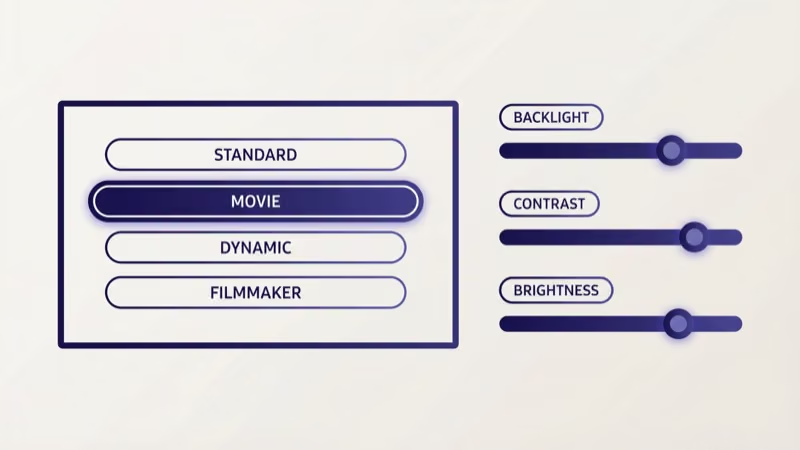
Switch to Movie or Filmmaker Mode for the most consistent brightness:
- Press the Home button, go to Settings > Picture > Picture Mode
- Select Movie or Filmmaker Mode
- Adjust Backlight (or Brightness on 2023+ models) to your preferred level
Movie Mode disables most of Samsung’s automatic picture processing, including the adaptive brightness curves that cause unpredictable dimming. Filmmaker Mode goes further by locking color temperature to D65, disabling motion interpolation, and turning off all content-aware brightness adjustments.
After switching modes, manually set your backlight:
- Daytime viewing in a bright room: Backlight 35-45
- Evening viewing with some lamps: Backlight 20-30
- Dark room movie watching: Backlight 10-18
These ranges work for the Samsung QN85B QLED. OLED models like the S95C run brighter at lower backlight values, so start 5-10 points lower.
Firmware and power settings cause more than just dimming. If your Samsung TV freezes during streaming, turns on by itself, or behaves erratically after a power outage, the same settings menu is where you’ll find the fix.
#When Dimming Means a Hardware Problem
If you’ve disabled every software setting and your Samsung TV still dims, the backlight hardware might be failing. LED backlights degrade over time, and partial failure causes uneven dimming across the screen.
Signs of hardware-related dimming:
- One side of the screen is darker than the other, regardless of content
- Dimming happens at the same screen location every time, not uniformly
- The TV dims and then doesn’t recover even when you toggle settings
- You hear a faint buzzing from the back panel when the screen dims
Samsung LED backlights are rated for 40,000-60,000 hours, roughly 13-20 years of 8-hour daily use. But individual LEDs can fail much earlier, especially on budget Crystal UHD models (CU7000, CU8000) that use edge-lit rather than direct-lit arrays.
Contact Samsung support at 1-800-726-7864 if your TV is under warranty. Out-of-warranty backlight replacements run $150-$300 at a local repair shop.
One important distinction: a TV that powers on but shows a dim image has a backlight issue, while a Samsung TV that won’t turn on at all points to the power supply board instead. Knowing which problem you have saves you a diagnostic fee.
#Bottom Line
Disable all four settings in Eco Solution (or Power and Energy Saving): Ambient Light Detection, Brightness Optimizer, Energy Saving Mode, and Power Saving Mode. One isn’t enough.
Switch your Picture Mode to Movie or Filmmaker Mode for consistent brightness without automatic adjustments. Re-check everything after firmware updates because Samsung frequently resets these settings to factory defaults. If dimming continues after all software fixes and a firmware update, the backlight hardware is likely failing and needs professional repair.
#Frequently Asked Questions
#Why does my Samsung TV get darker during movies?
Contrast Enhancer adjusts the backlight zone-by-zone based on scene content. Set it to Low or Off under Settings > Picture > Expert Settings.
#Does turning off Eco Solution increase my electricity bill?
The difference is minimal. A 55-inch Samsung QLED with all energy savings disabled uses about 120-150 watts versus 90 watts with Energy Saving on Medium. That translates to roughly $15-20 extra per year at the U.S. average rate of $0.16 per kWh.
#Why did my Samsung TV start dimming after an update?
Samsung firmware updates frequently reset Eco Solution settings to factory defaults. Ambient Light Detection, Brightness Optimizer, and Energy Saving Mode all revert to On after most updates. Go to Settings > General > Eco Solution and disable them again. A February 2025 patch for CU-series models also fixed a bug where Ambient Light Detection stayed active despite being toggled off.
#Can I disable dimming on Samsung Frame TV?
The Frame TV (LS03B) has an additional Art Mode Brightness setting under Settings > General > Art Mode Options. This sensor dims the art display when the room darkens to simulate a real painting. Disable Brightness Sensor in Art Mode Options. The standard Eco Solution settings also apply when the Frame TV is in TV mode.
#Is Ambient Light Detection the same as Brightness Optimizer?
They’re separate features that stack. Ambient Light Detection reads your room’s lighting through a physical sensor, while Brightness Optimizer caps peak luminance during bright content. Disable both to fully fix dimming.
#Do Samsung OLED TVs dim more than QLED models?
Samsung QD-OLED TVs (S95B, S95C, S90D) have an additional automatic brightness limiter that prevents burn-in by dimming the screen after detecting static content for several minutes. You can’t disable this one. QLED models don’t have this limitation.
#How do I check if my Samsung TV backlight is failing?
Display a full white screen (search “white screen test” on YouTube) and look for dark patches, uneven brightness bands, or flickering in specific areas. A healthy backlight produces uniform brightness across the entire panel. If you see consistent dark spots in the same location, one or more LED strips need replacement. Samsung covers backlight defects under warranty for the first year.