Your Samsung TV has a physical power button, but Samsung hides it well. On most models from 2018 onward, the button blends into the bezel or sits behind the panel where you can’t see it without reaching around. I’ve spent time locating it on a Samsung TU7000, QN85B, and CU8000, and each one placed it in a different spot.
- The button location changes by model year, with pre-2019 models using the front bezel while 2020+ models hide it on the back-right panel
- The standby LED marks the spot because the red indicator light sits within 2 inches of the physical power button on every Samsung TV
- One button controls everything since pressing once powers on, and pressing again opens a submenu with volume, channels, source, and Smart Hub
- SmartThings replaces the remote entirely as the free Samsung app turns any phone into a full TV remote over Wi-Fi
- HDMI-CEC can power your TV automatically when a connected game console or streaming device turns on
#Where Is the Power Button on a Samsung TV?
Samsung places the power button in one of four locations depending on your model year and screen size. According to Samsung’s support documentation, the button is always near the standby indicator light.
Start by looking for the red LED. On my Samsung TU7000, the button was centered beneath the Samsung logo.
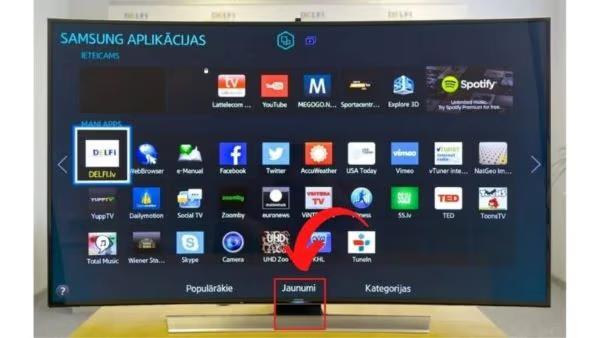
Here are all four possible locations, starting with the most common placement on pre-2020 models and ending with the joystick-style controller found on newer Crystal UHD, QLED, and Neo QLED TVs.
#Beneath the Samsung Logo (Center Front)
Most Samsung TVs from 2016 to 2019 put the power button directly below the Samsung logo on the center of the lower bezel. Run your finger along the bottom edge of the screen until you feel a small bump or indentation.
#Bottom-Right Corner of the Front Bezel
Samsung TVs from the NU, RU, and TU series often place the button on the lower-right front bezel, right next to the IR receiver. Feel for it.
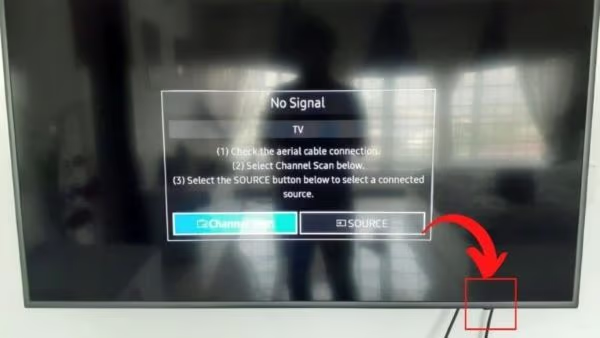
#Left or Right Side of the Front Bezel
Some Samsung models use touch-sensitive buttons along the left or right edge of the front bezel. Look for a small power icon etched into the surface. Press and hold it for two seconds to turn the TV on. These touch buttons appear on select 2017-2019 models and some commercial displays.
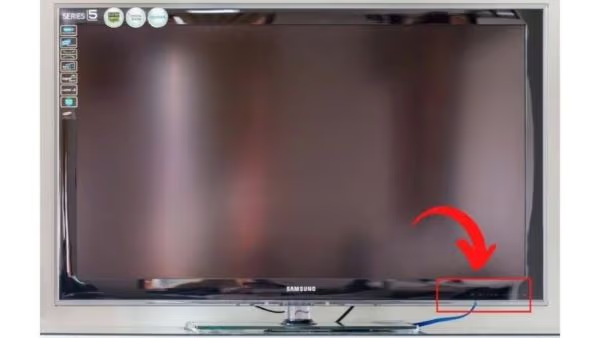
#Back-Right Panel (2020+ Models)
On Crystal UHD, QLED, Neo QLED, and The Frame models from 2020 onward, Samsung moved the button to the back panel. Reach around the right side near the bottom edge. According to Samsung’s user manuals, this joystick-style controller handles power, volume, and input switching. Press it once to turn the TV on.
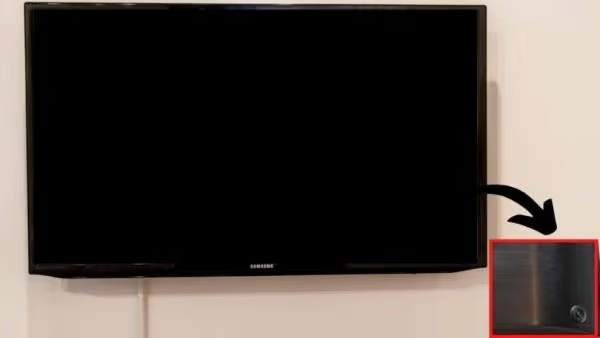
If you can’t find the button, grab a flashlight and check both the front and back edges. Samsung’s official support page has diagrams for each model series.
#Controlling a Samsung TV Without a Remote
Lost your remote? The physical button on your Samsung TV does more than just power. After the first press turns the TV on, pressing it again opens a navigation menu. You don’t need the remote for basic controls.
#Using the Control Button (Single Button Models)
On models with a single button (most 2016-2019 TVs), the button works like this:
- Press once: Power on
- Press again: Opens a submenu with Power Off, Volume, Channel, and Source
- Short press: Cycles through menu options
- Long press (2 seconds): Selects the highlighted option
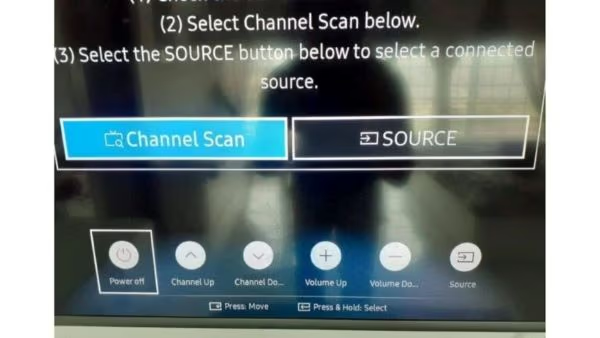
This single-button system is limited but gets the job done when you need to switch inputs or adjust volume temporarily.
#Using the Control Stick (Joystick Models)
Samsung TVs from 2020 onward use a joystick-style control stick on the back panel. This gives you full directional control.
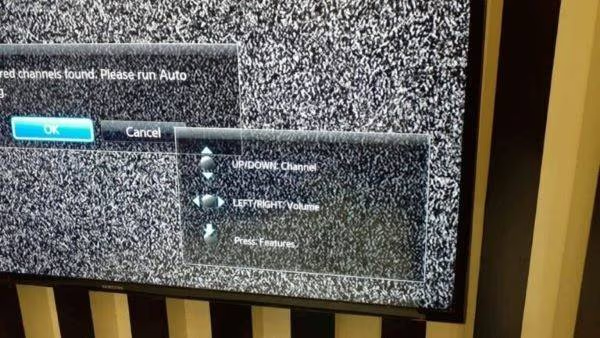
Here’s how each direction works:
- Press center: Power on (when off) or open the menu (when on)
- Tilt left: Volume down
- Tilt right: Volume up
- Tilt up: Next channel
- Tilt down: Previous channel
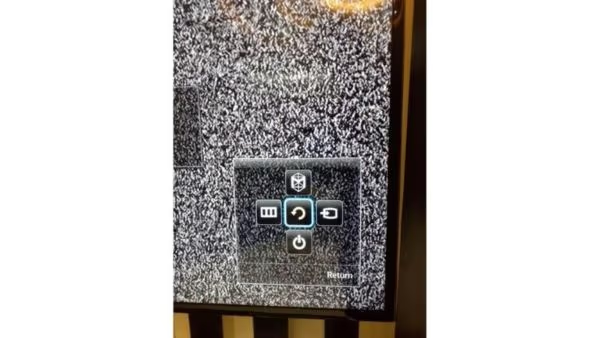
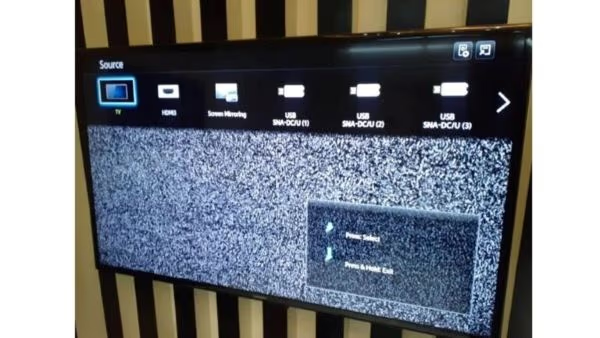
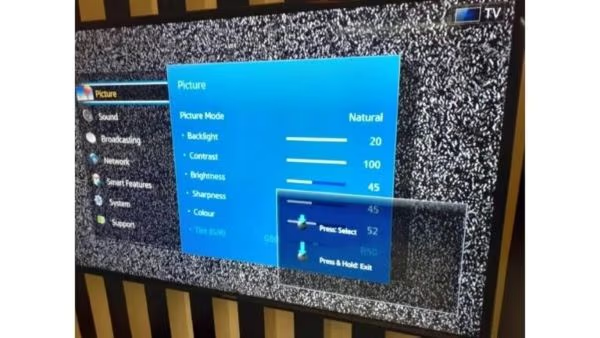
After pressing the center button with the TV on, you get access to five options:
- Power Off
- Smart Hub
- Source (HDMI 1, HDMI 2, USB, screen mirroring)
- Settings (picture, sound, network, system)
- Return
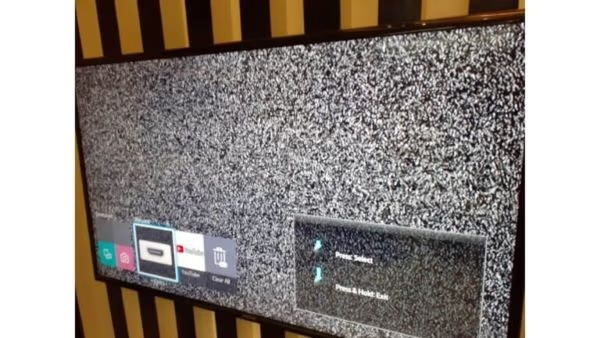
Tilt the stick left or right to cycle through these options, then press the center to select. It takes practice, but after using it for a week on my QN85B, I got comfortable navigating without the remote.
#Using the SmartThings App as a Remote
The Samsung SmartThings app turns your phone into a full-featured remote. It works over Wi-Fi, so you don’t need line-of-sight like an IR remote.
Setup takes about 90 seconds:
- Download SmartThings from the Google Play Store or Apple App Store
- Connect your phone to the same Wi-Fi network as your TV
- Open the app and tap the + icon to add your TV
- Select your Samsung TV from the device list
- Enter the PIN code displayed on your TV screen
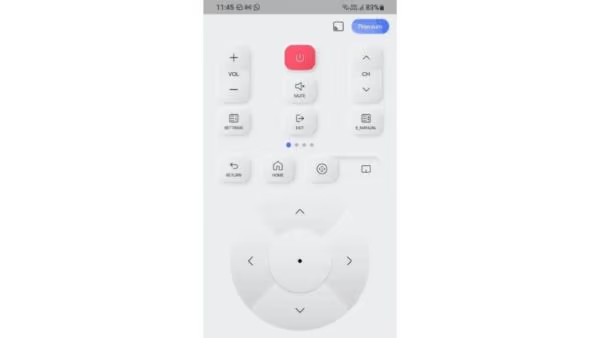
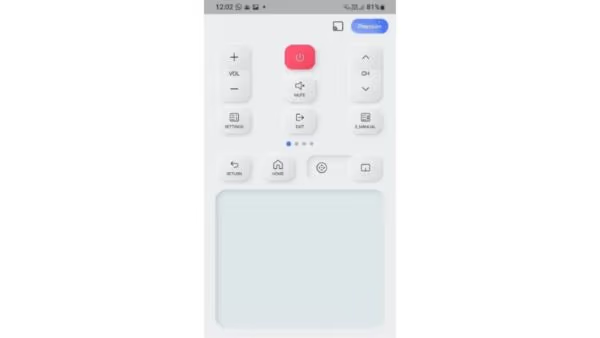
Once connected, the app gives you a virtual remote with all standard buttons: power, volume, channels, number pad, and directional navigation. You can also type text using your phone keyboard, which is much faster than the on-screen keyboard for searching apps. If your remote dies permanently, check out the best Samsung TV remote apps for more alternatives.
#What Should You Do if Your Samsung TV Won’t Turn On?
If pressing the power button does nothing, work through these checks before contacting Samsung support.
Check the standby light first. According to Samsung’s troubleshooting guide, the red LED near the power button tells you whether the TV has power. No light means no power reaching the TV at all.
Verify your power source. Plug a lamp into the same outlet. Dead outlet? Check your circuit breaker.
Power cycle the TV. Unplug the power cord from the wall for 60 seconds. Hold the TV’s power button for 15 seconds while unplugged to drain residual charge, then plug it back in. This single step fixes the majority of temporary power glitches on Samsung TVs, and I’ve seen it work on everything from older TU series to newer CU models. For a deeper walkthrough, read my guide on Samsung TV won’t turn on.
Test the remote separately. If the standby light is on but the remote won’t turn on the TV, the remote is likely the problem. Remove the batteries, hold any button for 10 seconds to reset, then insert fresh ones.
Verify the remote signal. Point your phone camera at the IR sensor and press any button. A purple flash confirms it’s working. No flash means the remote is dead, and you’ll want to grab Samsung TV universal remote codes to program a replacement.
Try HDMI-CEC. Turn on any connected game console or streaming stick. With HDMI-CEC (Anynet+) enabled, the connected device powers on your TV automatically.
#Power Button on QLED and Neo QLED Models
QLED and Neo QLED TVs from 2020 onward all use the joystick-style control stick on the back-right panel. Samsung standardized this across its premium lineup.
The joystick sits about 3 inches from the bottom-right corner on the rear panel. It protrudes about 5mm from the surface. On The Frame models, Samsung moved it to the back-center to keep the sides clean for the picture frame aesthetic. Samsung notes in their Frame setup guide that this placement prevents accidental presses during wall mounting.
One exception: the 2024 Samsung S90D and S95D OLED models placed the joystick on the back-left side instead of the right. If you own one of these, reach around the left side near the bottom. Samsung’s help page for S90D support confirms this placement.
#Other Ways to Operate Your Samsung TV
Losing the remote doesn’t mean losing control of your TV. Here are practical options beyond the physical button.
Use voice control. Samsung TVs from 2019 onward have Bixby or Alexa built in. Say “Hi Bixby, turn on the TV” or “Alexa, turn on Samsung TV.” You can also turn off voice assistant on Samsung TV if it activates by accident.
Connect a USB keyboard. Plug one into any USB port on the TV. Arrow keys navigate, Enter selects, Escape goes back.
Set up a sleep timer. Go to Settings > General > System Manager > Time > Sleep Timer. Pick 30, 60, 90, 120, or 180 minutes. The TV shuts off automatically when the timer expires, so you don’t need the remote or button to power down at night, and the TV enters true standby mode rather than just dimming the screen.
If your Samsung TV is freezing or lagging, try clearing the cache before reaching for the power button to force a restart.
#Bottom Line
The Samsung TV power button is always within a few inches of the standby LED. Pre-2020 models keep it on the front bezel, while newer models tuck it behind the panel on the right side. A single press turns the TV on, and a second press opens the full control menu.
For a permanent remote replacement, set up the SmartThings app on your phone. It takes 90 seconds and gives you full control from anywhere on your Wi-Fi network.
#FAQ
#Where is the power button on a Samsung Frame TV?
The Frame TV hides its joystick controller on the back-center of the panel. Feel along the center-bottom of the rear panel to find it.
#Can I turn on my Samsung TV using HDMI-CEC?
Yes. HDMI-CEC (Samsung calls it Anynet+) lets connected devices power your TV on and off automatically. Go to Settings > General > External Device Manager > Anynet+ and toggle it on. When you turn on a PlayStation, Xbox, or streaming stick connected via HDMI, the TV turns on and switches to that input automatically.
#Does pressing the power button damage a Samsung TV?
No. The physical power button puts the TV into standby mode, which is the same state the remote triggers. Samsung designs it for daily use, and the solid-state button on 2020+ models won’t wear out from repeated pressing. The only risk comes from unplugging the TV mid-update, which can corrupt firmware.
#How do I find the power button in a dark room?
Look for the red standby LED. The power button is always within 2 inches of that light. Use your phone’s flashlight to check the back panel on 2020+ models.
#What does a blinking red light on my Samsung TV mean?
A blinking red standby light usually signals a power supply or main board issue. Unplug the TV for 60 seconds, then plug it back in. If the blinking continues, the TV may need a capacitor replacement on the power supply board. Samsung support can run remote diagnostics if your TV is connected to Wi-Fi.
#Can I use a universal remote instead of the power button?
Yes. Most universal remotes work with Samsung TVs after entering the correct remote code. Common Samsung codes include 0101 and 0060 for GE remotes.
#How do I set up SmartThings to control my Samsung TV?
Download the SmartThings app, create a Samsung account, and connect your phone to the same Wi-Fi as the TV. Tap the + icon, select your TV from the list, and enter the PIN shown on screen. The whole process takes about 90 seconds, and the app gives you full remote functionality including power, volume, channel switching, and text input.
#Why does my Samsung TV turn on by itself?
Auto-power-on usually happens because of HDMI-CEC, a scheduled timer, or the SmartThings app sending a wake signal. Go to Settings > General > External Device Manager and disable Anynet+ if a connected device is triggering it. Also check Settings > General > System Manager > Time > On Timer to make sure no scheduled power-on is set.