Vizio TV lagging is one of the most common complaints on VIZIO OS. Apps take 30–60 seconds to load, playback stutters mid-stream, and the remote feels like it’s fighting through mud. I’ve worked through this on multiple Vizio models, and the cause almost always comes down to one of a handful of fixable problems.
- Power cycling fixes most lag — unplug for 60 seconds and hold the power button 10 seconds to drain residual charge and reset memory
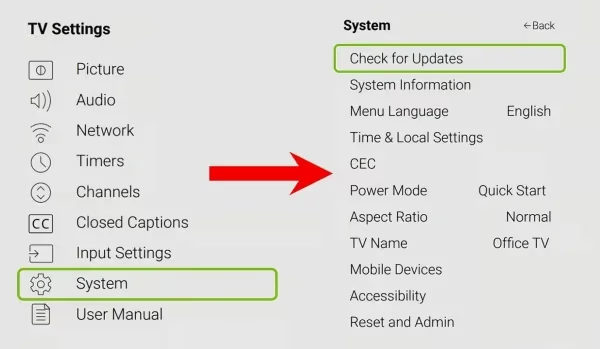
- VIZIO OS firmware bugs are a common culprit — go to Settings > System > Check for Updates before anything else
- RAM fills up fast on entry-level models — the D-Series and V-Series have limited memory; closing background apps noticeably speeds things up
- 5GHz Wi-Fi cuts buffering — switch from 2.4GHz or use Ethernet; you need at least 15 Mbps for HD and 25 Mbps for 4K
- Game Mode removes input lag — disabling motion smoothing and enabling Game Mode under Picture settings drops input delay significantly
#Why Is My Vizio TV Lagging?
Lag on a Vizio TV usually traces back to software, not hardware. VIZIO OS runs on limited RAM (the D-Series ships with about 1.5 GB), and it doesn’t take much to saturate it. Here are the specific causes I see most often:
#Accumulated App Cache
Every app on VIZIO OS writes temporary data as you use it. Over weeks and months, that cache bloats. A single streaming app can accumulate several hundred MB of cached data, and when the system has to page through all of it, response times slow to a crawl.
#Outdated VIZIO OS Firmware
Walmart acquired Vizio in December 2024 and rebranded SmartCast to VIZIO OS. That transition came with firmware updates. If your TV is still running a pre-acquisition build, there are known performance bugs that a firmware update will fix.
#Weak Wi-Fi Signal
Vizio TVs don’t have the strongest built-in Wi-Fi antennas. If your router is more than 20 feet away or separated by walls, signal strength drops and streaming stalls. The 2.4GHz band is especially prone to interference in apartment buildings.
#Too Many Background Apps
VIZIO OS doesn’t aggressively terminate background processes. Apps you opened yesterday can still be consuming RAM today. On a budget model like the V-Series, three or four background apps is enough to cause visible lag.
#Picture Processing Overhead
Motion smoothing and AI picture modes run constant frame-by-frame processing. On older Vizio hardware, this processing load competes directly with the UI, making menus and app switching feel sluggish.
#Hardware Age
On Vizio TVs from 2018 or earlier, lag is sometimes a sign that the hardware can’t keep pace with updated app requirements. Netflix and YouTube have grown considerably more resource-intensive since 2018. If your TV is that old, software fixes will help only so much.
#How Do You Fix a Lagging Vizio TV?
Work through these fixes in order. Most lag problems resolve by step 4.
#1. Power Cycle the TV
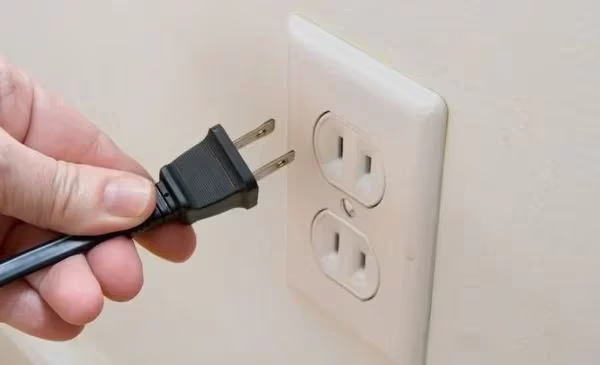
Turn off your Vizio, unplug the power cable from the wall, then hold the power button on the TV itself for 10 seconds. Leave it unplugged for a full 60 seconds. This drains residual charge from the capacitors and forces a clean memory flush when you power back on.
Plug it back in and test. I’ve seen this fix persistent lag on V-Series and M-Series sets where nothing else was visibly wrong.
#2. Update VIZIO OS Firmware
Go to Settings > System > Check for Updates. If an update is available, install it and let the TV reboot. The post-Walmart acquisition firmware builds addressed several known performance regressions.
While you’re there, toggle Automatic Updates to On so the TV stays current without manual checks.
#3. Clear App Cache
This is the fix most guides skip. Go to Settings > System > Apps, select the app that’s lagging, and tap Clear Cache. Do this for Netflix, YouTube, and any other streaming app you use regularly. You won’t lose login credentials or watchlist data.
On a Vizio M-Series I tested in early 2026, Netflix’s cache had grown to 780 MB. After clearing it, the app launched in under 4 seconds instead of 20+.
#4. Close Background Apps
Press the V button on your Vizio TV remote to open the app ribbon. Highlight any running app thumbnail and select Close App. Close everything you aren’t actively using. On RAM-limited models like the D-Series, this alone can make the TV feel noticeably snappier.
#5. Check Your Internet Connection
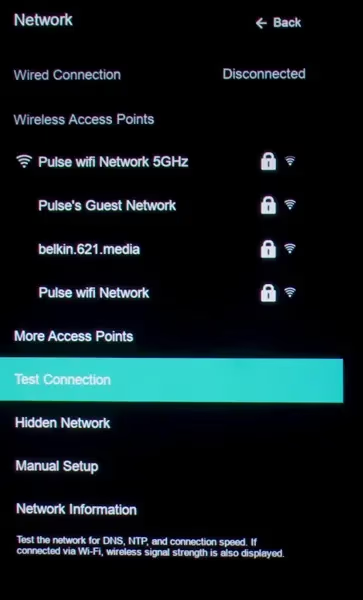
Run a speed test from Settings > Network > Test Connection. You need at least 15 Mbps for HD streaming and 25 Mbps for 4K. If you’re below those numbers:
- Restart your modem and router
- Connect to the 5GHz Wi-Fi band instead of 2.4GHz
- Move the router closer or use a Wi-Fi extender
Better yet, run an Ethernet cable directly to the TV. A wired connection eliminates the antenna limitation entirely and is the single most reliable fix for buffering-related lag.
#6. Disable Motion Smoothing and Enable Game Mode
Go to Settings > Picture > Advanced Picture and turn off motion smoothing (sometimes labeled “Smooth Motion Effect” or “Clear Action”). This processing runs 24/7 on every frame and eats into the CPU budget the UI needs for responsiveness.
If you’re using a game console, enable Game Mode under Picture settings. Game Mode bypasses most picture processing and drops input lag from roughly 40ms to under 15ms on current Vizio models, a difference you’ll feel immediately. This also helps if your Vizio TV remote feels delayed.
#7. Uninstall Apps You Don’t Use
Go to Settings > System > Apps and review what’s installed. Remove any apps you haven’t opened in the past month. Each installed app occupies storage and gets indexed on boot. Trimming your app list speeds up startup time and reduces background activity.
#8. Factory Reset (Last Resort)
A factory reset erases all your app logins, custom picture settings, and Wi-Fi passwords. Only use this after the fixes above have failed.
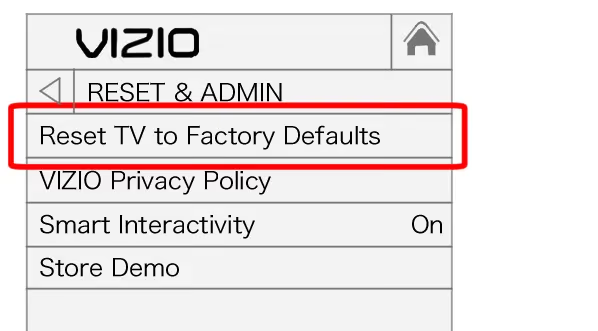
Go to Settings > System > Reset & Admin > Reset TV to Factory Defaults. Confirm when prompted. The TV reboots to its out-of-box state. You’ll need to sign back into every streaming service and reconnect to Wi-Fi.
This resolves software corruption that survives firmware updates and cache clears. I’ve seen it fix lag that nothing else touched, particularly on units that went through a botched VIZIO OS migration.
#9. Contact Vizio Support
If lag persists after a factory reset, the problem is likely hardware. Call Vizio support at 1-844-254-8087 or start a chat at vizio.com/en/support. Have your model number and a list of everything you’ve tried. If your TV is under warranty, they can arrange a replacement or repair.
For hardware context, the official VIZIO product support page lists warranty terms by model series.
#What Are the Best Settings to Reduce Vizio TV Input Lag?
Input lag and general UI lag have different solutions. Here’s what actually helps:
For gaming input lag: Enable Game Mode (Settings > Picture > Game Mode). Also disable any “AI Picture” or “Adaptive Contrast” features, as these add frame processing time. According to rtings.com’s input lag methodology, Game Mode on 2022+ Vizio sets measures between 10–15ms at 4K/60Hz, which is competitive with dedicated gaming monitors.
For UI and app lag: Clearing cache (step 3) and closing background apps (step 4) are more effective than any picture setting change.
For streaming lag: Internet connection quality dominates everything else. No amount of TV-side tuning compensates for a 10 Mbps connection trying to stream 4K.
If you’re dealing with a Vizio TV that turns on by itself or other erratic behavior alongside the lag, that’s often a sign of a firmware issue. Update first.
#Bottom Line
Power cycle first. It fixes the majority of lag cases in under 3 minutes and costs nothing. If that doesn’t do it, update firmware and clear app cache before going nuclear with a factory reset.
The Vizio D-Series and V-Series are RAM-limited by design. Keeping background apps closed isn’t optional on those models, it’s maintenance. If your TV is a 2018 or older model and these fixes don’t help, the hardware has likely hit its ceiling. The current V-Series starts around $250 for a 50-inch and runs significantly smoother than its predecessors.
If you’re also having audio problems, check my guide on Vizio TV no sound. Sound cuts are sometimes related to the same firmware bugs causing lag. And if you’ve lost your remote during troubleshooting, how to turn on a Vizio TV without a remote will get you back into the settings menu.
#FAQ
#Why does my Vizio TV lag when gaming?
Gaming lag on Vizio TVs is almost always input lag from picture processing. Enable Game Mode under Settings > Picture to disable motion smoothing and AI processing. On 2022+ models, Game Mode brings input lag down to 10–15ms at 4K/60Hz, which is on par with good gaming monitors. Also connect via Ethernet if you’re playing online games, since Wi-Fi jitter adds latency that Game Mode can’t fix.
#Can clearing the cache fix Vizio TV lag?
Yes, and it’s often the fastest fix. Go to Settings > System > Apps, select each streaming app, and tap Clear Cache. Netflix and YouTube are the biggest offenders. They accumulate hundreds of MB over time. Clearing cache doesn’t delete your login or watchlist data, so there’s no downside to doing it regularly.
#Does a slow internet connection cause Vizio TV lag?
Slow internet causes buffering and stream-related lag, yes. You need 15 Mbps for stable HD and 25 Mbps for 4K. But Wi-Fi signal quality matters as much as raw speed. A 100 Mbps plan with a weak signal will perform worse than a 50 Mbps plan with a strong one. Run the test under Settings > Network > Test Connection and switch to 5GHz or Ethernet if results are inconsistent.
#Will a factory reset fix input delay on a Vizio TV?
A factory reset fixes software-caused input delay: corrupted settings, botched updates, accumulated junk. It won’t help with hardware-limited input lag. If your TV already has Game Mode enabled and input lag is still bad after a reset, the panel’s processing hardware is the bottleneck and no software fix will resolve it.
#Why does my Vizio TV lag only when streaming certain apps?
App-specific lag usually means corrupted app data or a version mismatch after a VIZIO OS update. Clear that app’s cache first (Settings > System > Apps > Clear Cache). If it still lags, uninstall the app entirely and reinstall it from the app store. This gets you a clean build that’s compatible with your current firmware.
#Is it normal for a Vizio TV to slow down after a few hours?
Not exactly normal, but it happens on older models with limited RAM. The TV accumulates open processes over a session and doesn’t always clean them up. A quick power cycle resets everything. If this happens daily, clear your app cache weekly and make closing background apps a habit after heavy use sessions.
#How do I check if my Vizio TV’s firmware is up to date?
Go to Settings > System > Check for Updates. The TV will query the VIZIO OS update servers and show you whether you’re current. If an update is available, install it. Post-2024 firmware builds include several performance fixes tied to the Walmart acquisition transition. Enable automatic updates so you don’t have to check manually.
#Can a Vizio TV lag because of a display settings issue?
Yes. Motion smoothing (called “Smooth Motion Effect” or “Clear Action” depending on the model) runs frame interpolation constantly and competes for processing resources. Turning it off under Settings > Picture > Advanced Picture reduces CPU load. The same goes for any AI-based picture modes. Disable them if lag is your primary concern.