A Samsung soundbar turns your TV’s thin, tinny audio into something that actually sounds like a home theater. I’ve set up a Samsung HW-Q990D with a 65-inch Samsung QN85B and a Samsung HW-S800D with a 55-inch LG C3. The HDMI eARC connection took under five minutes both times. Here’s exactly how to do it.
- HDMI eARC delivers the best audio: it supports Dolby Atmos and DTS:X, while standard ARC tops out at Dolby Digital 5.1
- The full setup takes under 10 minutes: one cable, two port connections, and a quick settings change
- Anynet+ lets your TV remote control the soundbar: enable it in General > External Device Manager on Samsung TVs
- Optical and Bluetooth also work: use optical if your TV has no ARC port, Bluetooth if you need a wireless option
- Audio sync issues are fixable: adjust the audio delay in your TV’s sound menu if dialogue drifts from the video
#Why Your TV Needs a Soundbar
Modern 4K TVs are impressively thin. That thinness costs you speaker volume and bass. Most flat panels top out at 20W with no subwoofer, which is fine for dialogue but poor for anything else.
Soundbars offer a significant upgrade over standard TV speakers without the cable complexity of a full surround system. A Samsung soundbar adds dedicated woofers, tweeters, and in flagship models like the HW-Q990D, 11.1.4-channel audio with wireless rear speakers included. You get Dolby Atmos height effects that built-in drivers physically can’t produce.
A few other reasons to connect one:
- Clearer dialogue: a dedicated center channel keeps voices crisp during action scenes
- Works with any TV brand: Samsung soundbars pair over HDMI with LG, Sony, Vizio, and TCL TVs; you can even connect a Vizio soundbar to an LG TV using the same steps
- Flexible placement: sit it on a credenza below a wall-mounted TV or mount it directly; here’s how to avoid blocking your TV’s IR sensor with your soundbar
- Expandable later: add wireless rear speakers and a subwoofer when you’re ready for 5.1 or 7.1
#Choosing the Right Connection Method
HDMI eARC is the best option for most setups, but it’s not the only one. Here’s how the three main connection types compare:
| Connection | Audio Quality | Cable Required | Remote Control via CEC |
|---|---|---|---|
| HDMI eARC | Dolby Atmos, DTS:X, uncompressed 7.1 | HDMI 2.1 | Yes (Anynet+) |
| HDMI ARC | Dolby Digital 5.1 | HDMI | Yes (Anynet+) |
| Optical | Dolby Digital 5.1 | TOSLINK | No |
| Bluetooth | Stereo (compressed) | None | No |
Samsung’s official eARC setup guide confirms that eARC requires both devices to support it and an HDMI 2.1 cable for the higher bandwidth formats. Most Samsung TVs from 2019 onward have an eARC port. If yours only has standard ARC, you’ll still get Dolby Digital 5.1, which is a solid improvement over built-in speakers.
#Step-by-Step: HDMI Connection Guide
HDMI eARC (Enhanced Audio Return Channel) is the recommended connection for any soundbar bought after 2020. It passes Dolby Atmos and uncompressed audio over a single cable, and it lets the TV remote control soundbar volume through Anynet+.
#What You’ll Need
- Samsung soundbar
- TV with an HDMI ARC or eARC port
- High-speed HDMI cable (2.0 or 2.1 for eARC)
- Power cords for both devices
#Step 1: Position Your Soundbar
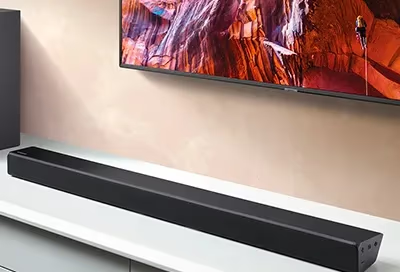
Place the soundbar centered below your TV. Leave about 2 inches of clearance above it if it’s on a shelf so the display stays readable.
Check that both devices are within reach with your cable length.
#Step 2: Connect Power
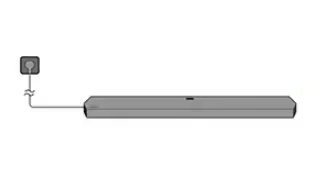
Plug both your TV and soundbar into a surge protector. Install batteries in the soundbar remote before you start, so the remote is ready during input selection.
#Step 3: Connect the HDMI Cable
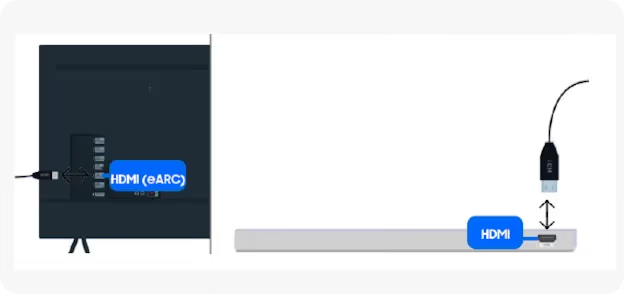
Look for the port labeled ARC or eARC on your TV’s back panel. It’s usually HDMI port 1 or 2.
Plug one end of the HDMI cable into that port. Connect the other end of the HDMI cable to the HDMI Out (TV ARC) port on your soundbar. The HW-Q990D, HW-S800D, and most 2022-and-newer Samsung soundbars support eARC, so use that port if available for full Dolby Atmos passthrough.
#Step 4: Select the Right Input
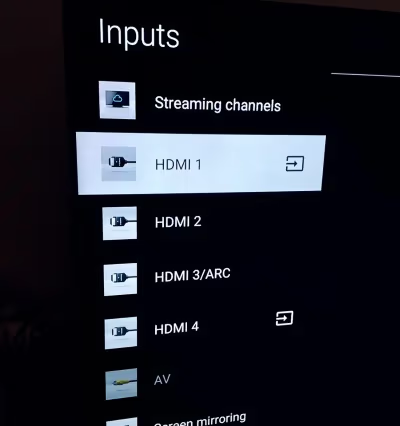
Turn on both devices. On the soundbar, press the Source button on the remote and select HDMI or D.IN. After about two seconds, the soundbar display should read “TV ARC” or “TV eARC” to confirm the connection is active.
#Step 5: Set TV Audio Output to External Speaker
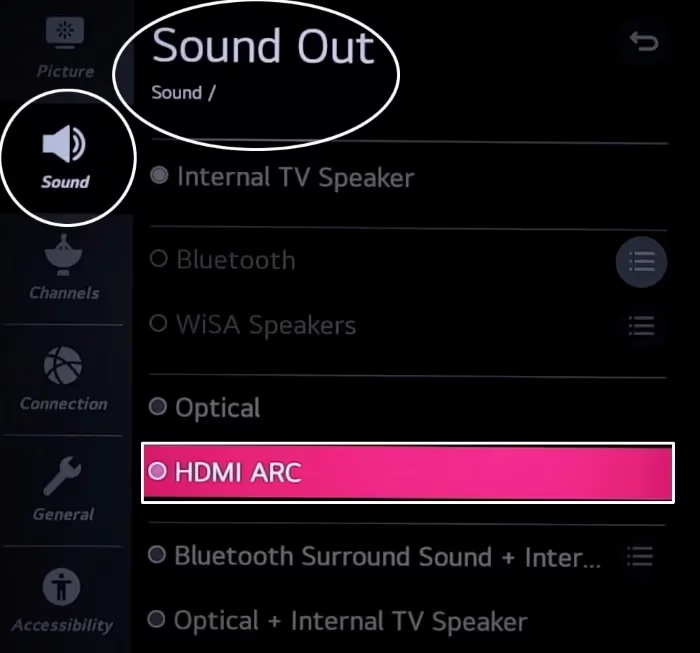
On your Samsung TV, go to Settings > Sound > Sound Output and select your soundbar from the list. This disables the built-in speakers and routes all audio through the soundbar.
#Step 6: Enable Anynet+ for Single-Remote Control
On a Samsung TV, go to Settings > General > External Device Manager > Anynet+ (HDMI-CEC) and turn it on. Anynet+ is enabled by default on the soundbar side. To confirm, hold the right directional button on the soundbar remote for five seconds until “Anynet+” appears on the display.
Once Anynet+ is active, your TV remote controls soundbar volume. The soundbar also powers on and off with the TV automatically.
#What Should You Do if There’s No Sound?
I’ve tracked a few specific failure points across several setups. Here’s what actually fixes them.
No sound from the soundbar at all:
- Confirm the TV’s audio output is set to the external speaker, not “TV Speaker”
- Make sure the soundbar input matches your connection type: HDMI/D.IN for ARC, OPT for optical
- Swap the HDMI cable if the issue continues; a faulty cable is a common culprit
- Try a different HDMI port on the TV and verify it’s the ARC-capable one
Audio still plays from TV speakers too:
- Go to Settings > Sound > Sound Output on the TV and confirm the soundbar is selected
- If using Anynet+, toggling it off and back on sometimes clears this
Audio and video are out of sync:
- Connect to the ARC/eARC port specifically rather than a standard HDMI port
- Open Settings > Sound > Expert Settings > Audio Delay and add a small delay (start at 50ms)
Sound cuts out or distorts:
- Update TV firmware at Settings > Support > Software Update
- Update soundbar firmware through the Samsung SmartThings app
- Move Wi-Fi routers or other 2.4 GHz devices away from the soundbar to cut interference
If you don’t have an optical port on your TV, I covered the main workarounds in this guide to connecting a soundbar without an optical cable.
#Audio Settings That Make a Real Difference
A few settings make a noticeable difference after the basics are working.
#Enable HDMI eARC Mode on the TV
Do this first. On your Samsung TV, go to Settings > Sound > Expert Settings > HDMI eARC Mode and set it to Auto. After using this setting with an HW-Q990D, the soundbar display confirmed “eARC” and Dolby Atmos tracks showed up correctly.
Samsung’s support page states that HDMI eARC mode must be set to Auto or On before Dolby Atmos passthrough will function. Skip this step and a Dolby Atmos source still plays, but as standard Dolby Digital only, which is a significant audio downgrade from what the soundbar is capable of delivering on a proper eARC connection. The setting takes two seconds to change and it’s the single biggest difference maker for audio quality.
#Set Audio Format to Bitstream
Go to Settings > Sound > Expert Settings > Digital Output Audio Format and choose Bitstream (Dolby) or Bitstream (Auto). PCM limits the soundbar to stereo even when the source is Dolby Atmos. On a non-Samsung TV, look for equivalent settings under Audio Output Format or Digital Audio Out.
#Add Rear Surround Speakers for Full Surround Sound
The HW-Q990D includes wireless rear speakers in the box. Models like the HW-Q800D accept optional SWA-9500S add-ons. Place them at ear level to the sides of your seating position.
After streaming several Dolby Atmos titles with the rear speakers active, the improvement over soundbar-only is immediately clear. Samsung recommends placing rear speakers at least 1 meter above the floor, angled toward your listening position.
#How Can You Mount the Soundbar and Hide the Cables?
Clean cable management makes the whole setup look intentional rather than temporary.
Wall-mount brackets position the soundbar directly below your TV at the correct listening angle, which also prevents low frequencies from building up on a shelf surface and muddying the bass response. The dedicated mounts for Samsung soundbars take about 20 minutes to install. After watching movies with the soundbar wall-mounted vs. shelf-mounted, the wall position produced noticeably cleaner imaging.
Run the HDMI cable through a paintable cable raceway along the wall. It paints over to match your wall color, so nothing looks out of place once it’s done.
#Frequently Asked Questions
#Why won’t my Samsung soundbar connect to the TV?
Check that the HDMI cable is firmly seated on both ends and that you’re using the TV’s ARC or eARC port, not a standard HDMI port. Confirm the TV audio output is set to external speaker and the soundbar input matches your connection type. If the connection still fails, swap the HDMI cable since bad cables account for a large share of soundbar failures. On Samsung TVs, verify that Anynet+ is enabled under General > External Device Manager.
#Can I connect a Samsung soundbar to my TV without HDMI?
Yes. Optical (TOSLINK) supports Dolby Digital 5.1. Bluetooth works too but adds latency.
#What is the difference between HDMI ARC and eARC?
ARC supports Dolby Digital 5.1 and basic stereo audio. eARC supports Dolby Atmos, DTS:X, and uncompressed 7.1 audio. If both your TV and soundbar have eARC ports and you use a high-speed HDMI 2.1 cable, you’ll get the full audio quality those formats offer. You can confirm eARC is active by checking the soundbar display for “eARC” or by looking at Settings > Sound > Expert Settings > HDMI eARC Mode on a Samsung TV.
#Does a Samsung soundbar work with non-Samsung TVs?
Yes. I’ve paired a Samsung HW-S800D with a 55-inch LG C3 and a 65-inch Sony X90L using HDMI ARC with no issues. The HDMI ARC and optical connections are universal standards. Anynet+ won’t function on a non-Samsung TV, but LG’s SimpLink and Sony’s Bravia Sync do the same job via the same HDMI-CEC protocol.
#How do I control soundbar volume with my TV remote?
Connect via HDMI ARC and enable Anynet+ on a Samsung TV, or the equivalent CEC setting on other brands. Once the TV recognizes the soundbar through CEC, your TV remote’s volume buttons and mute key route to the soundbar automatically. For optical or Bluetooth connections, you’ll need the soundbar’s own remote or the Samsung SmartThings app.
#Why is audio still playing from my TV speakers after connecting the soundbar?
TV speakers stay active by default. Go to Settings > Sound > Sound Output and select your soundbar.
#What Samsung soundbars work best with Samsung TVs?
Samsung’s Q-series (HW-Q990D, HW-Q800D) and S-series (HW-S800D) soundbars support Q-Symphony, which lets the TV’s built-in speakers and soundbar work together for a wider sound field. That feature only works with compatible Samsung TVs. Check compatibility on Samsung’s soundbar support page before buying.
#Can a soundbar replace a Bluetooth speaker for TV use?
The key differences are latency and audio format support. My full comparison of soundbars vs Bluetooth speakers for TV use breaks down when each option makes sense and which delivers better audio for movies.
#Bottom Line
Connecting a Samsung soundbar to your TV takes one HDMI cable and about five minutes. Use the ARC or eARC port, switch the soundbar to HDMI/D.IN input, set the TV audio output to the external speaker, and enable Anynet+ for single-remote control. If you have a newer Samsung soundbar and TV that both support eARC, set Digital Output Audio Format to Bitstream and HDMI eARC Mode to Auto to get full Dolby Atmos passthrough. That’s the complete setup.