Disney+ error code 41 shows up when your device can’t maintain a stable connection to Disney’s servers. It’s not a Disney outage. It’s a local problem: corrupted cached data or a TCP/IP hiccup in your router. I’ve seen this hit Roku, Fire TV, Samsung Smart TV, Apple TV, and even Blu-ray players, and the fix is almost always the same two steps.
- Corrupted cached data — the most common trigger for error code 41 across all devices and platforms
- Power cycling for 60 seconds clears this error for roughly 80% of users without any other steps
- Router TCP/IP inconsistencies block communication with Disney+ servers and cause persistent error 41
- Disney+ Basic costs $9.99/mo (with ads); Disney+ Premium is $15.99/mo (no ads) as of 2026
- Hulu content is now in Disney+ — the standalone Hulu app is being phased out through 2026
#What Causes Disney+ Error Code 41?
The error appears when your device sends a request to Disney’s content delivery network and something breaks the handshake. Two things cause this almost every time.
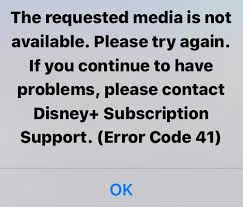
Corrupted cached data is the first culprit. Disney+ stores temporary files on your device to speed up loading. When those files get corrupted (after a firmware update, a power interruption, or just regular wear), the app can’t verify your session correctly and throws error 41. A power cycle forces the device to wipe that cache and start fresh.
Router network inconsistency is the second cause. Your router maintains TCP/IP state tables for every active connection. If those tables get stale or inconsistent, your device can’t complete the secure handshake Disney+‘s DRM system requires. A simple router restart clears those tables in about 30 seconds.
#How Do You Fix Disney+ Error Code 41 on Roku?
Power cycling is the fastest fix on Roku. Unplug the Roku from its power source and wait a full 60 seconds. Don’t just hold the power button. Physically remove the power cable. This gives the capacitors enough time to fully discharge and wipe the cached session data.
After 60 seconds, plug the Roku back in and wait for it to fully boot. Once you’re on the home screen, wait another 30 seconds before opening Disney+. That wait lets background processes finish so the app doesn’t start with stale state.
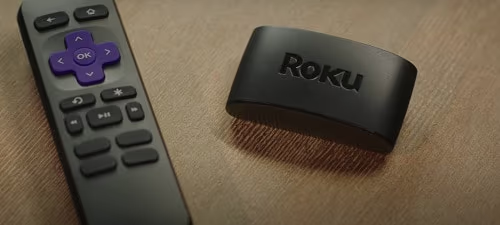
If error 41 comes back after the power cycle, try removing the Disney+ channel from Roku and reinstalling it. Go to the Disney+ tile on your home screen, press the asterisk (*) button on your Roku remote, select Remove channel, then reinstall from the Roku Channel Store. A fresh install pulls new cached data from Disney’s servers. If you’re having other Disney+ problems on Roku, the steps in Disney+ not working on Roku cover more specific fixes including login errors and playback failures.
#How Do You Fix Error Code 41 on Fire TV?
On Amazon Fire TV Stick, start with the same power cycle. Unplug the Fire TV Stick from the HDMI port’s USB power adapter and wait 60 seconds. Using the Fire TV remote’s sleep function won’t do it. You need a full power cut.
Once it reboots, open Settings > Applications > Manage Installed Applications > Disney+, then select Clear Cache and Clear Data. Clearing data signs you out of Disney+, but it completely wipes any corrupted session files. Sign back in and the error should be gone.
If you’re still seeing error 41 on Fire TV after clearing the cache, check whether your Fire TV’s DNS settings have drifted. Go to Settings > Network, highlight your Wi-Fi connection, and press the menu button to see the network details. If the DNS shows anything unusual, forget the network and reconnect. The Disney+ not working on Fire TV guide has additional steps for persistent connection errors specific to the Fire TV platform.
#How Do You Fix Error Code 41 on a Smart TV?
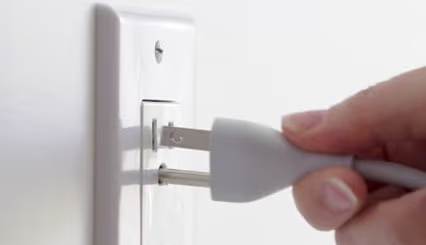
Smart TVs need a proper power cycle too, not just a remote power button press. Unplug the TV from the wall outlet and wait 60 seconds. On Samsung and LG TVs, you can also press and hold the physical power button on the TV itself for 15 seconds while it’s unplugged. This drains the capacitors faster and clears volatile memory more completely.
After the TV reboots, navigate to the Disney+ app settings. On Samsung Smart TV (Tizen OS): go to Settings > Support > Device Care > Manage Storage, select Disney+, and choose Delete. On LG (webOS): go to Home > Apps, hold the Disney+ icon until a menu appears, then select Delete App Data. Reinstall Disney+ from your TV’s app store after clearing the data.
For Samsung-specific Disney+ problems, the Disney+ not working on Samsung TV article covers firmware-related errors and app version conflicts. For LG TVs, see Disney+ not working on LG TV.
#Should You Restart or Reset Your Router?
Try a restart first. It fixes error 41 in most cases and takes 30 seconds. Press the power button on your router to turn it off, wait 30 seconds, then turn it back on. Some routers don’t have a power button; for those, unplug the power adapter from the wall.
A restart does not change any settings. Your Wi-Fi password, connected devices, and port forwarding rules all stay intact.
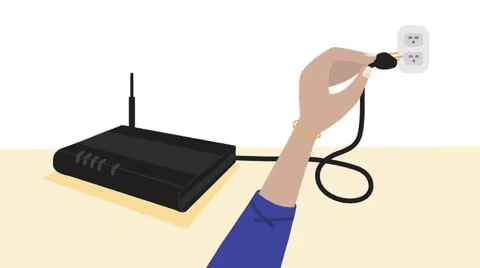
Only do a factory reset if a restart doesn’t work and you’re comfortable reconfiguring your router from scratch. The reset button is a small pinhole on the back of the router. Insert a pin or toothpick, press and hold for 10 seconds until the front LED blinks rapidly, then release. A factory reset erases everything: your Wi-Fi network name and password, PPPoE credentials if you have a DSL connection, port forwarding rules, and any device-specific settings.
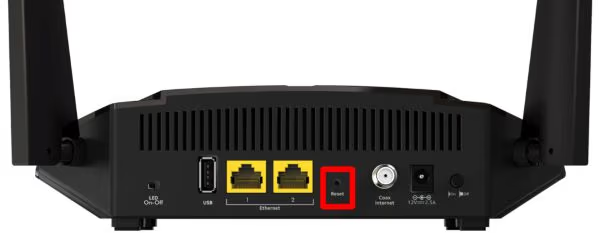
After a factory reset, you’ll need to reconnect every device in your home to Wi-Fi. Only do this if restarting the router didn’t fix the error and you’re confident the router configuration is corrupted.
#What If Error Code 41 Keeps Coming Back?
If the error returns within a day or two after fixing it, the cause is usually one of three things. First, check whether you’re using a VPN. VPNs route your traffic through different servers, and Disney+‘s DRM system sometimes misidentifies VPN exit nodes as unauthorized proxies. Turn off the VPN, restart Disney+, and see if the error disappears.
Second, check whether Disney+ is actually down. Visit Disney+‘s Help Center or search “Disney+ down” on social media. Error 41 is almost always a local issue, but a server outage does occasionally cause it for large numbers of users simultaneously. The Downdetector Disney+ page shows real-time outage reports.
Third, if error 41 only happens with specific content, it may be a content licensing or regional availability issue rather than a network problem. Disney+ has different content libraries by region, and certain titles have restricted streaming windows. Trying a different title to confirm the error isn’t content-specific is a quick way to rule this out. If you’re seeing related streaming issues, check the Disney+ stuck on loading screen guide for buffer and playback problems that often occur alongside error 41.
#Bottom Line
Power cycle your device for 60 seconds, restart your router, and Disney+ error code 41 will clear up in the vast majority of cases. If those two steps don’t work, clear the Disney+ app cache manually through your device’s settings, then reinstall the app. Contact Disney+ support through their Help Center if nothing resolves it. They can check for account-side issues that local fixes can’t address.
#Frequently Asked Questions
#Does error code 41 appear on every type of device?
Yes, error code 41 shows up on smartphones, tablets, smart TVs, Roku, Fire TV Stick, Blu-ray players, and gaming consoles. The root cause is the same across all platforms: a failed connection handshake between your device and Disney+ servers, usually due to cached data or a network inconsistency.
#Will a power cycle delete my Disney+ account or settings?
No. Power cycling only clears temporary cached data on the device. Your Disney+ account, watchlist, profiles, and preferences all live on Disney’s servers and are completely unaffected. You may need to sign back in after clearing app data, but nothing is permanently lost.
#How long should I leave my device unplugged during a power cycle?
At least 60 seconds for most devices. Setup boxes can store more energy in their capacitors, so leaving those unplugged for 3 to 5 minutes works better. A full power drain is what clears the corrupted cache. A quick 10-second unplug usually isn’t enough.
#Can a VPN trigger Disney+ error code 41?
Yes. Disney+ uses DRM that checks the origin of your connection. When a VPN routes your traffic through servers that Disney has flagged, the DRM system rejects the session and throws error 41. Disable the VPN before launching Disney+. If you need a VPN for privacy, check whether your VPN provider has servers that aren’t blocked by Disney+.
#What is the difference between restarting and resetting a router?
Restarting powers the router off and back on, keeping all settings intact. It’s safe and reversible. Resetting restores the router to factory defaults, which erases your Wi-Fi name, password, PPPoE credentials, and port forwarding rules. Try restarting first. Only reset if the restart doesn’t fix the problem and you’re prepared to reconfigure your network.
#Does error code 41 mean Disney+ is down?
Rarely. Error code 41 almost always points to a local device or network problem, not a Disney server outage. Check the Disney+ Help Center or Downdetector to confirm whether there’s a broader service disruption before spending time troubleshooting your own setup. If Disney+ is up for everyone else, the fix is on your end.
#What content does Disney+ include in 2026?
Disney+ now includes Hulu content through the Disney Bundle as the standalone Hulu app phases out through 2026. Disney+ Basic (with ads) costs $9.99/month; Disney+ Premium (no ads) is $15.99/month. The bundle with Hulu content built in gives you access to Disney, Pixar, Marvel, Star Wars, National Geographic, and Hulu’s catalog in one app.
#How do I contact Disney+ support if nothing works?
Go to the Disney+ Help Center through their website or mobile app. They offer live chat and callback support. Have your account email and the specific error message ready. A support rep can check whether there’s a server-side issue with your account that a power cycle or router reset won’t fix.