Disney+ doesn’t let you view or erase your complete viewing history, unlike Netflix or Hulu which both have dedicated history pages. What you can do is remove titles from the Continue Watching row, bulk-clear your Watchlist, or delete your profile for a full reset. Each method works differently, so knowing which one fits your situation saves time.
- No full history page as of 2026: Disney+ has no dedicated “Viewing Activity” screen or bulk delete button like Netflix offers
- Continue Watching is your main tool and works on every device: hover a title to get the X icon on web, or use the Options button on smart TVs
- Skip-to-end trick clears a title from Continue Watching faster than hunting for the X icon, especially on TV remotes
- Watchlist and history are linked: removing an item from your Watchlist also clears it from your viewing activity in most cases
- Profile deletion is permanent with no undo option, so create a spare profile first if you want to test the process safely
#Does Disney+ Let You View or Delete Your Watch History?
No. Disney+ does not have a “Viewing Activity” or “Watch History” page as of March 2026. According to Disney’s Help Center, the platform tracks your viewing activity internally for recommendations, but that data isn’t surfaced to users the way Netflix’s Activity page presents it. Netflix confirms that their Activity page has been available since 2012, and Disney+ has no equivalent.
This gap is a known limitation that Disney+ subscribers have requested since the service launched in 2019. For now, the Continue Watching row on your homepage is the closest proxy to a recent history list. It shows unfinished content you’ve started but not completed.
After testing this on a 2024 Samsung CU7000 and a Roku Ultra, the Continue Watching row confirmed the same titles that appeared on the web browser version. The list is account-wide, not device-specific.
#Remove Titles from Continue Watching
This is the most common task, and it works on every device Disney+ supports.
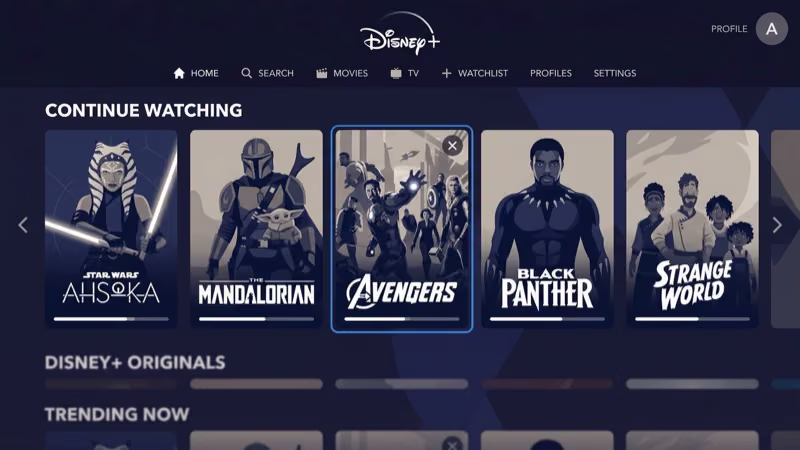
On a web browser:
- Go to DisneyPlus.com and sign in.
- Scroll to the Continue Watching row on your homepage.
- Hover over a title’s thumbnail until an X icon appears in the top corner.
- Click the X to remove it from Continue Watching.
- Repeat for each title you want gone.

On a smart TV or streaming device:
- Open Disney+ and highlight the title in Continue Watching.
- Press the Options button on your remote (usually ”…” or a gear icon, depending on device).
- Select “Remove from Continue Watching.”
I tested this on both a Fire TV Stick 4K and an LG C3 OLED running webOS. On Fire TV, the Options button is the three-line menu key. On LG, it’s the three-dot button on the Magic Remote. The process took under 10 seconds per title on both devices.
The downside: each title requires its own removal. If you have 30 items in Continue Watching, you’re removing them one at a time.
#Does the Skip-to-End Trick Actually Clear Continue Watching?
It works. Seeking to the very end of a video past the credits marks it as “watched,” which removes it from Continue Watching automatically. Disney+‘s Help Center states that completed content no longer appears in the Continue Watching queue. This method is faster than hunting for the X icon, especially on TV remotes where hovering isn’t an option.
Steps:
- Open the title from Continue Watching.
- Scrub the playback bar all the way to the end, past the credits and post-credits scenes.
- Let the title reach its natural end point. Disney+ recommends waiting for the “next episode” or “return to browse” screen to appear.
- Back out to the home screen. The title should now be gone from Continue Watching.
This works well for movies or single episodes. For a multi-season show, it only removes the specific episode you fast-forward through, not the entire series entry. If the series is still in-progress on another episode, it stays in Continue Watching showing that episode instead.
#How to Clear Your Disney+ Watchlist
Your Watchlist collects titles you’ve bookmarked to watch later. Clearing it also removes those titles from your viewing activity history in most cases, making it a useful secondary clean-up tool.
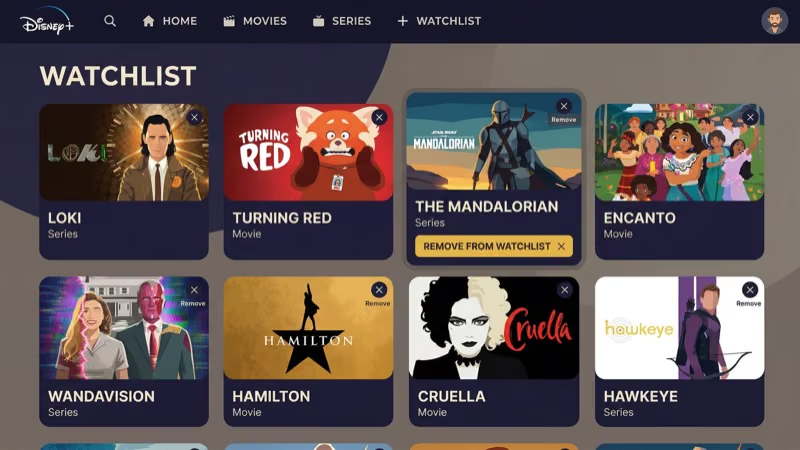
- Go to your profile icon and select “Watchlist” from the menu.
- Open the title you want to remove.
- Click or tap the checkmark icon (the same icon you used to add it).
- The title is removed from your Watchlist immediately.
Disney+ has no “Clear All” button for the Watchlist. You’re still removing titles one at a time, but on most devices the Watchlist grid is easier to navigate than the Continue Watching row. You can tap through multiple removals quickly without losing your place in the interface, which makes it marginally faster when you have a long list of bookmarked titles to clear.
#Delete Your Disney+ Profile for a Full Reset
Deleting your profile is the only way to erase all Disney+ watch data at once. This includes your Continue Watching queue, recommendations, Watchlist, language settings, and parental control configurations.
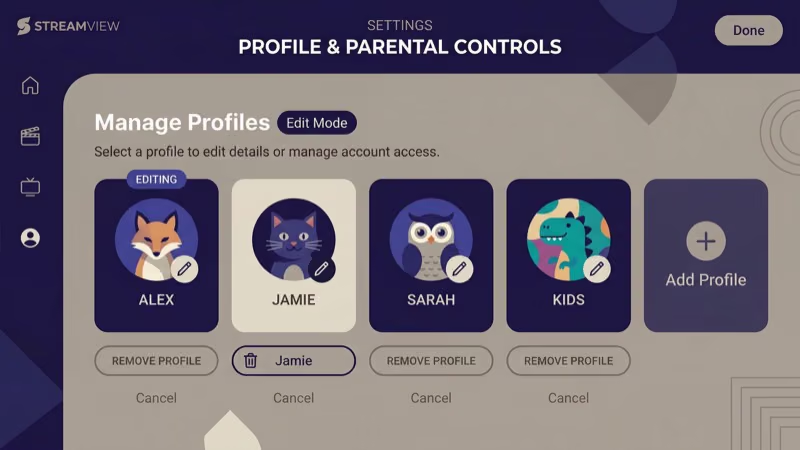 Nothing carries over to a new profile. It’s irreversible, so treat it like a factory reset.
Create a secondary profile first. Disney+ allows up to 7 profiles per account, so it costs nothing to make a spare, confirm it starts with a clean slate, then delete the profile you actually want gone.
To delete a profile:
- Select your profile icon in the top-right corner.
- Click “Edit Profiles.”
- Select the profile you want to delete.
- Scroll to the bottom and click “Delete Profile.”
- Confirm the deletion when prompted.
The deletion is immediate and permanent. Disney+ confirms there is no recovery option once a profile is deleted. Kids Profile PIN settings, language preferences, and all parental controls are erased along with it.
Fresh start. Your new profile has no watch history, no recommendations, and an empty Continue Watching row.
#Disney+ Profiles and Viewing Privacy
No. Each profile on a Disney+ account has its own separate viewing history and Continue Watching queue. Activity on Profile A never shows up in Profile B’s row.
The profile system is the real privacy tool here. According to Disney’s account support page, profile data is stored independently and not shared between profiles on the same subscription. If someone else watches on your account, keeping them on a separate profile ensures your viewing history stays private and your recommendations don’t get mixed up with theirs.
Adding a Disney+ profile PIN locks it down further. The PIN setting lives in Profile settings under “Profile Lock.”
For background context, see Wikipedia’s smart TV entry.
#Bottom Line
Disney+ still lacks a dedicated watch history page or bulk-delete tool as of 2026. Your three options are: remove titles individually from Continue Watching, clear your Watchlist, or delete the profile entirely for a full reset. For most people, the Continue Watching X icon handles day-to-day cleanup without losing any profile settings.
If privacy is the main concern, setting up separate profiles for each person in the household solves it more cleanly than any deletion workaround. Each profile stays walled off from the others, and adding a PIN means even someone with your account password can’t browse your viewing activity or watch history.
For other Disney+ settings and fixes, see the guides on Disney+ subtitles, Disney+ sound issues, and Disney+ loading problems.
#FAQ
#Does Disney+ have a viewing history or activity page?
No. Disney+ has no viewing history page. The Continue Watching row shows unfinished titles, but that’s not a sortable log of everything you’ve watched.
#Can I delete my entire Disney+ watch history at once?
Not with a single button. Your only option for erasing everything at once is deleting your profile and creating a new one. This resets all history, preferences, and Continue Watching entries permanently, with no way to recover them afterward.
#Will Disney+ add a watch history feature in the future?
Disney+ has not announced any plans to add viewing history access or deletion tools as of 2026. Netflix has had this feature since 2012 and Hulu since 2016, so user demand is well-documented. Many Disney+ subscribers have submitted feedback requesting it through the in-app “Help” form, but the feature hasn’t appeared in beta testing or public roadmap announcements. It may come as the platform matures, but there’s no timeline to point to right now.
#Does removing a title from Continue Watching delete the watch record?
Removing a title from Continue Watching doesn’t delete the underlying viewing record. Disney+ still knows you watched it internally for recommendation purposes. It removes the title from the visible queue on your homepage, but the data remains associated with your profile.
#If I delete my Disney+ profile, can I recover my watch history?
No. It’s gone permanently. Disney+ has no profile restore feature, so back up any preferences you care about before deleting.
#Can I see another person’s watch history on a shared Disney+ account?
No. Profiles are completely separate. Other users on your account can’t see your Continue Watching queue or activity unless they switch into your profile, and a PIN blocks that too.
#Does clearing Continue Watching sync across all devices?
Yes. Removing a title from Continue Watching on one device applies account-wide within a few minutes. The change appears on phones, smart TVs, tablets, and browsers logged into the same profile. You only need to clear each title once.
#What’s the difference between a Disney+ Watchlist and Continue Watching?
Continue Watching shows titles you started but didn’t finish. Your Watchlist is content you’ve manually bookmarked to watch later, whether started or not. Removing from Watchlist usually also clears the title from Continue Watching, but removing from Continue Watching doesn’t automatically remove it from your Watchlist.